Do Computer Towers Have Speakers? The Quick Answer
If you are wondering, do computer towers have speakers, the direct answer is usually no. Most modern desktop computers do not include built-in multimedia speakers for playing music, videos, or game audio.
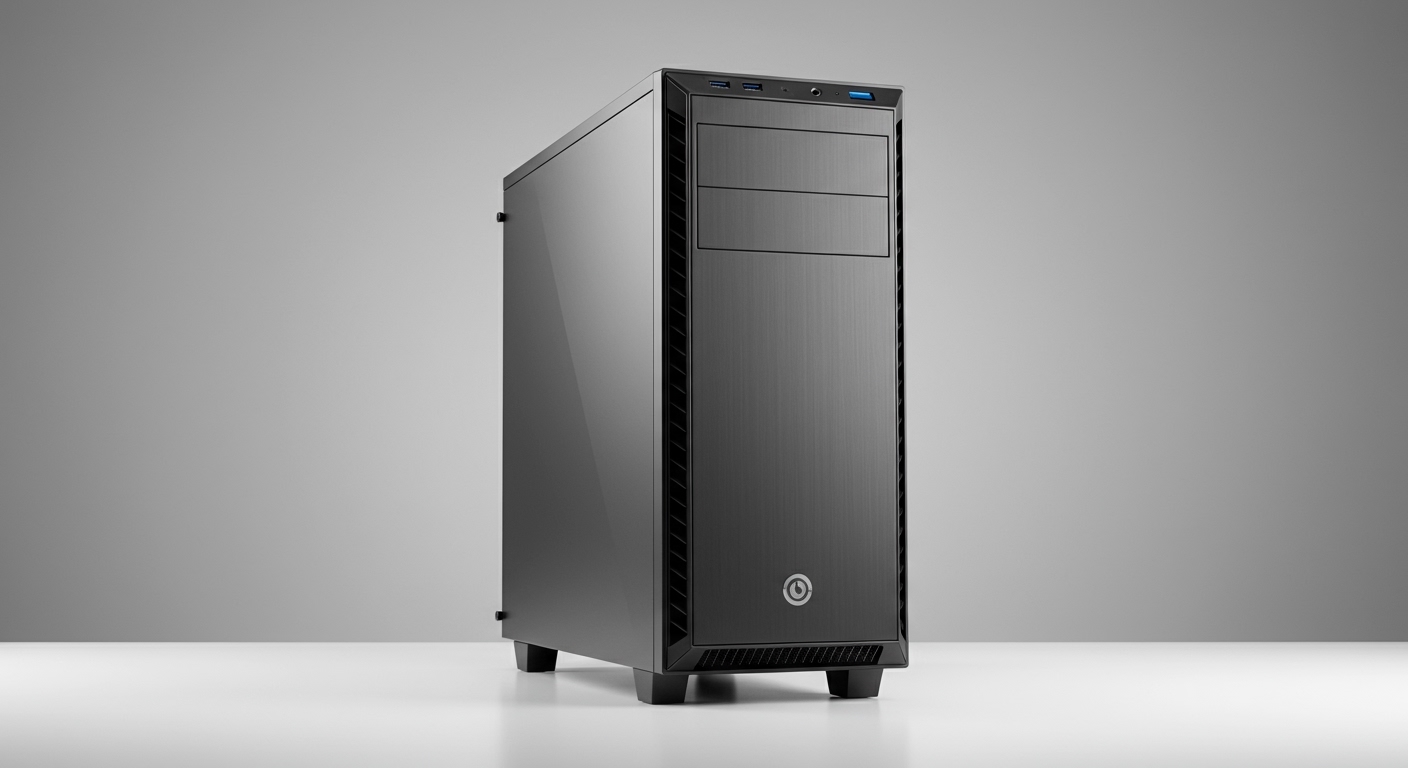
Instead, they often contain a tiny, internal motherboard speaker (or buzzer) solely designed to emit diagnostic “beeps” when the computer turns on. If you want to listen to a YouTube video or play a game, you will almost always need to connect an external audio device.
In my 15 years of building custom rigs and setting up enterprise workstations, the most common mistake I see new users make is expecting cinematic sound directly from their new PC case. Below is exactly what you need to know to get your desktop audio up and running.
TL;DR / KEY TAKEAWAYS:
- Media Audio: Standard computer towers do not have built-in speakers for media playback.
- Diagnostic Audio: Many towers have a microscopic internal buzzer for Power-On Self-Test (POST) error codes.
- Enterprise Exceptions: Some business-class PCs (like the Dell OptiPlex or Lenovo ThinkCentre) feature low-quality internal speakers for basic notification sounds.
- The Solution: You must connect external speakers, a headset, or a monitor with built-in speakers to hear music and media.
- Connections: You can route audio via a 3.5mm audio jack, USB, Bluetooth, or an HDMI/DisplayPort cable connected to a monitor.
Why You Ask: Do Computer Towers Have Speakers Built-In?
The confusion around this topic stems from the early days of personal computing. In the 1990s, the “PC speaker” was the primary way computers made sound, playing monophonic beeps and boops for MS-DOS games.
As technology advanced, motherboards began including dedicated audio processing chips. However, case manufacturers realized that putting high-quality speakers inside a rattling metal box resulted in terrible acoustics.
Today, PC manufacturers prioritize airflow, cooling, and cable management inside the tower. Leaving out bulky internal speakers keeps costs down and allows users to choose their own high-fidelity audio equipment.
The Difference Between Internal Motherboard Speakers and Media Speakers
To truly understand desktop audio, you need to know the difference between the two types of speakers associated with PCs. During my hardware testing, I constantly rely on the internal buzzer to diagnose failing RAM or dead motherboards.
Here is a breakdown of the differences:
| Feature | Internal Motherboard Speaker (Buzzer) | External Multimedia Speakers |
|---|---|---|
| Primary Purpose | Hardware diagnostics and error codes (POST beeps). | Playing music, movies, gaming audio, and voice calls. |
| Location | Plugged directly into motherboard header pins. | Sitting on your desk or built into your monitor. |
| Audio Quality | Extremely low; only capable of simple, single-tone beeps. | High-fidelity; capable of stereo, surround sound, and deep bass. |
| Connection Type | 4-pin internal motherboard header. | 3.5mm Aux, USB, Bluetooth, or Optical (TOSLINK). |
| Volume Control | Fixed volume; cannot be adjusted in Windows/macOS. | Fully adjustable via operating system or physical knobs. |
How to Check if Your Computer Tower Has Speakers (Step-by-Step)
If you are using an office computer, there is a small chance it has a rudimentary internal speaker for media. Here is exactly how to check your system.
Step 1: Check Your Playback Devices in Windows
Turn on your PC and look at the bottom right corner of your taskbar. Click on the speaker icon. If your system lists a device named “Internal Speaker” or “System Speaker,” you might have built-in audio. If it only says “Realtek Digital Output” or “No Audio Device is Installed,” your tower lacks speakers.
Step 2: Inspect the PC Case for Grilles
Look closely at the front and sides of your computer tower. Do you see a dedicated, mesh speaker grille? Business machines like the HP ProDesk sometimes hide a small speaker behind the front plastic bezel. Custom gaming cases from brands like Corsair or NZXT will never have these.
Step 3: Listen for the Boot Beep
Restart your computer. Right before the Windows logo appears, listen closely. If you hear a short, sharp “beep,” your computer has a diagnostic motherboard speaker. This beep indicates that your CPU, GPU, and RAM have passed the initial hardware check.
Step 4: Check Your Monitor Setup
Often, users think their tower has speakers, but the sound is actually coming from their display. Look at the back of your monitor. If you are connected via HDMI or DisplayPort, these cables carry audio signals directly to the built-in speakers on your screen.
How to Get Sound if Your Computer Tower Doesn’t Have Speakers
Once you realize your tower is silent, you need to choose an external audio solution. Depending on your budget and desk space, you have four main options.
External Desktop Speakers (2.0 or 2.1 Systems)
This is the most common setup for desktop users. A 2.0 system consists of two stereo speakers (left and right). A 2.1 system adds a subwoofer for deep bass, which is ideal for gaming and movies. Brands like Logitech, Creative, and Edifier offer excellent entry-level options.
Monitors with Built-In Speakers
If you want a clutter-free desk, check if your monitor has built-in speakers. While the audio quality is usually mediocre (lacking bass and clarity), it is perfectly fine for office work, Zoom calls, and casual YouTube viewing. You activate this by selecting your monitor in your computer’s sound settings.
PC Soundbars
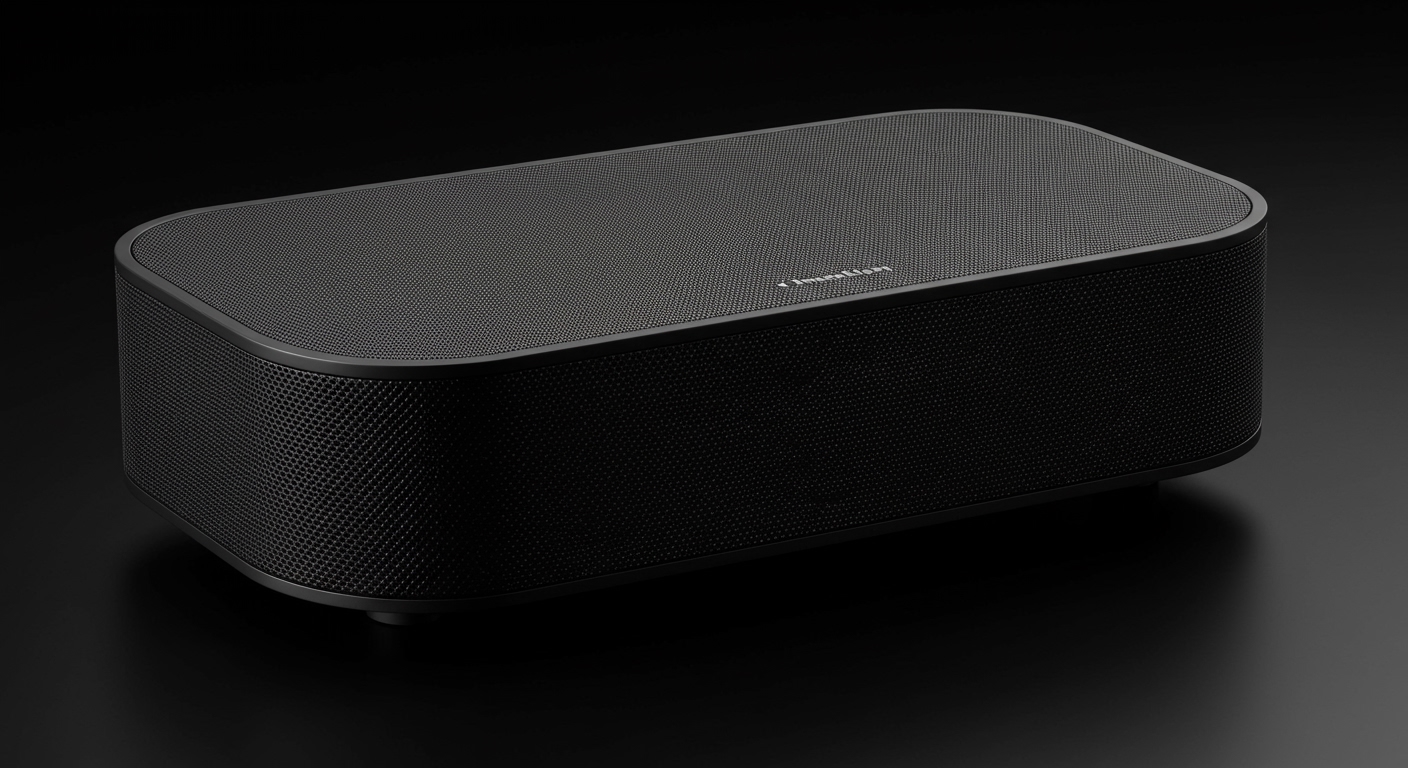
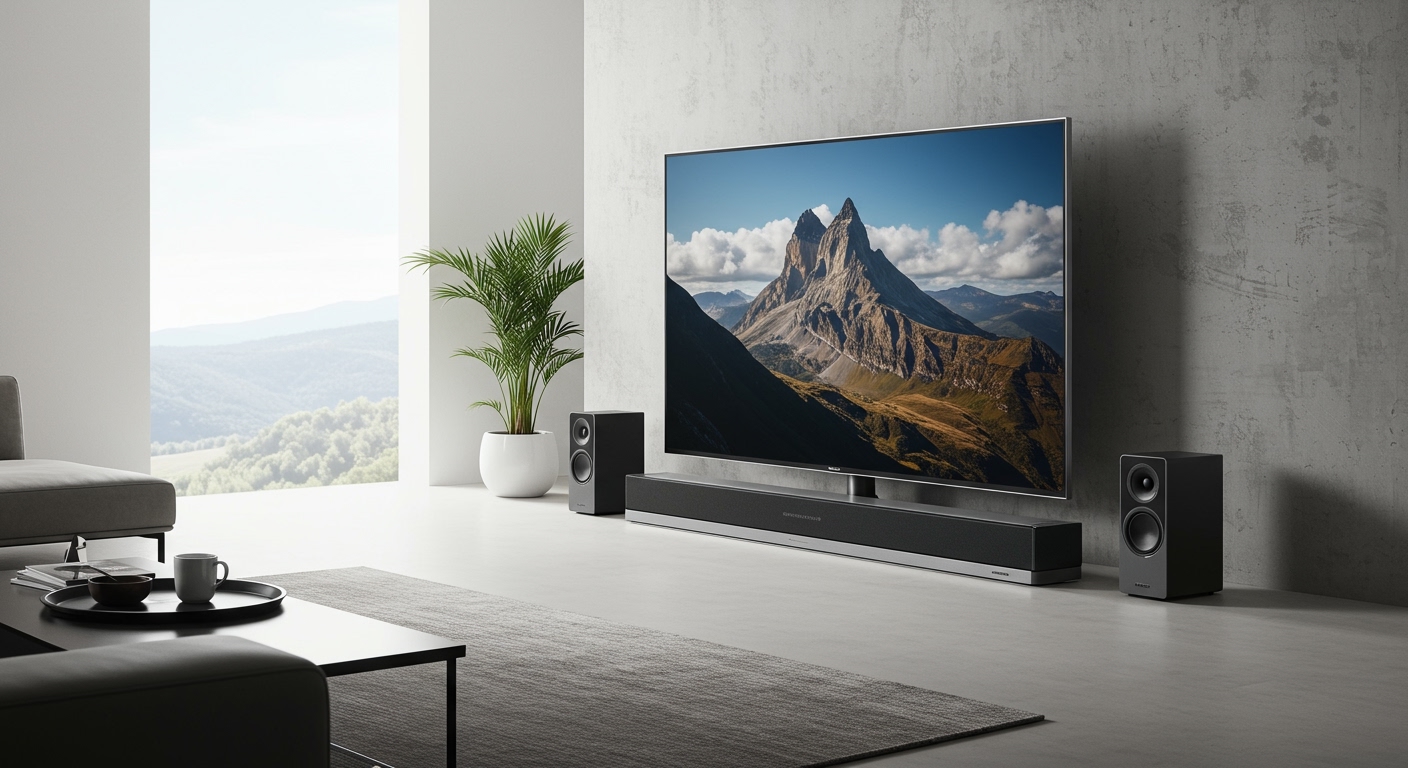
Similar to television soundbars, PC soundbars sit directly under your monitor. They provide a massive upgrade over monitor speakers without taking up the desk space required by a traditional 2.0 or 2.1 speaker system. Many modern PC soundbars connect via a single USB-C cable for both power and audio.
Gaming Headsets and Headphones
If you play competitive multiplayer games or work in a shared office, a headset is your best choice. Headsets provide immersive audio, positional tracking for gaming, and include a microphone for communication. They can connect via a 3.5mm jack, USB dongle, or wireless Bluetooth.
Audio Port Color Guide: Where to Plug In Your Speakers
If you purchased external speakers, looking at the back of your computer tower can be intimidating. Most modern motherboards have a cluster of colored audio jacks.
Based on my experience setting up hundreds of workstations, plugging into the wrong port is the number one cause of “no sound” errors. Here is a quick reference table to ensure you plug your devices into the correct jacks:
| Port Color | Function | What to Plug In |
|---|---|---|
| Green | Line Out / Front Speaker Out | Standard desktop speakers or headphones. (Start here!) |
| Pink | Microphone In | Standalone microphones or the mic cable from a PC headset. |
| Blue | Line In | Audio players, instruments, or external sound sources for recording. |
| Black | Rear Speaker Out | Rear speakers in a 4.0, 5.1, or 7.1 surround sound setup. |
| Orange | Center / Subwoofer Out | The center channel speaker and subwoofer in a surround setup. |
| Silver/Gray | Side Speaker Out | Side speakers in an advanced 7.1 surround sound system. |
Step-by-Step Guide: How to Set Up External PC Audio
Now that you have chosen your external speakers or headphones, you need to