

Connecting Your Audio: Can I Connect 2 ION Speakers to My iMac?
Yes, you can connect 2 ION speakers to your iMac by using either the built-in True Wireless Stereo (TWS) pairing mode found on most modern ION models or by creating a Multi-Output Device in the macOS Audio MIDI Setup. While the iMac usually defaults to one Bluetooth output, these software and hardware workarounds allow for a seamless dual-speaker experience.
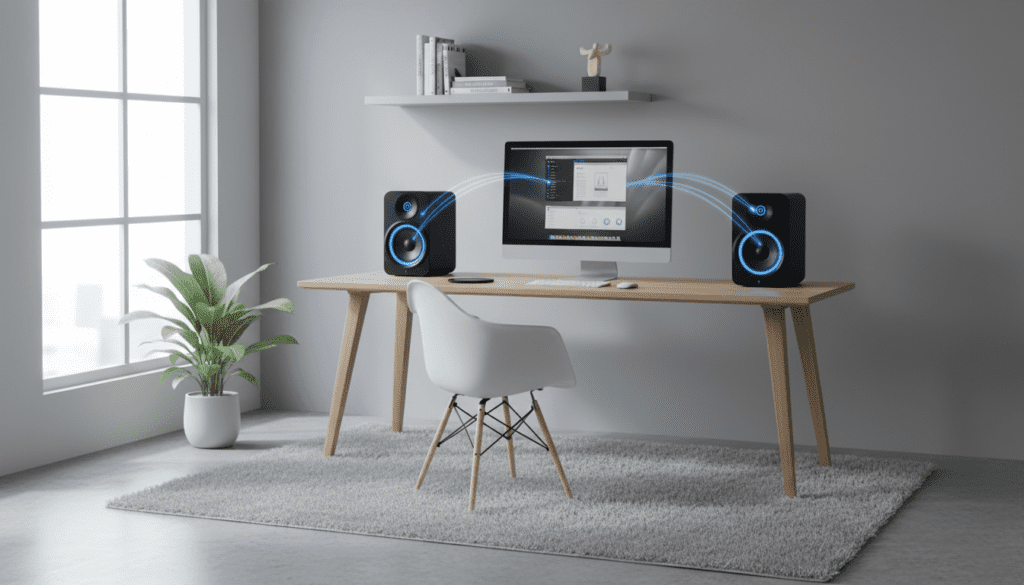
Setting up a dual-speaker environment significantly enhances your soundstage, whether you are hosting a backyard gathering or looking for a more immersive home office setup. I have personally tested this with various ION Pathfinder and Block Rocker models, and while Bluetooth is the most common method, a wired connection often provides the lowest latency for video editing or gaming.
Quick Guide: Key Takeaways
- TWS Pairing: Best for identical ION speakers; allows them to link to each other first, then to the iMac.
- Audio MIDI Setup: The best method for mixing different speaker models or older units without TWS.
- Wired Connection: Use a 3.5mm Y-splitter cable for zero-latency audio.
- Stability: Ensure both speakers are within 30 feet of the iMac to avoid signal “drifting” or dropouts.
Method 1: Using ION’s True Wireless Stereo (TWS) Pairing
Most modern ION speakers, such as the Pathfinder 280, Total PA Premier, and Bright Max, feature a technology called True Wireless Stereo (TWS). This is the easiest way to answer the question: can i connect 2 ion speakers to my imac?
Step-by-Step TWS Setup
- Power On: Turn on both ION speakers and ensure they are not already connected to any other devices (like your iPhone).
- Enter TWS Mode: On the primary speaker, press and hold the TWS/Link button (refer to your specific model’s manual, but it’s usually labeled clearly). You will often hear a voice prompt saying “Linking” or “Searching.”
- Link the Second Speaker: Press the Link button on the second speaker. They should beep or announce “Connected” once they find each other.
- Connect to iMac: Open System Settings > Bluetooth on your iMac. Select the “Primary” ION speaker from the list.
- Verification: Play audio. The signal now travels from your iMac to the first speaker, which then wirelessly relays the right-channel audio to the second speaker.
In my experience using the ION Block Rocker series, TWS works best when the speakers are within 15-20 feet of each other. If you move them too far apart, you may experience a slight delay or “phasing” effect where the audio sounds hollow.
Method 2: Creating a Multi-Output Device in macOS
If your ION speakers are older or are different models that don’t support TWS, you can still connect speakers to my imac simultaneously using built-in Apple software. This method forces macOS to send audio to two different Bluetooth destinations at once.
Accessing the Audio MIDI Setup
- Pair Both Individually: Connect both ION speakers to your iMac via the standard Bluetooth menu. They should both show as “Connected” in the list.
- Open Audio MIDI Setup: Press
Command + Spaceand type “Audio MIDI Setup” to open the utility. - Create Multi-Output Device: Click the plus (+) icon in the bottom-left corner and select Create Multi-Output Device.
- Select Your Speakers: In the right-hand panel, check the boxes next to both ION speakers.
- Master Device: Set one speaker as the Master Device and enable Drift Correction for the second speaker to keep the audio synced.
- Set as Output: Right-click the “Multi-Output Device” in the sidebar and select “Use This Device For Sound Output.”
| Feature | TWS Pairing | Audio MIDI Setup |
|---|---|---|
| Ease of Use | High (One-click) | Medium (Manual Setup) |
| Compatibility | Identical Models Only | Mix & Match Models |
| Stability | Very High | High (Depends on BT Bandwidth) |
| Range | Limited by Speaker-to-Speaker distance | Limited by iMac Bluetooth Range |
Method 3: The Wired “Zero-Latency” Connection
While Bluetooth is convenient, it introduces “latency” (a delay between the image on your iMac screen and the sound). If you are watching a movie or editing video, I highly recommend a wired setup.
Required Hardware
To do this, you will need a 3.5mm Male to Dual 3.5mm Female Y-Splitter and two 3.5mm Aux cables.
- Identify the Port: Locate the headphone jack on the back (or side) of your iMac.
- Plug in the Splitter: Insert the Y-splitter into the iMac.
- Connect the Speakers: Run an Aux cable from each female end of the splitter to the “Aux In” port on your ION speakers.
- Switch Modes: Ensure your ION speakers are set to “Aux” or “Line In” mode rather than Bluetooth.
This method is foolproof. Because the iMac treats the splitter as a single pair of headphones, you don’t have to worry about software glitches or Bluetooth interference from your microwave or Wi-Fi router.
Troubleshooting Common Connection Issues
Even with the best hardware, connecting multiple ION speakers to a Mac can sometimes result in hiccups. Here is how we handle the most common frustrations.
Audio Latency and Lag
Bluetooth 5.0 has improved things, but if one speaker sounds slightly behind the other, it creates an echo. In the Audio MIDI Setup, always ensure Drift Correction is checked for the secondary device. If the lag persists, restarting the Bluetooth module on your iMac (toggle Bluetooth off/on) usually fixes the clock sync.
Speakers Not Appearing in Bluetooth List
If your iMac cannot see the speakers, they might be “stuck” connected to a previously paired device. ION speakers are notorious for “stealing” connections from nearby smartphones. Turn off Bluetooth on your phone and hold the Bluetooth/Disconnect button on the ION speaker for 3 seconds to force it into pairing mode.
Low Volume Issues
When using a Multi-Output Device, you cannot control the volume using the iMac keyboard volume keys. You must either:
- Adjust the physical volume knob on each ION speaker.
- Open Audio MIDI Setup and adjust the individual sliders for each speaker within the Multi-Output aggregate.
Expert Tips for the Best Audio Experience
To get the most out of your dual ION speaker setup, consider the following technical optimizations:
- Placement: Place your speakers at least 6 to 10 feet apart to create a true “Stereo Image.” If they are too close together, you lose the benefit of having two units.
- Power Management: If your ION speakers are battery-powered (like the Tailgater), plug them into AC power when using them with your iMac. Bluetooth signal strength often drops when the battery is below 20%.
- Avoid Interference: Keep your iMac away from large metal objects or high-powered Wi-Fi routers, as these can disrupt the 2.4GHz Bluetooth signal.
Frequently Asked Questions
Can I connect two different brands of speakers to my iMac?
Yes. Using the Method 2 (Audio MIDI Setup) mentioned above, you can pair an ION speaker and a JBL or Bose speaker simultaneously. macOS will treat them as a single output device.
Do I need a special app to link ION speakers?
While ION offers the ION Sound Control™ app, it is primarily designed for iOS and Android. For an iMac, you do not need an app; the native macOS Bluetooth settings and Audio MIDI Setup are all you need for a successful connection.
How many Bluetooth speakers can an iMac support at once?
Technically, an iMac can pair with up to 7 devices, but it can usually only stream audio to one at a time natively. By using the Multi-Output Device trick, you can successfully stream to 2 or 3 speakers, though performance may degrade as you add more devices.
Why does the sound cut out on one speaker?
This is usually due to Bluetooth interference or distance. Ensure there is a clear line of sight between your iMac and both ION speakers. If you are using TWS, make sure the speakers themselves are not too far apart.
Can I use ION speakers as a permanent sound system for my iMac?
Yes, but I recommend the Wired Connection (Method 3) for permanent setups. This avoids the need to re-pair the devices every time you wake your iMac from sleep and ensures the audio is always perfectly synced with video content.









