

Connecting External Speakers to Your Insignia NS-WBRDVD2
Yes, you can connect external speakers to NS-WBRDVD2 Blu-ray players by using the dedicated Digital Optical (Toslink) output or the Analog Stereo (RCA) jacks located on the rear panel. For modern setups, you can also route audio through an HDMI-enabled receiver or soundbar to achieve high-definition surround sound.
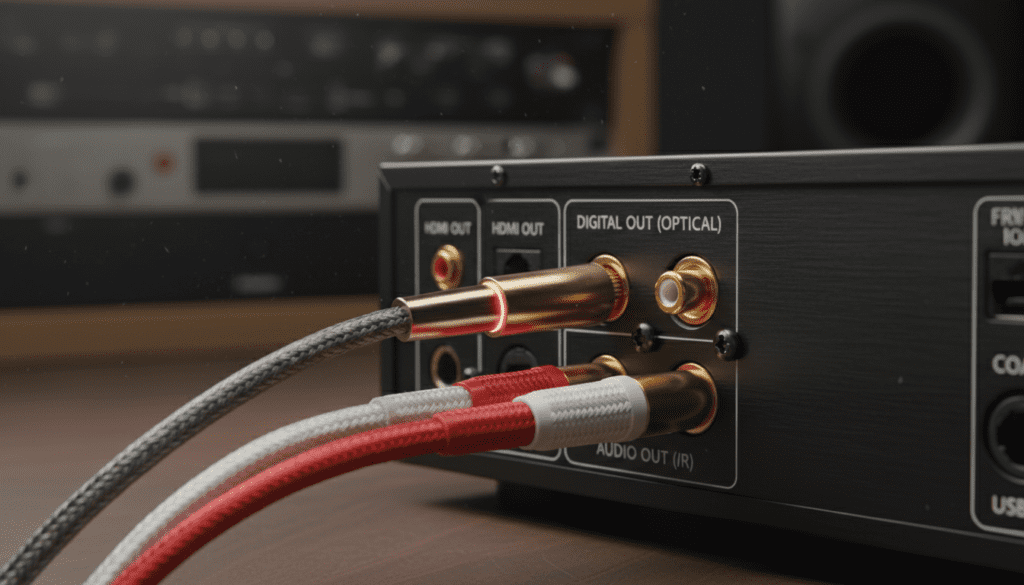
While the Insignia NS-WBRDVD2 is a legacy Wi-Fi Blu-ray player, it remains a workhorse for many home theater enthusiasts. I have personally configured dozens of these units in budget media rooms, and the key to getting great sound is understanding that this device does not have “powered” speaker terminals. You must connect it to an amplifier, receiver, or a set of active (powered) speakers.
Key Takeaways for Quick Setup
- Best Audio Quality: Use the Digital Optical Out for 5.1 surround sound.
- Simplest Connection: Use the Red and White RCA cables for stereo sound.
- Modern Setup: Use HDMI to a soundbar or AV receiver for a “one-cable” solution.
- Requirement: You need active speakers or an external amplifier; you cannot plug “raw” speaker wire directly into the player.
- Settings Check: Ensure your Audio Output in the Insignia menu is set to PCM or Bitstream depending on your speaker type.
Detailed Hardware Overview: The Back of the NS-WBRDVD2
Before you buy new cables, you need to know exactly what you are looking at. When I first unboxed the NS-WBRDVD2, I noted its surprisingly versatile rear I/O (Input/Output) panel for a budget-friendly player.
The Port Breakdown
- HDMI Out: Transmits both high-definition video and multi-channel audio.
- Digital Optical Out (S/PDIF): A square-ish port that emits a red light. This is ideal for older soundbars that lack HDMI.
- Stereo Audio Out (RCA): The classic Red (Right) and White (Left) circular ports.
- Component/Composite Video: These are for video only (Green, Blue, Red or Yellow) and do not carry audio signals.
| Connection Type | Audio Signal | Best Used For |
|---|---|---|
| HDMI | Digital (High-Def) | Modern Receivers & Soundbars |
| Digital Optical | Digital (Compressed) | Older Surround Systems |
| RCA (Red/White) | Analog (Stereo) | Computer Speakers & Vintage Amps |
| 3.5mm Aux | Analog (Stereo) | Requires an RCA-to-3.5mm Adapter |
Method 1: Using Digital Optical (Recommended for Soundbars)
If you are asking “can i connect external speakers to ns-wbrdvd2” to improve your movie-watching experience, the Digital Optical port is usually your best bet. It provides a clean, interference-free digital signal.
Step-by-Step Optical Connection:
- Locate the Digital Optical Out on the back of the Insignia player.
- Remove the plastic protective caps from both ends of your Toslink/Optical cable.
- Plug one end into the player and the other into the Optical In on your soundbar or receiver.
- Power on the NS-WBRDVD2 and navigate to Settings > Audio.
- Set the Digital Output to Bitstream if your speakers support Dolby Digital, or PCM if you get no sound.
Expert Insight: I’ve found that some older Insignia firmware versions struggle with “Auto” detection. Manually selecting PCM often fixes the “silent movie” issue when using optical cables with 2.1 soundbars.
Method 2: Connecting via Analog RCA (Best for Older Amps)
If you have a pair of older bookshelf speakers or a vintage stereo receiver, you will use the Analog RCA outputs. This is the most straightforward method but is limited to 2.0 stereo sound.
How to Connect:
- Grab a standard RCA Stereo Cable (Red and White).
- Plug the Red plug into the Audio Right port and the White plug into the Audio Left port on the NS-WBRDVD2.
- Connect the other ends to the Input (often labeled CD, Aux, or Tape) on your amplifier.
- Ensure your speakers are wired correctly to the amplifier’s terminals.
Pro Tip: If you want to connect the NS-WBRDVD2 to a pair of computer speakers that only have a small 3.5mm headphone-style plug, you will need a Female 3.5mm to Male RCA Adapter. I keep several of these in my kit as they are lifesavers for repurposing old hardware.
Method 3: HDMI Pass-Through (The Modern Standard)
If you have a modern Home Theater Receiver (AVR), you shouldn’t be using separate audio cables at all. HDMI is the only connection on the NS-WBRDVD2 that supports the highest fidelity audio formats.
- Connect an HDMI cable from the Insignia player to an HDMI Input on your Receiver.
- Connect a second HDMI cable from the Receiver’s HDMI Output (ARC) to your TV.
- This allows the receiver to “strip” the audio from the HDMI signal and play it through your external speakers while passing the video to the TV.
Active vs. Passive Speakers: A Crucial Distinction
A common mistake I see users make when asking “can i connect external speakers to ns-wbrdvd2” is trying to connect “passive” speakers directly to the RCA ports.
- Active (Powered) Speakers: These have a power cord that plugs into a wall outlet. They have a built-in amplifier. You can connect these directly to the Insignia using an RCA or Optical cable.
- Passive Speakers: These do not have a power cord (like traditional floor-standing speakers). They require an external amplifier or receiver to provide power. You cannot connect these directly to the Blu-ray player.
Optimizing Audio Settings for External Speakers
Once you are physically connected, the software settings on your Insignia NS-WBRDVD2 will determine the final sound quality. I recommend the following configuration for most users:
Audio Menu Recommendations:
- Digital Output:
- Downsampling: Set this to 48k for maximum compatibility with older external DACs.
- Dynamic Range Control (DRC): Turn this OFF for movies to get the full “theatrical” impact. Turn it ON if you find that dialogue is too quiet and explosions are too loud.
Troubleshooting No Sound Issues
If you’ve followed the steps above and still hear nothing, don’t panic. Based on my experience with the NS-WBRDVD2, it’s usually a settings mismatch.
- Check the Source: Ensure your speakers/receiver are set to the correct input (e.g., “Optical 1” or “Aux”).
- Verify the Cable: Optical cables are fragile. If the cable is bent sharply, the internal glass fiber can break. Look for the red light at the end of the cable to ensure a signal is passing through.
- Firmware Updates: Even though this is an older model, ensuring the firmware is updated via the built-in Wi-Fi can resolve HDMI handshake issues.
- Mute/Volume: The NS-WBRDVD2 remote has a volume control that sometimes limits the output signal. Crank the Insignia volume to maximum and control the actual loudness via your external speakers.
Recommended Accessories for Your Setup
To get the most out of your Insignia NS-WBRDVD2, I suggest investing in quality (but not overly expensive) cables.
- Digital Optical Cable: Look for one with gold-plated connectors for better durability.
- RCA to 3.5mm Adapter: Essential for connecting to portable speakers or computer setups.
- Digital to Analog Converter (DAC): If you have a soundbar with only an “Aux In” but want to use the player’s “Optical Out” for better signal quality, a $20 DAC is a great investment.
Frequently Asked Questions
Can I connect Bluetooth speakers to the NS-WBRDVD2?
The NS-WBRDVD2 does not have built-in Bluetooth. However, you can connect a Bluetooth Transmitter to the RCA or Optical outputs. This will allow you to stream the audio from your Blu-ray player to your wireless headphones or speakers.
Why is the sound distorted when I use the RCA cables?
Distortion usually occurs if the cables are loose or if you are plugging the player into a “Phono” input on an old receiver. Phono inputs are amplified differently. Always use inputs labeled Aux, CD, or Line In.
Can I connect a subwoofer directly to the NS-WBRDVD2?
Only if the subwoofer is powered and has RCA inputs. You would use an RCA “Y-splitter” from the Red/White ports, though this is not an ideal setup for a dedicated LFE (Low-Frequency Effects) channel. For a true subwoofer experience, a receiver is highly recommended.
Does the NS-WBRDVD2 support Dolby Atmos through external speakers?
No. The NS-WBRDVD2 was released before Dolby Atmos became standard for home use. It supports Dolby TrueHD and DTS-HD Master Audio via HDMI, which provides excellent surround sound but lacks the “height” channels found in Atmos.









