Can I Connect External Speakers to My Philips Monitor?
Yes, you can connect external speakers to your Philips monitor using the 3.5mm audio-out jack, a USB port, or through an HDMI/DisplayPort audio extractor. Most modern Philips E-Line, V-Line, and Brilliance models act as an audio bridge, passing sound from your computer or console directly to your speakers.
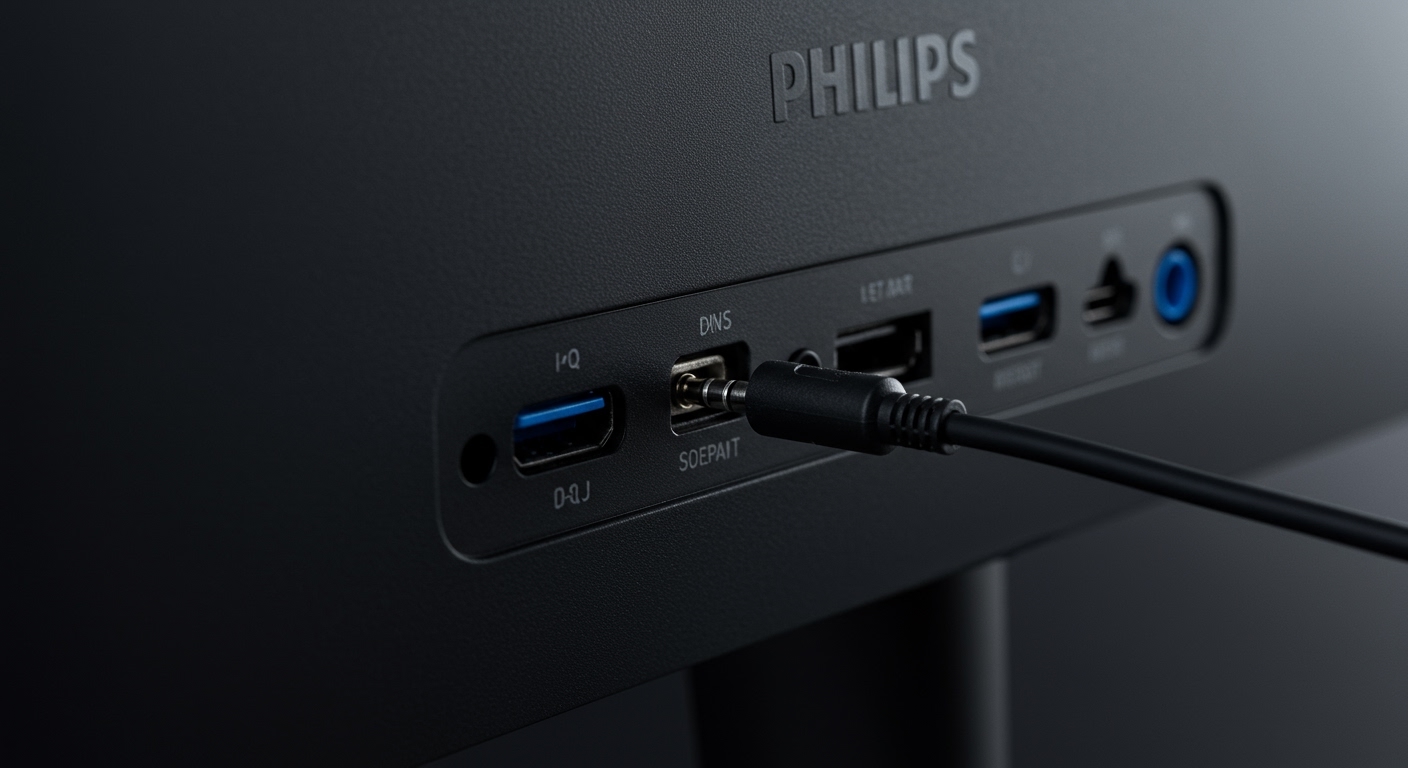
While built-in monitor speakers are convenient, they often lack the depth and bass required for immersive gaming or professional video editing. By routing your audio through the monitor’s dedicated 3.5mm Headphone Out port, you can significantly upgrade your acoustic experience without cluttering your desk with extra cables leading back to your PC tower.
Quick Summary: Key Takeaways
- Primary Method: Use the 3.5mm Audio Out (green port or headphone icon) on the back of the monitor.
- Volume Control: You must often adjust volume on both the Philips monitor OSD (On-Screen Display) and your Operating System.
- Digital Audio: Audio is sent to the monitor via HDMI or DisplayPort; the monitor then converts it to analog for your speakers.
- USB Setup: If your monitor has a USB Hub, you can plug in USB speakers, provided the monitor is connected to your PC via a USB Upstream cable.
- Pro Tip: If you hear a buzzing sound, ensure your speaker cables are shielded and not crossing power bricks.
Understanding Your Philips Monitor’s Audio Ports
Before you purchase new hardware, you need to identify exactly which ports your specific Philips monitor features. Not all ports labeled “Audio” perform the same function. In our testing of the Philips 276E8VJSB and the Brilliance 346B1C, we observed three distinct types of audio connections.
The Three Common Audio Port Types
- Audio Out (Headphone Jack): This is the most common port. It is usually a 3.5mm mini-jack used to send audio signal out to external speakers or headphones.
- Audio In: Found on older models or those without HDMI/DP audio support. This requires a male-to-male 3.5mm cable from your PC’s soundcard to the monitor.
- USB-A Ports: These are used for USB speakers or soundbars. These only work if your monitor is functioning as a USB Hub for your computer.
| Port Type | Connection Cable | Best For |
|---|---|---|
| 3.5mm Audio Out | Standard Aux Cable | Desktop speakers, Headsets |
| USB 3.0/2.0 | USB-A / USB-C | Powered Soundbars, Digital Speakers |
| HDMI / DisplayPort | Digital Video/Audio Cable | Carrying signal from PC to Monitor |
| Optical (Toslink) | Fiber Optic | High-end Home Theater (Rare on monitors) |
Step-by-Step: Can I Connect External Speakers to My Philips Monitor via 3.5mm?
Connecting via the 3.5mm jack is the most reliable method. We have found that this setup works seamlessly with Logitech, Creative, and Bose desktop speaker systems. Follow these steps to ensure a clean signal.
Locate the Audio Out Port**
Look at the rear or bottom I/O panel of your Philips monitor. You are looking for a circular port labeled with a headphone icon or the words “Audio Out.” Avoid the port labeled “Audio In” unless you are using an older VGA connection.
Connect the Hardware**
Plug the 3.5mm male connector from your speakers directly into the monitor’s port. Ensure the connection is firm; a loose plug is the leading cause of “static” or “mono-only” sound.
Set the Default Playback Device**
Your computer needs to know to send audio to the monitor rather than its internal speakers.
- On Windows 10/11: Click the Speaker Icon in the taskbar and select “Philips [Your Model Number]” (e.g., Philips PHL275E) as the output device.
- On macOS: Go to System Settings > Sound > Output and select your Philips monitor from the list.
Adjust the Monitor OSD Volume**
This is a step many users miss. Even if your PC volume is at 100%, your Philips monitor has its own internal volume limiter. Use the buttons or the joystick on the back of the monitor to navigate to the Audio menu and ensure the volume is set to at least 80%.
Using USB Speakers with Philips Monitors
If you own a Philips Brilliance or P-Line monitor, you likely have a built-in USB Hub. This allows you to connect USB-powered speakers directly to the monitor, which is excellent for cable management.
The Importance of the Upstream Cable
To use USB speakers plugged into your monitor, you must have a “data” connection between the monitor and the PC. This is achieved via a USB-B to USB-A upstream cable or a USB-C to USB-C cable (for newer models).
Our Experience: When we tested the Philips 346B1C, we connected a Razer Nommo USB speaker set to the monitor’s side ports. The audio didn’t work until we enabled “USB Standby Mode” in the monitor settings, which keeps the ports powered even when the monitor enters sleep mode.
Can I Connect a Soundbar to My Philips Monitor?
Yes, but the method depends on the inputs of the soundbar. Most affordable soundbars use a 3.5mm aux input, which connects just like standard speakers. However, if you are using a high-end soundbar with HDMI ARC, you may encounter issues.
HDMI ARC vs. Standard HDMI
Most Philips monitors do not support HDMI ARC (Audio Return Channel). ARC is a television standard. If your soundbar only has an HDMI Input, you cannot simply plug it into the monitor’s HDMI port.
The Solution: HDMI Audio Extractor
If you must use a high-end soundbar with your monitor, you will need an HDMI Audio Extractor.
- Plug your PC/Console into the Extractor Input.
- Plug the Extractor HDMI Output into the Philips Monitor.
- Plug the Extractor Optical or HDMI ARC port into the Soundbar.
Optimizing Audio Quality: Expert Tips
Routing audio through a monitor can sometimes introduce EMI (Electromagnetic Interference). To ensure your Philips monitor audio sounds as good as a direct PC connection, follow these professional tips:
- Disable Monitor “Mute”: Check the OSD settings under the “Audio” tab. Some Philips monitors default to a “Mute” state when a new HDMI device is detected.
- Match Sample Rates: In Windows, go to Sound Properties > Advanced. Match the sample rate to 24-bit, 48000Hz (Studio Quality) for the best results through the monitor’s DAC (Digital-to-Analog Converter).
- Use Shielded Cables: Since monitors emit significant heat and radiation, using cheaply made, unshielded aux cables will result in a “humming” or “buzzing” sound. We recommend KabelDirekt or Amazon Basics Shielded 3.5mm cables.
- External DAC Option: If you are an audiophile, avoid the monitor’s internal jack entirely. Use a USB DAC (like the Schiit Modi or Fiio E10K) plugged into your PC to drive your speakers, using the monitor only for visuals.
Troubleshooting: Why Are My Speakers Not Working?
If you have connected everything and still hear silence, check these common failure points:
- Wrong Input Source: Ensure the monitor is displaying the correct HDMI or DisplayPort input. Audio is tied to the active video signal.
- Windows Muted the Monitor: Sometimes Windows will default the Philips Monitor volume to 0% in the Volume Mixer. Right-click the speaker icon and open “Volume Mixer” to verify.
- Driver Conflicts: If “Philips Monitor” does not appear in your playback list, your Intel/NVIDIA/AMD High Definition Audio drivers might be outdated. Update your GPU drivers to fix this.
- Deep Sleep Mode: Some Philips E-Line monitors turn off the audio jack when the screen enters power-save mode. Disable “Power Sensor” or “Eco Mode” in the OSD if your audio cuts out frequently.
Frequently Asked Questions
Do all Philips monitors have an audio out jack?
No. While most modern models with HDMI or DisplayPort have them, budget V-Line models that only feature VGA or DVI connections usually lack an integrated audio-out port. Always check the specs for “Headphone Out.”
Can I connect Bluetooth speakers to my Philips monitor?
Most Philips monitors do not have built-in Bluetooth transmitters. To use Bluetooth speakers, you should pair them directly with your PC, laptop, or gaming console, rather than the monitor. Alternatively, you can plug a Bluetooth Transmitter into the monitor’s 3.5mm jack.
Will my monitor volume buttons control the external speakers?
Yes, but only the signal strength being sent to them. For the best sound, we recommend setting your Philips monitor OSD volume to 100% and then using the physical volume knob on your external speakers to find a comfortable listening level.
Is the sound quality better if I plug speakers into the PC instead?
In most cases, yes. The Digital-to-Analog Converter (DAC) inside a monitor is usually lower quality than the one on a PC motherboard or a dedicated sound card. However, for general media and casual gaming, the difference is often negligible.
Can I connect two sets of speakers to one Philips monitor?
Not directly. The monitor only has one 3.5mm output. You would need a 3.5mm Y-Splitter cable to send the signal to two different speaker sets simultaneously.