So, Do You Need Speakers for a Desktop? The Direct Answer
Yes, you almost certainly need speakers for a desktop computer. Unlike laptops and all-in-one PCs, most standard desktop towers do not have built-in speakers. If you plug in a new desktop and expect to hear audio from YouTube, music, or games, you’ll likely be met with silence.
To get sound from your desktop, you need an external audio output device. This can be a pair of dedicated desktop speakers, a headset, or in some cases, speakers built directly into your monitor. The right choice depends entirely on your needs, budget, and how you use your computer. This guide will walk you through every option so you can make the perfect decision.
Key Takeaways (TL;DR)
- Most Desktops Need Speakers: Standard PC towers lack integrated speakers, so an external audio solution is required.
- Alternatives Exist: Headphones, headsets, and speakers built into some monitors are common alternatives to dedicated desktop speakers.
- Sound Quality Varies Greatly: Dedicated speakers provide a far superior audio experience compared to the typically poor quality of built-in monitor speakers.
- Your Use Case is Key: Gamers, music producers, and casual users have different needs. Your primary activities should guide your choice between speakers and headphones.
- Setup is Simple: Connecting speakers is a straightforward process, usually involving a single 3.5mm audio cable or a USB connection.
Understanding Your Desktop’s Audio (Or Lack Thereof)
If you’ve ever wondered why your powerful new desktop PC is completely silent, you’re not alone. It’s a common point of confusion for new PC owners. The simple reason is that desktop computer cases, or “towers,” are designed for modularity and performance, not for integrated audio.
The small beeps you might hear when your computer starts up come from a tiny motherboard speaker. Its only job is to provide basic diagnostic sounds, not to play music or game audio. All the complex audio processing happens on your computer’s motherboard or a dedicated sound card, but it needs a device to convert that digital signal into audible sound waves. That’s where speakers come in.
The Top 3 Audio Alternatives to Desktop Speakers
Before you buy a set of speakers, it’s crucial to know what other options you have. In my experience building and testing dozens of setups, these are the three most common audio solutions people use.
Built-in Monitor Speakers
Some, but not all, computer monitors come with small speakers built into their frame.
- Pros: They are incredibly convenient, requiring no extra desk space or cables beyond what you already use for your display (usually HDMI or DisplayPort, which can carry audio). They offer a zero-cost, plug-and-play solution.
- Cons: The audio quality is almost universally poor. Sounds are often tinny, lack any meaningful bass, and have very little volume. I’ve found they’re only suitable for basic system sounds and non-critical voice calls.
How to check if your monitor has speakers:
- Look for speaker grilles on the front, back, or bottom of the monitor.
- Check the product specifications on the manufacturer’s website for “integrated speakers.”
- Go into your computer’s sound settings and see if the monitor is listed as an available output device.
Headphones and Headsets
Headphones are a very popular choice, especially for gamers and those in shared spaces. A headset is simply a pair of headphones with an attached microphone.
- Pros: They provide an immersive, private listening experience. They are essential for competitive gaming where hearing positional audio cues (like footsteps) is critical. A good headset also blocks out external noise, helping you focus.
- Cons: Wearing them for long periods can cause “ear fatigue” or discomfort. They completely isolate you from your surroundings, which isn’t always ideal. You also can’t share the audio experience with anyone else in the room.
USB Soundbars
A compact soundbar designed for computers can be a great middle ground. It sits neatly under your monitor and provides a significant audio upgrade over built-in monitor speakers without the clutter of a two-speaker setup.
- Pros: Excellent space-saving design. Generally better sound quality and stereo separation than monitor speakers. Many are powered via USB, reducing cable clutter.
- Cons: They can’t match the wide stereo soundstage of two separate speakers. The bass response is often limited due to their small size.
Comparison of Desktop Audio Options
To make it easier, here’s a table I’ve put together based on years of testing different audio setups.
| Feature | Built-in Monitor Speakers | Headphones / Headset | Dedicated Desktop Speakers |
|---|---|---|---|
| Sound Quality | Poor to Very Poor | Good to Excellent | Good to Excellent |
| Immersive Sound | Low | High (Private) | High (Shared) |
| Convenience | Excellent (No setup) | Good (Plug-in) | Fair (Requires space/cabling) |
| Cost | Free (Included) | $30 – $300+ | $20 – $500+ |
| Best For | Basic system sounds, budget setups | Gaming, focus, privacy, high-fidelity listening | Music, movies, sharing audio, general use |
Why You Need Speakers for a Desktop Computer: The Core Benefits
Even with alternatives available, I almost always recommend a good pair of dedicated desktop speakers. The benefits they provide for a general-purpose computer are undeniable.
Superior Sound Quality and Fidelity
This is the number one reason. A dedicated speaker system is engineered for one purpose: to produce great sound. They have larger drivers than monitor speakers, which allows them to reproduce a much wider range of frequencies. This means you get:
- Rich Bass: You can feel the rumble in movies and the punch of a kick drum in music.
- Clear Mids: Dialogue in videos and vocals in songs are crisp and easy to understand.
- Detailed Highs: Cymbals and subtle background effects sound sharp and clear.
An Immersive, Open Experience for Media and Gaming
While headphones are immersive, speakers create a soundstage—an expansive, three-dimensional audio image in front of you. When I’m playing a story-driven game like The Witcher 3 or watching a film, the sound from a good speaker setup fills the room and makes the experience feel more cinematic and alive. You’re not just hearing the sound in your head; you’re in it.
Comfort and Freedom from Headsets
Let’s be honest: wearing a headset for 8 hours straight isn’t comfortable. Your ears get hot, the band presses on your head, and you’re tethered to your desk. Speakers liberate you. You can lean back, move around, and listen to music or a podcast comfortably for hours on end without anything clamped to your head.
Sharing Audio with Others
This is a simple but important benefit. Want to watch a YouTube video with a friend? Or play music while you work or clean your room? Speakers are the only practical way to share your computer’s audio with other people.
How to Choose the Right Desktop Speakers for Your Needs
Okay, you’re convinced. But how do you pick the right pair? The market is flooded with options, but you can narrow it down by understanding a few key concepts.
Understanding Speaker Systems: 2.0, 2.1, and 5.1 Explained
You’ll see these numbers everywhere. Here’s what they mean in simple terms:
- 2.0 System: This is a standard pair of stereo speakers (left and right). They are perfect for general use, music, and YouTube. I recommend this for most users.
- 2.1 System: This is a 2.0 system with an added subwoofer (the “.1”). The subwoofer is a large, dedicated speaker designed only to produce low-frequency bass sounds. This is a great choice for gamers and movie lovers who want that impactful rumble.
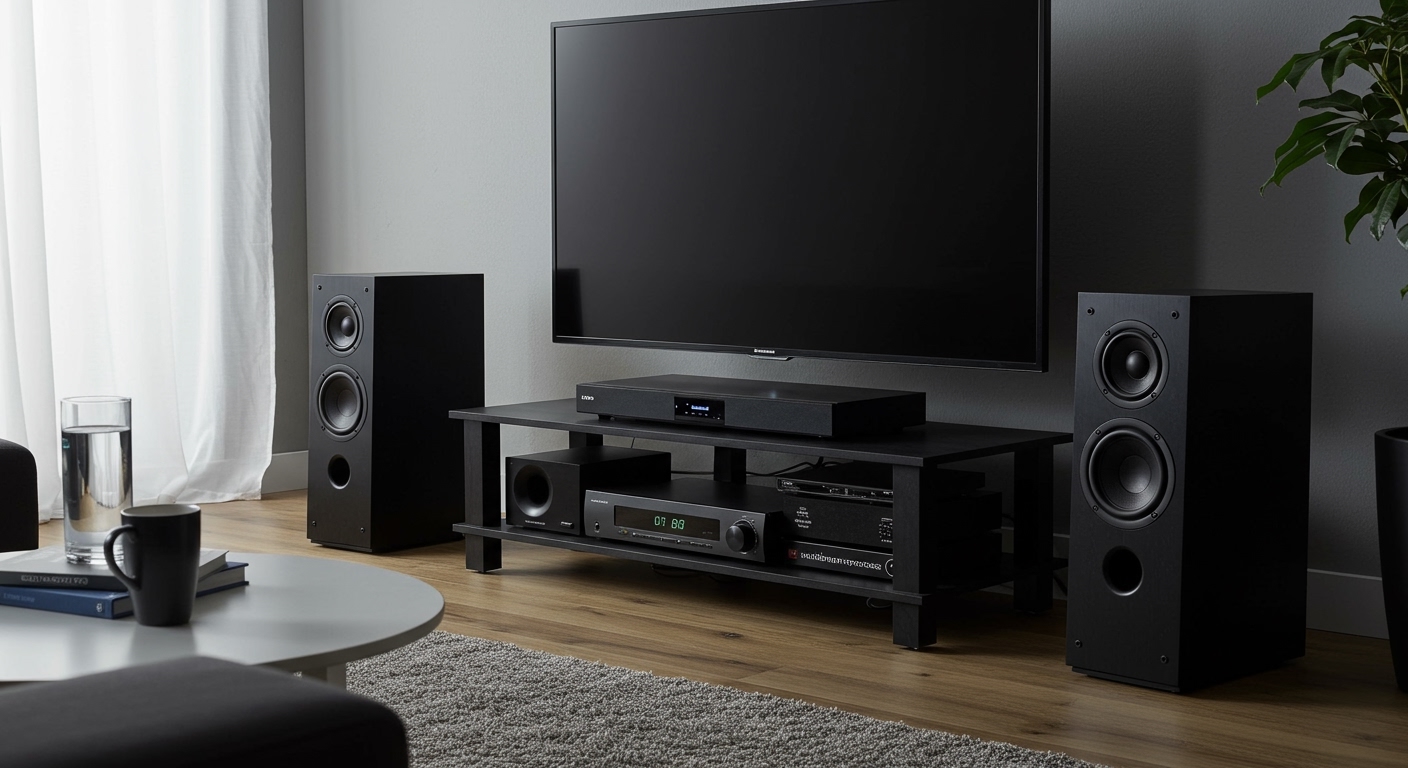
- 5.1 / 7.1 System: This is a full surround-sound system with multiple satellite speakers you place around you. While amazing for a home theater, it’s often overkill and impractical for a standard desktop setup.
Key Specs to Look For (In Simple Terms)
Don’t get lost in the technical jargon. These are the three specs that matter most.
- Power (Watts RMS): This measures the speaker’s continuous power output. More watts generally means more volume without distortion. For a small room, 5-10 watts RMS is plenty. For a larger space or if you like loud music, look for 20-40 watts RMS or more.
- Frequency Response: Measured in Hertz (Hz), this tells you the range of sounds the speaker can produce, from low bass to high treble. A wider range is better. The human ear can hear roughly 20Hz to 20,000Hz (20kHz). Look for speakers that get as close to this range as possible. A spec like 50Hz – 20kHz is very respectable for desktop speakers.
- Connectivity: How do the speakers connect to your PC?
* 3.5mm Jack: The classic, universal audio plug. Simple and reliable.
* USB: A digital connection that can sometimes offer cleaner sound and may not require a separate power adapter.
* Bluetooth: Offers a wireless, clutter-free setup but can introduce a slight audio delay (latency), which is not ideal for gaming.
My Recommendations Based on Use Case
After testing countless models over the years, I’ve found that speakers fall into a few general categories.
- For the Budget-Conscious User: Look for a reliable 2.0 system from a brand like Logitech or Creative. The Creative Pebble speakers are a fantastic, affordable USB-powered option I often recommend.
- For the All-Around Gamer: A 2.1 system is your best bet. The added subwoofer makes explosions and in-game events feel much more impactful. The Logitech Z407 is a popular and powerful choice that offers great value.
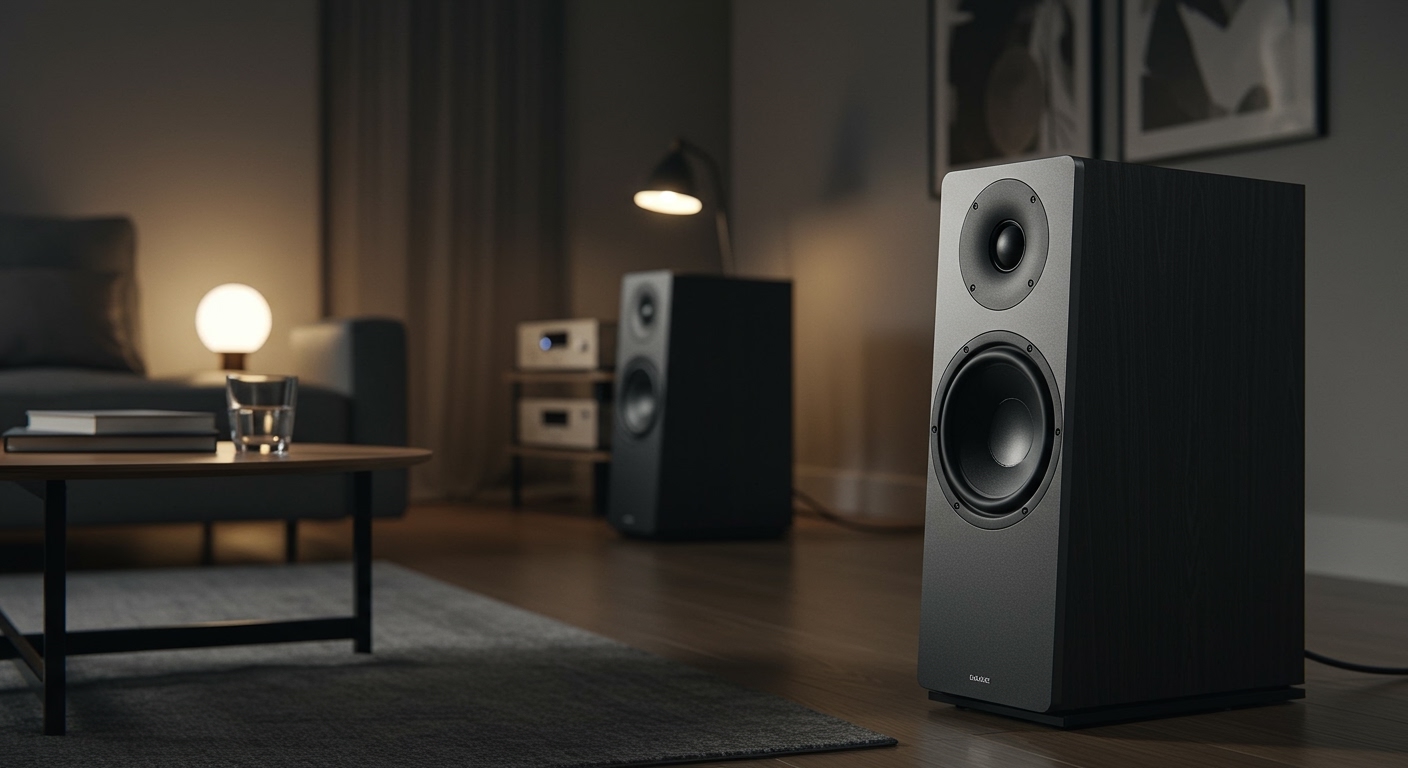
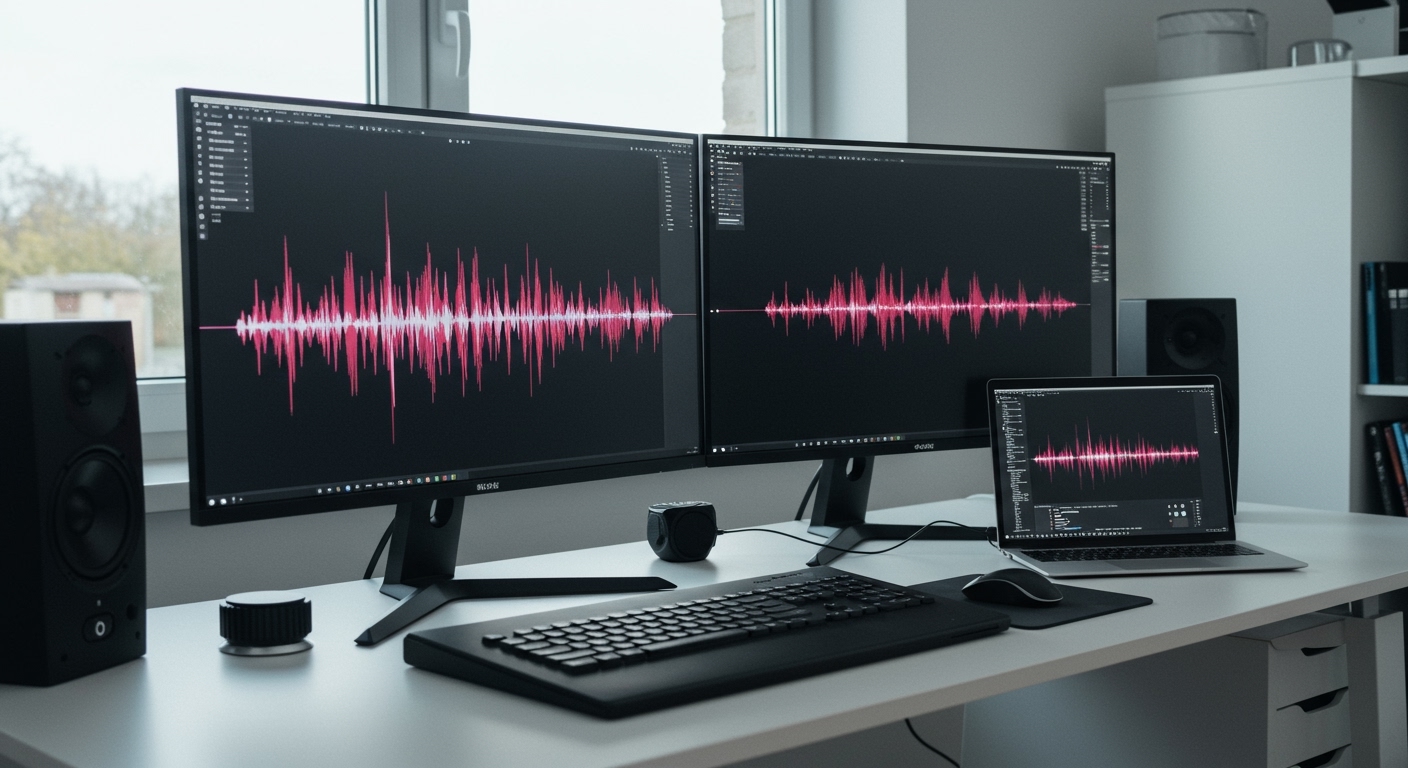
- For the Music Lover & Aspiring Creator: If you care about accurate sound reproduction, invest in a pair of “studio monitors” like the PreSonus Eris E3.5 or Audioengine A2+. These are designed to provide a flat, uncolored sound, so you hear the music exactly as it was mixed.
Step-by-Step Guide: How to Connect Speakers to Your Desktop PC
Connecting speakers is one of the easiest PC upgrades you can do.