Understanding Digital Audio Out: What It Is and Why You Need It
Struggling with weak, tinny sound from your new flat-screen TV? You’re not alone. The biggest challenge I see people face is figuring out how to connect their great-sounding external speakers to a TV that only has a small, unfamiliar port labeled “Digital Audio Out.” This guide will show you exactly how to connect digital audio out to speakers using simple, step-by-step methods that work for any setup.
The core issue is a signal mismatch. Your TV’s Digital Audio Out port sends sound as a digital signal (a stream of 1s and 0s), but most traditional speakers, especially computer speakers or older stereo systems, are built to understand an analog signal. To bridge this gap, you’ll typically need a small, inexpensive device to translate the signal.
Key Takeaways (TL;DR)
- The Problem: Your TV sends a digital audio signal, but your speakers need an analog one.
- The Solution: You need a device to convert the signal. The most common options are a Digital-to-Analog Converter (DAC), an AV Receiver, or a Soundbar.
- Identify Your Port: Check your TV for either a square-shaped Optical (TOSLINK) port (often with a red light inside) or a round Coaxial port (looks like an RCA jack).
- The Basic Connection: TV → Digital Cable (Optical or Coaxial) → Converter/Receiver → Analog Cable (RCA or 3.5mm) → Speakers.
- Crucial TV Setting: You must go into your TV’s audio menu and change the “Digital Audio Format” to PCM. This is the most common reason for getting no sound.
The Two Types of Digital Audio Out Ports
Before you can connect anything, you need to identify which type of digital port your TV or audio source has. There are two primary types, and while they achieve the same goal, they use different technologies.
Optical (TOSLINK)**
The most common digital audio connection on modern consumer electronics is the Optical port, also known as TOSLINK. I’ve worked with hundreds of these, and they are incredibly reliable for sending clean audio.
- How it works: It transmits audio data using pulses of red light through a fiber optic cable.
- Appearance: It’s a small, squarish port, often covered by a tiny spring-loaded door. When active, you can see a faint red glow from within.
- Pros: Because it uses light, it is completely immune to electrical or radio frequency interference (RFI/EMI), ensuring a perfectly clean signal.
- Cons: The fiber optic cables can be fragile. Bending them too sharply can break the internal fiber and ruin the cable.
Coaxial**
A Coaxial digital connection is less common on TVs now but is still found on many Blu-ray players, CD players, and AV receivers.
- How it works: It transmits the digital audio signal electrically through a copper cable, similar to a standard RCA cable.
- Appearance: It looks identical to a standard RCA jack and is usually color-coded orange or sometimes black.
- Pros: The cables are much more durable and can be bent without risk of damage.
- Cons: In rare cases, a long cable run near power cords could theoretically pick up electrical interference. In my experience, this is almost never an issue in a typical home setup.
Optical vs. Coaxial: A Quick Comparison
To help you decide, here’s a simple breakdown of the key differences. For most people, the audio quality will be identical between the two.
| Feature | Optical (TOSLINK) | Coaxial |
|---|---|---|
| Connector Type | Square, proprietary | Round, RCA-style |
| Signal Type | Light (Photons) | Electrical (Electrons) |
| Cable Durability | Fragile; cannot be bent sharply | Very durable |
| Interference | Immune to electrical interference | Susceptible (rarely an issue) |
| Max Bandwidth | Generally sufficient for Dolby Digital/DTS | Higher; supports high-res audio |
| Best For | Most modern TVs, game consoles | High-end audio components, AV receivers |
Expert Insight: For connecting a TV to a soundbar or a simple DAC, either format is perfect. Don’t stress over which one is “better.” Just use the port that is available on both of your devices.
How to Connect Digital Audio Out to Speakers: 3 Proven Methods
Now we get to the practical, step-by-step part. I’ll walk you through the three most common scenarios for how to connect speakers to digital audio out, from the simplest budget setup to a more robust home theater system.
Method 1: Using a Digital-to-Analog Converter (DAC)
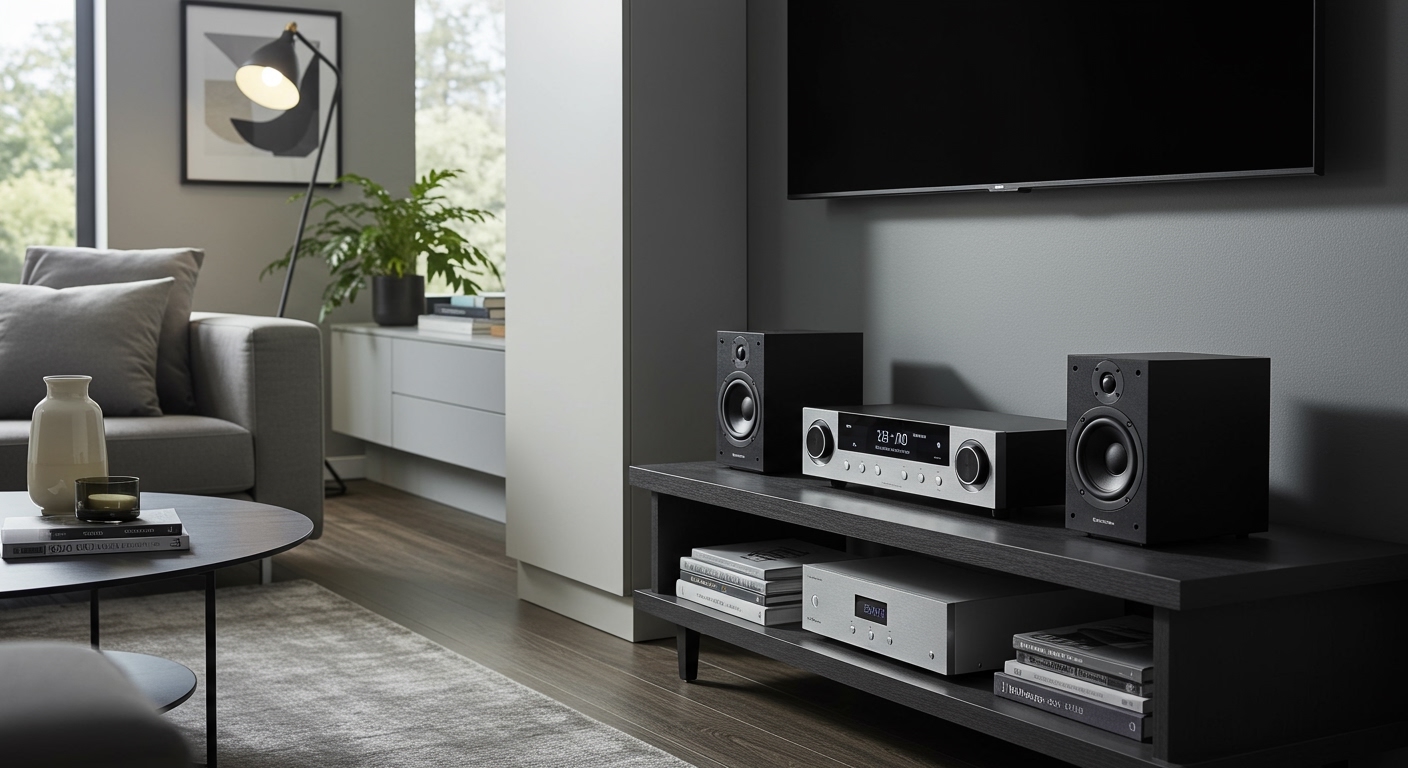
This is the most common, affordable, and straightforward solution for connecting a TV’s digital output to a pair of computer speakers, bookshelf speakers, or an older stereo system that only has analog inputs (like red and white RCA jacks or a 3.5mm headphone-style jack).
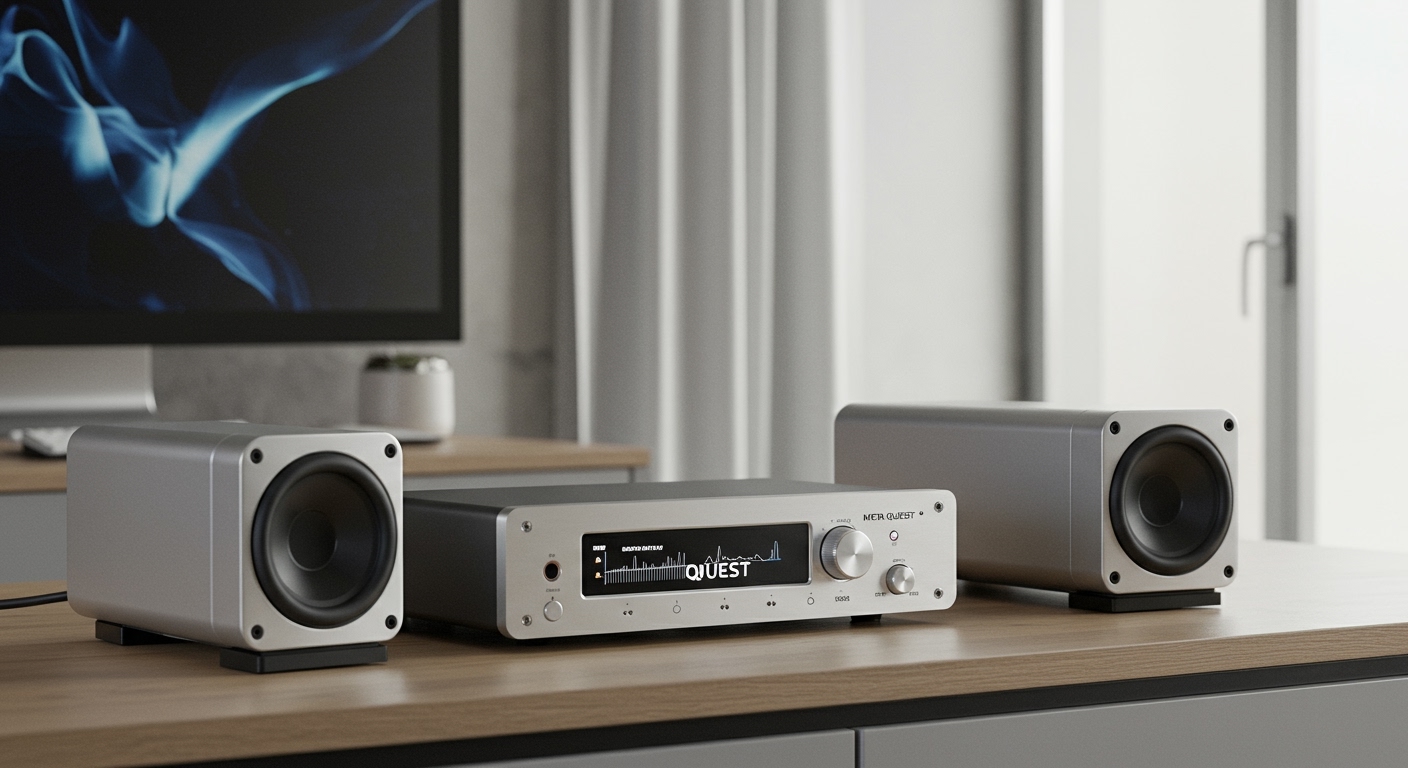
A Digital-to-Analog Converter (DAC) is a small box that does one simple job: it takes the digital audio signal from your TV and converts it into an analog signal your speakers can use. I keep a few of these in my toolkit for quick installations.
What You’ll Need:
- Your TV and Speakers
- A Digital-to-Analog Converter (DAC). Popular, reliable brands include PROZOR, FiiO, and Avantree.
- An Optical (TOSLINK) cable or Coaxial cable.
- An analog audio cable (usually an RCA-to-RCA cable or an RCA-to-3.5mm cable, depending on your speakers’ input).
Step-by-Step Instructions:
- Power Down Everything: Before you plug or unplug any cables, turn off your TV and speakers to prevent any potential damage from electrical shorts.
- Connect the Digital Cable to the TV: Plug one end of your Optical or Coaxial cable into the “Digital Audio Out” port on your TV.
* Pro Tip: If you’re using an Optical cable, remember to remove the tiny clear plastic protector caps from both ends of the cable before plugging it in! They are easy to miss and will prevent a connection.
- Connect the Digital Cable to the DAC: Plug the other end of the digital cable into the corresponding “Optical In” or “Coaxial In” port on the DAC.
- Connect the Analog Cable to the DAC: Plug your RCA or 3.5mm cable into the “Analog Out” or “L/R Out” ports on the DAC.
- Connect the Analog Cable to Your Speakers: Plug the other end of the analog cable into the “Audio In” port on your powered speakers or amplifier.
6