Do Kindles Have Speakers? The Direct Answer
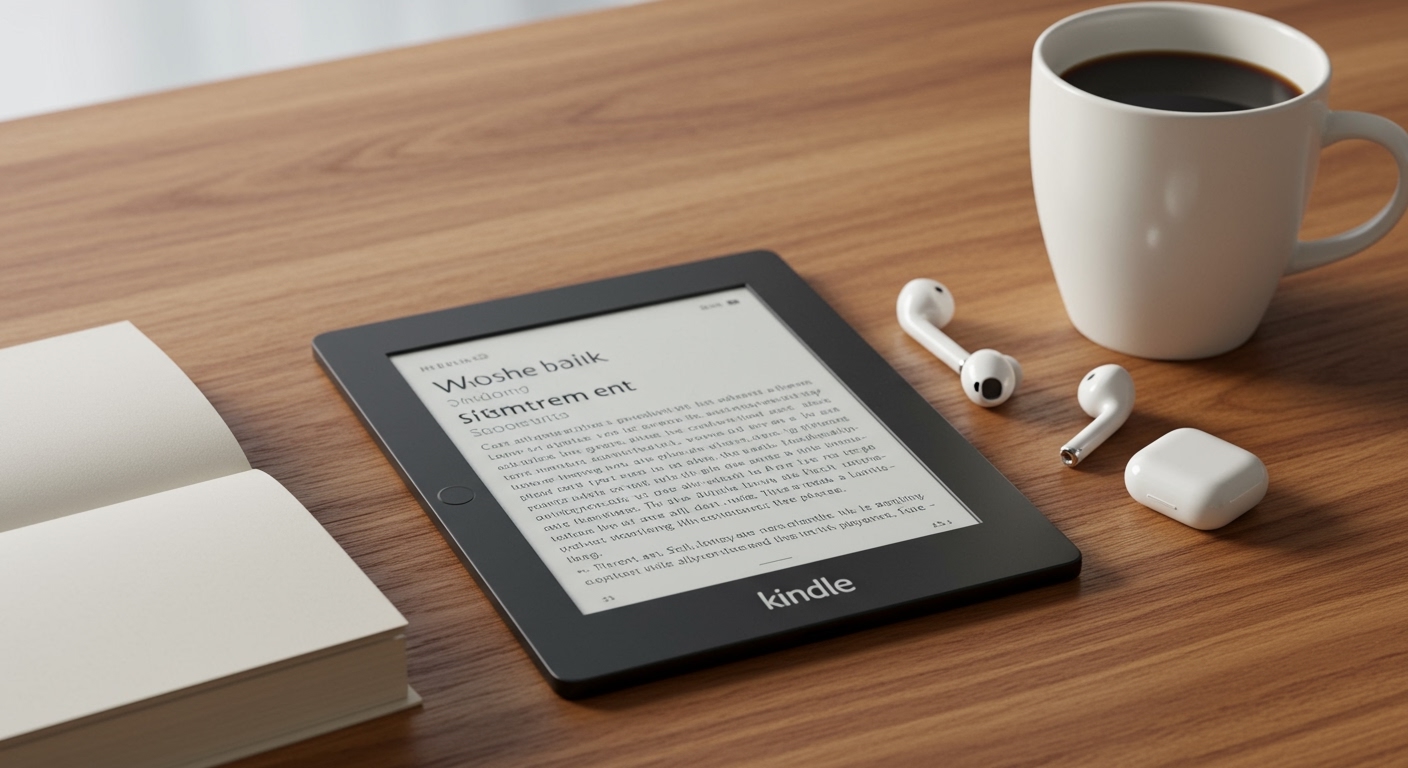
Ever tried to turn up the volume on your Kindle, only to find there’s no button and no sound? You’re not alone. The short answer is that most Kindle e-readers do not have built-in speakers. Devices like the Kindle Paperwhite, Kindle Oasis, and the base Kindle model are designed purely for an immersive reading experience, and omitting speakers helps keep them thin, light, and distraction-free.
However, this doesn’t mean you can’t listen to audiobooks. These Kindles use Bluetooth technology to connect to your wireless headphones or speakers. The main exception is the Amazon Fire Tablet line, which is a full-featured tablet (not just an e-reader) and does include built-in speakers. This guide will walk you through exactly how to get audio from your Kindle.
Key Takeaways
- No Built-in Speakers: Standard Kindle e-readers like the Paperwhite, Oasis, and Scribe do not have internal speakers.
- Bluetooth is the Solution: They connect to external audio devices (headphones, speakers) via Bluetooth to play Audible audiobooks.
- Kindle Fire is Different: The Amazon Kindle Fire is a tablet and is the only device in the Kindle family with built-in speakers.
- VoiceView Accessibility: Bluetooth audio also enables the VoiceView screen reader, a crucial accessibility feature that reads the screen content aloud.
Why Most Kindles Don’t Have Speakers
Amazon’s design philosophy for its E-Ink readers centers on creating a sanctuary for reading. The goal is to replicate the experience of reading a physical book, free from the notifications, glare, and other distractions that come with tablets and phones.
Adding speakers would introduce several compromises that go against this core mission:
- Increased Bulk & Weight: Speakers require physical space and components, which would make the devices thicker and heavier.
- Reduced Battery Life: Powering speakers would significantly drain the battery, shortening the weeks-long charge that Kindles are famous for.
- Higher Cost: Including quality audio components would increase the manufacturing cost and, ultimately, the retail price.
- Focus on Reading: By keeping the device’s function singular, Amazon preserves its identity as a dedicated e-reader, not a multimedia gadget.
From my experience, this trade-off is worth it. The lightweight design and incredible battery life are precisely why I prefer a Kindle for reading over a tablet. Using my own Bluetooth earbuds for audiobooks keeps the experience personal and immersive when I want to switch from reading to listening.
How to Listen to Audio on Your Kindle: A Step-by-Step Guide
Ready to listen to your favorite Audible book on your Kindle? It’s a straightforward process. As a long-time Kindle user, I’ve paired dozens of devices, and the steps are nearly identical across all modern Bluetooth-enabled models.
Tools & Materials Needed
| Item | Purpose |
|---|---|
| A Bluetooth-enabled Kindle | E.g., Kindle Paperwhite (2016+), Oasis, Scribe, or base Kindle (2016+) |
| Bluetooth Headphones or Speaker | Any standard wireless audio device will work |
| An Audible Audiobook | You must have the audiobook in your Amazon library to download and play it |
Step 1: Check Your Kindle and Audiobook
First, ensure your Kindle model supports Bluetooth. If you bought it after 2016, it almost certainly does. You also need to have an Audible audiobook in your library. You can find these in the “Library” tab on your Kindle, often separated by a “Books” and “Audiobooks” filter.
Step 2: Prepare Your Bluetooth Device
Activate pairing mode on your headphones or speaker. This process varies by brand. For most devices, it involves pressing and holding the power or Bluetooth button until an indicator light starts flashing.
Pro Tip: Keep your Bluetooth device close to your Kindle (within a few feet) during the pairing process to ensure a strong and quick connection.
Step 3: Enable Bluetooth on Your Kindle
Navigate to your Kindle’s main settings menu.
- From the Home screen, tap the three vertical dots in the top-right corner.
- Select “Settings” from the dropdown menu.
- In the Settings menu, tap on “Wi-Fi & Bluetooth”.
- Toggle the switch for “Bluetooth” to the “On” position.
Step 4: Pair Your Kindle with Headphones or a Speaker
Once Bluetooth is enabled, your Kindle will automatically start scanning for nearby devices.
- Under the “Bluetooth Devices” section, you should see the name of your headphones or speaker appear.
- Tap on your device’s name in the list.
- Your Kindle will take a moment to connect. Once successful, you’ll see a “Connected” status next to the device name.
I’ve found that sometimes a device doesn’t show up on the first scan. Simply tapping the “Rescan” button usually solves this issue immediately.
Step 5: Start Listening
Return to your Library and open the audiobook you want to listen to. The audio will now play directly through your connected Bluetooth device. You can control playback (play, pause, volume) from the Kindle’s audiobook player interface.
Which Kindle Devices Support Audio? A Quick Comparison
The question of “do Kindles have speakers” often comes down to which specific model you own. The features can be confusing, so I’ve broken them down in this simple table.
| Kindle Model | Built-in Speakers? | Bluetooth for Audio? | Primary Use |
|---|---|---|---|
| Kindle (Base Model) | No | Yes | Reading & Audiobooks |
| Kindle Paperwhite | No | Yes | Reading & Audiobooks |
| Kindle Oasis | No | Yes | Premium Reading & Audiobooks |
| Kindle Scribe | No | Yes | Reading, Writing, & Audiobooks |
| Kindle Fire Tablet | Yes | Yes | Multimedia, Apps, Reading |
As you can see, the answer to “does the kindle paperwhite have speakers” or “does the kindle scribe have speakers” is a clear no. Audio on these devices is exclusively handled via Bluetooth. The only model where the answer to “does the kindle fire have speakers” is yes is the Fire tablet line, because it’s designed for watching movies and playing games in addition to reading.
Expert Tips for the Best Kindle Audio Experience
After years of using Kindles for both reading and listening, I’ve picked up a few tricks to make the experience smoother.
- Charge Both Devices: There’s nothing worse than your headphones dying mid-chapter. Before a long listening session, make sure both your Kindle and your Bluetooth device are fully charged.
- Use the Audible App for Whispersync: Amazon’s Whispersync for Voice is a fantastic feature. You can read a chapter on your Kindle, then switch to listening to the audiobook on your phone via the Audible app, and it will pick up exactly where you left off.
- Manage Storage: Audiobooks are much larger files than e-books. If you’re low on space, navigate to
Settings > Device Options > Advanced Options > Storage Managementto remove old books and audiobooks. - “Forget” and Re-pair: If you’re having persistent connection issues, the best fix is often to “forget” the device in your Kindle’s Bluetooth settings and then re-pair it from scratch. This clears any corrupted connection data.
Common Problems When Connecting Kindle Speakers & How to Fix Them
Even with a simple system, things can sometimes go wrong. Here are the most common issues I’ve encountered and how to resolve them quickly.
- Problem: My headphones/speaker won’t show up in the Bluetooth list.
- Problem: The audio is choppy or keeps cutting out.
- Problem: The device is connected, but no sound is playing.
Frequently Asked Questions About Kindle Speakers
Does the Kindle Scribe have speakers for listening to notes?
No, the Kindle Scribe does not have speakers. Like other E-Ink Kindles, it relies entirely on a Bluetooth connection to headphones or an external speaker for playing Audible audiobooks. The device itself makes no sound.
Can I listen to music or podcasts on my Kindle Paperwhite?
No, Kindle e-readers are designed for a dedicated reading and audiobook experience. They do not have apps for streaming services like Spotify or Apple Music, nor do they support generic MP3 files or podcast apps. Audio functionality is limited to Audible audiobooks and the VoiceView screen reader.
Does the Kindle Oasis have speakers?
The Kindle Oasis, despite being a premium e-reader, does not have built-in speakers. It follows the same design principle as other Kindles, using Bluetooth to connect to audio devices for a private, immersive listening experience.
Why won’t my Kindle connect to my Bluetooth speaker?
The most common reasons for a failed connection are:
- The speaker is not in pairing mode.
- The speaker is already actively connected to another device (like your phone).
- The speaker or Kindle has low battery.
- There’s a temporary software glitch.
Try turning Bluetooth off and on again on your Kindle, restarting both devices, and using the “Forget Device” option before attempting to pair again.
Conclusion
So, do Kindles have speakers? For the vast majority of dedicated e-readers like the Paperwhite and Oasis, the answer is no. This is a deliberate design choice to maximize battery life and maintain a slim, lightweight profile perfect for reading.
Instead, Amazon provides a robust and easy-to-use Bluetooth feature that allows you to connect your favorite wireless headphones or speakers. By following the simple steps outlined above, you can seamlessly switch between reading the written word and immersing yourself in a professionally narrated audiobook, getting the best of both worlds from a single, focused device.