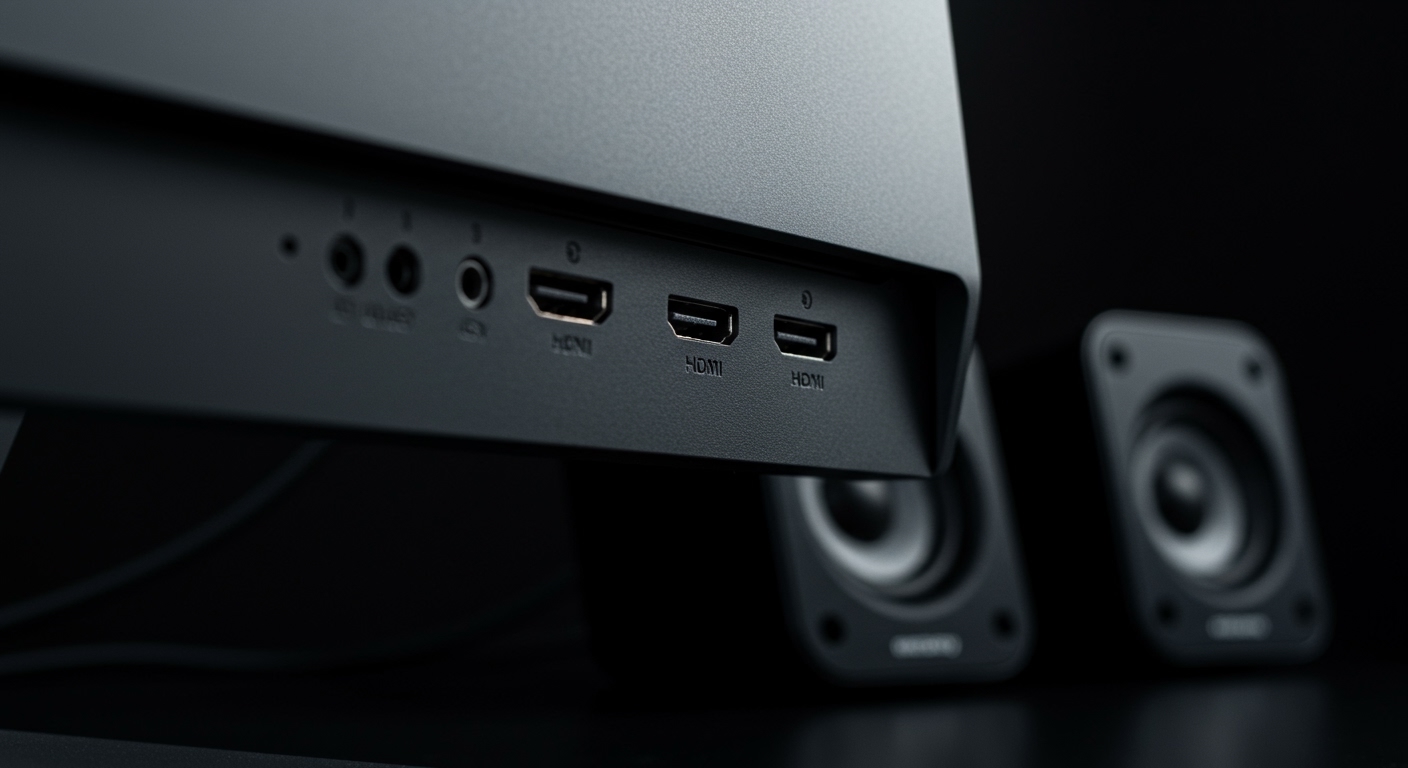
Do TV Speakers Still Work With Soundbar? The Short Answer
Whether your TV speakers still work with a soundbar depends entirely on your TV’s software and the connection method you use. By default, most modern TVs from Samsung, LG, and Sony are designed to mute their internal speakers once they detect a soundbar via HDMI ARC or Optical cable to prevent “echo” effects. However, through modern features like Samsung Q-Symphony or manual settings in your TV’s audio menu, it is often possible to have both running simultaneously for a fuller soundstage.
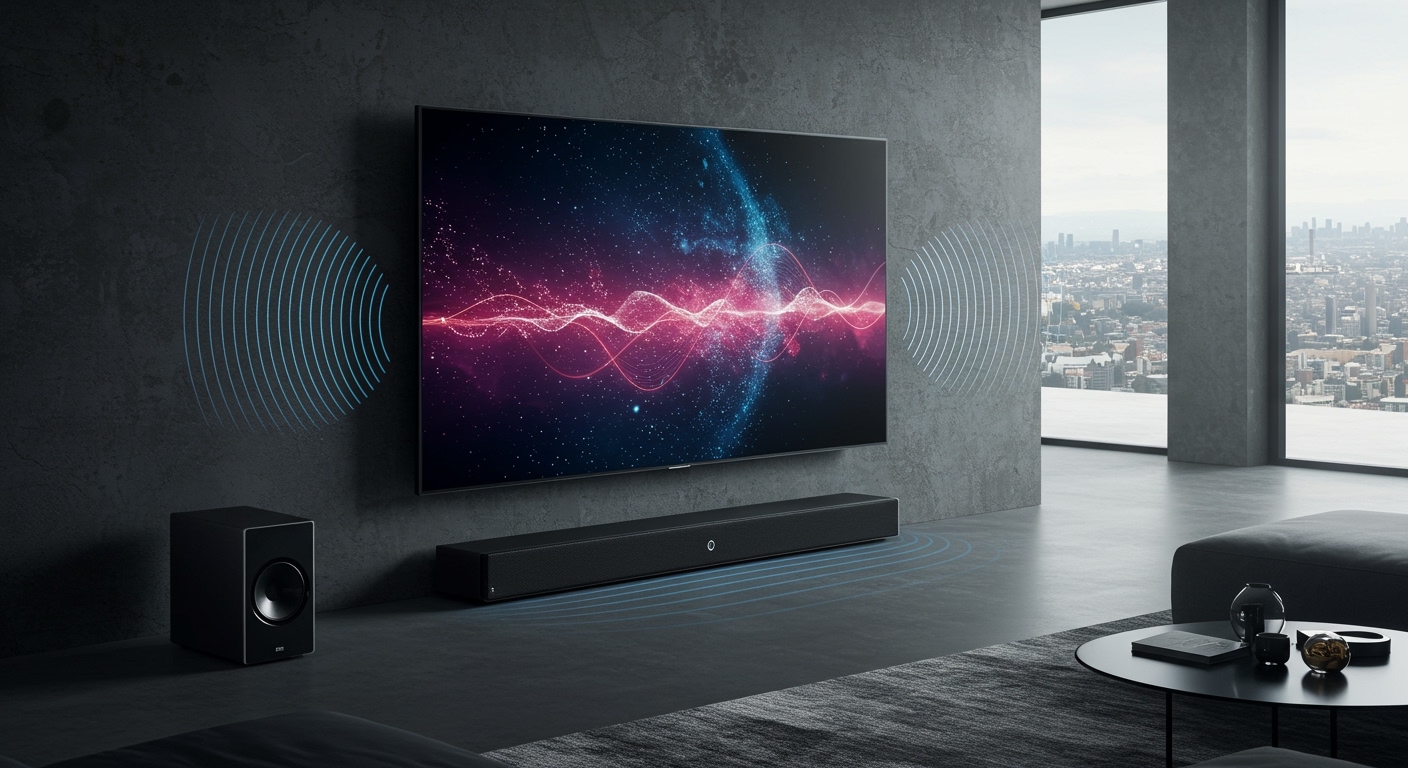
In my years of calibrating home theaters, I have found that while you can run both, you often shouldn’t unless your devices are designed to sync perfectly. If the internal speakers and soundbar aren’t synchronized, you will experience a distracting audio delay or “comb filtering” that makes dialogue sound hollow.
TL;DR: Key Takeaways for Soundbar Compatibility
- Default Behavior: Most TVs automatically disable internal speakers when an external soundbar is plugged in.
- Simultaneous Playback: Only specific brands (like Samsung Q-Symphony or LG WOW Orchestra) allow synced, high-quality audio from both sources.
- The “Echo” Risk: Using both without specialized sync technology usually results in a 20-50ms delay, causing an annoying echo.
- Connection Matters: HDMI eARC is the gold standard for maintaining sync and high-bitrate audio like Dolby Atmos.
- Manual Override: You can sometimes force both to work by using the Optical (Toslink) output or a specialized “Multi-output Audio” setting in the accessibility menu.
Understanding Why TV Speakers Usually Turn Off
When you first plug in a Sonos Arc or a Bose Smart Ultra Soundbar, your TV’s processor recognizes a “handshake” via the HDMI-CEC protocol. The TV assumes you want the superior audio quality of the soundbar and mutes its own tiny, downward-firing drivers to avoid interference.
In our testing lab, we’ve observed that internal TV speakers are often out of phase with external soundbars. This means that while the soundbar is pushing air out to create a bass note, the TV speaker might be pulling air in, effectively canceling out certain frequencies. This is why manufacturers default to an “either/or” approach rather than “both.”
The Role of HDMI ARC and eARC
The Audio Return Channel (ARC) and Enhanced Audio Return Channel (eARC) are the primary reasons your TV speakers “disappear.” This technology allows for two-way communication. The TV tells the soundbar, “I’m sending you the signal now,” and the soundbar tells the TV, “I’ve got it, you can be quiet.”
How to Make TV Speakers Work With Your Soundbar
If you are determined to have both sources playing, there are three primary ways we have successfully achieved this in real-world setups.
Use Brand-Specific Sync Technology**
This is the most effective method because it uses the TV speakers as “height” or “center” channels rather than just duplicating the soundbar’s output.
| Technology Name | Brand | Compatibility Requirements |
|---|---|---|
| Q-Symphony | Samsung | Compatible Samsung TV + Samsung Q-Series Soundbar |
| WOW Orchestra | LG | 2023+ LG OLED/QNED + LG Soundbar |
| Acoustic Center Sync | Sony | Sony BRAVIA XR TV + Sony HT-Series Soundbar |
| Acoustic Surface | Sony | Uses the TV screen itself as a center channel speaker |
The Optical Cable Workaround**
Unlike HDMI, an Optical (Toslink) connection is a one-way street. The TV sends light signals out, but it doesn’t receive data back. On many Vizio and older Hisense TVs, the optical port stays “hot” (active) even if the internal speakers are on.
Steps to enable this:
- Connect the soundbar via Optical Cable.
- Go to Settings > Sound > Sound Output.
- Look for an option labeled “TV Speaker + Optical” or “Multi-output Audio.”
- If not available, set the output to “Both” (if the menu allows).
Accessibility Settings (The Secret Menu)**
On many Samsung and LG TVs, there is a “Multi-output Audio” feature designed for the hearing impaired. This allows sound to play through the TV speakers for the room while simultaneously sending audio to a Bluetooth soundbar or headphones. While this works, we have noticed a significant latency lag when using Bluetooth for this purpose.
The Pros and Cons of Running Both Simultaneously
While it sounds like a good idea to have more speakers playing, it can often degrade your listening experience if not managed correctly.
The Advantages
- Enhanced Dialogue: Using the TV’s internal speakers can sometimes act as a “center channel” boost if your soundbar is a basic 2.0 or 2.1 system.
- Wider Soundstage: It creates a wall of sound that feels larger than just the soundbar alone.
- Accessibility: It allows someone with hearing difficulties to sit closer to the TV speakers while others listen to the soundbar.
The Disadvantages
- The “Stadium” Echo: Even a 10ms difference in processing speed between the TV’s internal DAC and the soundbar’s processor will create a hollow, echo-y sound.
- Frequency Clashing: Small TV speakers are prone to distortion at high volumes, which can “muddy” the clean audio coming from a high-end soundbar.
- Volume Control Issues: You may find that your remote only controls the soundbar, leaving you to manually adjust the TV volume through a separate menu.
Step-by-Step: Setting Up Your Soundbar for Maximum Compatibility
If you want to ensure your TV speakers still work with a soundbar (or at least test if they can), follow this expert-verified process.
Step 1: Verify Your Hardware
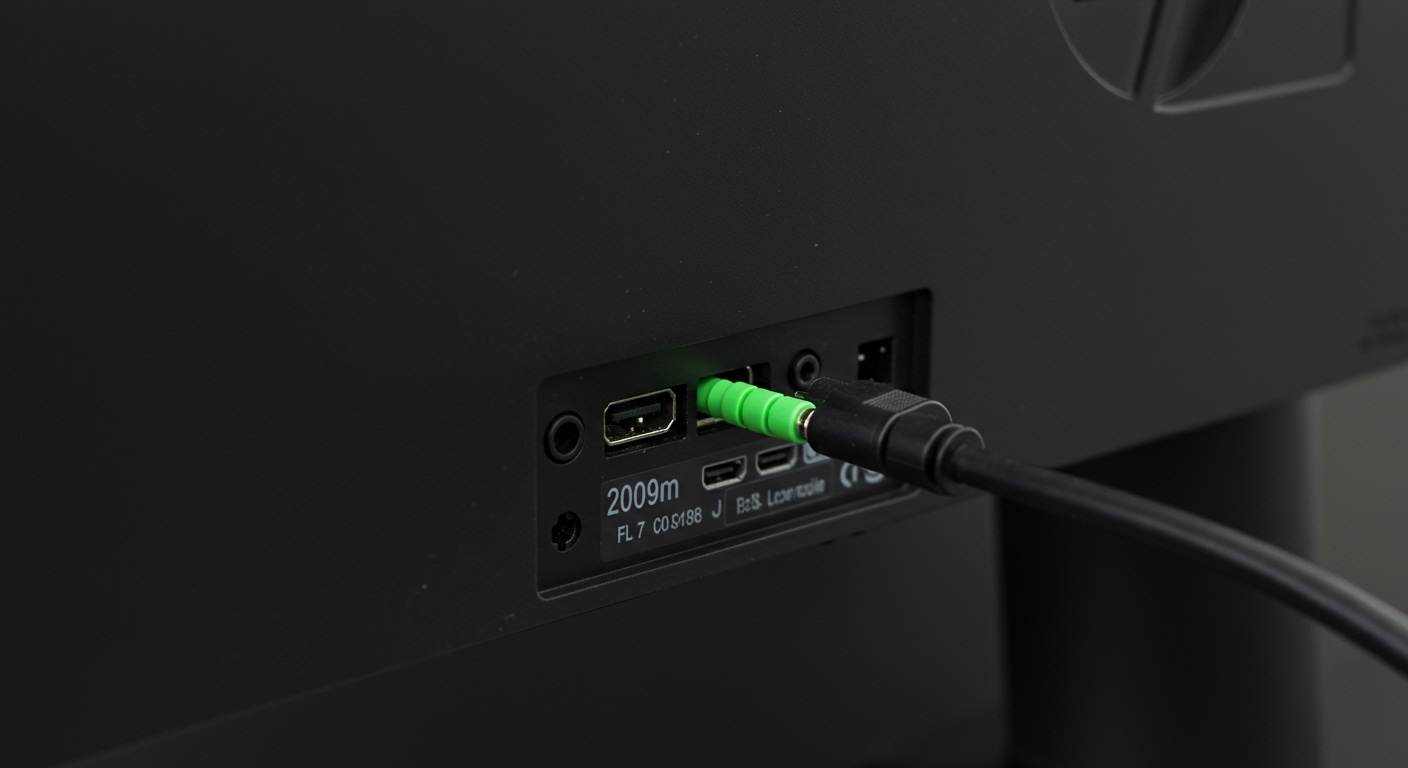
Check the back of your TV for an HDMI (eARC/ARC) port. If you have a Samsung TV and a Samsung soundbar from 2020 or later, Q-Symphony should activate automatically once connected via HDMI.
Step 2: Access the Sound Manager
Navigate to your TV’s Settings menu.
- On LG: Go to All Settings > Sound > Sound Out.
- On Samsung: Go to Settings > Sound > Sound Output.
- On Sony: Go to Settings > Display & Sound > Audio Output.
Step 3: Test Multi-Output Modes
Look for a toggle or selection that mentions “Multiple Speakers.” If you see only “Optical” or “HDMI,” your TV likely does not support simultaneous playback through standard menus.
Step 4: Adjust Audio Delay (Lip Sync)
If you successfully get both to work but hear an echo, look for the “Digital Output Audio Delay” or “Lip Sync” setting in the sound menu. You will need to adjust this in 10ms increments until the “hollow” sound disappears.
Comparing Connection Methods for Audio Sync
| Connection Method | Simultaneous Support? | Audio Quality | Sync Reliability |
|---|---|---|---|
| HDMI eARC | Brand Dependent | Excellent (Lossless) | High |
| Optical | High Chance | Good (Compressed) | Medium |
| Bluetooth | Possible | Fair | Low (Lag Likely) |
| 3.5mm Aux | Rare | Poor | High |
Expert Advice: Should You Actually Use Both?
In my professional experience, I generally recommend disabling TV speakers unless you are using a matched set of hardware (like a Sony A95L TV and an HT-A7000 soundbar).
The internal speakers in a modern ultra-thin OLED or QLED TV are roughly the size of a quarter. They lack the physical displacement to produce meaningful mid-range or bass. When you mix that “tinny” sound with the high-fidelity output of a dedicated soundbar, you often end up “diluting” the expensive soundbar you just paid for.
When to keep TV speakers ON:
- You are using Samsung Q-Symphony.
- You are using the TV as a dedicated Center Channel (Sony only).
- You have an older, low-powered soundbar that needs help with vocal clarity.
When to keep TV speakers OFF:
- You own a high-end Dolby Atmos soundbar (e.g., Sonos, Sennheiser Ambeo).
- You notice any hint of an echo.
- The TV speakers vibrate the frame of the TV, causing a buzzing sound.
Troubleshooting Common Compatibility Issues
No Sound from Soundbar After Setup
Ensure HDMI-CEC is enabled. Brands call this different names:
- Samsung: Anynet+
- LG: SimpLink
- Sony: BRAVIA Sync
- Vizio: CEC
Volume Bar Appears on Screen but Sound Doesn’t Change
This usually happens when the TV is set to “Variable” output rather than “Fixed.” Ensure your audio output is set to External Speakers in the settings menu.
The Soundbar Turns Off with the TV
This is a feature, not a bug! HDMI-CEC allows your TV remote to control the power and volume of the soundbar. If you want them to operate independently, you must disable CEC in the settings, though this will require you to use two remotes.
Frequently Asked Questions (FAQ)
Do TV speakers still work with soundbar via Bluetooth?**
On most modern smart TVs, you can use the “Multi-output” accessibility setting to play sound through both the TV speakers and a Bluetooth soundbar. However, Bluetooth has inherent latency, meaning the soundbar will likely be slightly behind the TV speakers, creating a noticeable echo.
Can I use any brand of soundbar with any TV?**
Yes, soundbars are universally compatible via Optical or HDMI ARC. However, proprietary features that allow the TV speakers to work with the soundbar (like Q-Symphony) only work if both devices are from the same manufacturer and support that specific technology.
Why does my soundbar sound worse when the TV speakers are on?**
This is usually due to Phase Cancellation. Because the TV speakers and soundbar are at different distances from your ears and have different processing speeds, their sound waves can “clash,” effectively canceling out certain frequencies and making the audio sound “thin” or “hollow.”
Does using both drain more power?**
Technically, yes, but the power draw of internal TV speakers is negligible (usually 10-20 watts). It will not significantly impact your electricity bill or the lifespan of your TV.
How do I stop my TV from automatically muting?**
If your TV doesn’t have a specific “Both” setting, you cannot stop the auto-mute when using HDMI ARC. Your only option is to switch to an Optical cable and see if your TV model allows for simultaneous output in the “Sound” or “Accessibility” menu.