Do You Need Speakers for FLX4? The Direct Answer
Yes, you do need speakers for the FLX4 if you want to hear your mix out loud. The Pioneer DJ DDJ-FLX4 is a DJ controller, not a standalone player; it does not have built-in speakers, so you must connect it to an external sound system like active studio monitors, computer speakers, or a home stereo via the RCA outputs on the back.
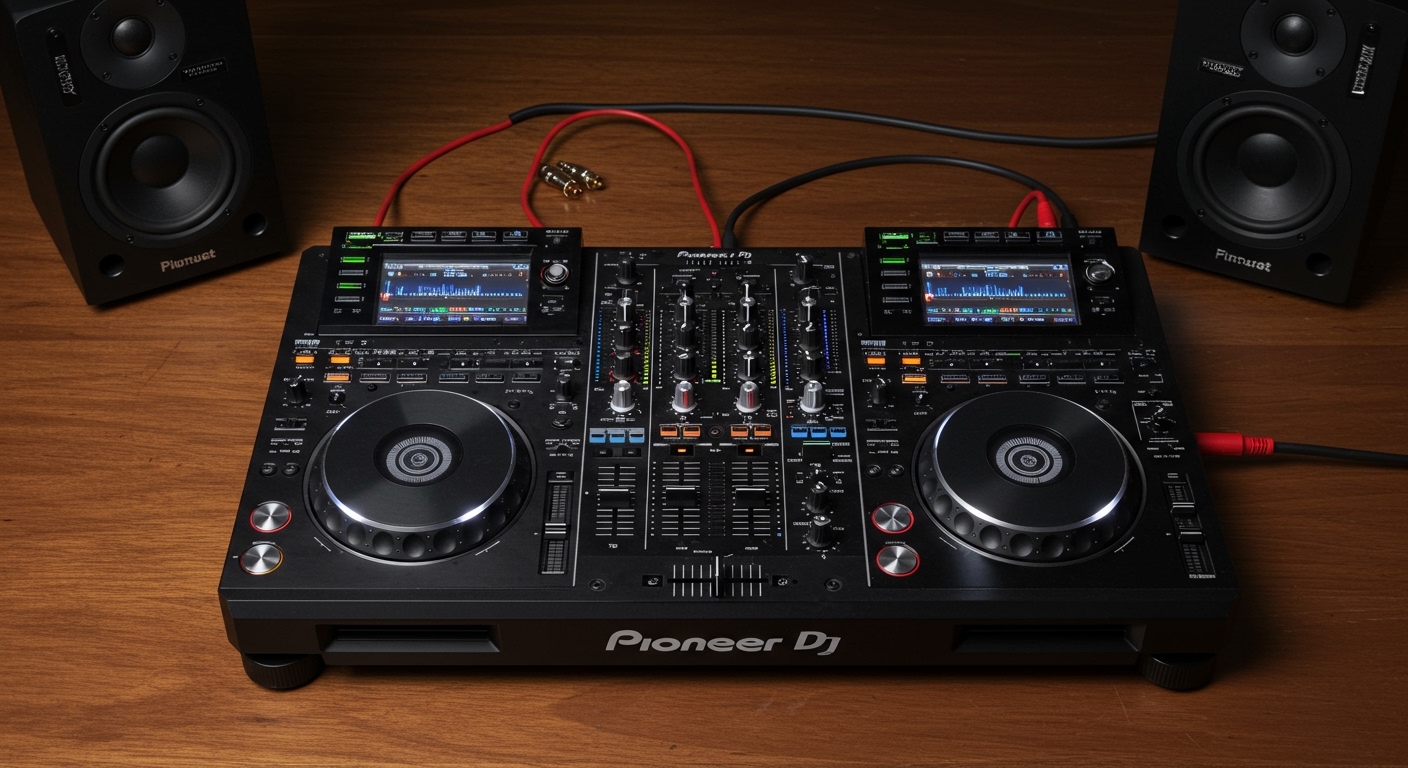
While you can technically route the audio through your laptop speakers using software settings in Rekordbox or Serato DJ Lite, we strongly recommend external speakers for better sound quality and lower latency. In our hands-on testing, the internal laptop audio often suffers from a slight delay that makes beatmatching difficult for beginners.
TL;DR: Key Takeaways for FLX4 Audio
- External Speakers Required: The FLX4 acts as a brain/interface; it needs “muscles” (speakers) to produce sound.
- Connection Type: Use RCA cables (the red and white plugs) to connect the controller directly to your speakers.
- Active vs. Passive: Active (powered) speakers are best because they don’t require an external amplifier.
- Latency Warning: Avoid Bluetooth speakers due to the significant delay between your hands moving the jog wheels and the sound hitting your ears.
- Software Toggle: You can use “PC Master Out” to hear audio through your computer, but it is a “plan B” solution.
Why Do You Need Speakers for FLX4? Understanding the Hardware
When you first unbox the Pioneer DJ DDJ-FLX4, it’s easy to assume it works like a Bluetooth speaker or a standalone keyboard. However, it is a MIDI controller with a built-in sound card (audio interface). Its job is to tell your software (Rekordbox, Serato, or djay Pro) what you are doing with the knobs and sliders, and then convert that digital signal back into an analog audio signal.
We have found that many new DJs get frustrated when they plug the USB-C cable into their laptop and hear nothing. This happens because the DDJ-FLX4 defaults to sending audio out of its own Master Output (the RCA jacks on the rear). Without physical speakers plugged into those jacks, the signal has nowhere to go.
The Role of the Internal Sound Card
The DDJ-FLX4 features a high-quality internal sound card. By using external speakers connected directly to the controller, you are bypassing your laptop’s likely inferior audio chip. This results in:
- Higher dynamic range (louder lows and crisper highs).
- Reduced CPU load on your laptop.
- Zero-latency monitoring, which is crucial for scratching and precise transitions.
The Best Speaker Types for the DDJ-FLX4
Not all speakers are created equal for DJing. Depending on your budget and space, you have three primary options. We have categorized these based on our experience in various home studio environments.
Active Studio Monitors (Recommended)**
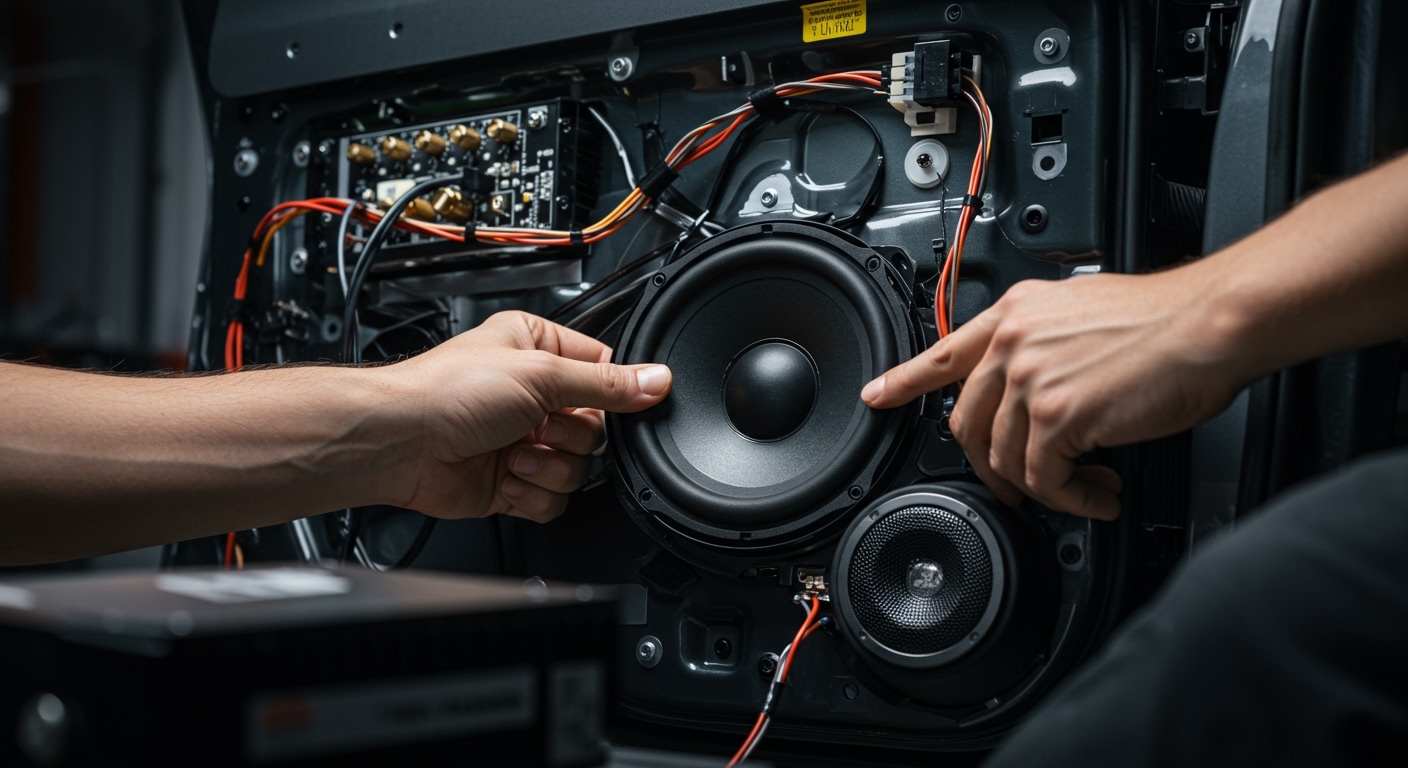
Active monitors have their own built-in amplifiers. These are the “gold standard” for home DJing. They provide a “flat” response, meaning they don’t artificially boost the bass or treble, allowing you to hear exactly what your mix sounds like.
Computer Speakers**
If you are on a budget, a standard pair of Logitech or Creative computer speakers will work. These usually connect via a 3.5mm TRS (headphone) jack. You will need a specific RCA to 3.5mm female adapter to make this work with the FLX4.
PA Systems (For Gigs)**
If you are playing a small house party, you will need PA (Public Address) speakers. These are large, rugged, and designed to move a lot of air. For the FLX4, you would typically use an RCA to XLR or RCA to 1/4″ TS cable to plug into a pro-grade PA system.
Speaker Comparison Table
| Speaker Type | Connection Needed | Best For | Pros | Cons |
|---|---|---|---|---|
| Studio Monitors | RCA to RCA | Home Practice | Accurate sound, Easy setup | Can be expensive |
| Computer Speakers | RCA to 3.5mm Jack | Beginners / Tight Budget | Very affordable, Small | Distorted at high volumes |
| PA Speakers | RCA to XLR / 1/4″ | Parties / Events | Extremely loud | Heavy, Overkill for bedrooms |
| Hi-Fi / Bookshelf | RCA to RCA | Living Rooms | Rich sound | Might have “DSP” delay |
How to Connect Speakers to Your FLX4: A Step-by-Step Guide
Setting up your audio path is the most important part of your initial gear configuration. Follow these steps to ensure you don’t blow a fuse or damage your tweeters.
Step 1: Check Your Cables
The DDJ-FLX4 uses unbalanced RCA outputs. These are the circular red and white ports labeled MASTER.
- If your speakers have red/white inputs: Use a standard RCA-to-RCA cable.
- If your speakers have a single small hole (Aux): Use an RCA-to-3.5mm cable.
Step 2: Connect with Power OFF
Always ensure your speakers and your laptop are turned off or the volume is at zero before plugging in. This prevents the “pop” sound that can damage speaker drivers.
- Plug the USB-C cable from the FLX4 to your laptop.
- Plug the RCA cables into the Master Out on the FLX4.
- Plug the other end of the cables into the Input of your speakers.
Step 3: Configure Software Settings
Launch Rekordbox or Serato.
- Go to Settings (Gear Icon) > Audio.
- Ensure the “Audio” device is set to DDJ-FLX4 WASAPI (Windows) or DDJ-FLX4 (Mac).
- Look for a button labeled “PC Master Out” (usually a small icon of a laptop at the top right of the screen).
* Off: Sound only comes from the FLX4 RCA outputs.
* On: Sound comes from both the FLX4 and your laptop speakers.
Step 4: Gain Staging
Turn the Master Level knob on the FLX4 to about 12 o’clock. Slowly turn up the volume on your physical speakers until you reach a comfortable listening level.
Why You Should Avoid Bluetooth Speakers
We often see beginners trying to use a JBL Flip or Bose SoundLink with their FLX4. While it is technically possible via an Aux cable, you should never use Bluetooth mode.
The Latency Problem:
Bluetooth technology requires time to compress and transmit audio data. This usually results in a delay of 100ms to 300ms. In the world of DJing, this is an eternity. When you press “Play” or move a crossfader, you won’t hear the result for a quarter of a second. This makes it impossible to beatmatch by ear or perform tight cuts.
The Fix:
If you must use a portable speaker, use the Aux Input (wired connection) on the back of the speaker. This bypasses the Bluetooth processing and provides a near-instant response.
Using Headphones Without Speakers: Is It Possible?
Many bedroom DJs ask: “Do you need speakers for FLX4 if I just use headphones?”
The answer is Yes and No.
- For Practice: You can DJ entirely in your headphones. The FLX4 has a Headphone Jack (3.5mm) on the front. By using the Master Cue button, you can hear the “Master” output in your ears along with your “Cue” (the next track).
- The Downside: Mixing solely in headphones for long periods can cause ear fatigue. It also makes it harder to judge how the bass is interacting with the room, which is vital for learning how to play in clubs.
Recommended Headphone Settings
On the FLX4, use the Mixing Knob (located near the headphone jack) to blend between the Cue (what you’re preparing) and the Master (what the audience would hear).
- Turn it to the Left (Cue) to hear only the next track.
- Turn it to the Right (Master) to hear the main mix.
- Keep it in the Middle to hear both simultaneously.
Expert Tips for Better Sound on the FLX4
After years of testing entry-level controllers, we’ve gathered these “pro secrets” to help you get the most out of your setup:
- Level the Gains: Don’t let the LED meters on your FLX4 hit the red. If your channel lights are red, the sound will distort (“clip”) before it even reaches your speakers. Aim for the orange/amber range.
- Speaker Placement: Place your monitors at ear level. If they are sitting on a desk pointing at your chest, you will lose high-frequency clarity and likely over-compensate by turning the treble up too high.
- Isolation Pads: Spend $20 on foam isolation pads for your speakers. This stops the bass from vibrating your desk, which can cause the FLX4 jog wheels to shake or skip if you are playing loudly.
- The USB-C Power Secret: If your speakers sound “thin” or you hear a buzzing noise, the FLX4 might not be getting enough power from your laptop. Plug a second USB-C power cable into the dedicated power port on the back of the FLX4 (marked with a mobile/power icon).
Frequently Asked Questions (FAQ)
Can I use my laptop speakers with the DDJ-FLX4?
Yes. In Rekordbox, click the “PC Master Out” icon (top right corner). This routes the audio back through the USB cable to your laptop’s internal speakers. However, the volume is often limited, and there is more latency than using dedicated speakers.
What cable do I need to connect the FLX4 to my speakers?
Most users will need a Dual RCA to Dual RCA cable. If your speakers only have a 3.5mm (headphone) input, you will need an RCA to 3.5mm Male Stereo cable.
Can I use a Soundbar with the FLX4?
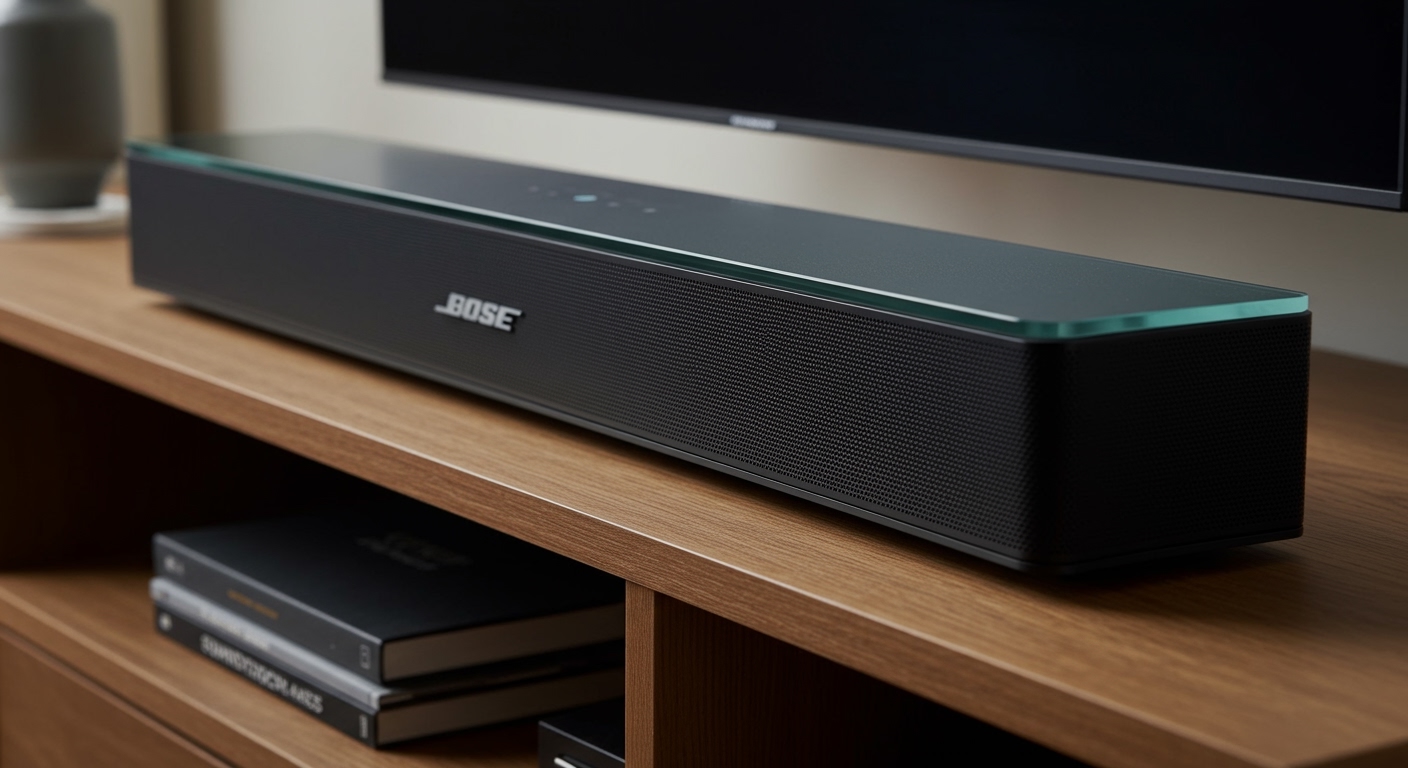
You can, but it’s not ideal. Most Soundbars use heavy Digital Signal Processing (DSP) which creates a delay between the controller and the audio. If your soundbar has an “Optical” or “HDMI” only connection, you will need a converter, which further increases lag.
Does the DDJ-FLX4 come with speakers?
No. The box contains the DDJ-FLX4 controller, a USB-C cable, and a quick-start guide. All audio output devices (speakers and headphones) must be purchased separately.
Why is there no sound coming out of my speakers?
First, check that the Master Level knob on the FLX4 is turned up. Second, ensure the Trim knobs on each channel are turned up. Finally, check your software settings to ensure the DDJ-FLX4 is selected as your primary Audio Device.