Does Dell Vostro Have Internal Speakers? The Quick Answer
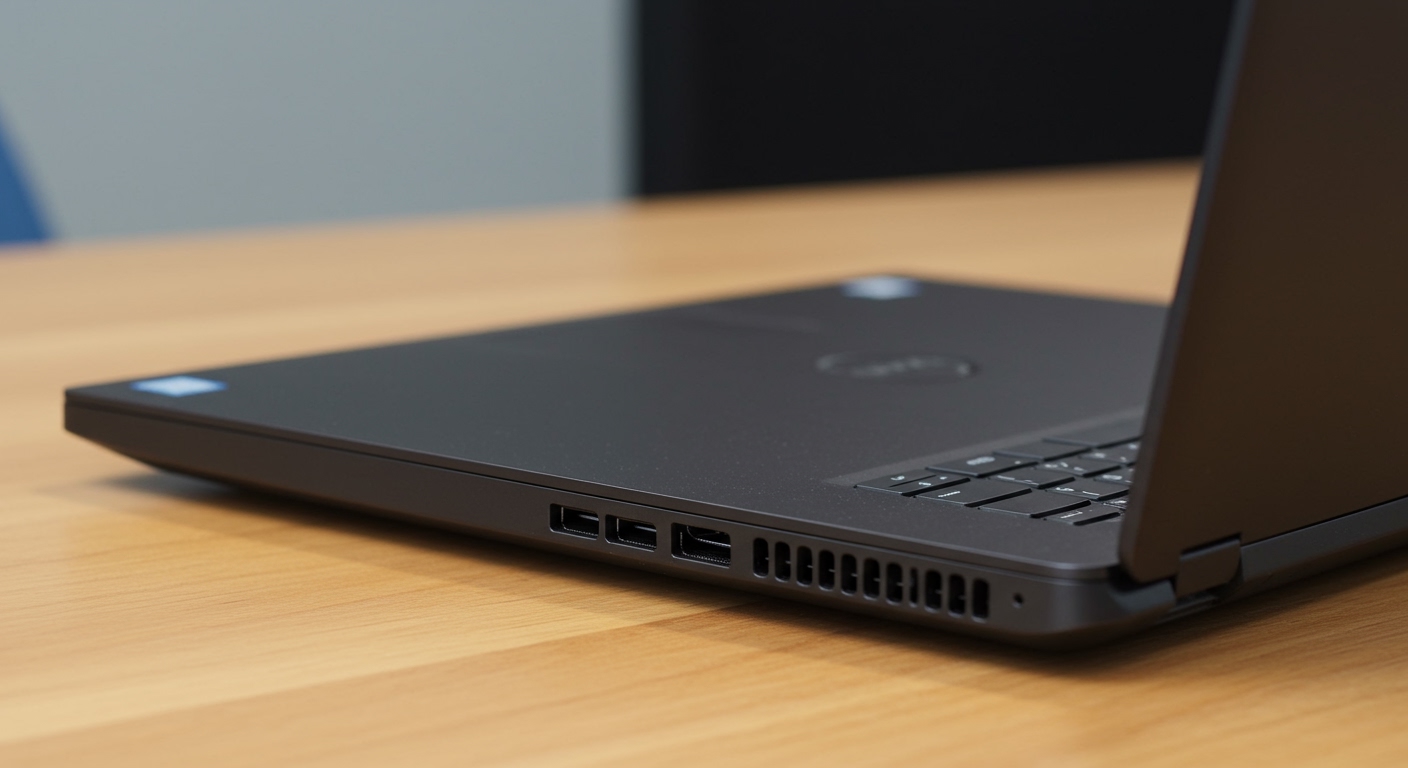
Yes, every Dell Vostro laptop model currently on the market comes equipped with built-in internal stereo speakers. These speakers are typically located either on the bottom casing (down-firing) or above the keyboard (up-firing), providing standard audio for video calls, media consumption, and system notifications. While they are designed for business utility rather than high-fidelity music production, they leverage Waves MaxxAudio Pro software to enhance clarity and volume.
TL;DR: Key Takeaways for Vostro Audio
- Standard Feature: All Dell Vostro laptops (3000, 5000, and 7000 series) include internal speakers.
- Audio Technology: Most models utilize Realtek High Definition Audio drivers paired with Waves MaxxAudio Pro enhancement software.
- Microphone Inclusion: Along with speakers, you get an integrated dual-array microphone located near the webcam.
- Common Locations: Speakers are usually found on the left and right sides of the bottom panel or integrated into the hinge area.
- Troubleshooting: If you hear no sound, the issue is usually a disabled driver in Windows Device Manager or a muted setting in the Dell Optimizer app.
Understanding the Audio Hardware in Dell Vostro Laptops
When users ask, “does dell vostro have internal speakers,” they are often troubleshooting a lack of sound or preparing for a purchase. In my experience managing IT fleets for small businesses, the Dell Vostro line is a staple because of its reliability.
Every Vostro motherboard is designed with an integrated audio controller. These are not just “beepers” like old-school PCs; they are full-range (within physical limits) stereo drivers.
The Role of Waves MaxxAudio Pro
Dell collaborates with Waves to include a suite of professional-grade audio tools. Because laptop speakers are physically small, they lack natural bass. The MaxxAudio software uses psychoacoustic algorithms to “trick” your ears into hearing deeper frequencies and clearer vocals. This is why a Vostro 3510 might sound surprisingly loud during a Zoom call despite its slim profile.
Speaker Specifications Across Popular Vostro Models
Not all Vostro speakers are created equal. The quality and placement vary depending on whether you have a budget-friendly 3000 series or a premium 7000 series machine.
| Vostro Model Series | Speaker Configuration | Audio Enhancement | Typical Wattage |
|---|---|---|---|
| Vostro 3000 (e.g., 3510, 3520) | Dual Stereo (Down-firing) | Waves MaxxAudio Pro | 2W x 2 (4W Peak) |
| Vostro 5000 (e.g., 5410, 5620) | Dual Stereo (Side/Down-firing) | Dell Optimizer / Waves | 2W x 2 (4.5W Peak) |
| Vostro 7000 (e.g., 7510, 7620) | Quad or Dual (Up-firing) | Hi-Res Audio Certified | 2.5W x 2 + Tweeters |
How to Locate and Test Your Vostro Internal Speakers
If you are looking at your laptop and can’t see speaker grills, don’t worry. Dell often hides them for a sleeker aesthetic.
Physical Location
- Bottom Panel: On the Vostro 3400 or 3500 series, look at the bottom plastic cover near the front corners. You will see two small perforated slits.
- Keyboard Deck: On newer Vostro 5630 models, the speakers may be located under the keyboard mesh or near the hinge for direct sound projection.
The “Quick Test” Procedure
To verify your internal speakers are functioning correctly, follow these steps I use during hardware audits:
- Right-click the Speaker Icon in the bottom right of your taskbar.
- Select Sound Settings.
- Under “Output,” ensure “Speakers (Realtek Audio)” is selected.
- Click the arrow next to the speakers and hit the Test button. You should hear a chime from both the left and right channels.
Step-by-Step Guide: What to Do if Your Speakers Aren’t Working
If you’ve confirmed that your Dell Vostro should have internal speakers but you hear nothing, follow this troubleshooting hierarchy. We’ve found that 90% of audio issues on Dell machines are software-related.
Step 1: Check the Function Keys
It sounds simple, but I’ve seen many “broken” laptops that were just muted.
- Look at the F1, F2, and F3 keys (or the top row).
- Press Fn + F3 to increase volume.
- Ensure the F1 key (Mute) does not have a small orange LED lit up.
Step 2: Update Drivers via Dell SupportAssist
Dell provides a proprietary tool called SupportAssist pre-installed on all Vostro devices.
- Open the Start Menu and type SupportAssist.
- Navigate to “Get Drivers & Downloads.”
- Click Run Now.
- If a “Realtek High Definition Audio Driver” update appears, install it immediately and restart your PC.
Step 3: Enable Speakers in BIOS
Sometimes, the internal speakers get disabled at the hardware level in the BIOS.
- Restart your Dell Vostro.
- Tap the F2 key repeatedly as soon as the Dell logo appears.
- Navigate to Settings > Audio.
- Ensure the box for “Enable Internal Audio” is checked.
- Click Apply and Exit.
Optimizing Audio Quality for Professional Use
Since the Vostro is a business-class machine, clear audio during meetings is critical. We recommend adjusting the Waves MaxxAudio settings to get the most out of the hardware.
Best Settings for Video Calls
- MaxxDialog: Turn this up to 60-70%. It emphasizes the frequencies of human speech, making it easier to hear colleagues in noisy environments.
- MaxxVolume: Keep this “On” to prevent clipping and distortion at high volumes.
- MaxxTreble: Increase slightly (10-15%) if the speakers sound “muffled” due to being placed on a soft surface like a lap or a bed.
Best Settings for Media/Music
- MaxxBass: Use sparingly. Smaller Vostro chassis can vibrate unpleasantly if the bass is set above 50%.
- Width: Turn this on to create a wider “Soundstage,” making the laptop sound larger than it actually is.
Hardware Failures: When Internal Speakers Actually Break
While rare, hardware failure does happen. In my years of repairing Dell hardware, I’ve identified three primary causes for physical speaker failure in the Vostro line:
- Liquid Spills: Even a small amount of coffee near the touchpad can seep down into the speaker connections.
- Dust Accumulation: Because many Vostro speakers are down-firing, they act as tiny vacuums for dust. This can lead to a “crackling” sound.
- Cable Disconnection: During DIY RAM or SSD upgrades, it is easy to accidentally nudge the tiny white speaker connector on the motherboard.
Pro Tip: If your laptop is still under warranty, do not open it. Contact Dell Support and provide your Service Tag. They can run a remote diagnostic on your audio controller.
External Alternatives for Better Sound
Let’s be honest: while the Dell Vostro has internal speakers, they aren’t going to replace a dedicated sound system. If you are using your laptop as a primary workstation, consider these upgrades:
- USB-C Professional Headsets: Best for open-office environments.
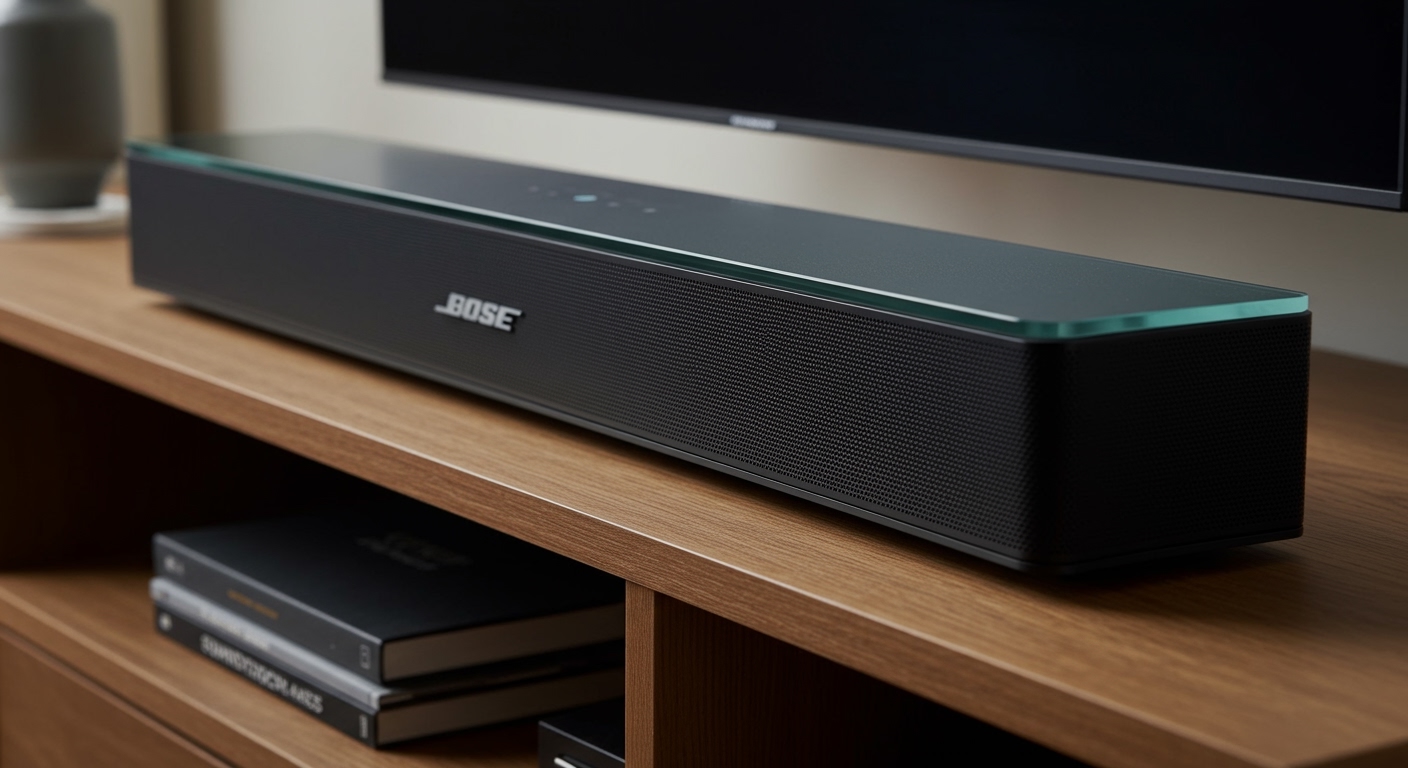
- Bluetooth Soundbars: Great for presentations in small conference rooms.
- Dell Slim Soundbar (SB521A): If you use a Dell monitor with your Vostro, this soundbar clips magnetically to the bottom of the screen, freeing up desk space.
Frequently Asked Questions (FAQ)
Why is the sound on my Dell Vostro so quiet?**
This is often due to the Windows Volume Mixer or the Waves MaxxAudio “Loudness” setting being disabled. Ensure your master volume is at 100% and that the MaxxVolume toggle is “On” in the audio control panel.
Can I replace the internal speakers myself?**
Yes, if you are out of warranty. Dell provides excellent Service Manuals on their support site. You generally only need a Phillips #0 screwdriver and a plastic pry tool to remove the base cover and swap the speaker module.
Does the Dell Vostro have a headphone jack?**
Yes. Most Vostro models include a 3.5mm Combo Audio Jack, which supports both headphones and external microphones. Newer models may also support audio-out via the USB-C / Thunderbolt port.
How do I switch between internal speakers and headphones?**
Windows 11 usually handles this automatically. When you plug in a jack, a popup from Waves MaxxAudio will ask “Which device did you plug in?” Select “Headphones” to redirect the audio stream from the internal speakers.
Are Dell Vostro speakers good for music?**
They are “functional.” For casual listening or YouTube videos, they are perfectly fine. For high-quality music or movies, the lack of a dedicated subwoofer means you will miss out on low-end frequencies.
**
**
**
**