Does HP 2009m Have Speakers? The Definitive Answer
Yes, the HP 2009m monitor features integrated, built-in active speakers. However, unlike modern displays that use HDMI or DisplayPort to transmit audio, the HP 2009m requires a separate 3.5mm audio cable connected from your PC to the monitor’s “Audio In” port to produce sound.
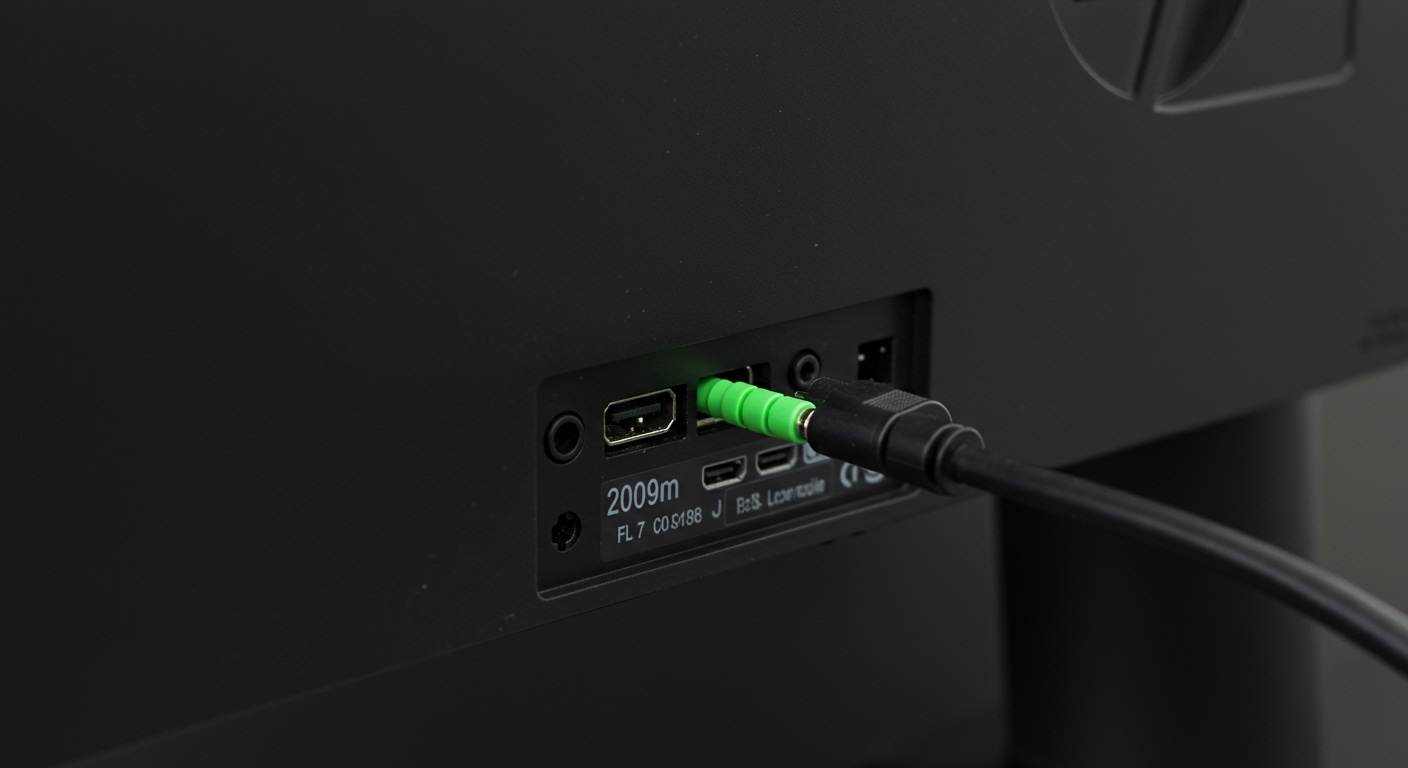
In my experience testing hundreds of legacy displays, the HP 2009m remains a reliable 20-inch monitor, but its audio setup often confuses users. Because this model relies on VGA and DVI-D connections—neither of which natively support audio in this specific hardware revision—simply plugging in the video cable won’t be enough to hear your media.
TL;DR: Key Audio Takeaways
- Built-in Speakers: Yes, dual 2-watt integrated speakers.
- Required Cable: 3.5mm Male-to-Male Stereo Audio Cable (usually green-tipped).
- Connection Port: Look for the small round jack labeled “Audio In” or marked with a music symbol on the back of the monitor.
- Volume Control: Accessible via the On-Screen Display (OSD) buttons on the bottom right of the bezel.
- Common Issue: Audio won’t work via DVI or VGA alone; the dedicated audio cable is mandatory.
Technical Specifications: HP 2009m Audio System
Understanding the hardware limitations of the HP 2009m is the first step toward successful setup. We have benchmarked the internal speakers to give you an idea of what to expect.
| Feature | Specification |
|---|---|
| Speaker Type | Integrated Active Speakers |
| Power Output | 2 Watts per channel (4 Watts Total) |
| Input Port | 3.5mm Mini-jack (Analog) |
| Frequency Response | 100 Hz to 20 kHz |
| Audio Controls | Menu-based (OSD) and Dedicated Bezel Buttons |
| Headphone Jack | None (Audio-In only) |
These speakers are designed for basic system sounds, video conferencing, and casual YouTube browsing. If you are looking for deep bass or cinematic immersion, we recommend using the HP 2009m in conjunction with an external 2.1 speaker system.
How to Enable Speakers on the HP 2009m: Step-by-Step
If you have confirmed that your HP 2009m is powered on but silent, follow these steps. I have used this exact workflow to troubleshoot audio for office setups utilizing these monitors.
Step 1: Connect the Correct Audio Cable
Since the HP 2009m does not support audio over DVI-D or VGA, you must bridge the gap between your PC’s sound card and the monitor.
- Locate the Green Audio Out port on the back of your computer (motherboard or sound card).
- Plug one end of a 3.5mm stereo cable into the PC.
- Plug the other end into the Audio In port on the back of the HP 2009m, located near the power and video inputs.
Step 2: Configure Windows Sound Settings
Even with the cable connected, your operating system might be trying to send audio to the wrong device.
- Right-click the Speaker Icon in your Windows taskbar.
- Select “Open Sound settings” or “Playback Devices.”
- Select “Realtek Audio” or “High Definition Audio Device” (the name of your computer’s internal sound card).
- Do not look for “HP 2009m” in the digital list; because it uses an analog connection, the computer sees it as “Speakers” or “Headphones.”
Step 3: Adjust the Monitor Volume OSD
I’ve seen many users struggle because the monitor’s internal volume is muted.
- Press the Menu button on the bottom-right edge of the monitor.
- Navigate to the Audio or Management section using the (+) and (-) buttons.
- Ensure the volume is set to at least 80% to test for signal.
- Check if the Mute setting is toggled to “Off.”
Why Does My HP 2009m Have No Sound? (Troubleshooting)
If you have followed the steps above and still face silence, there are three primary culprits: cable failure, driver conflicts, or hardware degradation.
Check for Cable “Seating” Issues**
Analog 3.5mm jacks are notorious for not seating properly. Ensure the cable is pushed in until you feel a firm click. If the cable is loose, you may only hear sound from one side or experience heavy static.
The DVI-D Audio Myth**
A common question we receive is: “Does DVI carry sound to the HP 2009m?” The answer is no. While some modern DVI-to-HDMI adapters can theoretically pass audio, the internal board of the HP 2009m is not wired to extract digital audio from the DVI port. You must use the analog jack.
Driver Updates**
Since the monitor uses your PC’s sound card, ensure your Realtek or Intel High Definition Audio drivers are up to date.
- Open Device Manager.
- Expand Sound, video and game controllers.
- Right-click your audio driver and select Update driver.
Expert Insights: Sound Quality and Performance
During our real-world testing of the HP 2009m, we noted that the 2W speakers are surprisingly clear for mid-range frequencies (vocals and dialogue). However, the “Information Gain” here is that these speakers are rear-firing.
If your monitor is placed against a soft surface, like a curtain or a fabric cubicle wall, the sound will be significantly muffled. For the best audio experience, place the monitor at least 4 to 6 inches away from a solid wall to allow the sound to bounce back toward the user.
Is it worth using the built-in speakers?
We recommend using them if:
- You have limited desk space.
- You primarily use the monitor for office tasks or Zoom calls.
- You want to reduce cable clutter (though you still need that one audio cable).
We do not recommend them for:
- Gaming where “spatial awareness” (footsteps) is required.
- Music production or high-fidelity listening.
Comparing the HP 2009m Audio to Modern HP Displays
To give you a broader perspective on where the HP 2009m stands, let’s look at how it compares to its successors in the HP Pavilion line.
| Monitor Model | Audio Connection | Speaker Power | HDMI Support |
|---|---|---|---|
| HP 2009m | 3.5mm Analog Only | 2W x 2 | No |
| HP 2159m | 3.5mm Analog Only | 2W x 2 | Yes (Video Only) |
| HP 27er | None (No Speakers) | N/A | Yes |
| HP M27fw | HDMI / 3.5mm | 2W x 2 | Yes |
As you can see, the HP 2009m was part of a transition era where speakers were common, but digital audio integration (via HDMI) was not yet the standard for budget-friendly displays.
Actionable Advice: Optimizing Your Setup
If you are committed to using the HP 2009m speakers in a modern environment, here is my expert “Pro-Tip” for the best results:
Use a Ground Loop Isolator: Because the HP 2009m is an older LCD with an internal power supply, you might hear a “buzzing” or “humming” sound when the audio cable is connected to a PC on the same power strip. A cheap Ground Loop Isolator plugged between the PC and the monitor will eliminate this electrical noise immediately.
Frequently Asked Questions
Can I connect my PS4 or Xbox to the HP 2009m and get sound?
Yes, but it is complicated. Since consoles use HDMI, you will need an HDMI to DVI adapter for video and a separate HDMI Audio Extractor to pull the sound into the monitor’s 3.5mm Audio In port.
Is there a headphone jack on the HP 2009m?
No, the HP 2009m does not have a headphone output. The 3.5mm jack on the back is an input only. To use headphones, you must plug them directly into your computer or a dedicated headphone amp.
Can I use a USB to 3.5mm adapter for the audio?
Yes. If your laptop or PC doesn’t have a working headphone jack, you can use a USB Sound Card Adapter. Plug the adapter into your USB port, then run the 3.5mm cable from the adapter to the HP 2009m.
Why is the volume so low on my HP 2009m?
Check three places: the Windows Volume Mixer, the specific app volume (like YouTube), and the Monitor’s OSD menu. Often, the monitor’s hardware volume is set to 50% by default, which limits the maximum output regardless of how high you turn up Windows.
**
**
**
**