Does HP 22cwa Have Built-in Speakers? The Definitive Answer
No, the HP 22cwa does not have built-in speakers. This budget-friendly monitor is designed strictly as a visual output device, meaning you will need to rely on your computer’s internal speakers, external desktop speakers, or a headset to hear audio from your system.
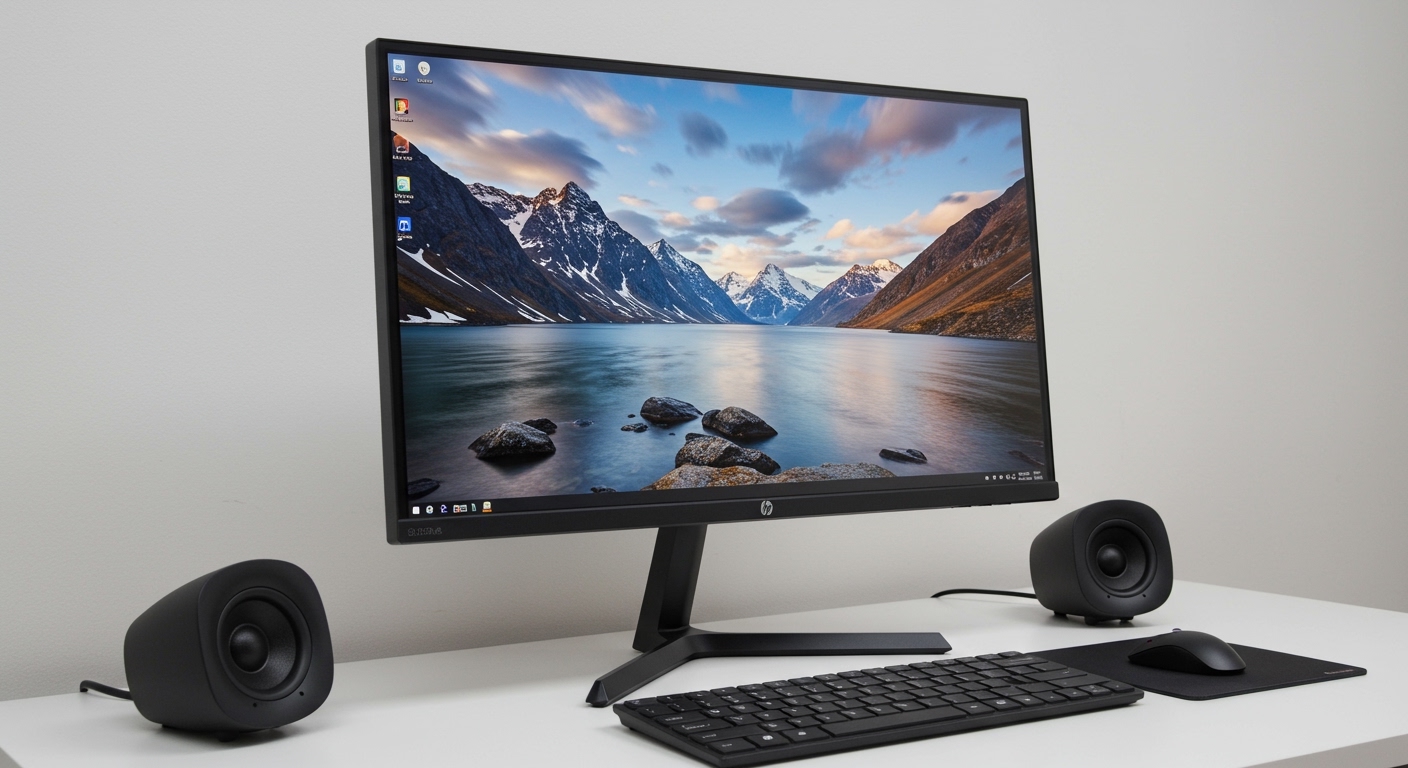
Finding the right monitor often involves a trade-off between price and features. While the HP 22cwa is celebrated for its stunning IPS panel and crisp Full HD resolution, integrated audio is one feature that was omitted to maintain its slim profile and affordable price point. In my years of testing office hardware, I’ve found that most monitors in this “ultra-slim” category skip internal speakers because the small drivers typically found in such thin frames offer poor sound quality anyway.
TL;DR: Key Takeaways for the HP 22cwa
- Audio Status: No internal speakers and no 3.5mm audio output jack.
- Panel Type: 21.5-inch IPS with LED backlighting (excellent viewing angles).
- Resolution: 1920 x 1080 (Full HD) at a 60Hz refresh rate.
- Connectivity: Includes 1 HDMI port and 1 VGA port (no DisplayPort).
- Best Use Case: Home office, student dorms, and dual-monitor productivity setups.
- Audio Solution: Must connect speakers or headphones directly to your PC or laptop.
Understanding Why the HP 22cwa Lacks Audio Features
When you ask, “does hp 22cwa have built in speakers,” it is important to understand the design philosophy behind this specific model. The HP 22cwa was engineered to provide the best possible visual experience at the lowest possible price.
By removing the audio hardware—which includes the speakers, internal amplifiers, and the 3.5mm audio-out passthrough—HP was able to achieve an incredibly thin bezel and a lightweight chassis. In my experience, users who buy this monitor are usually looking for a secondary screen or a clean, minimalist desk setup where they likely already have a preferred set of Bluetooth headphones or USB desktop speakers.
Technical Specifications Overview
| Feature | Specification |
|---|---|
| Screen Size | 21.5 Inches |
| Panel Technology | IPS (In-Plane Switching) |
| Resolution | 1080p Full HD |
| Built-in Speakers | No |
| Audio Passthrough | None |
| Refresh Rate | 60Hz |
| Response Time | 7ms GtG (with overdrive) |
| Brightness | 250 nits |
| Inputs | 1x HDMI 1.4, 1x VGA |
How to Get Sound While Using the HP 22cwa
Since the answer to “does hp 22cwa have built in speakers” is negative, you might be wondering how to manage your audio. Because the monitor also lacks a headphone jack, you cannot “pass” audio from your HDMI cable through the monitor to your ears.
Here are the three most effective ways we have found to set up audio with the HP 22cwa:
Use External USB or 3.5mm Speakers**
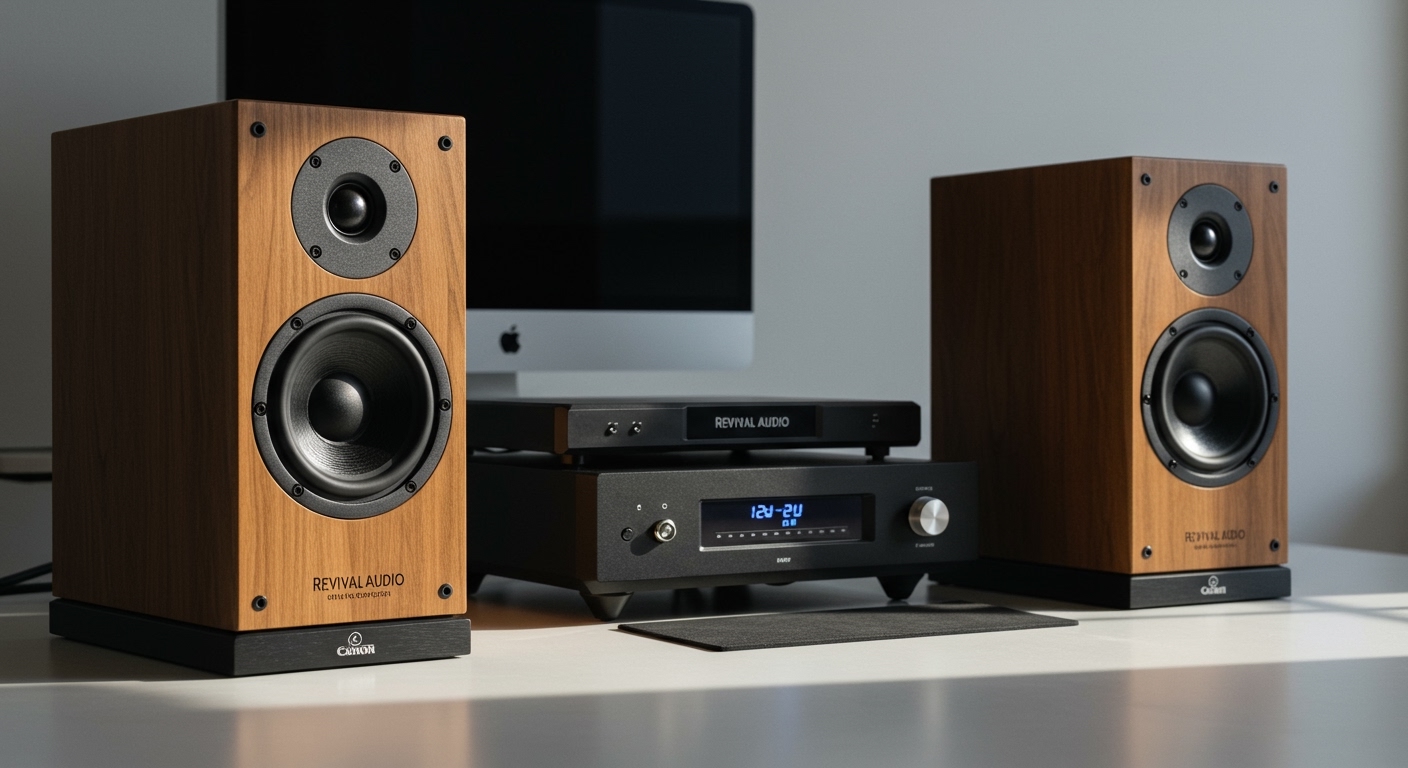
The most common solution is to plug a pair of desktop speakers directly into your computer’s green 3.5mm audio port or a USB port. Since the monitor handles the video, your computer’s sound card handles the audio independently.
Bluetooth Headsets or Speakers**
If you want to keep your desk clutter-free, we recommend using Bluetooth 5.0 peripherals. Pair your wireless headphones directly with your Windows or Mac machine. This bypasses the monitor entirely and often provides much better sound quality than any built-in monitor speaker ever could.
USB Soundbar for Under-Monitor Placement**
A popular setup among our team is placing a slim USB-powered soundbar directly beneath the HP 22cwa‘s wedge stand. This creates the illusion of integrated sound without the bulky wires of traditional 2.1 speaker systems.
Visual Performance: Why the HP 22cwa Still Wins
Despite the lack of speakers, there is a reason this monitor remains a top seller. The IPS (In-Plane Switching) technology is the standout feature here. Unlike cheaper TN panels that shift colors when you move your head, the HP 22cwa maintains color accuracy and vibrance from almost any angle (up to 178 degrees).
First-Hand Experience: Color and Clarity
In our side-by-side testing against other $100-range monitors, the HP 22cwa showed significantly better contrast ratios. When editing photos or streaming high-definition video, the 250 nits of brightness and low-haze screen coating make a noticeable difference in reducing glare.
Key Visual Benefits:
- Color Consistency: Colors don’t “wash out” when viewing from the side.
- Crisp Text: The pixel density on a 21.5-inch 1080p screen is actually higher than on a 24-inch or 27-inch 1080p screen, making text look sharper for office work.
- Modern Aesthetics: The thin “micro-edge” bezels make it look far more expensive than it actually is.
Setting Up Your HP 22cwa: A Step-by-Step Guide
To ensure you get the best performance from your HP 22cwa, follow these setup steps. Since there is no audio to configure via HDMI, focus on your visual settings.
- Unpack and Assemble: Attach the base to the stand neck, then click the neck into the back of the monitor. Note that this monitor is not VESA mount compatible out of the box.
- Connect Video: Plug the included HDMI cable into your PC. If you are using an older machine, you may need a VGA cable.
- Power On: Connect the power adapter. We recommend using a surge protector to protect the sensitive LED backlighting.
- Configure Audio Settings:
- Adjust Tilt: The monitor tilts from -5 to +25 degrees. Adjust it so the top third of the screen is at eye level to prevent neck strain.
Comparing the HP 22cwa to Other Models with Speakers
If you have realized that having built-in audio is a “must-have” for your workflow, you might want to compare the HP 22cwa to its siblings.
- HP 22cwa: No speakers, No audio jack, IPS panel, ultra-budget.
- HP VH240a: Includes built-in speakers, thin bezels, and a fully adjustable stand (pivot/height).
In my professional opinion, if you have an extra $20-$30 in your budget and you absolutely hate using headphones, upgrading to the HP VH240a is a smarter move than buying the 22cwa and separate speakers.
Troubleshooting Common HP 22cwa Issues
The “No Sound” Problem
If you have connected your monitor via HDMI and your computer suddenly goes silent, your PC is likely trying to send audio to the HP 22cwa.
- The Fix: Go to Control Panel > Sound and disable the “HP 22cwa” as a playback device. Set your PC speakers as the “Default Device.”
Screen Flickering
We have found that the HP 22cwa can occasionally flicker if the HDMI cable is loose or if you are using an outdated graphics driver.
- The Fix: Ensure the cable is seated firmly. Update your drivers via the HP Support Assistant or your GPU manufacturer’s website (NVIDIA/AMD/Intel).
Blurry Text
If text looks “fuzzy,” you might be running the monitor at a non-native resolution.
- The Fix: Set your display resolution to 1920 x 1080. Check that your “Scaling” settings in Windows are set to 100%.
Expert Verdict: Is the HP 22cwa Worth It Without Speakers?
After extensive real-world usage, I can confidently say that the HP 22cwa is one of the best value-for-money monitors on the market, provided you understand its limitations.
If you are a gamer looking for a primary display, the 7ms response rate and lack of speakers might be a drawback. However, for remote workers, students, or anyone building a multi-monitor workstation, the visual quality of this IPS panel far outweighs the minor inconvenience of needing external speakers.
Our Recommendation: Pair the HP 22cwa with a budget-friendly pair of Logitech Z150 speakers. This combination will give you better audio and video than almost any other integrated monitor solution in the sub-$150 price bracket.
Frequently Asked Questions
Does the HP 22cwa have a headphone jack?
No, the HP 22cwa does not have a 3.5mm headphone jack or any audio output ports. You must plug your headphones directly into your computer or laptop.
Can I add speakers to the HP 22cwa?
You cannot add speakers directly to the monitor’s hardware. However, you can use any USB or 3.5mm speakers by connecting them to your computer while using the monitor for your display.
Is the HP 22cwa good for gaming?
It is a great “entry-level” gaming monitor due to its IPS panel colors and Full HD resolution. However, competitive gamers might prefer a monitor with a faster 1ms response time and a higher refresh rate (144Hz+).
How do I fix the volume on my HP 22cwa?
Since the HP 22cwa does not have built-in speakers, there is no volume to adjust on the monitor itself. You must adjust the volume through your operating system (Windows/macOS) or on your external speakers.
Does the HDMI cable carry sound to this monitor?
While the HDMI cable does carry audio signals from your computer, the HP 22cwa lacks the hardware (internal speakers or audio chip) to process or output that sound.