Understanding the Audio Setup: Does HP Omen 27 Have Speakers?
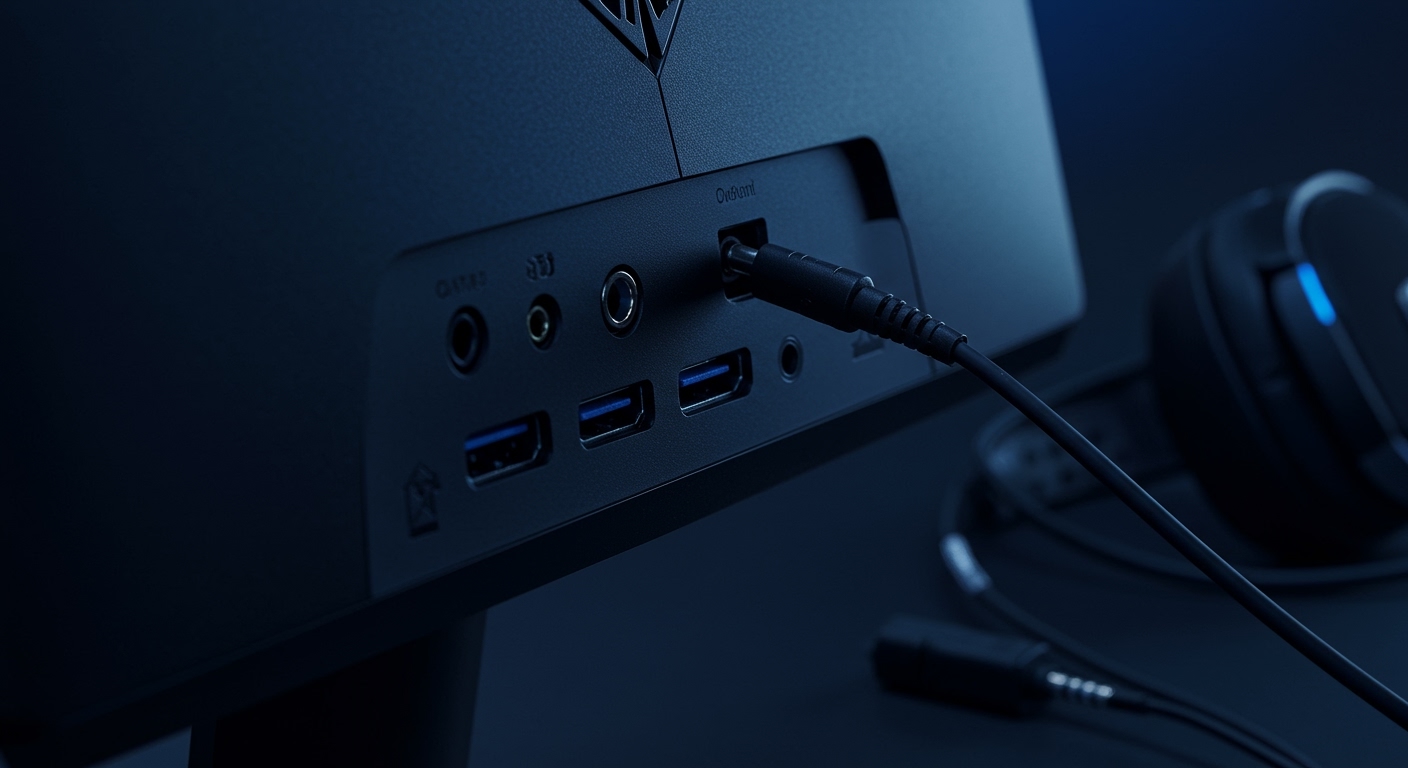
The short answer is no, the HP Omen 27, HP Omen 27q, and HP Omen 25 do not have built-in speakers. While these monitors offer elite gaming performance with high refresh rates and vibrant colors, they prioritize screen real estate and cooling over integrated audio. To get sound, you must connect external speakers or a headset via the 3.5mm audio-out jack located at the back of the monitor or directly to your PC.
💡 Expert Summary: Quick Audio Guide
Built-in Audio: Most HP Omen gaming monitors (25, 27, 27q, 32) lack internal speakers.
The Solution: Use the Audio-out (3.5mm) port on the back of the monitor to pass audio from HDMI/DisplayPort to external speakers.
Volume Control: Since there are no speakers, the monitor’s OSD (On-Screen Display) volume menu only controls the gain for the headphone jack.
Best Practice: Connect your audio devices directly to your motherboard or dedicated sound card for the lowest latency and highest fidelity.
Key Takeaways for HP Omen Audio
| Feature | Status | Recommendation |
|---|---|---|
| Integrated Speakers | ❌ Not Included | Buy a dedicated soundbar or gaming headset. |
| Audio Output Port | ✅ 3.5mm Jack | Located near the HDMI/DisplayPort inputs. |
| HDMI/DP Audio Support | ✅ Supported | The monitor can “strip” audio from your GPU to the jack. |
| Software Control | ✅ Omen Gaming Hub | Use this to manage display modes, not audio levels. |
Step 1: Verify Your Specific HP Omen Model
Before attempting to fix a “no sound” issue, you must confirm if your hardware is even capable of producing it. Many users ask, “does the hp omen monitor have speakers?” because the Windows volume slider shows “HP Omen” as an output device.
- Check the Model Number: Look at the sticker on the back of your monitor. Common models like the HP Omen 25, HP Omen 27, and HP Omen 27q are strictly “speakerless.”
- Inspect the Bezels: HP Omen monitors feature “micro-edge” bezels. There is physically no room for high-quality drivers, which is why HP omits them to keep the design sleek.
- Look for Grilles: If you do not see speaker grilles (small holes) on the bottom or back of the panel, your HP Omen monitor does not have integrated audio.
Step 2: Connect External Audio via the Monitor
If you are using a console (PS5/Xbox) or a PC and want to use the monitor as a hub, follow these steps to route sound.
- Locate the Audio Jack: Find the 3.5mm headphone jack on the back I/O panel of your HP Omen 27 or HP Omen 25.
- Plug in Your Device: Insert your speaker’s aux cable or your headset into this port.
- Select the Input Source: Ensure your PC/Console is sending audio through the HDMI or DisplayPort cable.
- Adjust Monitor Volume: Use the physical joystick on the back of the monitor to navigate to Audio and ensure the volume is set to 100%. This acts as a “passthrough” volume.
Step 3: Configure Windows Sound Settings
Even if you have speakers plugged in, Windows might not automatically switch the output. This is a common reason people think their hp omen 27q has broken speakers.
- Open Sound Settings: Right-click the speaker icon in your taskbar and select “Sound settings.”
- Choose Your Output: Under “Choose where to play sound,” select “HP Omen 27 (NVIDIA High Definition Audio)” or similar.
- Test the Connection: Click the volume slider. If you see the green bar moving but hear nothing, the issue is with the external speakers or the cable.
- Disable Extra Enhancements: Sometimes, “Spatial Sound” can interfere with monitor passthrough. Turn off Windows Sonic to see if audio returns.
Step 4: Troubleshooting “No Sound” on HP Omen Monitors
If you have connected speakers to the monitor but hear silence, follow this checklist based on my years of testing gaming setups.
Check the Cable Type: Ensure you are using HDMI or DisplayPort. VGA and DVI (if applicable on older models) do not carry audio signals.
Update GPU Drivers: Audio is handled by your graphics card driver (NVIDIA/AMD). Download the latest Game Ready Driver to ensure the HDMI audio controller is functioning.
Monitor Mute Toggle: Some HP Omen models have a “Mute” option within the OSD menu. Ensure this is toggled Off.
Try the Motherboard Jack: If the monitor’s jack is crackling or silent, plug your speakers directly into the Green port on the back of your PC. This is generally the Expert Recommended method for better sound quality.
Tools & Materials for the Perfect Audio Setup
To get the most out of your HP Omen 27 or HP Omen 25, I recommend the following additions:
| Tool/Material | Purpose | Why You Need It |
|---|---|---|
| Active Bookshelf Speakers | Primary Audio | Overcomes the lack of built-in speakers with superior clarity. |
| DisplayPort 1.4 Cable | Signal | Required for high refresh rates + audio on HP Omen 27q. |
| 3.5mm Male-to-Male Cable | Connection | Connects the monitor’s output to a soundbar. |
| Omen Gaming Hub | Software | Optimizes visual performance to match your audio. |
Pro Tips for HP Omen Audio Management
Avoid the Monitor Jack for High-End Headphones: The internal DAC (Digital-to-Analog Converter) in the HP Omen is basic. If you have high-impedance headphones (like Sennheiser or Beyerdynamic), use a dedicated USB DAC/Amp.
Cable Management: If you connect speakers to the monitor, use the cable management clip on the Omen stand to keep the 3.5mm wire from dangling.
Console Setup: For PS5 users, if you connect to an HP Omen monitor, go to Settings > Sound > Audio Output and ensure “Output Device” is set to “HDMI Device (AV amplifier)” to enable the monitor’s jack.
Common Mistakes to Avoid
Assuming USB carries audio: The USB ports on the back of the HP Omen 27 are for data (USB Hub). They will not output audio to speakers unless the speakers have a built-in USB sound card.
Maxing out Windows but muting the OSD: If the monitor’s internal volume (via the joystick) is at 0, you will hear nothing regardless of your Windows settings.
Ignoring Driver Conflicts: Sometimes the “Realtek Audio” driver and the “NVIDIA High Definition Audio” driver conflict. Ensure the NVIDIA one is enabled if you are using the monitor jack.
FAQs: Does HP Omen Have Speakers?
Does the HP Omen 27q have speakers?
No, the HP Omen 27q does not have built-in speakers. It features a 3.5mm audio-out port to connect external sound systems or headphones.
Why is there a volume control on my HP Omen monitor if it has no speakers?
The volume control in the OSD (On-Screen Display) manages the signal strength of the 3.5mm headphone jack. It allows you to adjust the loudness of whatever external device you have plugged into the monitor.
Does the HP Omen 25 have speakers integrated?
No, the HP Omen 25 (and the 25i variant) does not include integrated speakers. Users must utilize the audio output jack or connect audio devices directly to their PC.
Can I use a soundbar with my HP Omen monitor?
Yes. You can connect a soundbar via the 3.5mm jack on the monitor, or preferably, connect the soundbar directly to your PC via USB or Optical for the best sound quality.
Is the HP Omen 27i the same regarding audio?
Yes, the HP Omen 27i also lacks built-in speakers. It follows the same design philosophy of prioritizing a 165Hz Nano IPS panel over audio components.
Conclusion: Final Verdict on HP Omen Audio
While the question “does hp omen 27 have speakers” results in a “no,” this is actually standard for high-performance gaming monitors. Built-in speakers are usually of poor quality and add unnecessary bulk. By using the 3.5mm audio-out jack or a direct-to-PC connection, you ensure that your audio experience matches the premium 1440p or 1080p visuals provided by your HP Omen monitor.
Ready to upgrade your sound? Invest in a quality pair of desktop speakers or a wireless gaming headset to complete your HP Omen battle station!