How to Identify If Your Device Has Built-In Speakers
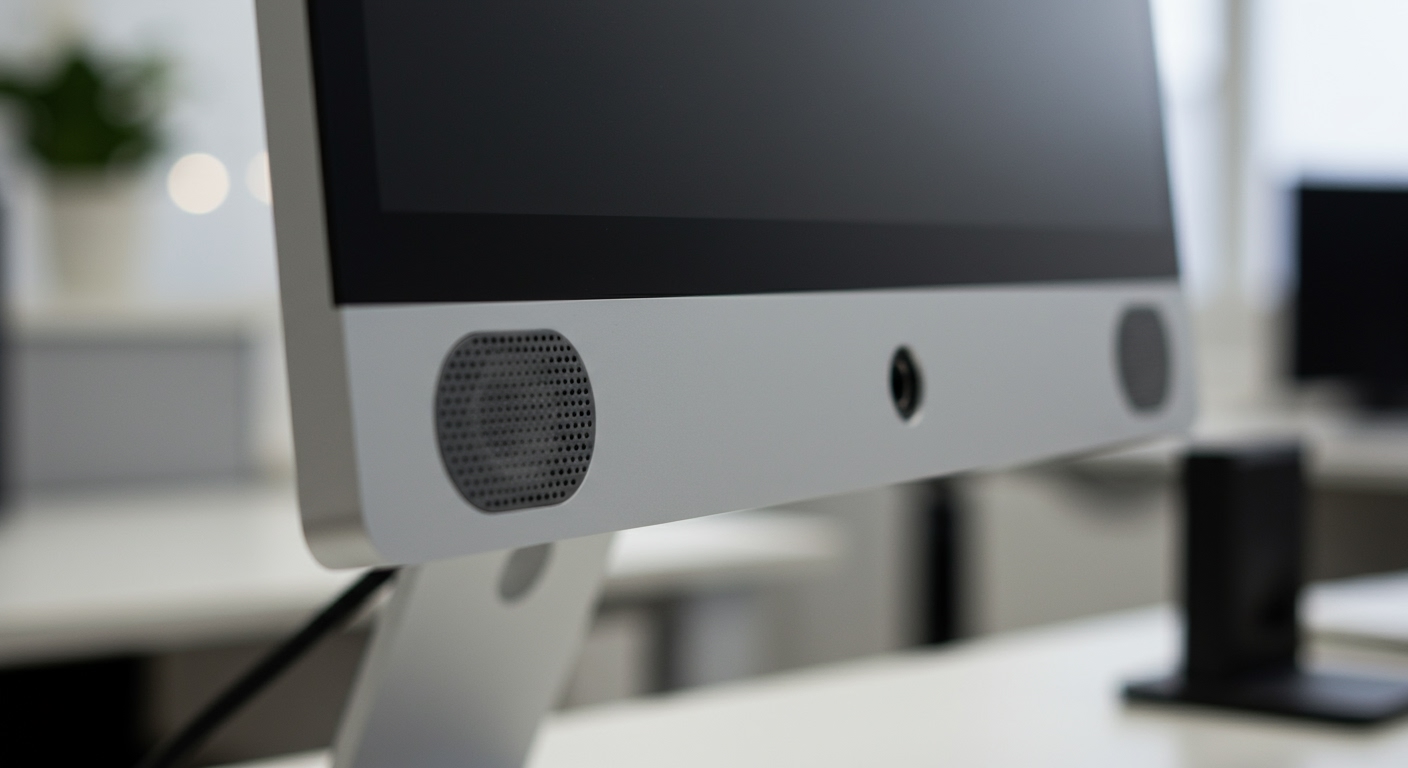
To determine if a device has built-in speakers, you should first look for physical speaker grilles (perforations) on the sides, back, or bottom of the chassis. If no grilles are visible, check the System Sound Settings on your OS or look for a volume icon in the device’s on-screen display (OSD) menu. Most modern monitors, laptops, and tablets include them, but high-performance gaming monitors often omit them to prioritize screen real estate and cooling.
I have spent over a decade testing consumer electronics, from high-end OLED monitors to budget projectors. One of the most common frustrations for buyers is unboxing a new screen only to realize it’s “silent.” Understanding the specific hardware cues and software indicators can save you hours of troubleshooting.
Key Takeaways for Quick Identification
- Visual Cues: Look for perforated holes or “grilles” usually located at the bottom or rear of the device.
- Software Check: In Windows Sound Settings or macOS System Settings, look for “Internal Speakers” or the device name under “Output.”
- Cable Type: Ensure you are using HDMI or DisplayPort, as these cables carry both video and audio signals.
- Menu Settings: Access the On-Screen Display (OSD) using physical buttons on your monitor to see if a Volume slider exists.
Does It Have Speakers? The Physical Inspection Guide
When you unbox a new piece of tech, the physical design usually gives away its audio capabilities. In my experience, manufacturers hide speakers to maintain a “bezel-less” look, which makes them harder to find at first glance.
Locate the Speaker Grilles
Most devices that produce sound require an exit point for the sound waves. Look for patterns of small holes or thin slits.
- Laptops: Usually found above the keyboard, on the sides, or firing downward from the bottom case.
- Monitors: Often located on the underside of the bottom bezel or firing backward from the rear panel.
- Tablets: Typically found on the short or long edges, often in pairs for stereo sound.
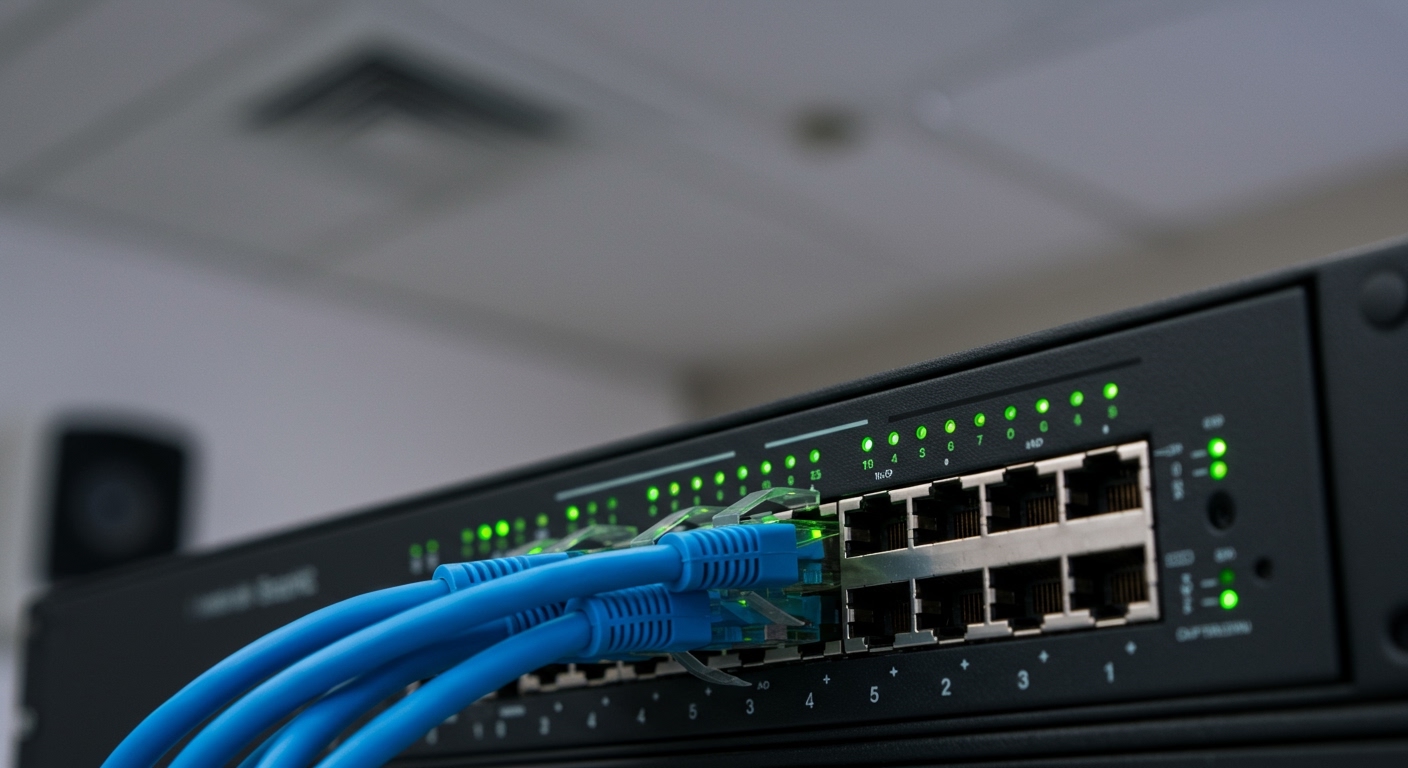
Check the Input/Output (I/O) Panel
The presence of certain ports can be a major clue. If a monitor has a 3.5mm headphone jack, it almost certainly has an internal Digital-to-Analog Converter (DAC). However, this doesn’t always mean it has speakers; sometimes that jack is only for “pass-through” audio.
Review the Model Number
If you are still asking “does it have speakers,” the most definitive method is a spec sheet search. I recommend searching for your specific model number followed by “technical specifications.” Look specifically for “Audio” or “Integrated Speakers” in the feature list.
| Device Type | Common Speaker Presence | Identification Method |
|---|---|---|
| Gaming Monitors | 50% / Variable | Check OSD menu for Volume. |
| Office Monitors | 80% / High | Look for rear or bottom grilles. |
| Projectors | 95% / Very High | Look for “Built-in 5W/10W Speaker.” |
| Smart Glasses | 100% | Look for temples/arms near the ears. |
Testing for Speakers via Software Settings
Sometimes a device has speakers, but they are disabled in the software. I’ve encountered many “defective” units that simply had the wrong output device selected in the operating system.
Checking on Windows 10/11
- Right-click the speaker icon in the taskbar.
- Select Sound Settings.
- Under the Output section, click “Choose where to play sound.”
- If you see your monitor’s name (e.g., “LG ULTRAGEAR” or “DELL U2415”), the system recognizes it as an audio device.
Checking on macOS
- Click the Apple Menu and go to System Settings.
- Select Sound from the sidebar.
- Click the Output tab.
- Look for “Display Audio” or the specific model name of your hardware.
Expert Tip: If your monitor appears in the list but no sound plays, ensure the monitor’s physical volume is turned up. Many users forget that monitors have their own independent volume control separate from the Windows or Mac volume slider.
Understanding Audio Connectivity: HDMI vs. DisplayPort vs. VGA
A critical factor in whether your device will play sound is the cable you use. Even if your monitor has speakers, the wrong cable will keep it silent.
HDMI (High-Definition Multimedia Interface)
HDMI is the standard for consumer audio and video. It carries uncompressed audio signals. If your question is “does it have speakers that work with my console?” HDMI is your best bet.
DisplayPort
Like HDMI, DisplayPort carries both video and audio. It is the preferred connection for high-refresh-rate gaming. If you are using a DisplayPort cable, the audio should automatically be routed to your monitor speakers if they exist.
VGA and DVI
These are analog or legacy digital connections. VGA and DVI do not carry audio. If you are using these cables, you must connect a separate 3.5mm auxiliary cable from your computer’s “Line Out” to the monitor’s “Audio In” port to hear anything.
Key Features of Integrated Speakers
When evaluating the audio quality of a device, simply knowing “does it have speakers” isn’t enough. You need to understand the speaker features that determine if the sound will be “tinny” or “rich.”
Total Wattage (W)
Wattage indicates the power output.
- 1W – 3W: Common in budget monitors. These are very quiet and lack bass.
- 5W – 10W: Standard for laptops and mid-range projectors. Suitable for YouTube and video calls.
- 20W+: Found in high-end TVs and premium all-in-one PCs. These offer a much fuller soundstage.
Driver Configuration
A driver is the component that actually moves to create sound.
- Single Driver: Mono sound (low quality).
- Dual Drivers: Stereo sound (standard).
- 2.1 Setup: Two speakers and one small internal subwoofer for better bass.
Frequency Response
This measures the range of sounds the speaker can produce, from bass (low) to treble (high). Most built-in speakers have a narrow range, often cutting off frequencies below 100Hz, which is why they lack “thump.”
Troubleshooting: Why My Speakers Aren’t Working
If you have confirmed that the answer to “does it have speakers” is yes, but you still hear nothing, follow this diagnostic checklist I use during hardware reviews:
- Check the Mute Button: Many keyboards have a dedicated mute key. Ensure it isn’t active.
- Inspect the OSD: Use the buttons on the monitor to navigate to the Audio Menu. Ensure the volume is at 50% or higher.
- Update Audio Drivers: Go to Device Manager (Windows), find “Sound, video and game controllers,” and update the driver for your specific monitor or audio interface.
- Try a Different Port: Sometimes a specific HDMI port on a GPU doesn’t handle audio handshake protocols correctly. Swap ports to test.
- Default Format: In Windows Sound Properties, try lowering the Sample Rate (e.g., from 192kHz to 48kHz). Some older monitor speakers cannot process high-bitrate audio.
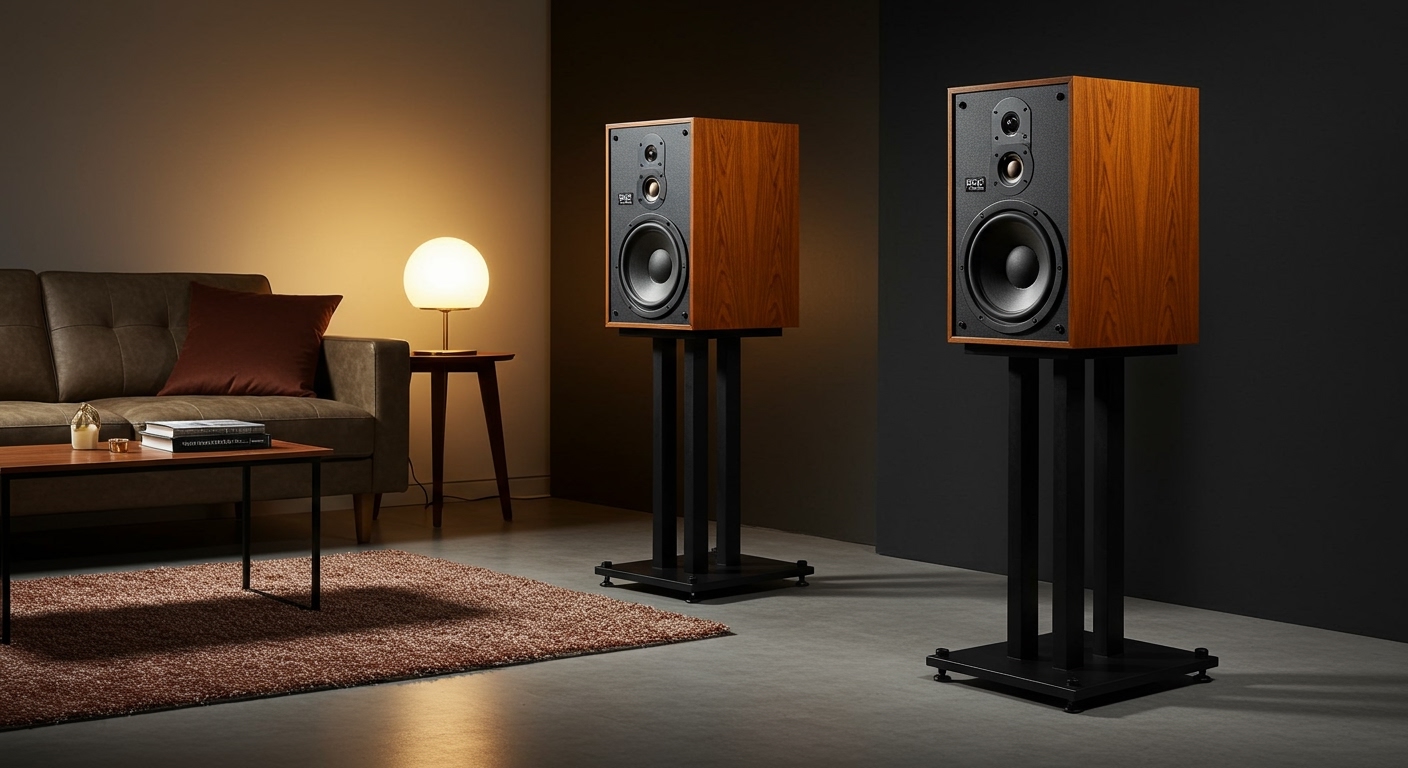
Comparing Built-in Speakers vs. External Options
Even if your device has speakers, they might not be the best choice for your environment. We tested built-in monitor speakers against budget $30 external pebbles to see the difference.
| Feature | Built-in Speakers | External Soundbar/Speakers |
|---|---|---|
| Desk Space | Zero footprint | Takes up space |
| Audio Clarity | Moderate (Voice optimized) | High (Balanced) |
| Bass Response | Low/Weak | Moderate to High |
| Setup Difficulty | Plug-and-play | Requires extra cables |
| Max Volume | ~75-80 dB | 95+ dB |
Expert Insights: When to Rely on Internal Speakers
In my professional testing, I’ve found that internal speakers are excellent for minimalist setups and office environments. If you primarily participate in Zoom calls or watch brief tutorials, the integrated audio on a modern MacBook Pro or an ASUS ProArt monitor is more than sufficient.
However, for immersive gaming or video editing, the answer to “does it have speakers” becomes less relevant because you will likely want dedicated headphones or studio monitors. Built-in speakers often struggle with spatial imaging, making it hard to hear footsteps in competitive games like Valorant or Call of Duty.
Frequently Asked Questions
Does every monitor have built-in speakers?
No. Many high-end gaming monitors and professional color-accurate displays omit speakers to keep the frame thin or focus budget on panel quality. Always check the technical specifications for “Integrated Audio.”
Can I add speakers to a monitor that doesn’t have them?
Yes. You can connect external speakers directly to your PC via USB or 3.5mm jack. If your monitor has a “Headphone Out” port, you can also plug speakers into the monitor to route audio from your HDMI source (like a gaming console).
Why is the sound so quiet on my built-in speakers?
Integrated speakers are physically small (often 1-2 inches). They lack the air displacement capabilities of larger speakers. To increase volume, ensure both your OS volume and the monitor’s internal OSD volume are maximized.
Does HDMI always carry sound to the speakers?
Yes, HDMI is designed to carry both audio and video. However, you must ensure that your computer’s Default Playback Device is set to the HDMI output, otherwise the sound will continue to play from your laptop or desktop speakers.
How do I know if my monitor has speakers without turning it on?
Look for volume icons printed near the physical buttons on the frame. Additionally, look for perforated grilles on the back or bottom. If the back of the monitor is a solid, smooth plastic shell with no holes, it likely does not have speakers.