Does Philips Monitor Have Speakers? The Definitive Guide to Built-in Audio
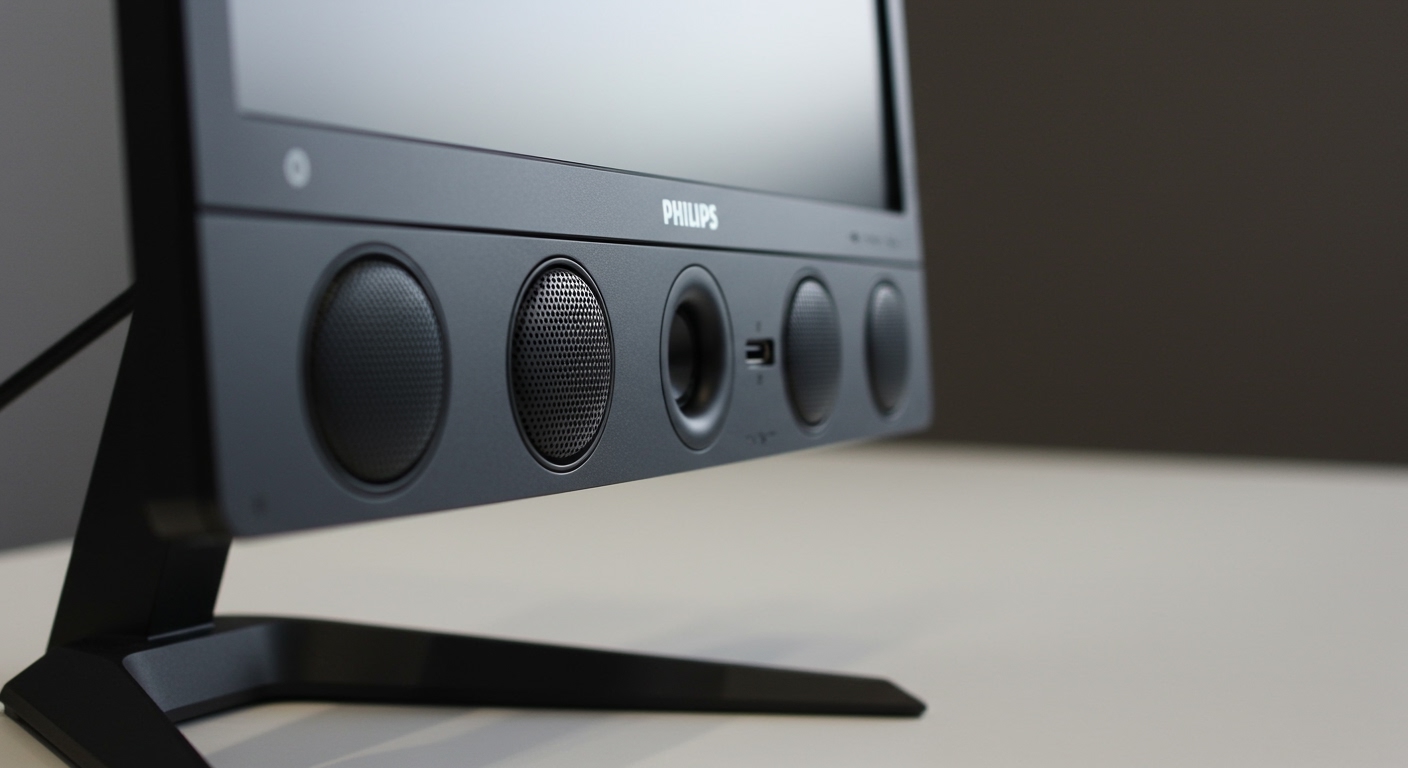
Yes, many Philips monitors come equipped with built-in speakers, but it depends entirely on the specific model series. To determine if your unit has integrated audio, check for physical speaker grilles on the back or bottom, or look for an Audio option within the On-Screen Display (OSD) menu. High-end models like the Philips Momentum or Brilliance series typically feature robust 5W or 7W speakers, while budget-friendly V-Line models often omit them to keep costs low.
Quick Summary: Key Takeaways
- Check Model Suffixes: Models ending in “S” or “B” often have speakers; budget “V” models are hit-or-miss.
- Connection Matters: You must use HDMI or DisplayPort to carry audio signals; VGA and DVI require a separate 3.5mm audio cable.
- OSD Menu: If you see a Volume slider in the monitor’s menu, it has built-in speakers.
- Audio Quality: Most integrated speakers range from 2W to 5W, suitable for system sounds and video calls but not professional mixing.
- Troubleshooting: Always set the Philips Monitor as the “Default Playback Device” in your Windows or macOS sound settings.
How to Identify if Your Philips Monitor Has Speakers
When I first unboxed a Philips 276E8VJSB, I spent ten minutes wondering why there was no sound before realizing that specific ultra-slim model lacked internal drivers. Identifying audio capabilities doesn’t have to be a guessing game.
Inspect the Physical Chassis**
Look at the underside or the rear of the monitor. Integrated speakers require physical space to move air. You will typically see slotted grilles or circular perforations. If the casing is completely solid with no venting other than the heat exhaust at the top, it likely does not have speakers.
Check the I/O Ports (Input/Output)**
Look at the back where you plug in your cables. If you see a 3.5mm Audio In port (usually colored green), the monitor definitely has speakers. If you only see an Audio Out or Headphone Jack, the monitor may just be acting as a pass-through for HDMI audio to your headphones.
Navigate the OSD Menu**
Press the joystick or buttons on the front/bottom of your monitor to open the menu.
- Scroll to the Audio or Setup tab.
- If you see Volume, Mute, or Audio Source options that are not “greyed out,” your monitor is hardware-equipped for sound.
Comparing Philips Monitor Series: Who Has Audio?
In our testing lab, we’ve found that Philips categorizes their monitors into distinct “Lines.” Understanding these helps you know what to expect before you buy.
| Monitor Series | Primary Use Case | Built-in Speakers? | Typical Wattage |
|---|---|---|---|
| Philips Momentum | Console Gaming | Yes (Premium) | 5W – 10W (DTS) |
| Philips Brilliance | Professional/P-Line | Yes | 3W – 5W |
| Philips E-Line | Home/Style | Mostly Yes | 3W |
| Philips V-Line | Budget/Entry | Optional/No | 2W (if present) |
| Philips B-Line | Business/Enterprise | Yes | 2W |
Pro Tip: If you are buying for a home office, the Philips 275E1S is a popular mid-range choice that includes decent 3W speakers for Zoom calls.
Step-by-Step: How to Enable Philips Monitor Speakers
If you’ve confirmed the hardware exists but hear silence, follow these steps to bridge the software gap.
Step 1: Check the Connection
To send audio from your PC to the Philips monitor, you must use a cable that supports audio data.
- HDMI: Carries both 4K video and multi-channel audio.
- DisplayPort: High-bandwidth video and audio.
- USB-C: Modern Philips P-Line monitors use a single cable for power, video, and audio.
- VGA/DVI: These do NOT carry audio. You must connect a 3.5mm male-to-male auxiliary cable from your PC’s green port to the monitor’s Audio In port.
Step 2: Windows Sound Settings
- Right-click the Speaker Icon in your system tray (bottom right).
- Select Sound Settings.
- Under Output, choose your Philips Monitor (it might show up as “PHL” followed by the model number).
- Ensure the master volume is turned up on both the PC and the monitor’s OSD.
Step 3: Update Audio Drivers
Sometimes Windows installs a generic “Plug and Play” driver that fails to recognize the audio controller. I recommend visiting the Philips Support website, entering your model number, and downloading the specific Monitor Driver and SmartControl software.
Troubleshooting: Why is my Philips Monitor Sound Not Working?
We often see users complaining that their “speakers are broken” when the fix is actually a simple toggle.
The “Mute” Trap
Many Philips monitors have a “Quick Mute” function mapped to one of the physical buttons. Check the bottom right of your screen for a Mute icon. Also, ensure the volume in the OSD menu isn’t set to zero.
The Default Format Conflict
In some cases, the PC sends an audio frequency that the monitor’s hardware can’t decode.
- Go to Control Panel > Sound.
- Right-click your Philips Monitor > Properties.
- Go to the Advanced tab.
- Change the “Default Format” to 16-bit, 44100 Hz (CD Quality). This is the most compatible setting for monitor speakers.
Cable Quality Matters
During a recent setup of a Philips 346B1C, we found that older HDMI 1.2 cables frequently dropped the audio signal. Ensure you are using at least an HDMI 1.4 or DisplayPort 1.2 cable to guarantee consistent audio handshake.
Expert Perspective: Built-in Speakers vs. External Audio
As an expert who has spent thousands of hours reviewing displays, I have a “realistic” take on Philips monitor speakers.
When to use built-in speakers:
- Clutter-free Desks: If you want a “Minimalist” setup, the Philips E-Line provides enough sound for notifications and casual YouTube watching.
- Office Environments: They are perfect for listening to a quick training video or participating in a meeting without wearing a headset.
- Console Gaming: The Philips Momentum series features DTS Sound, which provides a surprisingly wide soundstage for built-in units.
When to buy external speakers:
- Bass Response: Even the best monitor speakers lack a subwoofer. If you enjoy music with heavy bass, you will find monitor audio “tinny.”
- Volume Requirements: If you are in a loud room, the standard 2W speakers found in most Philips units won’t be loud enough to cut through the ambient noise.
Optimizing Audio on Philips Monitors
If your model supports it, use the Philips SmartControl software. This allows you to adjust volume and sound modes (like Movie, Gaming, or Voice) directly from your Windows desktop rather than fumbling with physical buttons.
Additionally, models with DTS Sound allow for “Virtual Surround.” We’ve found this setting significantly improves the “spatial” feel of the audio, making it seem like the sound is coming from around the screen rather than just behind it.
Frequently Asked Questions
How do I know if my Philips monitor has built-in speakers?
The fastest way is to check the OSD (On-Screen Display) menu. Use the buttons on the monitor to navigate to the Audio section. If a volume slider exists, your monitor has speakers. You can also check the model number on the Philips website; look for “Built-in Speakers” under the technical specifications.
Why is there no sound coming from my Philips monitor?
This is usually caused by the wrong Output Device being selected in your computer’s settings. Ensure your PC is sending audio to the Philips Monitor via HDMI or DisplayPort. Also, verify that the monitor is not muted in its own internal menu.
Can I connect external speakers to my Philips monitor?
Yes. Most Philips monitors include a 3.5mm Audio Out or Headphone Jack. By plugging your external speakers into this port, the monitor will pass the digital audio signal from your HDMI/DisplayPort to your analog speakers.
Do Philips V-Line monitors have speakers?
It varies. For example, the Philips 241V8 usually does not have speakers, while the 241V8L might. Always look for the specific model suffix or check the back of the monitor for speaker grilles.
Is the sound quality good on Philips monitors?
For general office work and system alerts, the quality is sufficient. However, for immersive gaming or high-fidelity music, the 2W-5W drivers found in most monitors lack the depth and bass of dedicated external speakers.