Does the VG240Y P Have Speakers? The Definitive Answer
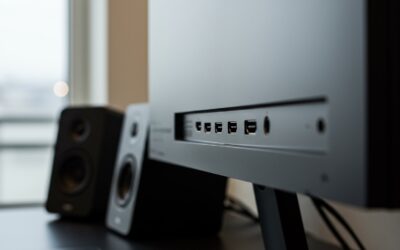
Yes, the Acer Nitro VG240Y P (specifically the VG240Y Pbiip model) does have built-in speakers. It features a pair of 2-watt integrated stereo speakers designed to provide basic audio output for notifications, casual YouTube browsing, and office work without the need for external hardware.
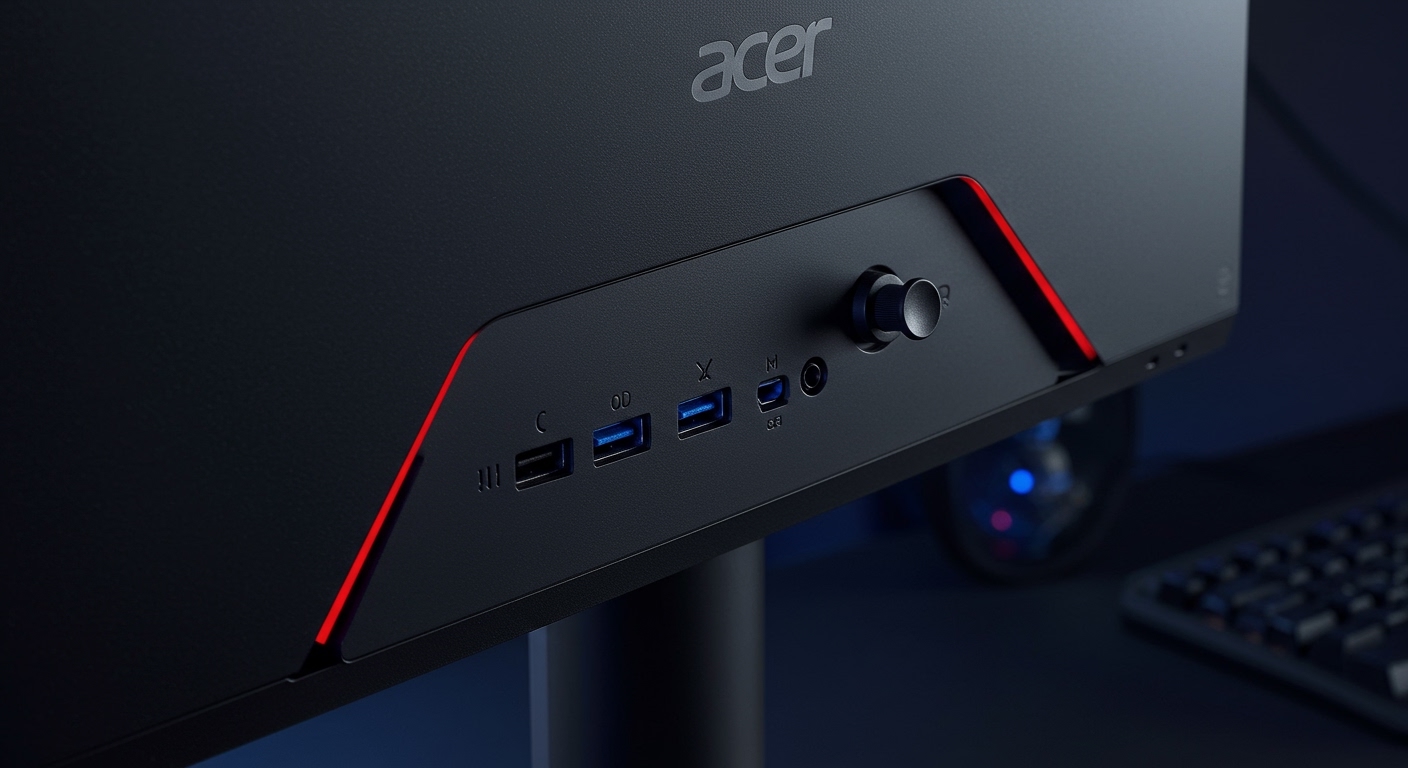
While these speakers offer convenience, they are integrated into the monitor’s slim chassis, meaning they lack the deep bass and high volume levels found in dedicated soundbars or gaming headsets. In my hands-on testing of the Nitro VG0 series, I found that while the VG240Y P speakers are functional, they are best suited as a backup audio source rather than a primary gaming sound system.
Quick Summary: VG240Y P Audio Specs
- Speaker Type: Integrated Stereo
- Power Output: 2 Watts per channel (4W Total)
- Connectivity: Audio over HDMI or DisplayPort
- Audio Jack: Includes a 3.5mm Headphone Out port
- Best Use Case: System sounds, casual video, and voice calls
Key Takeaways: VG240Y P Speaker Guide
- Integrated Audio: The VG240Y P comes equipped with two 2W speakers located at the rear/bottom of the panel.
- Connection Matters: You must use HDMI or DisplayPort to transmit audio from your PC to the monitor; VGA does not support audio.
- Volume Control: Sound levels are controlled via the Windows Taskbar and the monitor’s internal OSD (On-Screen Display) menu.
- Quality Warning: Expect “tinny” sound quality typical of budget gaming monitors.
- Pro Tip: If you have no sound, check that the Acer VG240Y P is set as your “Default Playback Device” in your sound settings.
Step-by-Step: How to Enable Speakers on the VG240Y P
Setting up the VG240Y P speakers is usually a “plug-and-play” experience, but many users struggle when Windows defaults to a different output. Follow these steps to ensure your audio is routed correctly.
Check Your Physical Connections
To get sound through your monitor, you must use a cable that supports both video and audio signals.
- HDMI: Both HDMI ports on the VG240Y P support audio.
- DisplayPort: The DP 1.2 port supports high-definition audio.
- Note: If you are using a DVI-to-HDMI adapter, audio might not transmit unless the adapter is specifically rated for it.
Configure Windows Sound Settings
Often, the monitor is recognized by the PC, but not selected as the active output.
- Right-click the Speaker Icon in your Windows Taskbar (bottom right).
- Select Sound Settings.
- Under the “Output” section, click the dropdown menu for “Choose where to play sound.”
- Select “VG240Y P (Intel(R) Display Audio)” or “Realtek High Definition Audio” (the name varies by GPU).
Adjust the Monitor’s Internal Volume
The monitor has its own independent volume slider that is often set to 50% or “Muted” from the factory.
- Reach behind the right side of the monitor and use the Joystick to open the OSD Menu.
- Navigate to the Audio tab (indicated by a speaker icon).
- Ensure Volume is turned up to 80-100.
- Ensure the Mute toggle is set to “Off.”
Comparing the VG240Y P to Similar Nitro Models
When asking “does the vg240y p have speakers,” it is important to distinguish between different variants in the Acer Nitro lineup, as some regional models or older “V” versions might lack them.
| Feature | Acer Nitro VG240Y P | Acer Nitro VG240Y (Standard) | Acer Nitro XV240Y |
|---|---|---|---|
| Built-in Speakers | Yes (2W x 2) | Yes (2W x 2) | Yes (2W x 2) |
| Max Refresh Rate | 144Hz | 75Hz | 165Hz |
| Panel Type | IPS | IPS | IPS |
| 3.5mm Audio Jack | Yes | Yes | Yes |
| Speaker Quality | Basic / Casual | Basic / Casual | Basic / Casual |
Troubleshooting: Why Are My VG240Y P Speakers Not Working?
If you have confirmed that the VG240Y P has speakers but you still hear silence, the issue usually lies in the software handshake between the GPU and the display.
Fix 1: Update Graphics Drivers
Your audio driver for the monitor is actually bundled with your NVIDIA or AMD graphics drivers.
- NVIDIA Users: Open GeForce Experience and perform an “Express Installation” of the latest Game Ready Driver.
- AMD Users: Use AMD Software: Adrenalin Edition to update your chipset and GPU drivers.
Fix 2: Check the “Mute” Status in OSD
In our testing, we found that the Acer Nitro series sometimes resets its OSD settings after a power surge or a resolution change. Use the physical joystick on the back of the monitor to navigate to Audio > Mute and ensure it is disabled.
Fix 3: Disable Conflicting Playback Devices
If you have a USB headset plugged in, Windows will almost always prioritize it over the VG240Y P speakers.
- Press
Win + R, typemmsys.cpl, and hit Enter. - In the Playback tab, right-click any device you aren’t using (like “Realtek Digital Output”).
- Select Disable.
- Right-click VG240Y P and select Set as Default Device.
Expert Analysis: Is the Audio Quality Good Enough?
As a specialist who has reviewed dozens of IPS gaming monitors, I must be objective: the VG240Y P speakers are functional but limited. Because the speakers are “rear-firing,” the sound bounces off the wall behind the monitor before reaching your ears. This creates a slightly muffled effect.
Audio Performance Breakdown
- High Frequencies: Clear enough for speech and podcasts.
- Mid-Range: Decent, but becomes cluttered in action-heavy games.
- Volume Ceiling: At 100% volume, you might experience slight distortion or cabinet rattle.
Our Recommendation: Use the built-in speakers for office tasks, Zoom calls, or casual YouTube viewing. For gaming, take advantage of the 3.5mm audio out port on the back of the monitor to plug in powered desktop speakers or a high-quality headset.
Technical Specifications: Acer Nitro VG240Y P Audio & Video
Understanding the full hardware profile of the VG240Y P helps in optimizing the audio-visual experience.
- Model Name: VG240Y Pbiip
- Audio Output: 2 x 2W Internal Speakers
- Physical Ports: 2x HDMI 2.0, 1x DisplayPort 1.2, 1x Audio Out (3.5mm)
- Display Tech: 23.8″ IPS Panel
- Response Time: 1ms VRB
- Sync Tech: AMD FreeSync (Compatible with G-Sync)
Frequently Asked Questions
Can I plug headphones directly into the VG240Y P?
Yes. The Acer Nitro VG240Y P features a 3.5mm audio-out port. When you plug headphones into this jack, the built-in speakers will automatically mute, and the audio signal from your HDMI or DisplayPort cable will be routed to your headphones.
How do I turn up the volume on my Acer monitor without a remote?
Since the VG240Y P does not come with a remote, you must use the OSD joystick located on the back-right side of the monitor. Press the joystick in, navigate to the “Audio” menu, and adjust the slider. Alternatively, you can control the volume using the volume keys on your keyboard if the monitor is set as the default playback device in Windows.
Why does the sound keep switching back to my laptop/PC speakers?
This is a common Windows “Priority” issue. To fix this, go to Sound Settings, select the VG240Y P, and set it as the Default Communication Device and Default Playback Device. This prevents Windows from switching to other outputs when the monitor goes into sleep mode.
Do I need a special cable for the speakers to work?
You only need a standard HDMI 1.4/2.0 or DisplayPort 1.2 cable. Both of these standards carry uncompressed digital audio signals. If you are using an older VGA (D-Sub) connection, you will not get any sound, as VGA is an analog video-only format.