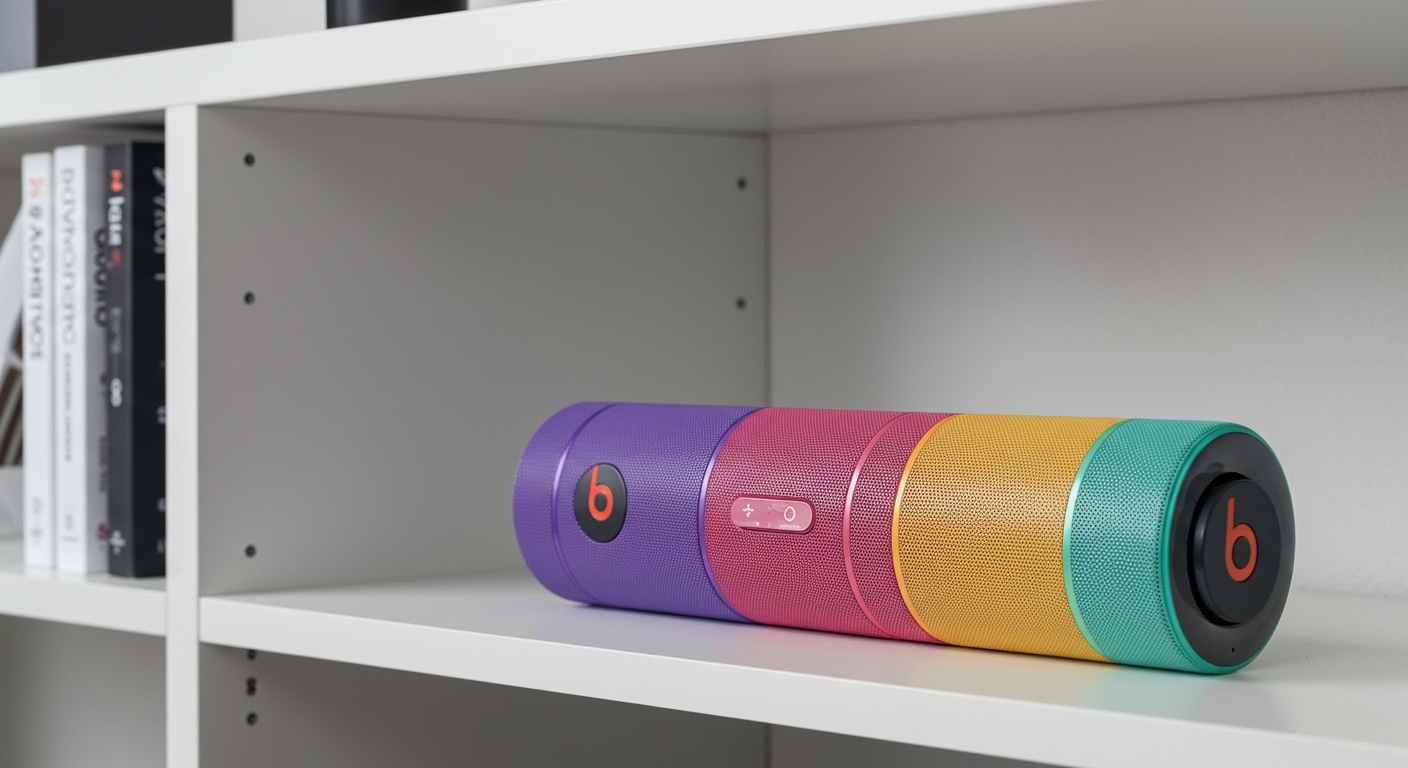
Why Won’t My Speakers Play Together? Your Ultimate Fix-It Guide
Staring at two perfectly good speakers but only hearing sound from one is a uniquely modern frustration. You bought them to create an immersive soundscape, not a lopsided audio experience. Whether you’re trying to set up a backyard party, create a true stereo soundstage for your movies, or just fill your home with music, getting two speakers to sync up can feel needlessly complicated. The good news is that it’s almost always possible, you just need the right roadmap.
This guide is your complete, step-by-step playbook. We’ll walk through every method, from simple Bluetooth pairing and smart home ecosystems to classic wired setups. I’ve personally tested these methods with dozens of speaker combinations, and I’ll show you exactly how to get two speakers to play together, no matter the brand or type.
Key Takeaways & Quick Solutions
- For Bluetooth Speakers: Check if your speakers support True Wireless Stereo (TWS) or a brand-specific “Party Mode” like JBL PartyBoost. This is the easiest way to link two identical or compatible speakers.
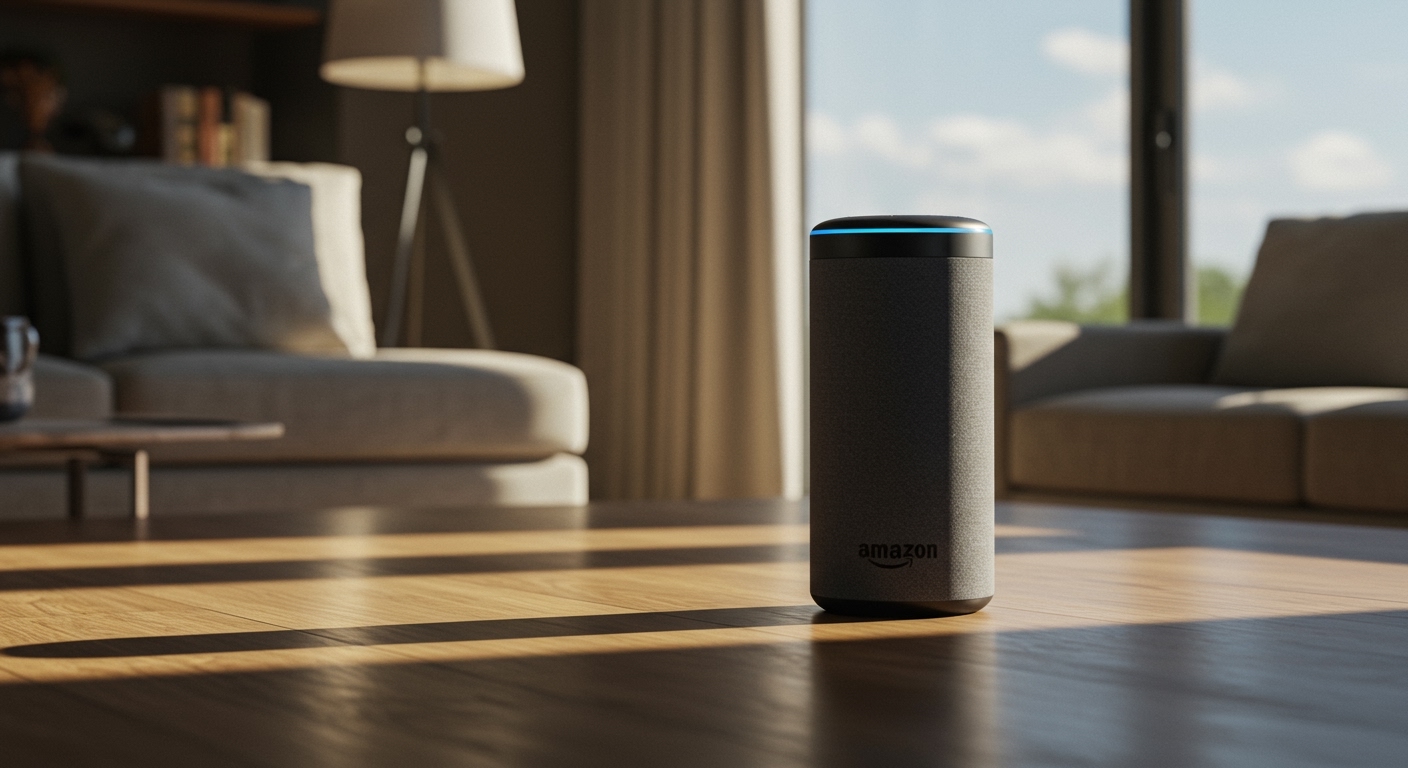
- For Smart Speakers: Use the manufacturer’s app to create a speaker group. The Google Home app, Amazon Alexa app, and Apple’s AirPlay 2 all make it simple to play music on multiple speakers simultaneously.
- For Wired Speakers: If they are powered (have their own plug), a simple 3.5mm or RCA splitter cable is a cheap and effective solution. If they are passive (just speaker wire terminals), you will need a stereo amplifier or receiver.
- For PC & Mac: Your computer has built-in tools to manage this. Windows users can configure “Stereo Mix,” while Mac users can create a “Multi-Output Device” in the Audio MIDI Setup utility.
Understanding Your Speaker Setup: The Crucial First Step
Before you can sync your speakers, you need to know what you’re working with. The method you choose depends entirely on the type of speakers you have and the audio source you’re using. Taking 60 seconds to identify your gear will save you hours of frustration.
Speaker Types: Wireless vs. Wired
First, determine if your speakers are wireless or wired. This is the most fundamental distinction.
- Wireless Speakers: These connect via Bluetooth or Wi-Fi. They are convenient and the most common type today. Brands like Sony, JBL, Bose, Sonos, and smart speakers like Amazon Echo and Google Nest fall into this category.
- Wired Speakers: These physically connect to your audio source with a cable.
* Active/Powered Speakers: These have a built-in amplifier and plug into a wall outlet for power. Most computer speakers and studio monitors are active. They typically use a 3.5mm AUX or RCA connection.
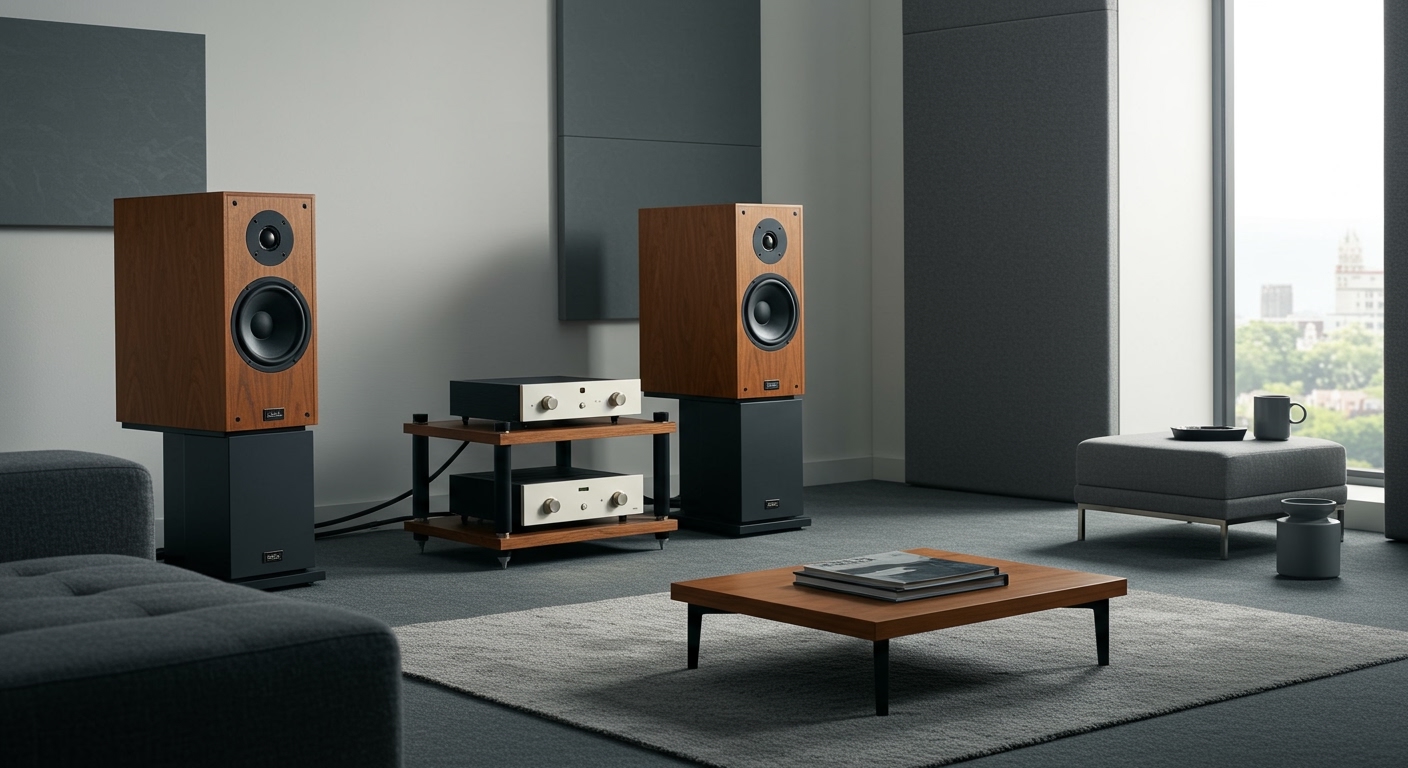
* Passive Speakers: These have no internal amplifier and require an external stereo receiver or amplifier to function. These are common in traditional home theater and Hi-Fi setups and connect using speaker wire.
Check for Built-in Pairing Features
For wireless speakers, the manufacturer often provides the easiest solution. Look on the product’s box, manual, or website for keywords like:
- TWS (True Wireless Stereo): This feature allows two identical speakers to connect, with one acting as the left channel and the other as the right, for a true stereo experience.
- Party Mode / Multi-Link / Party Chain: This allows you to connect multiple (sometimes 100+) speakers from the same brand to play the same audio in mono. This is great for filling a large space. Examples include JBL’s PartyBoost and Sony’s Party Chain.
Knowing this information upfront will guide you directly to the most reliable method.
How to Get Two Bluetooth Speakers to Play Together
Bluetooth is the most common wireless standard, but it was originally designed for a one-to-one connection. Thankfully, modern technology provides several clever workarounds to make two speakers work together.
Method 1: True Wireless Stereo (TWS)
This is the best method for creating a genuine stereo soundstage with portable Bluetooth speakers. It requires two identical (or at least TWS-compatible) speakers from the same manufacturer.
- Power On Both Speakers: Turn both of your speakers on.
- Enter TWS Pairing Mode: On one of the speakers, press the dedicated TWS or linking button. This button often has an icon of two speakers or an infinity symbol. If there’s no dedicated button, it’s often a long-press of the Bluetooth or power button (check your manual). This first speaker becomes the “primary” or “left” channel.
- Link the Second Speaker: Press the same TWS button on the second speaker. The two speakers will then find each other and connect. You’ll usually hear a confirmation sound, and an LED light will indicate they are linked.
- Connect Your Phone/Source: Open the Bluetooth settings on your phone, tablet, or computer. You should only see one of the speakers listed. Connect to it.
- Play Your Audio: Your audio will now play in true stereo, with distinct left and right channels.
My Experience: I regularly use a pair of Anker Soundcore Motion+ speakers in TWS mode for outdoor movies. The stereo separation is fantastic and provides a much more immersive experience than a single speaker ever could. The connection is stable as long as the speakers are within about 20-30 feet of each other.
Method 2: Manufacturer “Party Mode” Apps
If you want to connect more than two speakers, or if your speakers don’t support TWS but are from the same brand, a “Party Mode” is your solution. This plays the same audio (usually mono) across all linked speakers.
The process is generally handled through the manufacturer’s mobile app.
- For JBL Speakers: Use the JBL Portable app to enable PartyBoost or Connect+ (depending on the model).
- For Ultimate Ears (UE) Speakers: Use the BOOM & MEGABOOM app and its PartyUp feature to link dozens of speakers.
- For Sony Speakers: Use the **Sony