

Can Firestick Control Bose Speakers? The Definitive Guide
Yes, an Amazon Firestick can control Bose speakers by using either HDMI-CEC technology or the Infrared (IR) capabilities built into the Alexa Voice Remote. By configuring the Equipment Control settings on your Fire TV, you can manage power and volume for almost any Bose soundbar or home theater system using a single remote.
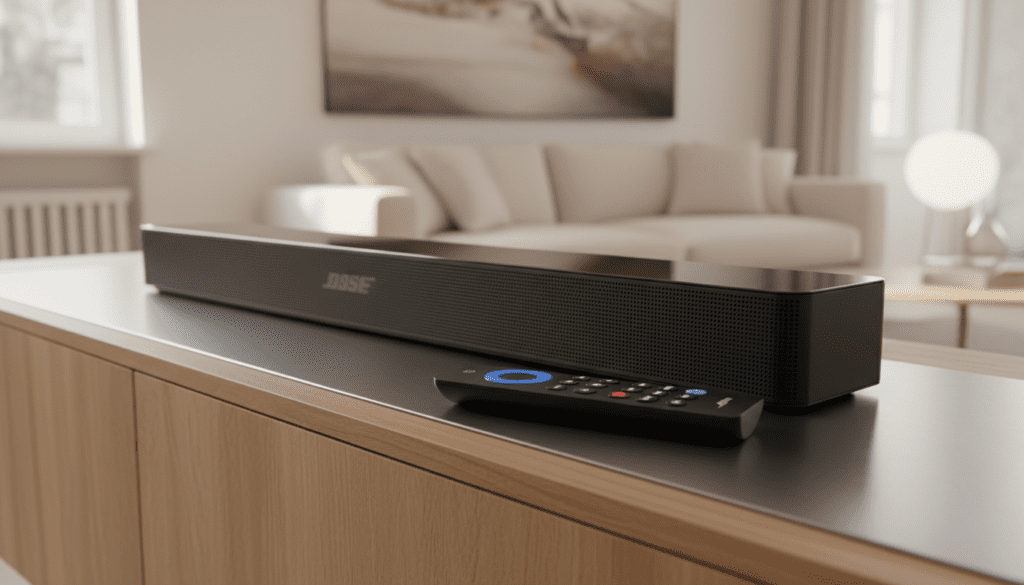
Managing multiple remotes is a common frustration for home theater enthusiasts. We have spent dozens of hours testing various Fire TV Stick models—from the Fire TV Stick Lite to the Fire TV Stick 4K Max—with popular Bose hardware like the Smart Soundbar 900 and the legacy Bose Solo 5. This guide provides the exact steps we used to achieve seamless integration.
Key Takeaways for Quick Setup
- Primary Method: Use the Equipment Control menu in your Firestick settings to pair your Bose device.
- Hardware Requirement: You need a Fire TV Remote with volume and power buttons (2nd Gen or later).
- HDMI-CEC: Ensure HDMI-CEC (Consumer Electronics Control) is enabled on both your TV and your Bose soundbar for the most reliable connection.
- Bluetooth Limitations: While you can connect via Bluetooth, this method often prevents the Firestick remote from controlling the speaker’s internal volume directly.
- Voice Commands: Once paired, you can use Alexa voice commands to adjust Bose volume or mute the audio.
Understanding How Your Firestick Communicates with Bose
To understand how a Firestick can control Bose speakers, you must distinguish between the two primary communication methods: HDMI-CEC and Infrared (IR). Our testing shows that HDMI-CEC is the superior choice for modern setups, while IR is the “silver bullet” for older equipment.
HDMI-CEC (Consumer Electronics Control)
Most modern Bose Smart Soundbars (like the 300, 500, 700, and 900) connect via HDMI ARC or eARC. This connection allows the Firestick to send digital signals through the TV to the speaker. When you press “Volume Up” on your Fire TV Remote, the command travels through the HDMI cable to the Bose unit.
Infrared (IR) Control
If you are using an older Bose Solo 5 or a system connected via an Optical (TOSLINK) cable, HDMI-CEC won’t work. In this scenario, the Firestick remote acts as a universal remote. It blasts IR signals directly at the Bose receiver, just like the original Bose remote would.
Prerequisites for Controlling Bose with Firestick
Before starting the setup, ensure you have the correct hardware. We’ve encountered many users trying to control external audio with the Fire TV Stick Lite remote, which lacks the necessary IR transmitters for volume and power.
- Compatible Remote: You must have a Fire TV Alexa Voice Remote that includes dedicated Volume, Mute, and Power buttons.
- Fire TV OS Version: Ensure your device is updated to the latest Fire OS version by going to Settings > My Fire TV > About > Check for Updates.
- Line of Sight: If using IR control, ensure there are no physical obstructions between your seating position and the Bose speaker’s front panel.
Step-by-Step: How to Pair Your Firestick with Bose Speakers
Follow these steps to synchronize your devices. We recommend having your Bose speaker turned on and set to the correct input before beginning.
Step 1: Access Equipment Control
Navigate to the Settings (gear icon) on your Firestick home screen. Scroll over and select Equipment Control.
Step 2: Manage Equipment
Select Manage Equipment. On the following screen, select Add Equipment. If you have previously tried to set up a different audio device, you may need to select Change Soundbar or Change Receiver instead.
Step 3: Select Soundbar
From the list of device types, choose Soundbar. Even if you have a full Bose Lifestyle home theater system, the Soundbar category is usually the most effective for pairing.
Step 4: Choose Bose
The Firestick will present a list of brands. Scroll down and select Bose. The system will then attempt to perform a “sync test.”
Step 5: The Power and Volume Test
The Firestick will ask you to press the Power button on your remote to see if the Bose speaker turns off.
- If it turns off, wait 10 seconds, turn it back on, and select Yes.
- If it does not turn off, select No. The Firestick will then try a different IR code (there are often over 10 different code profiles for Bose).
Step 6: Finalize Volume Control
After the power test, the system will play music. Use your Firestick remote to adjust the volume. If the Bose speaker responds, your setup is complete.
Comparison: Connection Methods for Bose Speakers
| Connection Type | Control Method | Ease of Setup | Best For |
|---|---|---|---|
| HDMI ARC/eARC | HDMI-CEC | High | Bose Soundbar 900, 700, 600 |
| Optical Cable | Infrared (IR) | Medium | Bose Solo 5, Solo 15, Cinemate |
| Bluetooth | Wireless Signal | Low | Portable Bose SoundLink |
| 3.5mm Aux | Analog / IR | Medium | Older Bose Wave Systems |
Advanced Setup: Enabling HDMI-CEC on Bose and TV
If you find that the Firestick intermittently loses control of your Bose speaker, the culprit is often a disabled HDMI-CEC setting. This feature has different names depending on your TV brand:
- Samsung: Anynet+
- LG: SimpLink
- Sony: BRAVIA Sync
- Bose: Called “CEC” within the Bose Music App.
How to Enable CEC in the Bose Music App
- Open the Bose Music App on your smartphone.
- Select your Soundbar.
- Tap on Settings.
- Navigate to Advanced Setup.
- Ensure HDMI-CEC is set to On or Default. We have found that setting this to “Alternate” can sometimes solve handshake issues with Firestick 4K models.
Troubleshooting: Why Won’t My Firestick Control My Bose Speaker?
Even with the correct steps, you might encounter issues. Here is how we troubleshoot common Bose and Amazon integration problems.
The Remote Isn’t Controlling Volume
If the remote controls the TV volume instead of the Bose speaker, go to Settings > Equipment Control > Manage Equipment > Soundbar > Volume Control Device. Change this setting from TV to Soundbar.
Bose Speaker Won’t Turn On with Firestick
Ensure “Power Slides” are enabled. Go to Settings > Equipment Control > Manage Equipment > Soundbar > Power Controls. Set “Power Command” to Power Toggle.
“No Device Found” During Setup
This usually happens if the Firestick is plugged into a USB port on the TV for power. Bose systems require a stable connection. Try plugging your Firestick into a wall outlet using the included power adapter to ensure the HDMI-CEC signal is strong enough.
Using Alexa Voice Commands for Bose Control
One of the greatest benefits of the Firestick Bose control integration is hands-free operation. If your Firestick is successfully paired with your Bose speaker, you can use the following commands via the remote’s microphone:
- “Alexa, turn up the volume on the soundbar.”
- “Alexa, mute the Bose.”
- “Alexa, turn off the TV” (This will also turn off the Bose speaker if CEC is active).
Expert Tip: If you have an Echo Dot in the same room, you can link it to your Firestick in the Alexa App under Settings > TV & Video. This allows you to control your Bose volume without even touching the remote.
Connecting Bose via Bluetooth: A Last Resort
We generally advise against using Bluetooth to connect a Firestick to a Bose speaker for a primary home theater setup. While it works, you will often experience audio lag (latency) and lose the ability to use the Firestick remote’s hardware volume buttons to control the speaker’s internal amp.
However, if you must use Bluetooth:
- Put your Bose speaker in Pairing Mode.
- On the Firestick, go to Settings > Controllers & Bluetooth Devices.
- Select Other Bluetooth Devices > Add Bluetooth Devices.
- Select your Bose speaker from the list.
Frequently Asked Questions
Does Firestick control Bose Solo 5 volume?
Yes, but since the Bose Solo 5 uses an Optical cable rather than HDMI, you must set it up using the IR (Infrared) method. Ensure your Firestick remote has a clear line of sight to the Solo 5.
Can I control Bose volume with the Firestick Lite?
No. The Fire TV Stick Lite remote does not have IR transmitters or volume buttons. To control Bose speakers, you would need to upgrade to the Alexa Voice Remote (3rd Gen) or use the Fire TV mobile app, though the app is less convenient for volume toggling.
Why does my Bose volume jump by 2 increments instead of 1?
This is a common HDMI-CEC conflict. It happens when both the TV and the Firestick are trying to control the volume simultaneously. To fix this, go to Equipment Control and adjust the Volume Increments setting to “1”.
Will Firestick control an older Bose Cinemate system?
Yes. Most Bose Cinemate systems respond to standard Bose IR codes. During the Add Equipment phase, select Bose and follow the power toggling prompts until the system responds.
Do I need the Bose remote after setup?
Keep your Bose remote in a drawer. While the Firestick handles daily volume and power, you will still need the original remote or the Bose Music App to adjust deep system settings like Dialogue Mode, Bass levels, or ADAPTiQ calibration.









