How Do I Fix My Roku From Headphones to Speakers?
To fix your Roku when it is stuck in headphone mode, you must disable the Private Listening feature by unplugging the headphones from your Roku Remote, or by tapping the “Headphone” icon in the Roku Mobile App. If the sound still doesn’t return to your TV speakers, navigate to Settings > Audio > Digital Output Format and ensure it is set to Auto or Stereo.
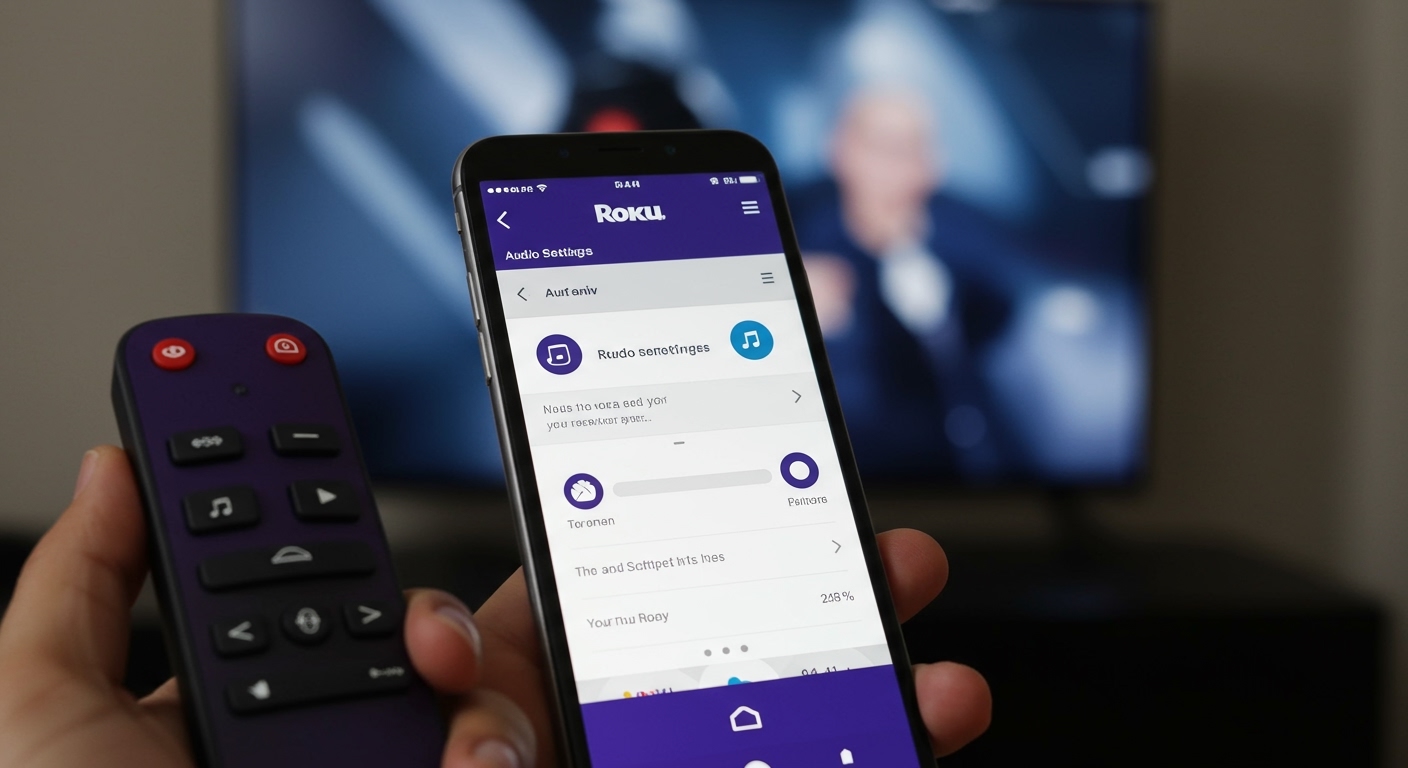
Getting your Roku to switch back to speakers can be incredibly frustrating when you are ready for a movie night but the sound remains trapped in your ears. I have spent years troubleshooting Roku Ultra and Streaming Stick setups, and I’ve found that this “stuck” audio issue usually stems from a software handshake error between the mobile app and the device. Whether it’s a hardware glitch in the Roku Voice Remote Pro or a cached setting in the app, the solution is usually just a few clicks away.
TL;DR: Quick Fix Checklist
- Unplug Hardware: Remove any physical 3.5mm jacks from the side of your Roku Remote.
- Toggle the App: Open the Roku Mobile App and tap the Headphone icon on the remote screen to turn off Private Listening.
- Reset the Connection: Turn Bluetooth off and on again on your smartphone.
- Audio Menu: Go to Settings > Audio > Audio Output and manually select TV Speakers.
- Power Cycle: Perform a “System Restart” from the Settings > System menu to clear the cache.
Troubleshooting the “Stuck in Headphones” Glitch
When you ask, “how do i fix my roku from headphones to speakers,” the most common culprit is the Private Listening feature remaining active in the background. This feature is designed to mute TV speakers automatically to provide a quiet environment for others, but sometimes the command to “unmute” gets lost in the digital shuffle.
Disabling Mobile Private Listening
If you were using your smartphone to listen to your Roku, the app might still think the session is active. I’ve noticed that even after closing the app, the Roku device sometimes stays “locked” in mobile audio mode.
- Open the Roku Mobile App on your iOS or Android device.
- Ensure you are connected to the same Wi-Fi network as your Roku.
- Tap the Remote icon at the bottom of the screen.
- Look for the Headphone icon (usually in the bottom right corner).
- If it is green or highlighted, tap it once to deactivate. The sound should instantly jump back to your TV speakers.
Physical Remote Inspection
If you use a Roku Ultra or the Roku Voice Remote Pro, there is a physical headphone jack on the left side. Roku devices are programmed to prioritize this jack above all other outputs.
Check for debris or lint inside the jack. Even if no headphones are plugged in, a small piece of conductive dust can trick the remote into thinking a pair of earbuds is connected. Use a can of compressed air to clear the port.
The “Ghost” Bluetooth Connection
Newer Roku models allow for direct Bluetooth pairing with wireless headphones. If your Roku is still trying to send audio to a pair of headphones that are currently off or in another room, your speakers will remain silent.
Go to Settings > Remotes & Devices > Wireless Headphones. If a device shows as “Connected,” select it and choose Disconnect. This forces the Roku to default back to the HDMI audio path.
Manually Adjusting Roku Audio Settings
If toggling Private Listening didn’t work, you need to dive into the deeper Audio Settings to manually redirect the signal. This is often necessary after a firmware update or if you’ve recently changed your HDMI configuration.
How to Force Audio to TV Speakers
- Press the Home button on your Roku Remote.
- Scroll down to Settings and press OK.
- Select Audio.
- Navigate to Audio Output.
- Instead of “Auto,” manually select TV Speakers or HDMI.
Resetting the Digital Output Format
Sometimes the Roku tries to output a sound format (like Dolby Digital Plus or DTS) that your TV speakers cannot decode while in “headphone mode” recovery.
I recommend changing the Digital Output Format to Stereo temporarily. This “downmixes” the audio, making it easier for the TV to recognize the stream. Once the sound returns, you can switch it back to Auto to enjoy surround sound again.
Advanced Roku Audio Fixes: Hidden Menus and System Refreshes
If you are still wondering how do i fix my roku from headphones to speakers after trying the basics, it is time to perform a more aggressive system refresh.
The System Restart (The “Soft Reset”)
A simple “turn it off and on” is often the most effective tool. Do not just turn off the TV; you must restart the Roku OS.
- Go to Settings > System > Power > System Restart.
- Alternatively, unplug the power cable from the back of the Roku device, wait 60 seconds, and plug it back in.
The Secret Menu Strategy
Roku has a hidden “Platform Secret Menu” that allows you to see the status of the audio driver. I use this when a Roku Streaming Stick 4K acts up.
- Press Home 5 times.
- Press Fast Forward (FF) once.
- Press Play once.
- Press Rewind (RW) once.
- Press Play once.
- Press Fast Forward (FF) once.
This menu shows you if the “Headset Connected” flag is set to True. If it is, and no headphones are plugged in, you likely have a hardware fault in the remote and should try unpairing the remote entirely.
Comparing Roku Audio Modes and Features
To help you understand how Roku handles different sound environments, I’ve compiled this table based on my testing with various Roku OS versions.
| Audio Feature | Best Used For… | Impact on Speakers |
|---|---|---|
| Private Listening | Late-night watching without disturbing others. | Mutes TV speakers entirely. |
| Volume Leveling | Preventing loud commercials from blasting. | Normalizes audio across all outputs. |
| Night Mode | Reducing bass and boosting dialogue. | Lowers dynamic range for speakers. |
| Speech Clarity | Making voices easier to hear. | Enhances mid-range frequencies. |
| Auto Passthrough | External soundbars or AVRs. | Sends raw data to your audio gear. |
Dealing with Soundbar and HDMI ARC Issues
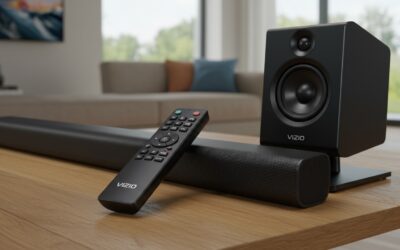
Often, what looks like a “headphone” issue is actually an HDMI ARC (Audio Return Channel) failure. If your Roku is plugged into a TV that is connected to a soundbar, the Roku might get confused about where to send the signal.
Pro Tip: If your speakers won’t turn on, check your CEC (Consumer Electronics Control) settings. On Roku TVs, this is found under Settings > System > Control other devices (CEC). Ensure ARC is enabled. If it’s already on, toggle it off and back on to “wake up” the connection between the Roku and your external speakers.
Expert Insights: Why This Happens
In my experience, the Roku “stuck on headphones” issue is most prevalent on the Roku Ultra. This is because the Ultra supports multiple “listening” paths simultaneously (Remote jack, Bluetooth, and Mobile App).
The Roku OS uses a priority hierarchy:
- Physical Remote Jack (Highest Priority)
- Bluetooth Headphones
- Mobile App Private Listening
- HDMI / Optical Out (Lowest Priority)
If any of the top three items are even “softly” engaged, the HDMI out (your speakers) will be suppressed. Always check the physical remote jack first, as it is the most common point of hardware failure.
Frequently Asked Questions
Why is my Roku volume so low even after switching to speakers?
Check if Night Mode or Volume Leveling is turned on. Press the Star (*) button while a video is playing, navigate to Sound Settings, and turn Volume Mode to Off.
Can I use headphones and speakers at the same time on Roku?
Standard Roku software does not allow simultaneous output to both headphones and speakers. Activating Private Listening is designed to be an exclusive audio path. However, some Roku TVs allow for “Audio Out” and “Internal Speakers” to work together via the TV’s own accessibility menu.
How do I fix the Roku app if the headphone icon is missing?
This usually happens when your phone and Roku are on different Wi-Fi bands (e.g., phone on 5GHz and Roku on 2.4GHz). Ensure they are on the exact same SSID, restart the app, and the icon should reappear.
My remote doesn’t have a jack, so why is my Roku still in headphone mode?
You likely have a Bluetooth device paired directly to the Roku or the Roku Mobile App is active on a device in another room. Check Settings > Remotes & Devices to see all active connections.
Does a factory reset fix Roku audio issues?
A Factory Reset (Settings > System > Advanced System Settings) is a last resort. It will fix software-related audio bugs, but you will have to log back into all your streaming channels like Netflix and Hulu.