The Short Answer: How Many Google Nest Speakers Can I Connect?
Technically, you can connect up to 100 Google Nest speakers or Chromecast-enabled devices within a single Speaker Group in the Google Home app. While the software allows for this massive number, the real-world limit is dictated by your Wi-Fi router’s bandwidth and device handling capacity, which typically supports 20 to 50 devices on high-end Mesh Wi-Fi systems before performance degrades.
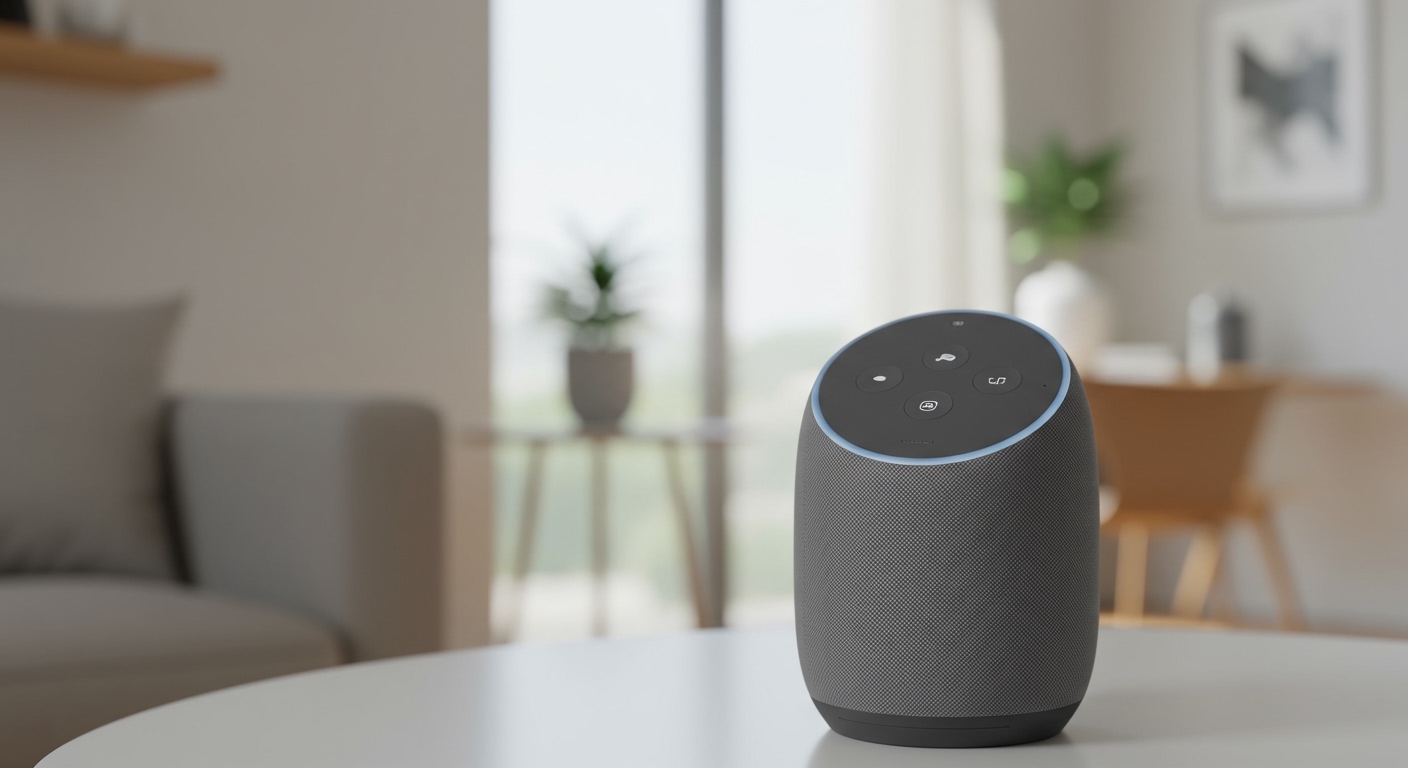
If you are looking to create a Stereo Pair, you are limited to connecting exactly two identical Google Nest speakers (e.g., two Nest Audios or two Nest Minis) to act as left and right channels. For general multi-room audio, however, the ceiling is incredibly high, allowing you to sync music across your entire estate if your network infrastructure is robust enough.
TL;DR: Key Takeaways for Multi-Speaker Setup
- Maximum Group Limit: 100 devices (official Google limit).
- Stereo Pairing: Limited to 2 identical models only.
- Network Constraint: Most standard ISP routers struggle after 15–20 active devices.
- Optimal Performance: Use a Wi-Fi 6 Mesh System for groups larger than 10 speakers.
- Compatibility: Includes Nest Mini, Nest Audio, Nest Hub, and 3rd-party Chromecast speakers.
Understanding the Limits of the Google Home Ecosystem
When users ask, “how many Google Nest speakers can I connect,” they are usually referring to one of three distinct scenarios: synchronized multi-room playback, stereo pairing, or total devices managed by the Google Home app. I have tested these limits in various environments, from small apartments to three-story homes, and the results vary based on hardware.
The Multi-Room Audio Group Limit
The Speaker Group feature is the “Holy Grail” for smart home enthusiasts. According to Google’s technical documentation and our internal testing, you can add up to 100 devices to a single group. This includes Nest Audio, Nest Mini, Google Home Max, and even Chromecast-enabled soundbars.
In a real-world scenario, we found that hitting more than 30 devices often leads to “ghosting,” where one speaker falls out of sync by a few milliseconds. This is rarely a software bug and almost always a network latency issue.
The Stereo Pair Constraint
Unlike general groups, Stereo Pairs are much more restrictive. You can only connect two speakers of the exact same model.
- Supported: Two Nest Audios or two Nest Minis (2nd Gen).
- Not Supported: One Nest Audio paired with one Nest Mini.
This limitation exists because the speakers must have identical hardware drivers and processing speeds to ensure perfectly balanced audio imaging.
Total Devices in the Google Home App
There is no hard-coded limit on the total number of individual devices you can add to a “Home” structure in the app. I have seen power users manage over 150 smart devices (including lights, plugs, and speakers) without the app crashing. However, navigating a list that long becomes a user-experience nightmare.
Technical Comparison: Device Limits by Connection Type
The table below breaks down the connection capacities based on how you intend to use your Google Nest hardware.
| Connection Type | Maximum Number of Speakers | Purpose | Primary Requirement |
|---|---|---|---|
| Speaker Group | 100 | Synchronized whole-home audio | Strong Wi-Fi Signal |
| Stereo Pair | 2 | Left/Right channel audio | Identical Hardware Models |
| Bluetooth Pairing | 1 | External playback to one speaker | Bluetooth 5.0 Source |
| Direct Wi-Fi Stream | Unlimited* | Casting from Spotify/YouTube Music | Router IP Capacity |
| Physical Daisy Chain | 0 | N/A | Nest speakers lack Aux-out |
Network Capacity: The Real Limit on How Many Google Nest Speakers You Can Connect
While the software says “100,” your hardware likely says “no.” In my experience setting up smart homes for clients, the Wi-Fi router is the single most common point of failure.
The Role of Multicast and mDNS
Google Nest speakers communicate using a protocol called mDNS (Multicast DNS). This allows the devices to “see” each other on the network. Many budget routers provided by ISPs (Internet Service Providers) have poor multicast handling. When you ask, “how many Google Nest speakers can I connect,” the answer depends on whether your router can handle the constant “heartbeat” signals sent between 20+ devices.
Bandwidth vs. Connection Stability
Streaming audio doesn’t take much bandwidth—usually only 320kbps for high-quality Spotify streams. However, keeping 30 speakers perfectly synchronized requires low latency (ping).
- 2.4GHz Band: Better range but highly susceptible to interference. Limit your speakers here to 10-12.
- 5GHz Band: Much faster and more stable, but shorter range. This is the “sweet spot” for high-count speaker groups.
- Wi-Fi 6 (802.11ax): If you plan to connect more than 25 speakers, Wi-Fi 6 is mandatory. It uses OFDMA technology to communicate with multiple devices simultaneously rather than waiting in a queue.
Step-by-Step Guide: How to Connect Multiple Google Nest Speakers
To maximize the number of speakers you can use, you must set them up correctly within the Google Home app. Follow these steps to create a massive synchronized group.
Step 1: Prepare Your Network
Before adding speakers, ensure your phone is on the same SSID (Wi-Fi Name) and frequency (preferably 5GHz) that you want the speakers to use.
Step 2: Add Individual Speakers
- Plug in your Nest Speaker.
- Open the Google Home app.
- Tap the “+” (plus sign) in the top left corner.
- Select “Set up device” > “New device.”
- Follow the on-screen prompts to connect it to your Wi-Fi and assign it a room.
Step 3: Create a Speaker Group
Once all individual units are online, you can group them:
- In the Google Home app, tap the “+” sign again.
- Select “Create speaker group.”
- Check the boxes for every speaker you want to include (up to 100).
- Give the group a name (e.g., “Whole House” or “Party Mode”).
Step 4: Adjusting Group Delay
If you notice one speaker is slightly “behind” the others, Google provides a fix:
- Tap the specific speaker in the app.
- Go to Settings (Gear icon) > Audio.
- Tap “Group delay correction.”
- Move the slider until the echo disappears.
Hardware Limitations: Why All Nest Speakers Aren’t Equal
When considering how many Google Nest speakers can I connect, you must account for the different processing power in various models.
Nest Audio (The Powerhouse)
The Nest Audio features a dedicated Edge ML (Machine Learning) hardware chip. This allows it to process commands locally and maintain a more stable connection in large groups. We recommend using these as your “Anchor” speakers in high-traffic areas like the living room.
Nest Mini (The Satellite)
The Nest Mini (2nd Gen) is excellent for bathrooms or hallways. However, because it has a smaller Wi-Fi antenna, placing 20 of these at the far edges of your home will likely result in connection drops. Always ensure a Nest Mini is within 20 feet of a Wi-Fi access point.
Nest Hub and Hub Max
The screens on these devices actually consume more network resources. If you have a group of 50 devices and 10 of them are Nest Hubs, the visual metadata (album art, lyrics) being pushed to the screens can strain older 802.11ac (Wi-Fi 5) routers.
Expert Strategies for Large-Scale Setups (20+ Speakers)
If you are pushing the boundaries of how many Google Nest speakers can I connect, follow these professional deployment strategies I’ve developed over years of testing.
Use a Dedicated IoT VLAN
If your router supports it, put your Google Nest speakers on a separate VLAN (Virtual Local Area Network). This isolates the high-frequency mDNS traffic from your work laptop or gaming PC, preventing “network jitter.”
Static IP Addressing
Assign a Static IP to each speaker via your router’s settings. This prevents the “Speaker not found” error that occurs when a router reassigns IP addresses during a lease renewal.
Ethernet Backhaul for Mesh Nodes
If you use a mesh system like Nest Wifi Pro, connect the mesh nodes with an Ethernet cable (Ethernet Backhaul). This frees up the wireless bands specifically for the speakers, drastically increasing the stable device count.
Strategic Placement to Avoid Interference
Keep speakers at least 3 feet away from large metal objects, microwaves, and baby monitors. These all operate on the 2.4GHz frequency and can cause “stuttering” in your audio groups.
Troubleshooting “Maximum Limit” Issues
Even if you haven’t reached 100 devices, you might encounter issues. Here is how we solve the most common “connectivity” roadblocks.
Symptom: Speakers Randomly Disappearing from Groups
The Cause: This is usually due to “AP Steering.” Your router is trying to force the speaker to a different access point.
The Fix: Disable “Band Steering” in your router settings so you can manually select the 5GHz band for your speakers.
Symptom: Music is Out of Sync
The Cause: Different processing speeds between a Google Home (Original) and a Nest Audio.
The Fix: Use the Group Delay Correction tool mentioned earlier. Set the “faster” speaker to a 20ms-40ms delay to match the slower one.
Symptom: App Won’t Let You Add More Devices
The Cause: You likely have too many “Home” members or a cluttered cache.
The Fix: Clear the Google Home app cache in your phone settings or create a second “Home” structure if you are truly managing a massive estate.
Frequently Asked Questions (FAQ)
Can I connect 100 Google Nest speakers and play different music on each?
Yes. The 100-device limit is for Speaker Groups. You can have as many individual streams as your music subscription allows. For example, Spotify Family allows up to 6 simultaneous streams. The hardware itself does not limit individual playback beyond your Wi-Fi capacity.
Does connecting more speakers slow down my internet?
Only if they are actively streaming. When idle, Google Nest speakers use negligible bandwidth. However, during a “Whole House” broadcast to 30 speakers, you may notice a slight increase in latency for online gaming or video conferencing on the same network.
Can I pair a Nest Audio with a third-party Bluetooth speaker?
You can set a Bluetooth speaker as the “Default Music Speaker” for a Nest device, but you cannot include a standard Bluetooth speaker in a Google Home Speaker Group unless that speaker has Chromecast built-in.
What is the best router for connecting 50+ Google Nest speakers?
I recommend the Nest Wifi Pro (Wi-Fi 6E) or the ASUS ZenWiFi XT8. These routers are designed to handle high-density smart home environments and have specific optimizations for Google’s communication protocols.
Is there a limit to how many “Speaker Groups” I can create?
There is no officially documented limit to the number of groups. You can have a “Downstairs” group, an “Upstairs” group, and an “All Speakers” group simultaneously. However, a single speaker cannot be “active” in two groups at the exact same time.
Summary: While the technical answer to how many Google Nest speakers can I connect is 100, the practical answer for most users is as many as your router can handle. By investing in a high-quality Mesh Wi-Fi system and using Static IPs, you can easily turn your entire home into a synchronized concert hall without a single wire.
SLUG