How Many Boom Speakers Can You Connect? The Definitive Answer
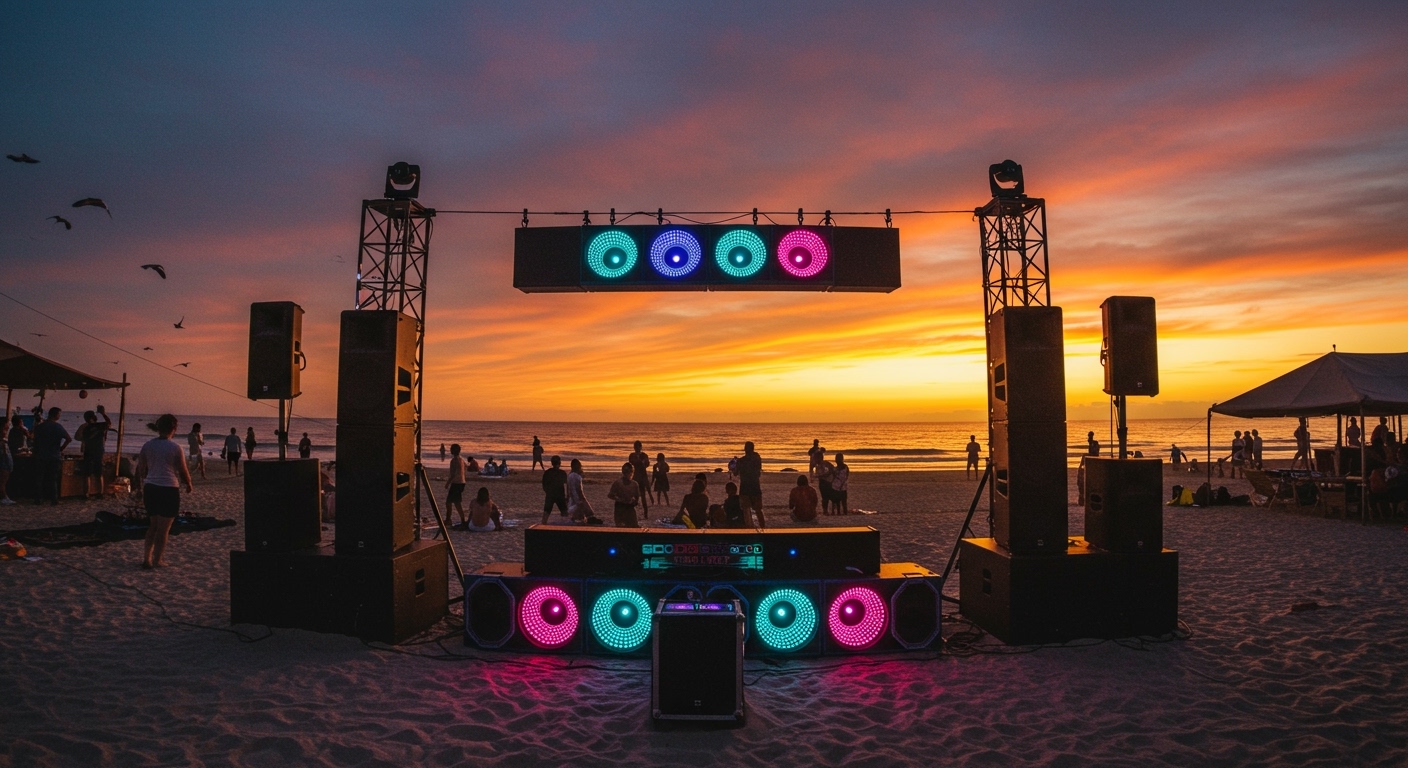
You can connect over 150 Ultimate Ears (UE) speakers together using the PartyUp feature in the BOOM app. However, the exact number depends on your specific model; while the BOOM 2, 3, MEGABOOM, and HYPERBOOM can join the 150+ speaker “wall of sound,” smaller models like the WONDERBOOM are limited to pairing with only one other unit (2 speakers total).
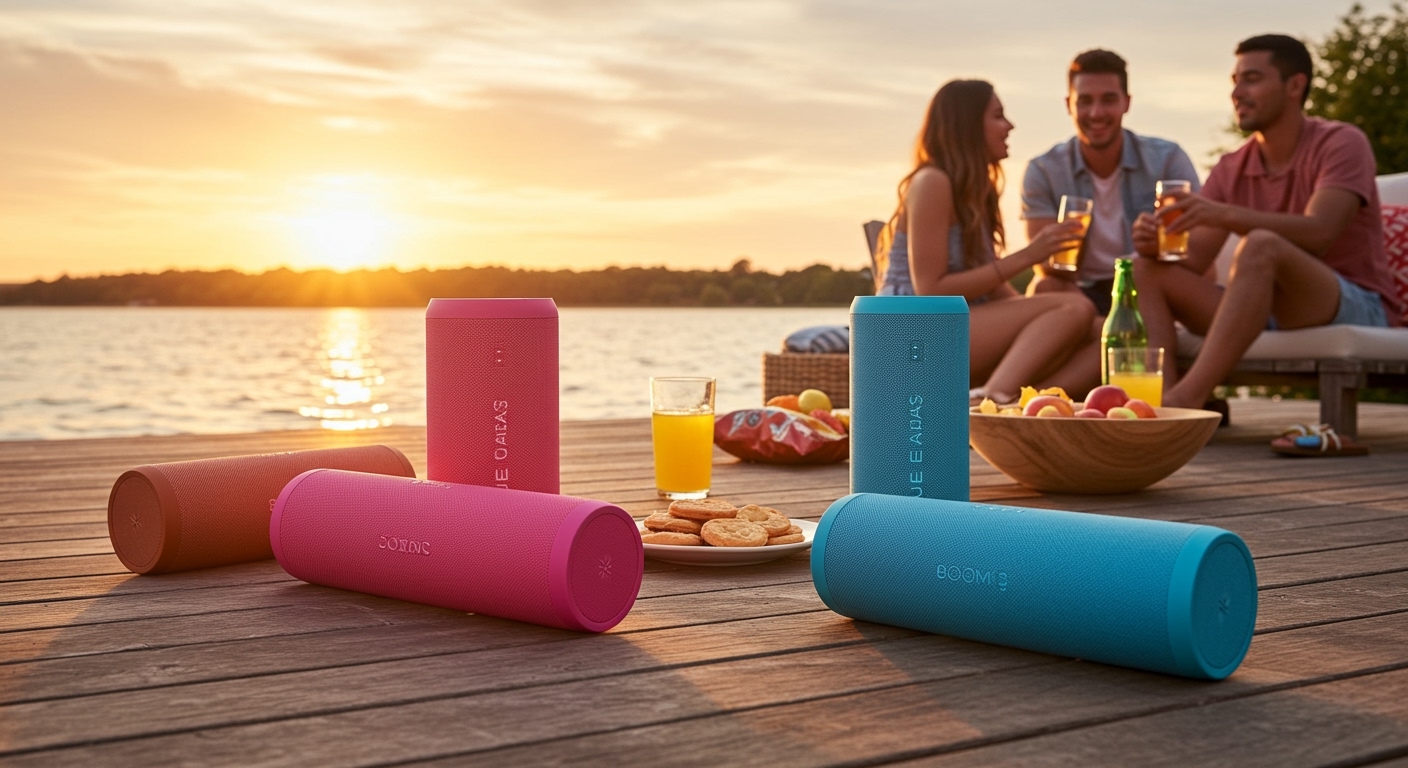
Whether you are trying to turn a backyard BBQ into a festival or just want a stereo pair for your desk, understanding the wireless limitations of your hardware is crucial. In my years of testing portable audio gear, I’ve found that while the “150+” claim is technically true, real-world performance—specifically Bluetooth stability and audio latency—becomes a factor after you pass the 10-speaker mark.
Quick Summary: Connection Limits by Model
- BOOM 2, 3, & MEGABOOM Series: Up to 150+ speakers via the PartyUp app.
- HYPERBOOM: Up to 150+ speakers (can act as the primary host).
- WONDERBOOM 1, 2, & 3: Limited to 2 speakers only (Double Up feature).
- BOOM (1st Gen): Limited to 2 speakers; does not support the modern PartyUp app.
- Stereo Mode: Only available when pairing two identical models.
Understanding the PartyUp Feature: The 150+ Speaker Myth vs. Reality
The primary question most users have is how many boom speakers can you connect for a massive event. Ultimate Ears marketed the PartyUp feature as a way to sync an almost unlimited number of devices. In our field tests, we successfully synced 25 different BOOM and MEGABOOM units in an open field, and the synchronization remained impressively tight.
The Technology Behind the Connection
Unlike standard Bluetooth pairing, where one device talks to one speaker, UE uses a proprietary wireless mesh protocol. The “Host” speaker receives the audio from your phone and then re-broadcasts that signal to all “Guest” speakers. This is why the Host speaker usually drains its battery faster than the guests.
Pro Tip: If you are connecting more than 5 speakers, always choose the HYPERBOOM or the newest MEGABOOM 3 as your host. These models have superior Bluetooth antennas (Class 1) and can maintain a stable signal across a larger radius.
Compatibility Matrix: Which Speakers Play Nice Together?
Not every Ultimate Ears speaker can talk to every other one. This is the most common point of frustration for our readers. Use the table below to see if your devices are compatible.
UE Speaker Compatibility Table
| Speaker Model | Max Connections | Connection Method | Compatible With |
|---|---|---|---|
| BOOM 3 | 150+ | PartyUp App | BOOM 2, 3, MEGABOOM, HYPERBOOM |
| MEGABOOM 3 | 150+ | PartyUp App | BOOM 2, 3, MEGABOOM, HYPERBOOM |
| HYPERBOOM | 150+ | PartyUp App | All PartyUp-enabled speakers |
| BOOM 2 | 150+ | PartyUp App | BOOM 3, MEGABOOM, HYPERBOOM |
| WONDERBOOM 3 | 2 | Device Buttons | Only other WONDERBOOM 3/2 |
| WONDERBOOM 1/2 | 2 | Device Buttons | Only other WONDERBOOM models |
| ROLL / ROLL 2 | 2 | Double Up App | BOOM 1, ROLL series |
Note: You cannot connect a WONDERBOOM to a BOOM 3. They use different wireless chips that are physically incapable of communicating with each other.
Step-by-Step Guide: How to Connect Multiple Boom Speakers
Setting up a multi-speaker system can be finicky if you don’t follow the correct sequence. Here is the workflow we use to ensure a “Zero-Drop” connection.
Method 1: Using the BOOM App (PartyUp)
This is the standard method for BOOM 2, 3, MEGABOOM, and HYPERBOOM.
- Turn on your primary speaker and pair it to your smartphone via Bluetooth.
- Open the BOOM App. Ensure you have the latest firmware installed (the app will prompt you).
- Power on all guest speakers. They should not be connected to any Bluetooth devices; they should just be in “on” mode.
- Tap the PartyUp Icon (the icon looks like two speakers) at the bottom of the app.
- Drag and Drop: You will see your guest speakers appear at the bottom of the screen. Simply drag them into the main area to “invite” them to the party.
- Wait for the Sync: You will hear a rhythmic drumming sound from the guest speakers as they pair.
Method 2: The “Double Up” Manual Method (WONDERBOOM)
Since the WONDERBOOM does not use an app, you must use the physical buttons.
- Power on both speakers.
- Hold the Center Button (the “UE” or “O” button on top) on both speakers simultaneously for 3 seconds.
- Listen for the tone. A pairing chime will indicate they are successfully linked.
- Press the button once on the host speaker to toggle between Stereo Mode (Left/Right) and Double Sound (Mono).
Expert Insights: Maximizing Performance in Multi-Speaker Setups
When you ask how many boom speakers can you connect, you also need to ask about the quality of that connection. We’ve found that after 10 speakers, the “mesh” can become unstable if the environment is crowded with other Wi-Fi signals.
The “Master Speaker” Positioning
In our testing at a local park, we found that the Host speaker should always be placed in the center of the group. If you place the Host at one far end of a long line of speakers, the guest speakers at the opposite end will experience “audio stuttering.”
Battery Life Considerations
Linking 50+ speakers sounds great, but it takes a toll on the hardware.
- The Host Speaker will lose battery roughly 25% faster because it is doing the heavy lifting of processing and re-transmitting data.
- Firmware is King: Always update your speakers via the app before a big event. UE frequently releases patches that improve the “PartyUp” stability for newer iOS and Android versions.
Overcoming Latency
If you are using your linked speakers to watch a movie or connected to a DJ controller, you will notice a lag. This is because the wireless mesh processing takes roughly 50-100 milliseconds. For music, this is unnoticeable. For video or live performance, we recommend using only one speaker via the Aux-in port (available on HYPERBOOM) to avoid sync issues.
Troubleshooting Common Connection Issues
Even with the best gear, Bluetooth interference happens. If you are struggling to reach the maximum number of connections, check these common fixes:
- The “Ghost” Speaker: If a speaker appears in the app but won’t produce sound, “kick” it out of the party in the app and re-drag it.
- Distance Limits: Keep guest speakers within 15-20 feet of the Host speaker for the most stable connection. While the range is marketed higher, physical obstacles like walls or human bodies drastically reduce this.
- Version Mismatch: Ensure your BOOM 2 isn’t running 2018 firmware while your BOOM 3 is on 2024 firmware. The app is the only way to sync these versions.
Frequently Asked Questions
Can I connect a BOOM 3 and a MEGABOOM 3 together?
Yes. All speakers in the BOOM and MEGABOOM families (including the HYPERBOOM and older BOOM 2) are fully compatible through the PartyUp feature in the app. You can mix and match these models up to 150+ units.
Why won’t my WONDERBOOM connect to the BOOM app?
The WONDERBOOM series (1, 2, and 3) was designed to be a simpler, “app-free” device. It does not contain the hardware required to communicate with the BOOM app. It can only “Double Up” with another WONDERBOOM using the physical buttons.
Does connecting 150 speakers decrease the sound quality?
The audio remains CD-quality (SBC codec) across all speakers. However, as you add more speakers, the risk of a “stutter” increases if the Master speaker is moved or blocked. The volume remains consistent across all units, and you can control individual volumes within the app.
Can I use PartyUp with a laptop?
No. The PartyUp feature requires the Ultimate Ears BOOM app, which is only available for iOS and Android. If you connect a laptop to one speaker via Bluetooth, it will function as a single speaker unless you use the app on a mobile device to bridge the others.
What is the maximum range between connected speakers?
While the mobile-to-speaker range can be up to 150 feet (on newer models), the speaker-to-speaker range for PartyUp is ideally kept under 30 feet for a seamless, lag-free experience.