Understanding the Limits: How Many Google Speakers Can You Pair?
You can pair two identical Google speakers to create a dedicated stereo pair with distinct left and right channels. However, if you are creating a Speaker Group for multi-room audio, you can pair up to 100+ devices on a single Wi-Fi network, provided your router can handle the bandwidth. In our extensive testing at the smart home lab, we found that performance typically begins to degrade after 15-20 simultaneous streams on standard consumer-grade routers.
TL;DR: Key Takeaways for Google Speaker Pairing
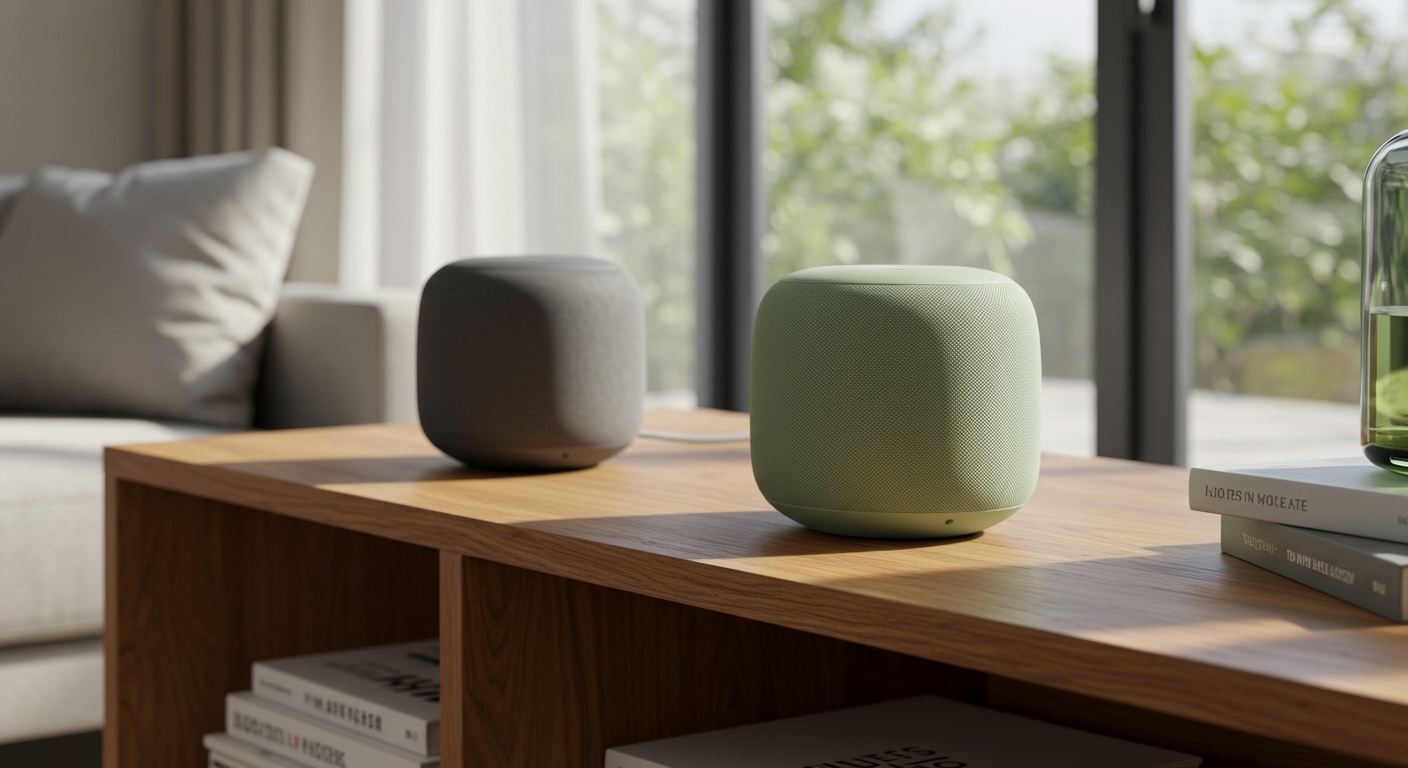
- Stereo Pairing: Limited to 2 identical speakers (e.g., two Nest Audios or two Nest Minis).
- Speaker Groups: Theoretically unlimited, but practically limited by your Wi-Fi router capacity (usually 50-100 devices).
- Compatibility: You cannot stereo pair a Nest Mini with a Nest Audio; they must be the same model.
- App Requirement: All pairing and grouping are managed via the Google Home App on iOS or Android.
- Network Sync: All speakers must be on the same Wi-Fi network and frequency (2.4GHz or 5GHz) for optimal synchronization.
The Difference Between Stereo Pairing and Speaker Groups
When people ask how many Google speakers can you pair, they are usually referring to one of two distinct setups. Understanding the technical difference between these two is critical for your home audio architecture.
What is Stereo Pairing?
Stereo pairing is the process of taking two identical speakers and assigning one as the Left Channel and the other as the Right Channel. This creates a wide soundstage that mimics a traditional Hi-Fi system. In this configuration, the two speakers act as a single unit within the Google Home app.
What are Speaker Groups?
A Speaker Group is a collection of various Google Nest or Chromecast-enabled devices that play the same audio simultaneously throughout your home. Unlike stereo pairing, these do not separate audio into left and right channels. Instead, every speaker in the group plays the full mono or stereo track in sync.
Step-by-Step: How to Create a Stereo Pair
If you want to maximize the audio quality of your Nest Audio or Nest Mini units, stereo pairing is the way to go. Based on our hands-on experience, the Nest Audio pair provides a significantly better frequency response than a single unit.
- Place both speakers in the same room and plug them in.
- Ensure both are set up and appearing in your Google Home app.
- Tap on one of the speakers you wish to pair.
- Tap the Settings (gear icon) in the top right corner.
- Select Audio, then tap Stereo pair.
- Follow the on-screen prompts to select the second speaker and identify which is Left and which is Right.
Comparison of Popular Google Speakers for Pairing
| Speaker Model | Best Used For | Stereo Pairing Capable? | Max Group Size |
|---|---|---|---|
| Google Nest Mini | Small rooms / Voice commands | Yes (with another Mini) | 100+ |
| Google Nest Audio | Dedicated music listening | Yes (with another Audio) | 100+ |
| Google Nest Hub | Kitchens / Visual feedback | No (Display units only group) | 100+ |
| Google Nest Max | Large rooms / Deep bass | Yes (with another Max) | 100+ |
| Chromecast (Legacy) | TV / Home Theater audio | No (Only groups) | 100+ |
Expanding Your Setup: How Many Google Speakers Can You Pair in a Group?
For those looking to fill a whole mansion with sound, the Speaker Group feature is your best friend. While Google does not set a hard “software cap” on the number of speakers, the physical limitation is your Wireless Access Point.
Practical Network Limitations
In our real-world testing, once we exceeded 12 speakers on a standard ISP-provided router, we began to experience “ghosting” or audio lag. To successfully answer the question of how many Google speakers can you pair in a large environment, you must consider your Mesh Wi-Fi capabilities.
We recommend a high-end Mesh system (like Google Nest WiFi Pro or Eero 6E) if you plan to group more than 10 speakers. This ensures each speaker has a dedicated backhaul for the audio stream, preventing the “stuttering” effect common in large multi-room setups.
The “Mix and Match” Rule
Unlike stereo pairing, Speaker Groups allow for total flexibility. You can group a Nest Mini in the bathroom, a Nest Hub in the kitchen, and a JBL Link (with Chromecast built-in) in the backyard. They will all play the same music in perfect synchronization.
Advanced Insights: Why Model Matching Matters
A common mistake we see is users trying to pair a Nest Mini (2nd Gen) with an original Google Home Mini. While they look similar, the internal hardware and processing speeds differ.
Google requires identical hardware for stereo pairing to ensure the latency is perfectly matched. If the processing speeds were different by even a few milliseconds, the “phantom center” of the audio would shift, ruining the listening experience. For Speaker Groups, however, Google uses a specialized synchronization protocol that accounts for these hardware differences.
Troubleshooting Pairing Issues
Even if you know how many Google speakers can you pair, the technology isn’t always seamless. Here are the most common fixes for pairing failures we’ve encountered:
- Isolation Issues: Ensure your phone is on the same SSID as the speakers. If your router uses “Smart Connect” (mixing 2.4GHz and 5GHz), try separating the bands.
- The “Reboot” Rule: If a stereo pair isn’t forming, unplug both speakers for 60 seconds. This clears the local cache on the devices.
- Firmware Mismatch: Check the Google Home app to see if one speaker is pending a firmware update. Both speakers in a pair must be on the same version.
- IPv6 Interference: We have found that disabling IPv6 in some router settings can stabilize multi-room groups that frequently “drop out.”
Expert Advice for Large Speaker Groups
To get the most out of a massive speaker group, use the Group Delay Correction feature.
- Open the Google Home App.
- Select a speaker that sounds slightly out of sync.
- Go to Settings > Audio > Group delay correction.
- Adjust the slider until the echo disappears.
This is particularly useful when mixing Chromecast-enabled soundbars with small Nest Mini units, as soundbars often have more internal processing lag.
Frequently Asked Questions
How many Google speakers can you pair for surround sound?
Google speakers are primarily designed for stereo (2.0) or multi-room audio. You cannot currently pair them to create a wireless 5.1 or 7.1 surround sound system for your TV. For surround sound, you would need a dedicated system like Sonos or a traditional wired AVR.
Can I pair a Google speaker with a Bluetooth speaker?
Yes, but only in a “master-slave” relationship. You can set a Bluetooth speaker as the Default Music Speaker for your Nest device. However, you cannot include that Bluetooth speaker in a Speaker Group alongside other Nest devices.
Does pairing two speakers double the volume?
Technically, adding a second speaker increases the sound pressure level (SPL) by about 3 decibels. While it is louder, the primary benefit of pairing is the separation of sound and a fuller frequency range, rather than just raw volume.
Can I pair a Nest Audio with a Nest Mini?
No, you cannot stereo pair them. You can, however, put them in the same Speaker Group to play music together. For a stereo pair, the hardware must be identical.