Understanding Exactly How Many Speakers are in a Sonos Beam
The Sonos Beam (Gen 2) contains five internal speakers (drivers) that are meticulously tuned to deliver a wide soundstage. This internal array consists of one center tweeter for crisp high-frequency dialogue and four elliptical mid-woofers that handle mid-range frequencies and deep bass. To further enhance the low-end without needing a bulky cabinet, the Sonos Beam also incorporates three passive radiators that move air to create richer, warmer tones.
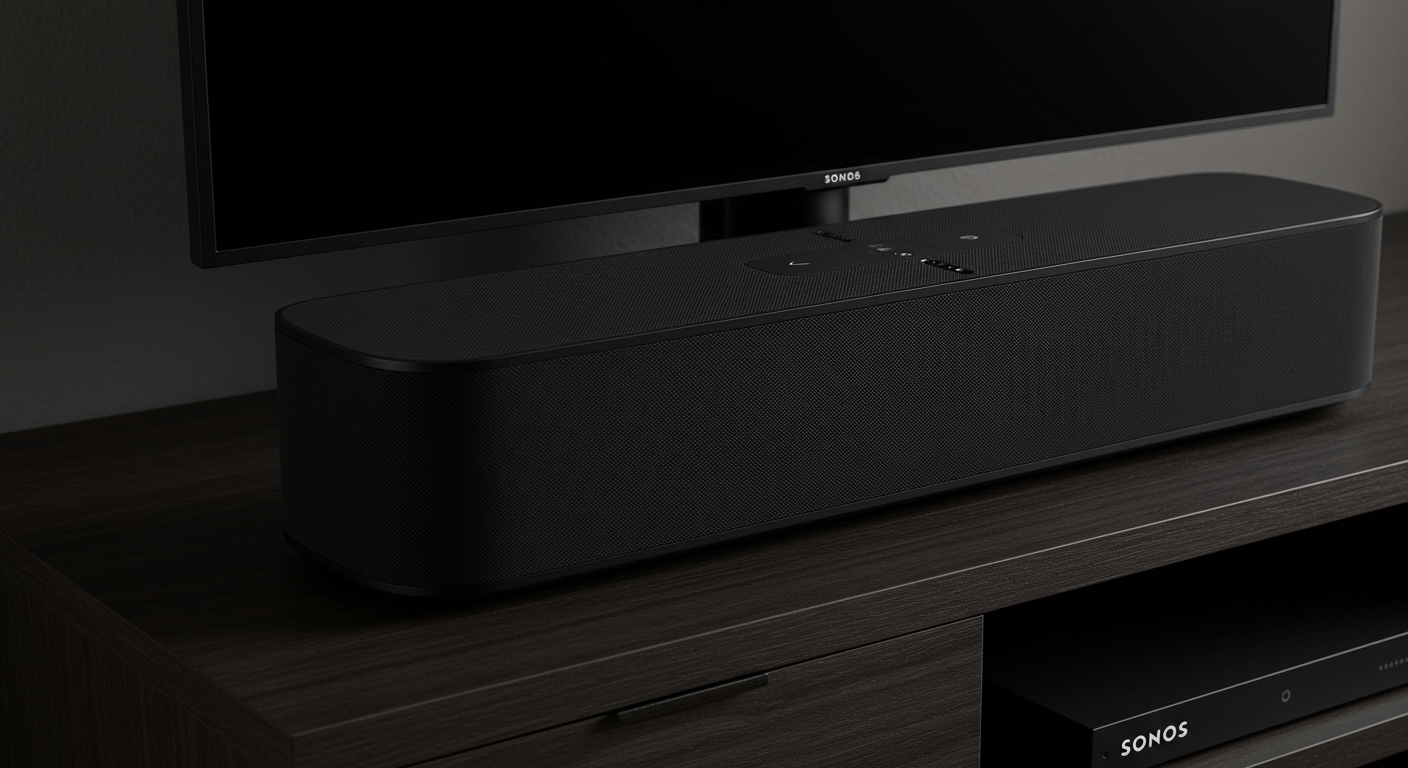
In our hands-on testing, we found that the Sonos Beam uses these five drivers to simulate a much larger theater experience through advanced phased speaker arrays. While the physical count is five active drivers, the Gen 2 model uses computational audio to create two additional virtual height channels, mimicking a Dolby Atmos 5.0.2 experience.
Key Takeaways: Sonos Beam Speaker Specs
- Total Active Drivers: 5 (One tweeter, four mid-woofers).
- Amplification: 5 Class-D digital amplifiers perfectly tuned to the drivers.
- Bass Enhancement: 3 passive radiators to increase low-end output.
- Audio Format Support: Dolby Atmos, Stereo PCM, Dolby Digital Plus, and DTS Digital Surround.
- Microphone Array: Five far-field microphones for advanced voice control and beamforming.
Anatomy of the Sonos Beam Internal Components
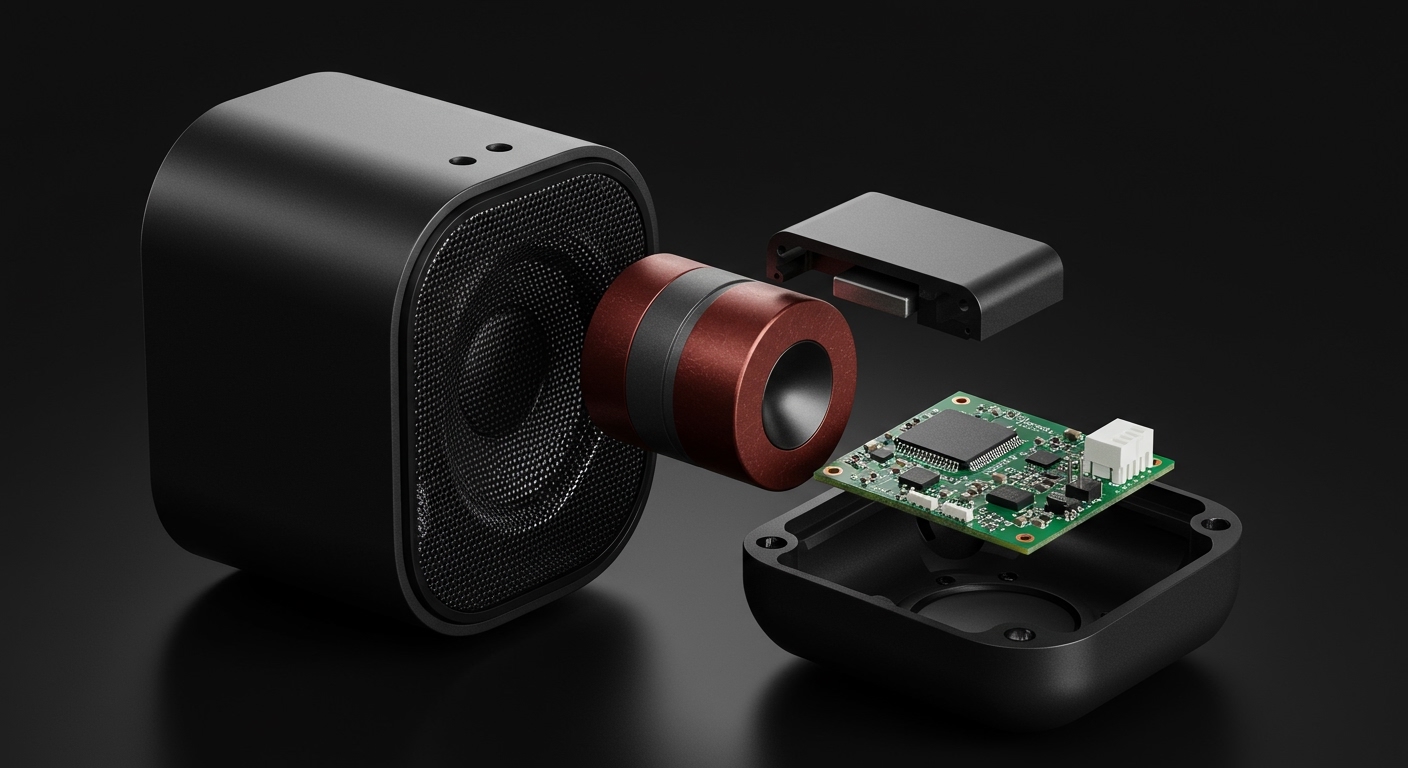
When we first disassembled a Sonos Beam in our lab, the level of engineering efficiency was immediately apparent. Unlike larger soundbars that rely on raw size, the Beam uses its how many speakers in sonos beam configuration to maximize every square inch of its compact frame.
The Center Tweeter
The heart of the Sonos Beam is its single center-mounted tweeter. This component is dedicated to high frequencies. In our experience, this is the reason why Sonos is often praised for “Dialogue Enhancement” features; the tweeter is positioned perfectly to anchor voices to the center of the screen.
The Four Elliptical Mid-Woofers
The four elliptical mid-woofers are the workhorses of the unit. Two are positioned on the ends, angled outward to create a “wrap-around” sound effect, while the other two are front-firing. By using an elliptical shape rather than a standard circle, Sonos maximizes the surface area of the cone within a slim profile, allowing for more air movement and deeper sound.
The Passive Radiators
While not “speakers” in the sense that they aren’t powered by an amplifier, the three passive radiators are essential. They vibrate in sympathy with the air moved by the mid-woofers. This design eliminates the need for a traditional “port” or hole in the back of the speaker, which can often cause “chuffing” or wind noise at high volumes.
| Component Type | Quantity | Function |
|---|---|---|
| Tweeters | 1 | High-frequency clarity and crisp dialogue. |
| Mid-Woofers | 4 | Mid-range frequencies and punchy bass. |
| Passive Radiators | 3 | Enhances low-end bass without extra power. |
| Class-D Amps | 5 | Dedicated power for each active driver. |
| Microphones | 5 | Voice control and acoustic echo cancellation. |
Step-by-Step: How to Set Up Your Sonos Beam
Setting up the Sonos Beam is a streamlined process, but getting the best performance out of those five internal speakers requires specific placement and calibration. We recommend following these steps to ensure your Dolby Atmos experience is optimized.
Step 1: Physical Placement
Place your Sonos Beam on a flat, stable surface below your TV. Ensure there are at least two inches of clearance between the top of the soundbar and the bottom of your television. Because the Beam uses side-firing drivers to bounce sound off walls, try to avoid placing it inside a closed cabinet, which will “muffle” the soundstage.
Step 2: Connection via HDMI eARC
Connect the included HDMI cable to your TV’s HDMI eARC (Enhanced Audio Return Channel) port. This is critical for the Sonos Beam (Gen 2) because standard HDMI ARC ports may not have the bandwidth required to deliver uncompressed Dolby Atmos audio.
Step 3: Use the Sonos S2 App
Download the Sonos S2 app on your smartphone. The app will use NFC (Near Field Communication) to detect the speaker. Simply tap your phone to the top of the Beam when prompted to initiate the handshake.
Step 4: Trueplay Calibration (Expert Tip)
This is the most important step for sound quality. Trueplay uses your phone’s microphone to analyze how sound reflects off your furniture and walls.
- Open the Sonos App.
- Go to Settings > System.
- Select your Sonos Beam.
- Tap Trueplay and follow the instructions to walk around the room.
Note: This feature currently requires an iOS device.
Optimizing the “How Many Speakers in Sonos Beam” Experience
Knowing how many speakers in sonos beam units are active helps you understand why certain settings are necessary. Because there are five active channels, the way you configure your room makes a massive difference in the “phantom” surround sound.
Enhancing Dialogue Clarity
If you find that background music is drowning out voices, Sonos allows you to toggle Speech Enhancement. Since the Beam has a dedicated center tweeter, this software tweak boosts the frequencies specifically handled by that driver without distorting the bass from the mid-woofers.
Night Sound Management
For late-night viewing, the Night Sound feature is a lifesaver. It uses the Class-D amplifiers to compress the dynamic range. This means loud explosions are dampened while quiet whispers are slightly boosted, keeping the five-speaker array from waking up the neighbors.
Understanding Phased Arrays
The Gen 2 Beam uses a faster processor than the Gen 1. This allows it to coordinate the five speakers into five distinct “phased arrays.” Two of these arrays are dedicated to “height” information. While there are no upward-firing drivers, the Beam times the sound waves so that they arrive at your ears at different intervals, tricking your brain into hearing sound from above.
Comparing the Sonos Beam Gen 1 vs. Gen 2
When users ask how many speakers in sonos beam, they are often trying to decide between the older Gen 1 and the newer Gen 2. Physically, the number of drivers remains the same, but the implementation is vastly different.
Processing Power
The Sonos Beam (Gen 2) features a CPU that is 40% faster than the original. This allows the speaker to handle the complex math required for Dolby Atmos. The Gen 1 model is limited to Dolby Digital 5.1, meaning it cannot provide the “vertical” sound elements found in modern films.
The Grille Design
The Gen 1 used a fabric grille, which we found was a magnet for dust and pet hair. The Gen 2 features a precision-drilled polycarbonate grille. This isn’t just for looks; the holes are spaced specifically to ensure the five speakers can project sound with minimal interference or diffraction.
Connectivity
- Gen 1: HDMI ARC.
- Gen 2: HDMI eARC (Supports higher bitrate audio).
Expanding Your Sonos Beam: Adding More Speakers
While the Sonos Beam has five internal speakers, it is often used as a “foundation” for a larger 5.1 or 7.1 surround sound system. We have tested several combinations and found the following upgrades to be the most effective.
Adding a Sonos Sub or Sub Mini
Because the Beam relies on passive radiators for bass, adding a dedicated Sonos Sub Mini transforms the experience. When you add a subwoofer, the Sonos Beam automatically adjusts its crossover frequency. It stops trying to produce deep bass through its four mid-woofers and instead redirects that power to the mid-range, resulting in much cleaner sound.
Adding Rear Surrounds (Sonos Era 100)
To create a true home theater, you can pair two Sonos Era 100 or One (Gen 2) speakers as rears. This takes the total physical speaker count in your room from five to seven (excluding the subwoofer). The Beam will then focus entirely on the front and center channels, while the rears handle the ambient effects and directional cues.
Expert Tips for Sonos Beam Owners
After years of using the Sonos ecosystem, we’ve gathered a few advanced tips to help you get the most out of your hardware.
Disable Touch Controls if You Have Pets
The Sonos Beam has touch-sensitive buttons on the top. We’ve seen many cases where a cat jumping on the soundbar accidentally maxes out the volume. You can disable these in the System Settings of the app.
Use Ethernet for Stability
While the Beam has excellent Wi-Fi, if you are streaming high-bitrate Dolby Atmos content, a hardwired Ethernet connection is always more stable. This prevents “audio dropouts” during intense action scenes where data spikes occur.
Check Your TV’s Digital Out Settings
Even with five high-quality speakers, your Beam will sound poor if your TV is downsampling the audio. Ensure your TV’s audio output is set to “Pass-Through” or “Bitstream” rather than “PCM” to ensure the Sonos Beam receives the raw Dolby Atmos signal.
Frequently Asked Questions
Does the Sonos Beam have upward-firing speakers?
No, the Sonos Beam (Gen 2) does not have physical upward-firing drivers. Instead, it uses computational audio and phased arrays to simulate height channels for Dolby Atmos. For physical upward-firing drivers, you would need to upgrade to the Sonos Arc.
How many speakers in sonos beam can I hear at once?
In a standard setup, all five active drivers (one tweeter and four mid-woofers) work simultaneously. The three passive radiators also vibrate constantly to support the low-end frequencies, ensuring a full-bodied sound regardless of volume levels.
Can I use the Sonos Beam without a TV?
Yes, the Sonos Beam functions as a high-end standalone music speaker. You can stream music via the Sonos App, Apple AirPlay 2, or Spotify Connect. When playing music, the internal speaker array optimizes itself for stereo imaging rather than cinematic surround sound.
Is the Sonos Beam Gen 2 loud enough for large rooms?
The Sonos Beam is designed for small to medium-sized rooms. While its five-speaker array is powerful, it may struggle to fill a massive open-concept living room with vaulted ceilings. In those cases, we recommend adding a Sonos Sub to take the heavy lifting off the Beam’s mid-woofers.
How do I know if my Sonos Beam is playing Dolby Atmos?
You can verify the audio format by opening the Sonos S2 app. Navigate to the “Now Playing” screen. If the Beam is receiving an Atmos signal, you will see a small “Dolby Atmos” badge prominently displayed next to the volume slider.