To learn how to add speakers notes in google slides, simply click the text box at the bottom of your screen labeled “Click to add speaker notes” while in the editor. These notes act as a private script that only you can see during your presentation, ensuring you hit every key point without cluttering your slides with text.
Key Takeaways: Mastering Speaker Notes
Purpose: Speaker notes keep your slides clean while providing you with a detailed script or cues.
Accessibility: You can access notes on Google Slides, Microsoft PowerPoint, and mobile apps.
Presenter View: Use this mode to see your notes on one screen while the audience sees only the slides on another.
Printing: Both major platforms allow you to print slides with notes for physical reference.
Formatting: You can bold, italicize, and create lists within the notes section to make them easier to read at a glance.
The Importance of Speaker Notes for Professional Presentations
In my decade of experience as a corporate communications consultant, I have seen brilliant presentations ruined by “death by bullet points.” Speakers often make the mistake of putting their entire script on the slide.
This forces the audience to choose between reading your slide or listening to your voice. By learning how to add speakers notes in google slides, you separate your visual aids from your spoken word. This creates a much more engaging experience for your audience.
Speaker notes serve three critical functions:
- Memory Jogs: Use keywords to trigger your memory for complex data or anecdotes.
- Timing Cues: Mark where you should pause or transition to the next slide.
- Accessibility: They provide a transcript for viewers who may need it after the presentation.
| Feature | Google Slides | Microsoft PowerPoint |
|---|---|---|
| Ease of Access | Single click at bottom | Click “Notes” in taskbar |
| Mobile Editing | Supported on iOS/Android | Supported on Mobile App |
| Formatting | Basic (Bold, Lists) | Rich Text Support |
| Presenter View | Separate Window | Full-screen Overlays |
| Printing Options | 1 slide per page with notes | Multiple layouts available |
How to Add Speaker Notes in Google Slides
Adding notes is the first step toward a more confident delivery. Whether you are a student or a CEO, the process is straightforward and intuitive.
Step 1: Open Your Presentation
Navigate to Google Drive and open your existing Google Slides file or create a new one. Ensure you are in the “Filmstrip” or “Grid” view where you can see the individual slides on the left.
Step 2: Locate the Notes Pane
Look at the very bottom of the slide editor. You will see a white area that says “Click to add speaker notes.”
Pro Tip: If you don’t see this area, it might be hidden. Go to the View menu and ensure “Show speaker notes” is checked. You can also click the small handle at the bottom of the screen and drag it upward to expand the notes section.
Step 3: Type Your Content
Click inside the box and begin typing. I recommend using bulleted lists (Ctrl+Shift+8) for your notes. Avoid writing full paragraphs; instead, use “trigger words” that remind you of the story you want to tell.
Step 4: Format for Readability
Since you will likely be glancing at these notes from a distance during a speech, formatting is key.
Use Bold text for names, dates, or specific statistics.
Use All Caps for stage directions like “PAUSE” or “CLICK FOR ANIMATION.”
How to See Speaker Notes in Google Slides
Once you’ve added your content, you need to know how to access it during the actual “showtime.” How to see speakers notes in google slides depends on whether you are using a single monitor or a dual-screen setup.
Using Presenter View
- Click the down arrow next to the Present button in the top right corner.
- Select Presenter View.
- A new window will pop up. This window contains your speaker notes, a timer, and a preview of the next slide.
Handling Dual Monitors
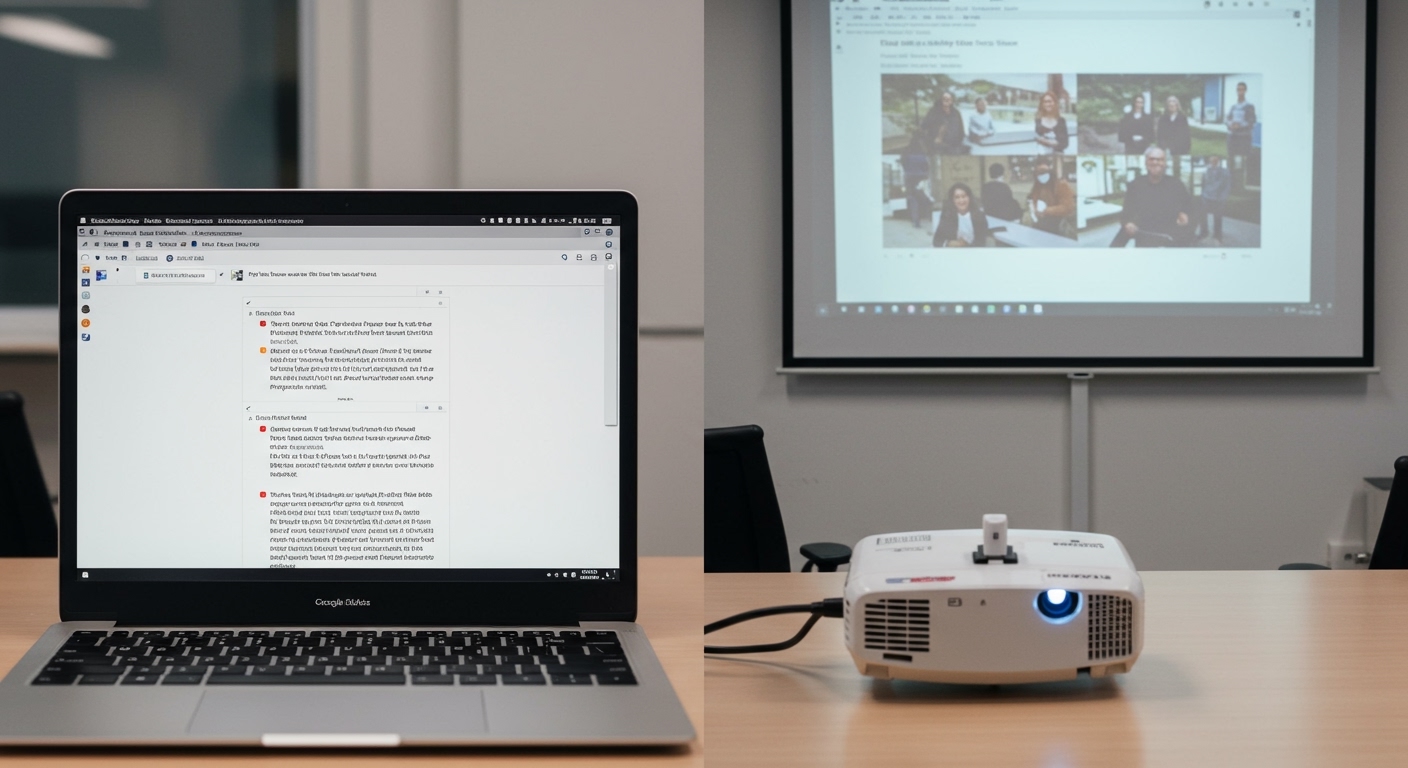
If you are connected to a projector or a second monitor:
- Drag the Presenter View window to your laptop screen.
- Keep the main presentation window on the projector screen.
- This setup allows you to read your script while the audience only sees your beautiful visuals.
How to See Speaker Notes on Google Slides App
Many presenters prefer using a tablet or phone as a “digital cue card.” How to see speakers notes on google slides app is a common question for those who move around the stage.
- Open the Google Slides app on your iPhone, iPad, or Android device.
- Tap on the slide you wish to view.
- Tap Edit Slide.
- Tap the More (…) icon (three dots) in the top right corner.
- Select Speaker notes.
- The notes will appear in an overlay. You can edit them directly from your mobile device.
How to Print Speaker Notes in Google Slides
Sometimes, technology fails. I always recommend having a physical backup. How to print speakers notes in google slides is a vital skill for high-stakes meetings.
- Go to File > Print settings and preview.
- In the top toolbar, change the dropdown from “1 slide without notes” to “1 slide with notes.”
- Review the preview to ensure your text isn’t cut off.
- Click Print.
Note: If your notes are very long, Google Slides will automatically shrink the slide image to fit the text on one page. If you have pages of notes, consider moving some text to a separate document.
How to Add Speaker Notes in PowerPoint
While Google Slides is popular for collaboration, Microsoft PowerPoint remains the industry standard for high-end design. How to add speakers notes in powerpoint is very similar but offers more formatting power.
Step 1: Open the Notes Pane
In PowerPoint, look at the bottom status bar. There is a button labeled Notes. Click it to toggle the notes section on and off.
Step 2: Enter Your Text
Click in the area below the slide. Unlike Google Slides, PowerPoint allows for more complex formatting, including different fonts and colors. What are speakers notes in powerpoint? They are essentially a hidden “Notes Page” attached to every slide.
Step 3: Using Notes Page View
For extensive writing, go to the View tab and select Notes Page. This gives you a full-page view of your slide and your notes, which is excellent for checking how they will look when printed.
How to Print Speaker Notes in PowerPoint
If you are wondering how to print speakers notes in powerpoint, follow these steps:
- Click File > Print.
- Under Settings, click the second dropdown (usually says “Full Page Slides”).
- Select Notes Pages under the “Print Layout” section.
- You will see a preview of each slide with its corresponding notes beneath it.
- Click Print.
Expert Tips for Effective Speaker Notes
After years of presenting at tech conferences, I’ve developed a “Speaker Note Framework” that ensures a smooth delivery:
The 10-Word Rule: Try to limit each slide’s notes to 10-15 “trigger words.” Reading a script makes you sound robotic. Trigger words keep you conversational.
Time Stamps: Add notes like “[2:00 MIN MARK]” to help you track if you are talking too fast or too slow.
Audience Cues: Write notes for yourself like “Make eye contact with the left side of the room” or “Check for questions here.”
Formatting for Distance: If your laptop is on a podium, increase the zoom level of your notes. In Google Slides Presenter View, you can use the + and – buttons to change text size instantly.
Collaborative Notes: Since Google Slides is cloud-based, have a teammate add “Live Notes” or feedback into your speaker notes section during a rehearsal.
Common Mistakes to Avoid
Copy-Pasting Everything: Don’t paste your entire essay into the notes. You will lose your place and panic.
Ignoring the Audience: If you spend the whole time looking down at your speaker notes, you lose the connection with your listeners.
Forgetting the App: If you are presenting via Zoom or Microsoft Teams, remember that sharing your “Entire Screen” might show your notes to the audience. Always share only the “Presentation Window.”
FAQs: Speaker Notes Mastery
Are there speakers notes in google slides?
Yes, Google Slides has a dedicated speaker notes feature located at the bottom of the editor. It is fully compatible with Presenter View and mobile devices.
How do I see my notes while presenting on a single screen?
In Google Slides, select Presenter View from the “Present” menu. This opens a separate window for your notes. You can resize your browser window so that the presentation is on one side and the notes are on the other.
Can I hide speaker notes from my audience?
Absolutely. When you use Presenter View, only you see the notes window. The audience only sees the slides on the main display or projector.
How to see speakers notes on google slides app during a remote meeting?
If you are using your phone to present, tap the More icon and select Speaker Notes. If you are using a tablet, you can often use a split-screen mode to see your notes while the meeting app runs in the background.
Can I format the text in speaker notes?
Yes. You can use Bold, Italics, and Bulleted lists. In Google Slides, use standard keyboard shortcuts like Ctrl+B for bold.
Conclusion: Elevate Your Presentation Game
Learning how to add speakers notes in google slides is one of the simplest ways to transform from a nervous presenter into a confident speaker. By moving your script off the slide and into the notes pane, you allow your audience to focus on your message while you keep your cues right where you need them.
Whether you prefer the cloud-based flexibility of Google Slides or the robust features of PowerPoint, using speaker notes effectively ensures you never miss a beat. Start by adding three key bullet points to your next presentation today!
Ready to take your slides to the next level? Practice using Presenter View in your next rehearsal to get comfortable with the interface.