Understanding How to Adjust Bass and Treble on Speakers for Peak Performance
To learn how to adjust bass and treble on speakers, you simply need to locate the physical EQ (Equalizer) knobs on your hardware or access the digital sound settings within your operating system or playback app. For hardware, rotating the Bass knob clockwise increases “thump,” while turning the Treble knob clockwise sharpens “clarity.” In digital interfaces, you move the sliders for low frequencies (20Hz–250Hz) for bass and high frequencies (4kHz–20kHz) for treble.
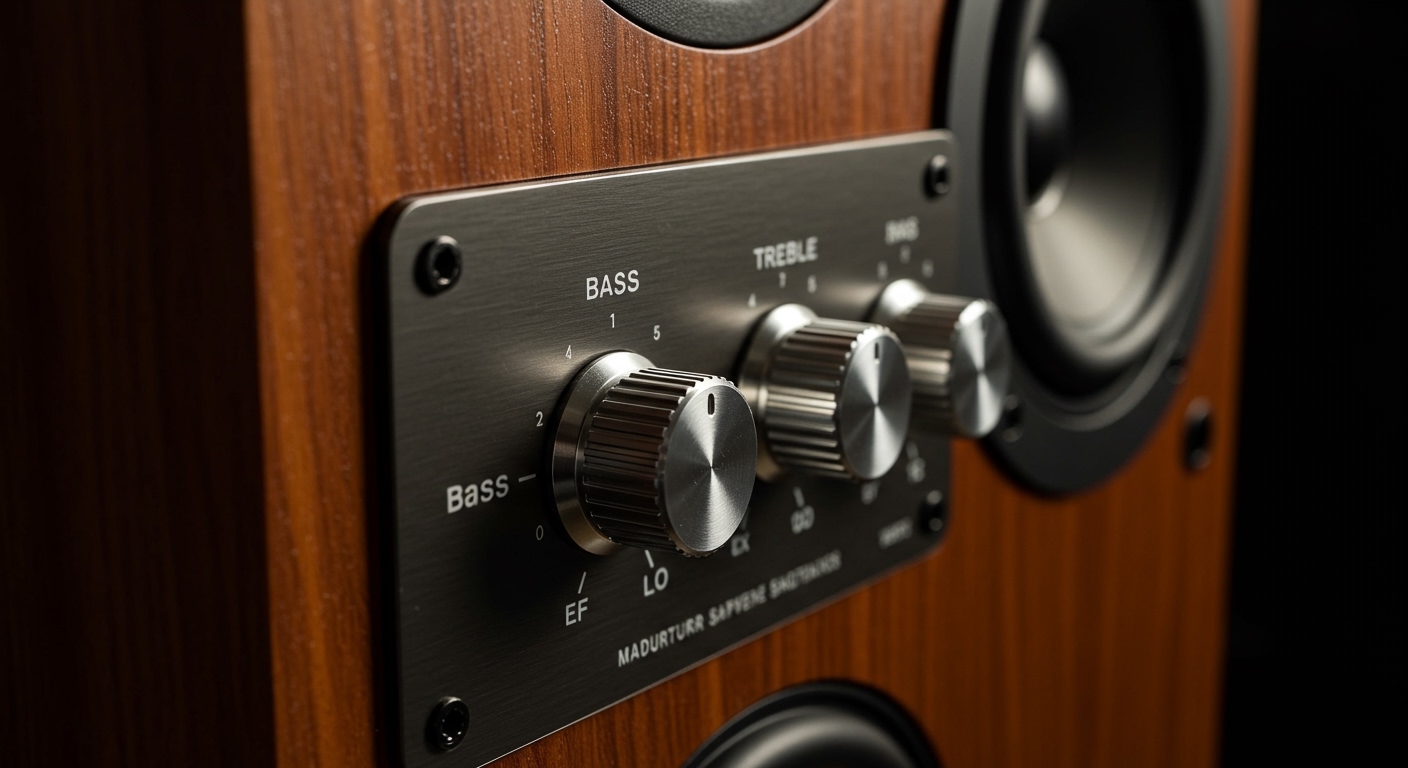
Achieving the perfect balance isn’t just about cranking the volume; it’s about tailoring the sound to your specific environment and the genre of music you are enjoying. During my years testing professional studio monitors and home theater systems, I’ve found that most “muddy” audio isn’t a speaker failure—it’s a configuration error.
Quick Start: TL;DR Key Takeaways
- Physical Controls: Look for “Bass” and “Treble” dials on the back or side of active speakers.
- Windows Settings: Go to Settings > System > Sound > Properties and look for Enhancements or Equalizer.
- Mobile Apps: Use the built-in EQ in Spotify, Apple Music, or your phone’s Settings > Sound menu.
- The Golden Rule: Start at the “12 o’clock” (Neutral) position and make small 2dB to 3dB adjustments at a time.
- Environment Matters: Placing speakers closer to walls naturally boosts bass, often requiring you to lower the bass setting.
The Science of Sound: Bass vs. Treble
Before we dive into the “how-to,” it is crucial to understand what you are actually changing. Sound is measured in frequencies (Hertz/Hz).
- Bass (Low Frequencies): Generally ranges from 20Hz to 250Hz. This is the rhythmic “thump” you feel in your chest. It’s handled by the Woofer or Subwoofer.
- Midrange: Ranges from 250Hz to 4kHz. This is where most human vocals and instruments like guitars live.
- Treble (High Frequencies): Ranges from 4kHz up to 20kHz. These are the crisp “S” sounds, cymbals, and high-pitched notes. This is handled by the Tweeter.
When you adjust bass and treble on speakers, you are performing a basic form of Equalization (EQ). You are either “boosting” (increasing volume) or “cutting” (decreasing volume) specific frequency bands.
How to Adjust Bass and Treble on Speakers via Hardware Knobs
If you own active speakers (speakers with a built-in amplifier, like many computer speakers or bookshelf models from brands like Edifier or Klipsch), you likely have physical controls.
Step-by-Step Hardware Adjustment:
- Identify the Knobs: Look at the side, front, or rear panel. You will usually see two or three knobs labeled Bass, Treble, and Volume.
- Set to Neutral: Turn both the Bass and Treble knobs to the center point (often there is a small “click” or a marker at the 12 o’clock position).
- Play Reference Audio: Put on a high-quality track you know well. I recommend something with clear vocals and a steady beat.
- Adjust the Bass: Slowly turn the Bass knob clockwise. If the sound becomes “boomy” or starts to vibrate the desk excessively, back it off.
- Adjust the Treble: Turn the Treble knob clockwise to add “sparkle” or “air” to the sound. If the cymbals sound piercing or “tinny,” rotate it counter-clockwise.
Expert Pro Tip: We often see users crank the bass to 100%. In my experience, this causes clipping (distortion), which can eventually damage your speaker’s voice coil. Aim for a balanced “flat” response for the best longevity.
Adjusting Bass and Treble on Windows 10 and 11
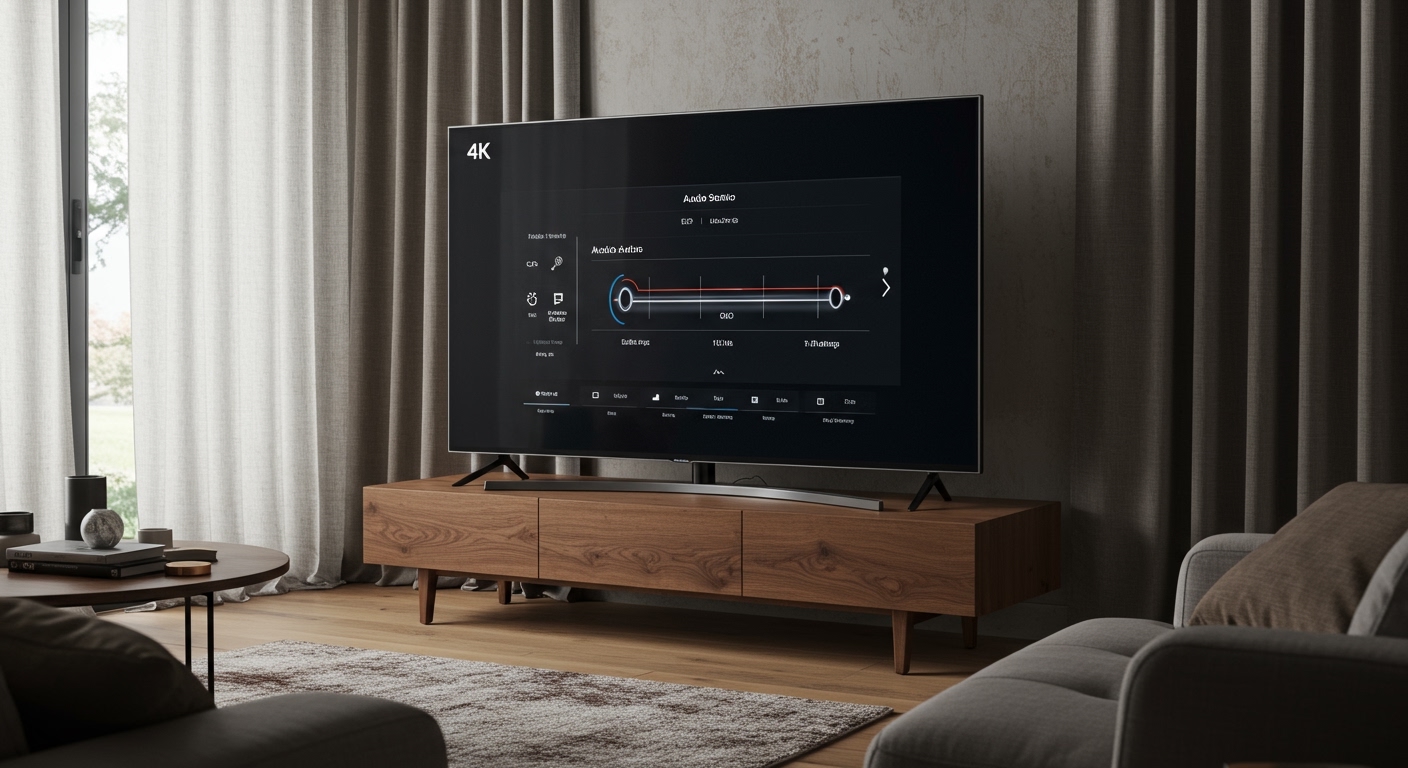
Many modern speakers rely on the computer’s sound card to handle the heavy lifting. Windows provides built-in tools to adjust bass and treble on speakers even if your physical speakers lack knobs.
Using the Control Panel:
- Right-click the Speaker Icon in your Taskbar and select Sound Settings.
- Scroll down to More sound settings (on Windows 11) or Sound Control Panel.
- Select your Playback Device (e.g., Realtek Audio) and click Properties.
- Look for an Enhancements tab. Note: Some modern drivers move this to a dedicated app like Realtek Audio Console or MaxxAudio.
- Check the box for Equalizer.
- In the “Setting” dropdown, you can choose “Bass” to boost lows or “Treble” for highs, or click the “…” button to manually move the sliders.
Using Third-Party Software (Recommended):
If your Windows settings are limited, I highly recommend downloading Equalizer APO with the Peace Interface. This is the industry standard for Windows users to achieve granular control over their audio output.
How to Adjust Bass and Treble on macOS
Apple handles audio differently. There is no system-wide equalizer built directly into the macOS System Settings, but you can control it through specific apps.
- Apple Music / iTunes: Open the app and go to Window > Equalizer.
- Toggle the On checkbox.
- To increase Bass: Raise the sliders on the left side (32, 64, and 125 Hz).
- To increase Treble: Raise the sliders on the right side (4K, 8K, and 16K Hz).
- System-Wide Solution: If you need to adjust sound for YouTube or Netflix, you should use a third-party app like Boom 2 or SoundSource.
Adjusting Audio on Home Theater Receivers
If you have a Denon, Sony, Yamaha, or Onkyo receiver, you have the most powerful tools at your disposal.
- The Setup Mic: Most modern receivers come with a calibration microphone (like Audyssey or YPAO). Use it! It analyzes your room’s acoustics and sets the bass and treble automatically.
- Tone Control: Most remotes have a “Tone Control” button. Pressing this allows you to toggle through Bass and Treble and adjust them using the volume or arrow keys.
- Crossover Settings: This is a “hidden” way to adjust bass. By setting your “Crossover Frequency” (usually to 80Hz), you tell the receiver exactly when to stop sending bass to the small speakers and start sending it to the Subwoofer.
Optimized EQ Settings for Different Use Cases
Depending on what you are doing, you will want to adjust bass and treble on speakers differently. Use this table as a starting point for your manual adjustments:
| Content Type | Bass Setting | Treble Setting | Goal |
|---|---|---|---|
| Action Movies | High (+4dB) | Mid (+2dB) | Enhances explosions and clear dialogue. |
| Hip-Hop / EDM | High (+6dB) | High (+2dB) | Focuses on the “Kick” and “Snare” crispness. |
| Classical / Jazz | Neutral (0dB) | Mid (+3dB) | Preserves instrument separation and “air.” |
| Podcasts / News | Low (-3dB) | Mid (+4dB) | Removes “boominess” to make voices clearer. |
| Gaming (FPS) | Low (-4dB) | High (+5dB) | Emphasizes footsteps and reloading sounds. |
Practical Advice for Room Acoustics
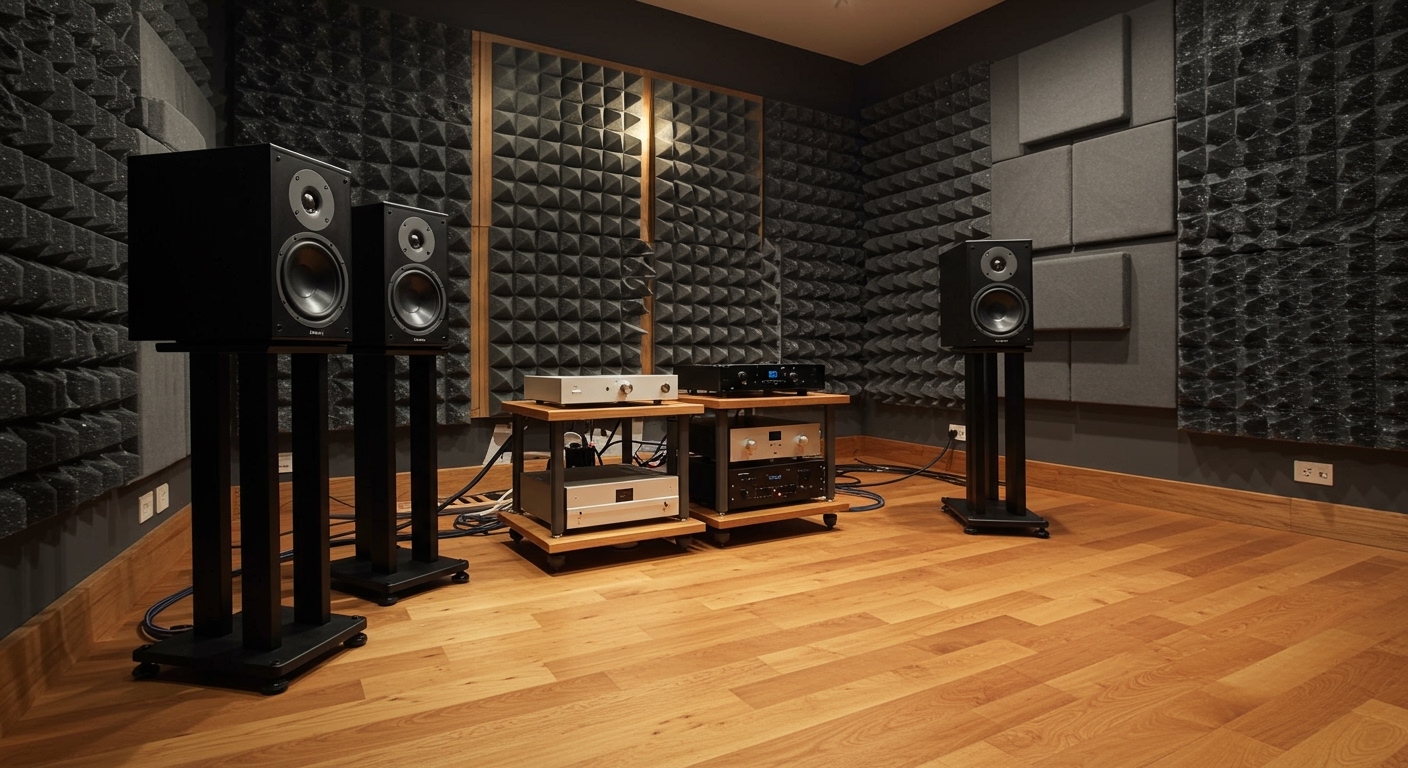
We have tested speakers in everything from tiny bedrooms to wide-open lofts. The room itself acts as a giant speaker cabinet.
- Corner Loading: If you place your speakers in a corner, you will get a natural +3dB to +6dB boost in bass. If your music sounds too muddy, move the speakers at least 12 inches away from the wall.
- Desk Reflections: If your speakers are sitting flat on a wooden desk, the treble can bounce off the surface and cause “phase cancellation.” Tilt your speakers up toward your ears to improve treble clarity without touching a single dial.
- Soft Furnishings: A room with hardwood floors and bare walls will sound “bright” or “harsh” (too much treble). Adding a rug or curtains can absorb those high frequencies, making the sound much warmer.
Troubleshooting Common Sound Issues
Sometimes, trying to adjust bass and treble on speakers doesn’t fix the problem. Here is what we look for when a system still sounds “off”:
- Distortion at High Volumes: This usually means your Bass boost is too high. The amplifier is running out of power to move the woofer. Lower the bass or reduce the overall volume.
- Hissing Sound: This is often “floor noise” caused by having the Treble cranked too high on a low-quality audio source (like a low-bitrate MP3 or a noisy laptop jack).
- One Speaker Louder Than the Other: Check your Balance settings in your OS. This isn’t a bass/treble issue, but it’s often mistaken for one when a tweeter is failing on one side.
Summary of Expert Tips for Audio Adjustment
- Avoid the “V-Shape” Trap: Many people boost both bass and treble while cutting the mids. This makes music sound “exciting” but hides the soul of the vocals. Try to keep adjustments subtle.
- Listen at Normal Volumes: Your ears perceive frequencies differently at low vs. high volumes (the Fletcher-Munson Curves). Always adjust your EQ at the volume you intend to listen at most frequently.
- Source Quality Matters: You can’t “EQ in” detail that isn’t there. If you are listening to a 128kbps YouTube rip, boosting the treble will only highlight the digital artifacts.
Frequently Asked Questions (FAQ)
1. Does adjusting bass and treble damage my speakers?
Generally, no. However, if you boost the bass to the point where the speaker makes a “popping” or “distorted” sound, you are pushing the hardware past its physical limits. This can cause permanent damage over time.
2. Why don’t my speakers have bass and treble knobs?
Many high-end “audiophile” speakers omit these knobs to keep the signal path as “pure” as possible. In these cases, the manufacturer expects you to handle equalization through your Pre-amp, Receiver, or Software.
3. What frequency is best for bass?
For most home setups, the “punch” lives around 60Hz to 100Hz. Sub-bass (the vibrating feeling) is lower, between 20Hz and 50Hz. If you want more “thump” without the mud, focus your adjustments on the 80Hz band.
4. How do I make dialogue clearer on my speakers?
To make voices easier to understand, slightly lower the bass and increase the treble (specifically in the 2kHz to 5kHz range). This reduces the low-end rumble that often masks human speech.
5. Should I use a preset EQ or manual settings?
Presets are a great starting point, but every room is different. I suggest selecting a preset that sounds “close” to what you want, then making small manual adjustments to the bass and treble to compensate for your specific room’s echo or absorption.