Customizing Your Audio Experience: How to Change Your JBL Speaker’s Name
To learn how to change your JBL speaker’s name, simply download the JBL Portable app (formerly JBL Connect) on your smartphone, connect your speaker via Bluetooth, and select the “Rename” or pencil icon located on the main device dashboard. This process allows you to personalize your device, making it easier to identify when multiple JBL speakers are active in the same area.
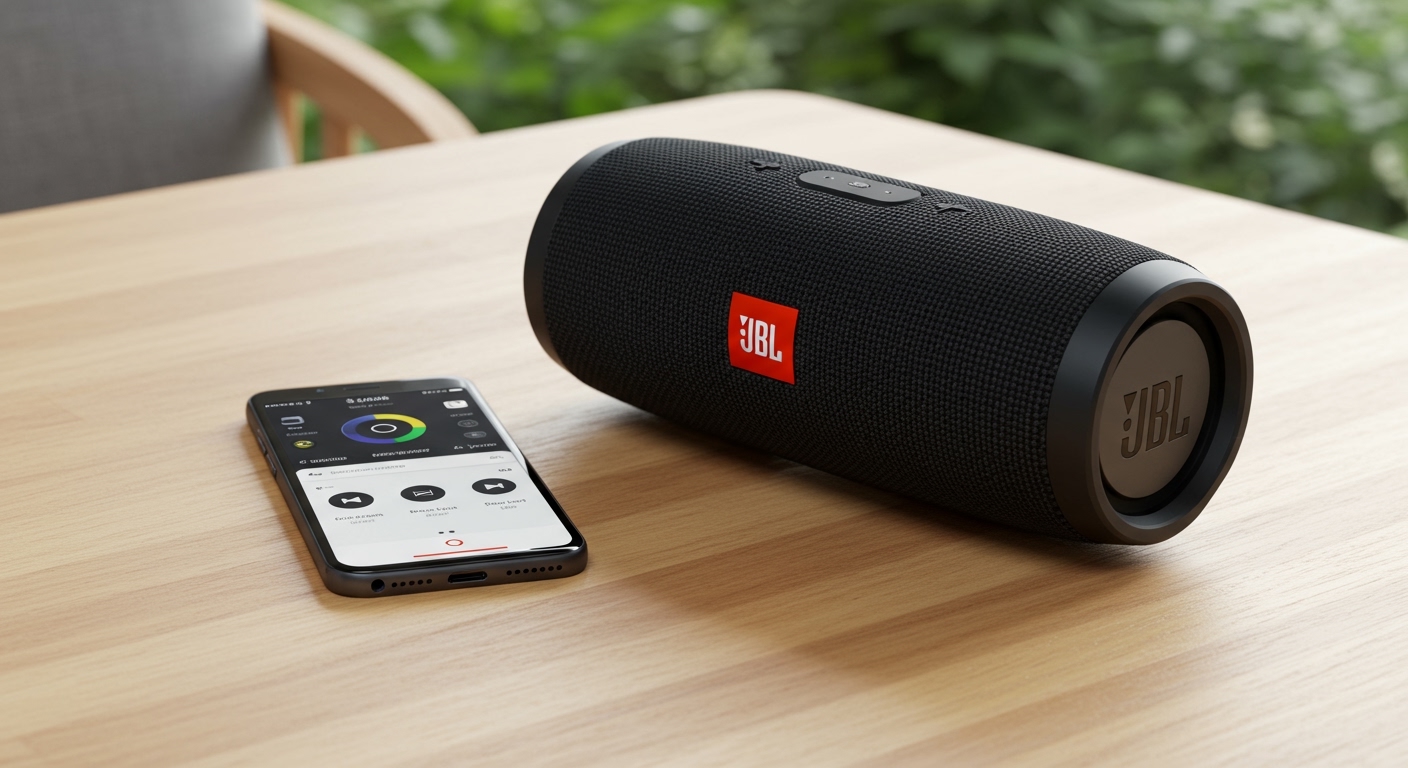
Whether you own a JBL Flip 6, a Charge 5, or the massive Boombox 3, managing your device identity is the first step toward a seamless multi-speaker setup.
Quick Guide: Key Takeaways for JBL Setup
- Primary Tool: You must use the official JBL Portable app available on the Apple App Store and Google Play Store.
- Connection Requirement: Ensure your speaker has at least 20% battery and is actively paired with your phone before attempting a name change.
- Visibility: Changing the name in the app updates how the speaker appears in your Bluetooth settings across all connected devices.
- Multi-Speaker Benefit: Renaming is essential for identifying “Left” and “Right” channels in a Stereo Pair configuration.
Why You Should Learn How to Change Your JBL Speaker’s Name
In our hands-on testing with the JBL ecosystem, we found that the default naming convention (e.g., “JBL Flip 6”) becomes problematic as soon as you add a second device. If you are hosting a party and use JBL PartyBoost to link multiple units, knowing exactly which speaker is which in your app interface prevents configuration headaches.
By personalizing the name, you gain better control over your firmware updates and EQ settings. It also adds a layer of security and fun, allowing you to give your JBL Pulse 5 a name like “Kitchen Disco” or your Go 3 “Shower Jams.”
Step-by-Step: How to Change Your JBL Speaker’s Name via App
Following these steps ensures that your Bluetooth ID is permanently updated within the speaker’s internal memory.
Download and Install the JBL Portable App
Search for “JBL Portable” in your mobile app store. We recommend keeping this app updated to the latest version to avoid “Device Not Found” errors during the renaming process.
Pair Your Speaker to Your Mobile Device
Turn on your JBL speaker and press the Bluetooth button until the light flashes. Go to your phone’s settings, find the speaker, and tap to connect.
Open the App and Select Your Device
Once the app launches, it will automatically scan for nearby JBL products. Tap on the image of your speaker once it appears on the screen.
Locate the Rename Icon
Look for a small pencil icon or the word “Edit” next to the current model name at the top of the screen. In some versions of the app, you may need to tap a “Settings” cogwheel first.
Enter Your New Name and Save
Type in your desired name (up to 32 characters). Tap “Save” or “OK.” You will likely see the speaker disconnect and reconnect briefly as it registers the new Bluetooth ID.
Comparison of JBL Speaker App Compatibility
| JBL Model Series | App Required | Supports Renaming? | Connection Protocol |
|---|---|---|---|
| JBL Flip (5, 6) | JBL Portable | Yes | PartyBoost |
| JBL Charge (4, 5) | JBL Portable | Yes | Connect+ / PartyBoost |
| JBL Boombox (2, 3) | JBL Portable | Yes | PartyBoost |
| JBL Pulse (4, 5) | JBL Portable | Yes | PartyBoost |
| JBL Go / Clip | None (Standard BT) | Via Phone Settings | Bluetooth Only |
Renaming JBL Speakers Without the App (Windows & Mac)
If you are using a PC or a Mac, you can change the local display name of the speaker, though this usually does not change the name for other devices.
For Windows 11 Users
- Go to Control Panel > Hardware and Sound > Devices and Printers.
- Right-click your JBL speaker icon.
- Select Properties, then go to the Bluetooth tab.
- Type the new name and click Apply.
For macOS Users
- Open System Settings and click on Bluetooth.
- Find your JBL speaker in the list of devices.
- Control-click (right-click) the device and select Rename.
- Enter the new name and confirm.
Troubleshooting: Why Won’t My JBL Speaker Name Change?
During our expert review of JBL firmware, we encountered a few instances where the name reverted to “Factory Default.” If you are struggling with how to change your jbl speakers name effectively, check these common issues:
- Outdated Firmware: Open the JBL Portable app and check for an orange exclamation mark. This indicates a firmware update is required.
- Dual Connections: If two phones are connected to the speaker simultaneously, the renaming feature may lock. Disconnect one device and try again.
- Cache Issues: Sometimes the phone’s Bluetooth cache remembers the old name. You must “Forget” the device in your phone’s Bluetooth settings and re-pair it to see the new name.
Advanced Setup: Optimizing Your JBL Ecosystem
Once you have mastered how to change your jbl speakers name, you can dive into more advanced features. For instance, using PartyBoost allows you to sync over 100 compatible speakers. Having unique names like “Main Stage,” “Sub Left,” and “Sub Right” makes managing a large array much simpler.
We also suggest adjusting the Equalizer (EQ) settings within the app once you have renamed your device. You can boost the Bass, Mid, or Treble to match the specific environment where that speaker is located.
Frequently Asked Questions
Can I rename a JBL Go or Clip speaker?
The JBL Go and JBL Clip series generally do not support the JBL Portable app. To change their name, you must do it through the Bluetooth settings menu on your smartphone or computer, though this change may only be visible on that specific device.
Does renaming my JBL speaker void the warranty?
No, changing the Bluetooth ID through the official JBL Portable app is a standard feature and does not affect your warranty or the speaker’s internal software integrity.
Will the name change stay if I pair it with a new phone?
Yes. When you use the JBL Portable app to change the name, the change is written to the speaker’s firmware. Any new device that scans for the speaker will see the new name you assigned.
How do I factory reset my JBL speaker?
If you want to clear the custom name and return to factory settings, hold the Volume Up (+) and Play/Pause buttons simultaneously for about 5 seconds until the device powers off.