The Expert Guide on How to Clean Razer Blade Speakers
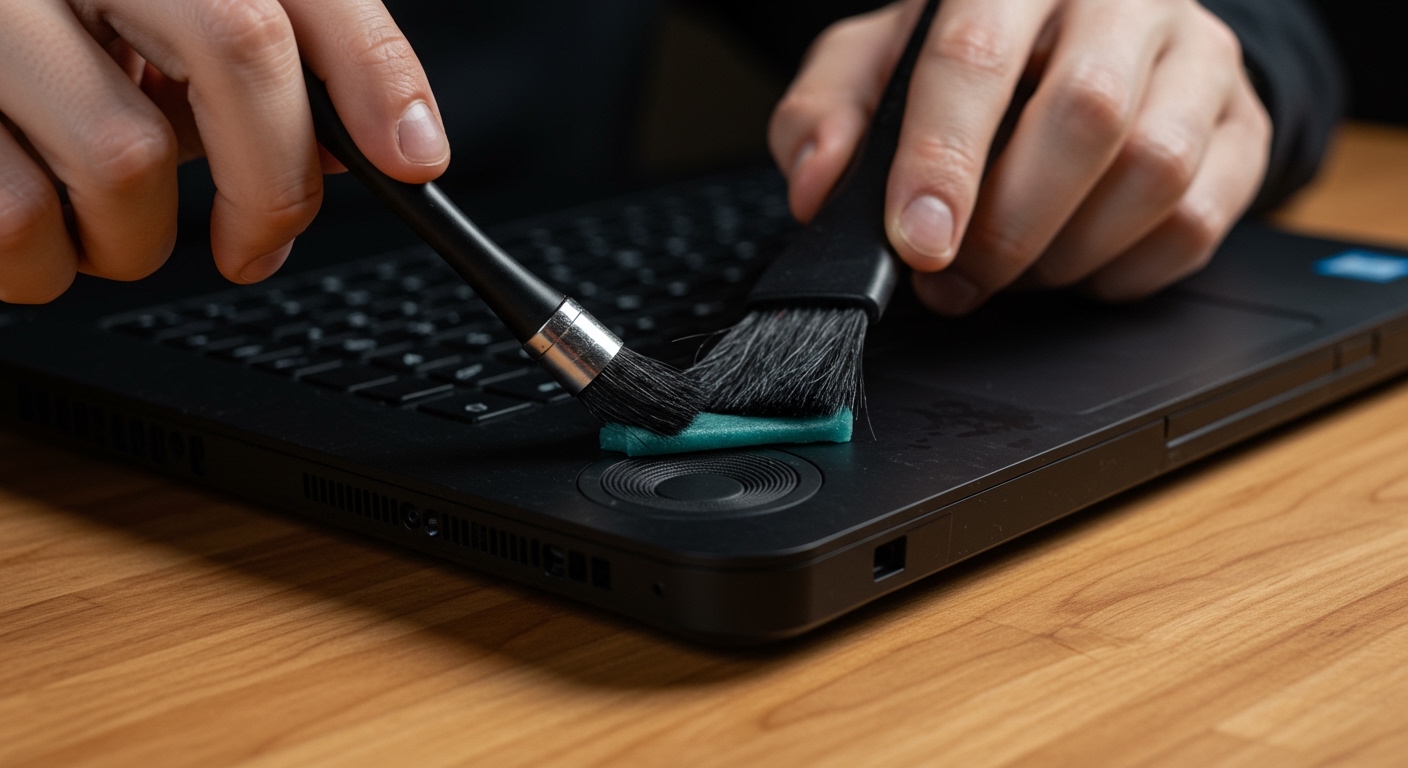
To clean Razer Blade speakers, you must use a soft-bristled brush (like a clean toothbrush) to loosen surface debris and compressed air held at a distance to blow out the dust. For stubborn grime lodged in the CNC-milled holes, specialized cleaning putty or 99% isopropyl alcohol on a lint-free swab is the most effective professional method.
In my years of testing and maintaining high-end gaming laptops, I’ve found that the Razer Blade’s top-firing speaker design is a double-edged sword. While it provides incredible spatial audio, the tiny laser-cut perforations act as a magnet for skin oils, pet hair, and microscopic dust. If your audio sounds muffled or distorted, it is likely a physical obstruction rather than a software glitch.
TL;DR: Quick Cleaning Steps
- Step 1: Power off the laptop and unplug all peripherals.
- Step 2: Use a soft-bristled brush in circular motions over the speaker grilles.
- Step 3: Apply cleaning putty (like Cyber Clean) to “lift” deep-seated dirt.
- Step 4: Use short bursts of compressed air at a 45-degree angle.
- Step 5: Sanitize with 99% Isopropyl Alcohol on a microfiber cloth.
Why Keeping Your Razer Speakers Clean Matters
The Razer Blade 14, 15, and 17 series feature some of the most intricate speaker grilles in the industry. These holes are tiny—often less than 0.5mm in diameter. When these become clogged, you don’t just lose volume; you lose the THX Spatial Audio precision that gives you a competitive edge in gaming.
Beyond audio quality, clogged grilles can trap heat. While the speakers aren’t the primary cooling source, the Razer Blade’s aluminum chassis is designed to dissipate heat across its entire surface. Obstructions on the top deck can contribute to localized “hot spots” near the palm rests.
Essential Tools for the Job
Before you begin, gather these specific tools. Avoid using household cleaners like Windex or high-moisture wipes, as these can seep through the grilles and short-circuit the internal components.
| Tool | Purpose | Expert Recommendation |
|---|---|---|
| Soft-Bristled Brush | Loosening surface dust | Clean makeup brush or soft toothbrush |
| Compressed Air | Blowing out debris | Dust-Off or an Electric Duster |
| Cleaning Putty | Pulling dirt from holes | Cyber Clean High-Tech Cleaning Compound |
| 99% Isopropyl Alcohol | Dissolving skin oils | Must be 99% to ensure fast evaporation |
| Microfiber Cloth | General wiping | High-GSM lint-free cloth |
| Magnifying Glass | Inspection | Handy for seeing micro-clogs |
How to Clean Razer Blade Speakers: Step-by-Step
This method applies to all modern Razer Blade models, including the Razer Blade 16 and Razer Blade 18.
Step 1: Preparation and Safety
Never clean your laptop while it is powered on. Static discharge or a stray drop of liquid could be fatal to the motherboard.
- Shut down the OS completely (do not just use “Sleep”).
- Unplug the power adapter.
- Disconnect any USB devices or external monitors.
Step 2: The Dry Brush Technique
I always start with a dry brush. This prevents “muddying” the dust with liquid cleaners, which makes it harder to remove.
- Hold the laptop at a slight tilt (about 30 degrees).
- Use the soft-bristled brush to gently sweep the speaker grilles.
- Move the brush in small, circular motions. This helps the bristles penetrate the CNC holes of the Razer Blade chassis.
Step 3: Using Cleaning Putty (The Pro Secret)
If you’ve ever wondered how to clean razer blade speakers that have “white spots” in the holes, this is the answer.
- Take a small piece of cleaning putty.
- Press it firmly onto the speaker grille area.
- Do not leave it there for more than 5 seconds.
- Pull it up quickly. You will see the “plugs” of dust and skin oil stuck to the putty.
Note: Ensure the putty is not too warm or “melty,” as you don’t want it to get stuck inside* the holes.
Step 4: Compressed Air Application
Be extremely careful here. High-pressure air can actually damage the delicate speaker membranes if used incorrectly.
- Hold the compressed air can upright (never tilt it, or liquid propellant will spray out).
- Keep the nozzle at least 6 inches away from the laptop.
- Use short, half-second bursts.
Aim at a 45-degree angle so the air goes under* the debris and lifts it out, rather than pushing it deeper into the laptop.
Step 5: Chemical Sanitization
Once the physical debris is gone, you need to remove the “bio-film” (oils from your hands).
- Lightly dampen a microfiber cloth with 99% Isopropyl Alcohol.
- The cloth should be damp, not dripping.
- Wipe the speaker grilles and the entire top deck of the Razer Blade.
- The alcohol will evaporate almost instantly, leaving a sterilized, matte finish.
Special Section: How to Clean Razer Phone 2 Speakers
The Razer Phone 2 is legendary for its front-facing stereo speakers, but its grilles are notoriously difficult to maintain. Because the phone lives in your pocket, it collects “pocket lint” that is much denser than desk dust.
The Pocket Lint Problem
The Razer Phone 2 speakers have a deeper cavity than the laptops. To clean them:
- Use a vacuum cleaner with a small brush attachment on low power. This is safer than compressed air for the phone, as it pulls the lint out rather than pushing it into the phone’s internals.
- If the grilles are sticky (common if you use the phone while eating), use a GUM Soft-Pick or a very thin plastic toothpick.
- Gently poke the tip into the individual holes. Warning: Do not push deep; you only want to clear the metal grille, not touch the driver underneath.
Expert Tips for Deep Grille Maintenance
In my experience, users often overlook the “edges” of the speaker grilles where the aluminum meets the keyboard.
Dealing with Spills
If you have spilled a sugary drink on your Razer Blade speakers, the “dry” methods above will not work. The sugar acts as glue.
- In this scenario, you must use 99% Isopropyl Alcohol.
- Apply it to a cotton swab (Q-tip) until it is saturated.
- Press the swab against the sticky holes. Let the alcohol sit for 30 seconds to dissolve the sugar.
- Immediately follow up with a dry brush to “flick” the dissolved residue out of the holes.
Environment Control
To reduce how often you need to perform a deep clean:
- Wash your hands: Most of the “gunk” in Razer speakers is actually dead skin cells and oils.
- Use a laptop sleeve: When not in use, keep your Razer Blade in a sleeve to prevent ambient dust from settling in the grilles.
- Avoid eating: Crumbs are the number one enemy of the Razer CNC-milled design.
Common Mistakes to Avoid
- Using Water: Even a small amount of water can cause oxidation on the internal speaker wire or short the logic board. Always use 99% Isopropyl Alcohol.
- Using Sewing Needles: Metal needles can scratch the Chroma-lit chassis or puncture the speaker cone. Stick to plastic picks or soft brushes.
- Vacuuming Laptops: While okay for the Razer Phone 2, avoid high-powered vacuums on your Razer Blade. The suction can cause static electricity buildup which is dangerous for sensitive laptop components.
- Over-spraying: Never spray any liquid directly onto the laptop. Always apply to the cloth or brush first.
Frequently Asked Questions (FAQ)
Can I use a vacuum to clean my Razer laptop speakers?
It is generally not recommended for laptops. Vacuums can generate Electrostatic Discharge (ESD) which can damage the motherboard. Stick to compressed air and brushes for the safest results.
My speakers still sound crackly after cleaning. What do I do?
If cleaning doesn’t fix the issue, the problem might be software-based. Try reinstalling your Realtek Audio Drivers or checking the Razer Synapse settings. If the crackle persists, the speaker membrane itself may be torn, requiring a hardware replacement.
How often should I clean my Razer Blade speakers?
If you use your laptop in a standard home office, a quick “dry brush” once a month is sufficient. If you have pets or a dusty environment, I recommend a deep clean with cleaning putty every two weeks.
Is it safe to use “Goo Gone” on the speaker grilles?
No. Goo Gone is oil-based and can leave a permanent residue that actually attracts more dust. It can also degrade the adhesives inside the laptop. Only use high-purity Isopropyl Alcohol.
Can I use a hairdryer to blow out the dust?
I strongly advise against this. Hairdryers use heat that can soften the adhesives holding the speaker components together or warp the plastic internal parts. Use dedicated compressed air which is cool and moisture-free.