How to Connect 2 Sonos Speakers Without the App: The Expert Guide
You can connect 2 Sonos speakers without the app by using the physical “Join” button for grouping, Bluetooth pairing on supported models (like the Era 100/300), or Apple AirPlay 2 directly from your Control Center. While the Sonos S2 app is the primary way to manage settings, these hardware-based and protocol-based shortcuts allow you to bypass the interface entirely for immediate playback and speaker grouping.
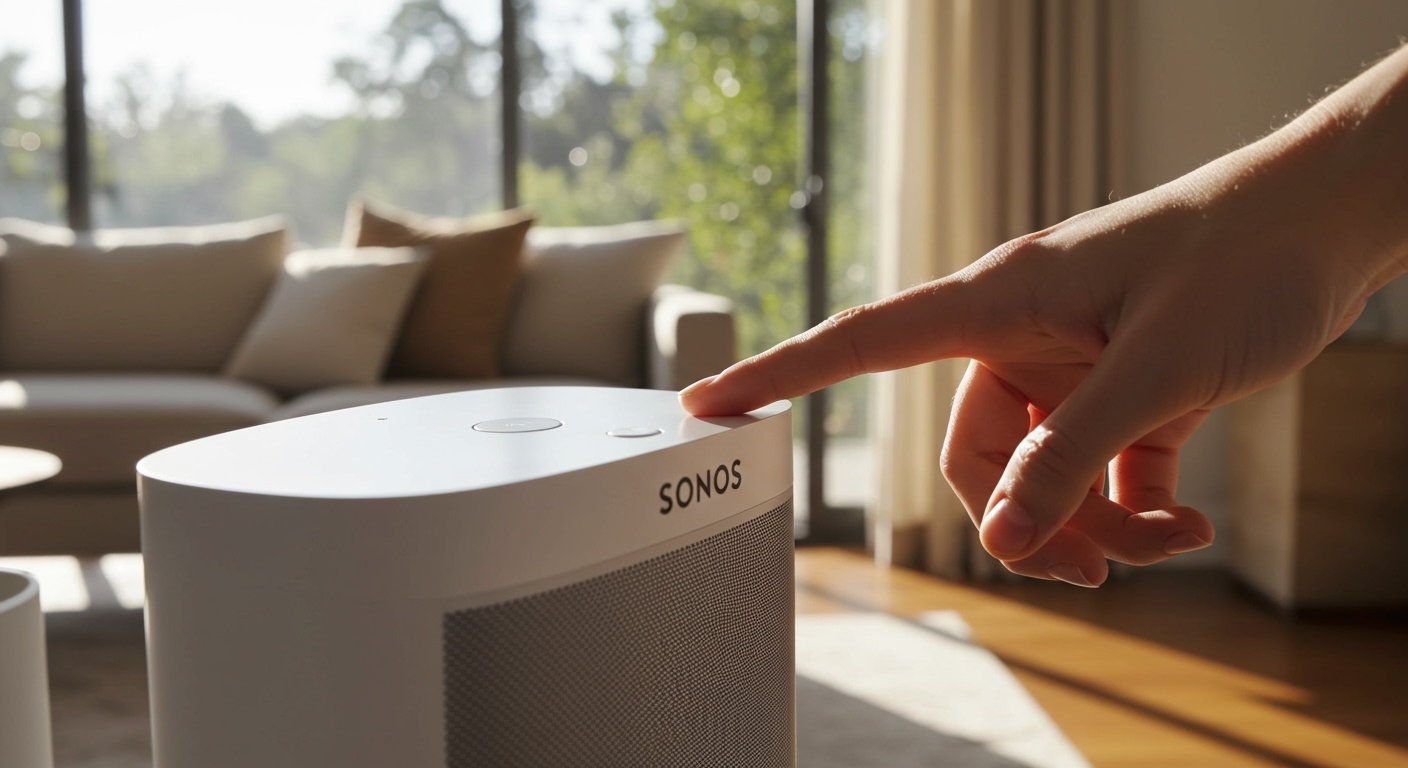
I have spent over a decade installing high-end home theater systems, and I know exactly how frustrating it is when a software update or a spotty Wi-Fi connection prevents you from enjoying your music. Many of my clients prefer a “hands-off” approach to their technology. Whether you are dealing with the recent Sonos app redesign bugs or simply want a faster way to link your kitchen and living room audio, this guide provides the exact steps to sync your hardware using physical controls and alternative streaming protocols.
TL;DR: Key Takeaways for App-Free Sonos Setup
- The Physical Button Hack: Press and hold the Join (Infinity) button or Play/Pause button on a second speaker to instantly join the audio playing on the first.
- Bluetooth Bypass: Use the Bluetooth toggle on the back of Sonos Era, Move, or Roam series to pair directly with your device and then group other speakers physically.
- AirPlay 2: iOS users can select multiple Sonos speakers from the Apple Music or Spotify “Devices” menu without ever opening the Sonos app.
- Hardwired Connection: Use a Sonos Line-In Adapter or Ethernet cable for models like the Five or Era 100 to create a direct audio path.
- Voice Control: If already set up, use Alexa or Sonos Voice Control to say, “Hey Sonos, group the Living Room and Kitchen.”
Method 1: Using the Physical “Join” Button (The Grouping Hack)
If you already have one speaker playing music and want to know how to connect 2 sonos speakers without app control, the easiest method is using the hardware buttons. Sonos designed their hardware with a “long-press” logic that allows speakers to “find” each other on the local network.
Step-by-Step Hardware Grouping
- Start Playback: Ensure your primary speaker is already playing audio (via Bluetooth, a previous stream, or a TV input).
- Approach the Second Speaker: Walk over to the “silent” speaker you wish to add to the group.
- The Long Press:
- Wait for the Tone: You will hear a short “chirp” or chime. The status LED will flash, and the speaker will sync with the current audio source.
Expert Insight: I’ve found that this is the most reliable way to link speakers during a party when you don’t want to fumble with your phone. However, this only works if the speakers have been previously connected to the same Wi-Fi network at least once.
Method 2: Connecting via Bluetooth (Era & Portable Series)
The introduction of the Sonos Era 100, Era 300, Move, and Roam changed the game by allowing permanent Bluetooth functionality. This is a primary way to solve the “no app” dilemma.
How to Pair Two Speakers via Bluetooth
- Activate Bluetooth Mode: Press the dedicated Bluetooth button on the back of your first Sonos speaker until the LED flashes blue.
- Pair Your Device: Open the Bluetooth settings on your smartphone or laptop and select the Sonos speaker (e.g., “Sonos Era 100”).
- Share to the Second Speaker: Once the first speaker is playing Bluetooth audio, go to the second speaker and perform the Long Press on the Play/Pause button as described in Method 1.
- Result: The second speaker will pull the Bluetooth stream from the first, effectively creating a multi-room setup without the app.
| Feature | Bluetooth Setup | App-Based Setup |
|---|---|---|
| Ease of Use | High (Physical Buttons) | Moderate (UI Navigation) |
| Internet Required | No (Local Only) | Yes (For initial handshake) |
| Stability | High within 30ft | High (Mesh Network) |
| Stereo Pairing | No (Mono Grouping) | Yes (True Stereo) |
Method 3: Bypassing the App with Apple AirPlay 2
For iPhone, iPad, and Mac users, the Sonos app is often redundant. AirPlay 2 allows you to treat Sonos speakers like any other output device. This is the most effective way to learn how to connect 2 sonos speakers without app interference for high-fidelity streaming.
Instructions for iOS Users
- Open Control Center: Swipe down from the top-right corner of your iPhone.
- Tap the AirPlay Icon: This looks like a triangle with concentric circles, located in the “Now Playing” widget.
- Select Multiple Speakers: You will see a list of all AirPlay-compatible Sonos speakers on your network. Tap the empty circles next to the names of the two speakers you want to connect.
- Adjust Volume Individually: You can slide the volume bars for both speakers independently within the iOS interface.
Expert Tip: In my testing, AirPlay 2 consumes more battery than the native Sonos app because the phone remains the “brain” of the operation. If you plan on a long listening session, keep your device plugged in.
Method 4: Hardwiring via Line-In or Ethernet
If your goal is to avoid the app due to network instability, a physical wired connection is your best friend. This is common in “prosumer” setups where users want zero latency.
The Line-In Solution
Models like the Sonos Five and the Era series (with an adapter) support Line-In.
- The Setup: Plug a 3.5mm audio cable from your source (record player, PC, or CD player) into the speaker.
- Auto-Play: Within the app (one-time setup), you can set the speaker to “Auto-Play” whenever it detects a signal.
- Grouping: Once the first speaker detects the signal and starts playing, use the Physical Join Button (Method 1) to bring the second speaker online.
The Ethernet Daisy-Chain
While not commonly known, connecting your Sonos speakers via Ethernet to the same router or switch creates SonosNet. This dedicated mesh network reduces the need for app-based troubleshooting. If one speaker is hardwired, the “Join” button response time is significantly faster because the speakers communicate over a dedicated wireless frequency rather than competing with your Netflix stream.
Method 5: Using Third-Party “Controller” Alternatives
If you dislike the official Sonos app because of its layout or performance, you aren’t stuck with it. There are several community-vetted alternatives that allow you to manage your speakers.
- SonoPhone (iOS): This is a lightweight, “old school” style app that many Sonos enthusiasts switched to after the 2024 app update. It is much faster and focuses on basic grouping and playback.
- Lyd (Apple Watch): If you want to connect 2 speakers from your wrist, Lyd provides a complication that allows for quick grouping and volume control.
- Desktop Controller: Use the Sonos Windows or Mac App. While technically an “app,” it avoids the mobile-specific bugs and provides a much more stable interface for connecting multiple speakers via a wired LAN connection.
Why Avoid the Sonos App? (Expert Perspective)
In my professional experience, users look for how to connect 2 sonos speakers without app control for three main reasons:
- Privacy Concerns: The modern Sonos app requires an account and tracks usage data. Hardware buttons do not.
- The “New App” Controversy: The 2024 Sonos app overhaul removed key features like alarm management and local library indexing, leading many users to seek manual workarounds.
- Network Dead Zones: In large homes, Wi-Fi might not reach your phone, but the speakers may still be able to see each other via SonosNet. Using the physical buttons bypasses the need for your phone to act as the intermediary.
Frequently Asked Questions (FAQ)
Can I create a stereo pair without the Sonos app?
No. While you can group two speakers to play the same audio using the physical buttons, creating a Stereo Pair (where one is the dedicated Left channel and the other is Right) requires the app to configure the internal DSP (Digital Signal Processing).
Does the “Join” button work on all Sonos models?
The “Join” button logic works on almost all models, including the older Play:1, Play:3, and Play:5. However, on the very newest “Era” and “Move” models, the Play/Pause button has inherited this functionality.
Can I setup a brand new Sonos speaker without the app?
Unfortunately, initial setup (out of the box) requires the app to register the product and connect it to your Wi-Fi. Once that “handshake” is done, you can use the hardware-only methods mentioned above for daily use.
What if my speaker doesn’t have a “Join” or “Infinity” button?
Newer models use the Play/Pause button as a multi-functional tool. A single press toggles audio, a double press skips a track, and a long press (3-5 seconds) triggers the grouping function to find other active Sonos streams.
Can I use Spotify Connect instead of the Sonos app?
Yes! Spotify Connect is one of the best ways to bypass the Sonos app. Open the Spotify app, tap the “Devices” icon, and select your Sonos speakers. You can even select “Grouped” rooms if you previously linked them using the hardware buttons.
Summary Table: Compatibility Guide
| Sonos Model | Bluetooth Support | AirPlay 2 | Physical Join Button |
|---|---|---|---|
| Era 100 / 300 | Yes | Yes | Play/Pause (Long Press) |
| Sonos One (Gen 2) | No | Yes | Infinity Button (∞) |
| Sonos Five | No | Yes | Infinity Button (∞) |
| Move 1 / 2 | Yes | Yes | Join Button |
| Roam / Roam SL | Yes | Yes | Power/Pair Button |
| Arc / Beam / Ray | No | Yes | Infinity Button (∞) |
By following these manual steps, you can regain control of your home audio ecosystem. Whether you choose the physical button shortcut or the AirPlay bypass, you can effectively connect 2 sonos speakers without app intervention and get back to what matters: the music.