

Mastering Your Home Cinema: How to Connect 5.1 Speakers to LCD TV
To learn how to connect 5.1 speakers to lcd tv efficiently, you must identify your TV’s audio output (HDMI ARC, Optical, or 3.5mm) and match it to your speaker system’s input. For true surround sound, using an HDMI ARC/eARC cable is the gold standard, followed by Digital Optical (Toslink) for older systems.
If you are using 5.1 computer speakers like Logitech or Creative, you will likely need a Digital-to-Analog Converter (DAC) or an Audio Extractor to bridge the gap between the TV’s digital output and the speakers’ analog inputs.
🚀 Key Takeaways: Expert Summary
Best Quality: Use HDMI ARC/eARC for uncompressed 5.1 and 7.1 audio formats like Dolby Atmos.
Most Compatible: Optical (Toslink) works with almost all LED TVs and older 5.1 speaker sets but is limited to compressed 5.1.
Computer Speakers: Devices like Logitech 5.1 speakers require a 3.5mm-to-RCA adapter or a dedicated decoder box.
Settings Matter: Always set your TV’s audio output to “Bitstream” or “Digital Out” instead of “PCM” to ensure the speakers receive a true surround signal.
🛠️ Essential Tools and Connection Methods
Before you begin the physical setup, you need to verify which cables you have on hand. The following table summarizes the most common ways to achieve a 5.1 speaker connection.
| Connection Type | Audio Quality | Best For | Requirement |
|---|---|---|---|
| HDMI ARC / eARC | Ultra-High (Lossless) | Samsung Smart TV, Sony, LG | HDMI 2.0+ Cable |
| Digital Optical | High (Compressed) | Old 5.1 speakers, Creative | Toslink Cable |
| 3.5mm Auxiliary | Low (Stereo Only) | Computer speakers | 3.5mm to RCA |
| RCA (Red/White) | Low (Stereo Only) | Legacy Sony 5.1 speakers | RCA Analog Cables |
| Audio Decoder | Medium/High | Connecting to TV without Amp | 5.1 Gear Decoder Box |
Step 1: Identify Your TV Audio Output Ports
The first step in how to connect 5.1 speakers to led tv is a visual inspection of the back or side panel of your display.
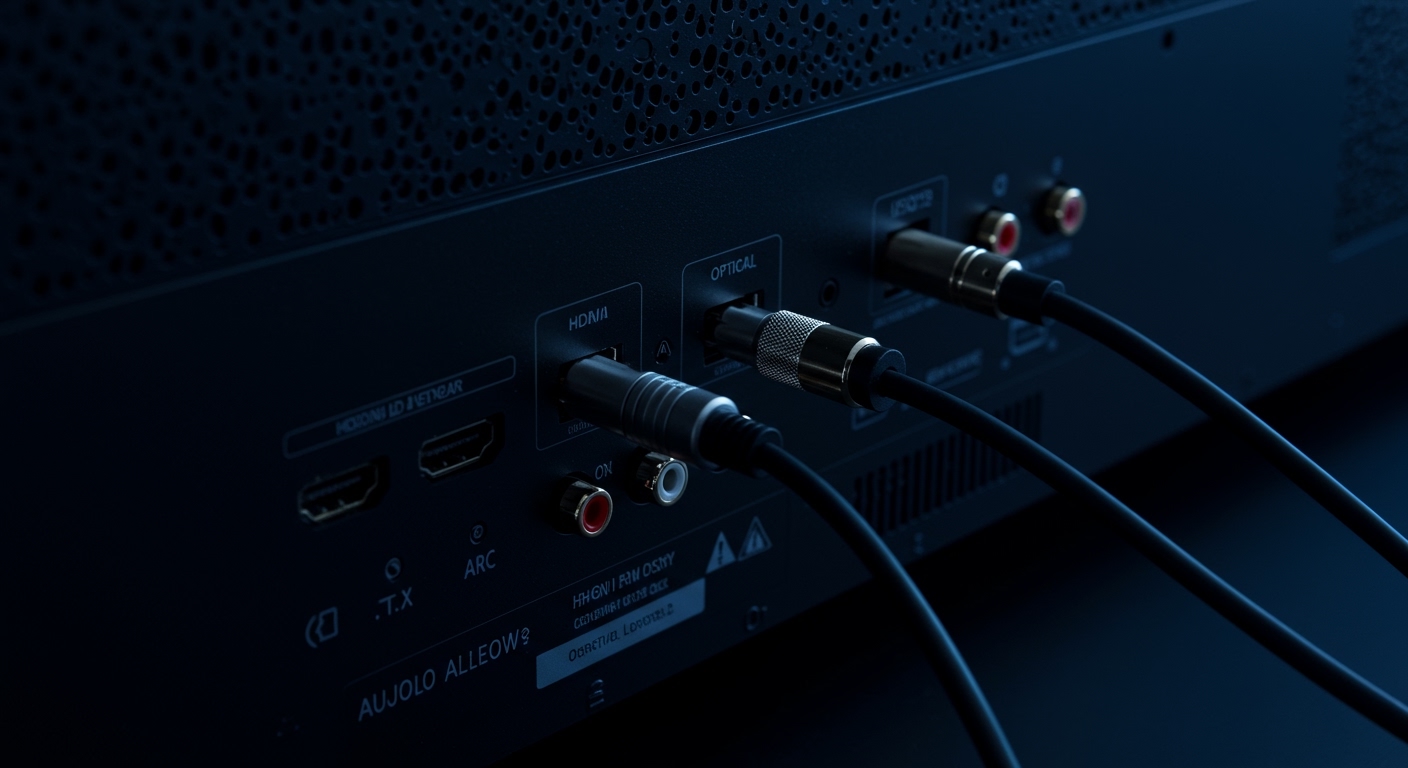
Locate the HDMI ARC Port
Look for an HDMI port specifically labeled ARC (Audio Return Channel) or eARC (Enhanced Audio Return Channel). This port is unique because it sends audio out from the TV to your speakers while receiving video in from other devices.
Find the Optical (Digital Audio Out)
This port often has a small plastic flap and glows with a faint red light when the TV is on. It is the most reliable way to connect 5.1 speakers with tv if your speakers lack HDMI support.
Check for 3.5mm or RCA Jacks
Older LCD TVs might have a headphone jack (3.5mm) or red/white RCA outputs. Note that these ports generally only output 2.0 Stereo sound. To get 5.1 from these, your speaker system must use “Pro Logic” or “3D Surround” modes to upmix the signal.
Step 2: Choose the Right Cable for Your Setup
Selecting the correct cable is vital for maintaining signal integrity and preventing “humming” or “static” noises.
For Modern Smart TVs: Use a high-speed HDMI 2.1 cable. This ensures enough bandwidth for Dolby Digital Plus and DTS:X.
For Legacy Systems: If you want to connect old 5.1 speakers with tv, a standard Toslink Optical cable is usually sufficient.
For PC Speakers: If you are trying to figure out how to connect logitech 5.1 speakers to tv, you will likely need a 3.5mm to RCA adapter or a 5.1 channel audio extractor that converts Optical signals into three 3.5mm jacks (Front, Rear, Center/Sub).
Step 3: Physical Connection Process
Follow these numbered instructions to ensure a secure and functional 5.1 speaker connection.
- Power Down All Devices: Turn off your TV and your speaker system to prevent electrical surges or “popping” sounds during connection.
- Connect the Cable to the TV: Plug your chosen cable (HDMI or Optical) into the “Digital Audio Out” or “HDMI ARC” port on the TV.
- Connect to the Speaker/Receiver: Plug the other end into the “Digital Audio In” or “Optical In” on your 5.1 system.
- Secure the Wiring: Ensure the cables are not bent at sharp angles, as fiber optic cables (Optical) can break internally if kinked.
- Position the Speakers: Place the Center channel directly under the TV, the Front Left/Right at 30-degree angles, and the Surround speakers slightly behind your seating position.
Step 4: Configure TV Software Settings
Physical connection is only half the battle. You must tell the TV to send the audio signal to the external speakers instead of the built-in ones.
How to connect 5.1 speakers to Samsung Smart TV
- Navigate to Settings > Sound.
- Select Sound Output and choose Receiver (HDMI) or Optical.
- Go to Expert Settings.
- Change Digital Output Audio Format to Dolby Digital or Pass-Through.
How to connect 5.1 speakers to Sony TV
- Press the Home or Quick Settings button on your remote.
- Select Settings > Display & Sound > Audio Output.
- Set Speakers to Audio System.
- Ensure Digital Audio Out is set to Auto 1 to allow the 5.1 signal to flow natively.
Step 5: How to Connect 5.1 Speakers to TV Without Amplifier
Many users ask, “Can I connect 5.1 speakers to tv without an amplifier?” The answer depends on whether your speakers are Active (powered) or Passive.
Using Active (Powered) Speakers
Most Creative 5.1 speakers and Logitech sets are active, meaning they have a built-in amp inside the subwoofer.
Solution: Purchase a 5.1 Audio Decoder Box.
This box takes the Optical output from your TV and converts it into the 6 RCA or 3.5mm jacks required by your computer speakers.
This is the only way to get true discrete surround sound on how to connect 5.1 computer speakers to tv.
Using Passive Speakers
If your speakers only have bare wire clips at the back, you cannot connect them directly to a TV. You must use an AV Receiver. The TV cannot provide the wattage necessary to move the speaker cones.
💡 Expert Pro Tips for Immersive Sound
Avoid the Headphone Jack: Never use the 3.5mm headphone jack if you want true 5.1. It merges all audio into two channels, losing the “surround” effect.
Check the Source: Not all YouTube videos or Netflix shows are in 5.1. Look for the “5.1” or “Dolby” icon on the content description page.
Firmware Updates: Always update your Samsung Smart TV or Sony TV firmware. Manufacturers frequently release patches to fix HDMI ARC handshake issues.
Cable Length: Keep Optical cables under 15 feet. For longer runs, HDMI is much more stable.
⚠️ Common Mistakes to Avoid
Mismatched Formats: Setting your TV to “PCM” when using an Optical cable often results in only 2.1 sound. Always use Bitstream.
Wrong HDMI Port: Plugging an HDMI cable into a standard port instead of the one labeled ARC will result in no sound at all.
- Ignoring Phase: Ensure the positive (+) and negative (-) wires are connected correctly. If one speaker is flipped, the bass will sound “thin” and the soundstage will feel “hollow.”
Frequently Asked Questions (FAQs)
Can I connect 5.1 speakers to TV using Bluetooth?
While you can connect via Bluetooth, it is not recommended for 5.1 surround sound. Most TV Bluetooth transmitters only support 2.0 Stereo. For a true 5.1 experience, a wired HDMI or Optical connection is mandatory to avoid lag and compression.
How to connect creative 5.1 speakers to tv if they only have 3.5mm jacks?
To connect creative 5.1 speakers to tv, you need a Digital to Analog 5.1 Audio Decoder. Connect the TV to the decoder via Optical cable, and then plug the Creative 3.5mm green, orange, and black cables into the decoder’s outputs.
Why is there no sound when I connect my 5.1 speakers to my LED TV?
This is usually caused by the TV’s audio output setting. Ensure the TV is set to External Speakers and the digital format is set to Dolby Digital. Also, check if your HDMI cable is plugged into the ARC/eARC port specifically.
Can we connect creative 5.1 speakers to tv via USB?
Generally, no. Most TVs use USB ports only for media playback (photos/videos) or power. They do not act as USB audio hosts. You must use the Optical or HDMI ports for audio output.
Is HDMI ARC better than Optical for 5.1?
Yes. HDMI ARC/eARC supports higher bandwidth and modern formats like Dolby Atmos and DTS-HD Master Audio, which Optical cannot handle. HDMI also allows you to control the speaker volume using your TV remote (CEC functionality).
Final Thoughts on 5.1 Speaker Connection
Setting up your home theater doesn’t have to be a technical nightmare. Whether you are figuring out how to connect 5.1 speakers to samsung smart tv or reviving a set of old 5.1 speakers, the key is matching the digital output of your TV to the specific input requirements of your sound system.
By using HDMI ARC for modern receivers or a 5.1 Audio Decoder for computer speakers, you can transform a flat, tinny TV experience into a cinematic masterpiece.
Ready to upgrade your sound? Check your TV’s back panel today and grab the necessary HDMI or Optical cables to start enjoying true surround sound!









