Understanding the Signal Chain: Why Your Akai MPK Mini Needs a “Brain”
To learn how to connect Akai MPK mini to speakers, you must understand that the Akai MPK Mini is a MIDI controller, not a synthesizer. It does not generate its own sound; instead, it sends data to your computer or tablet, which then sends audio to your speakers through an audio interface or a headphone jack.
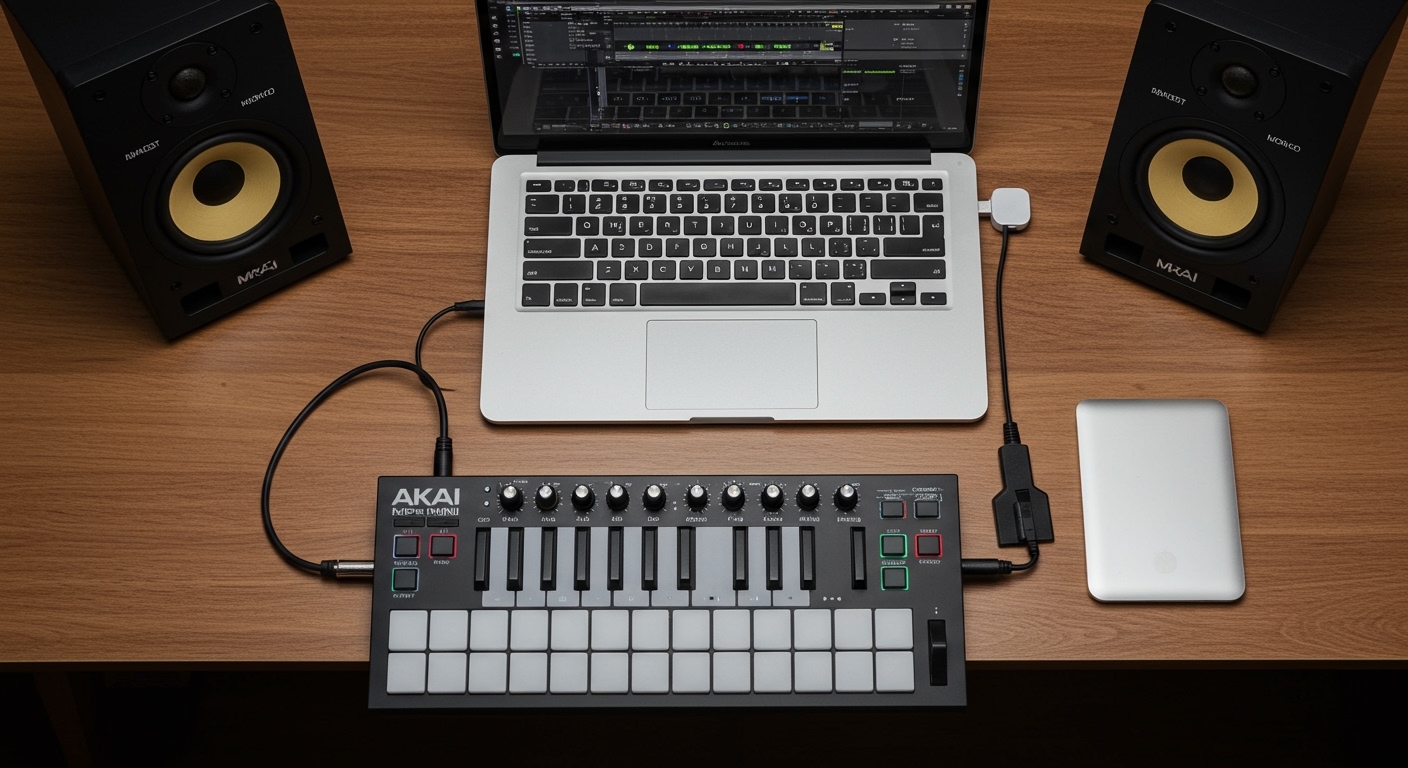
I have spent years configuring home studios, and the most common frustration for beginners is expecting the MPK Mini to produce sound the moment it’s plugged into a wall. Since it lacks internal sounds (unless you own the MPK Mini Play version), your setup requires a three-part chain: the Controller, the Host (Computer/iPad), and the Output (Speakers/Headphones).
Key Takeaways for Fast Setup
- The Connection Path: MPK Mini → USB Cable → Computer/Laptop → Audio Interface → Speakers.
- Essential Software: You must have a DAW (Digital Audio Workstation) like MPC Beats, Ableton Live, or FL Studio open for sound to happen.
- The “Play” Exception: Only the Akai MPK Mini Play has a built-in speaker and can connect directly to external speakers via a 3.5mm Aux cable.
- Low Latency Tip: Use an ASIO driver (on Windows) or a dedicated audio interface to prevent a delay between pressing a key and hearing the note.
How to Connect Akai MPK Mini to Speakers: Step-by-Step
Setting up your Akai MPK Mini MK3 or earlier models involves more than just cables. You are essentially building a digital instrument. Follow these steps to get your first note playing through your monitors.
Step 1: Connect the Controller to Your Computer
The Akai MPK Mini is powered via USB. Use the included USB-B to USB-A cable to plug the device into your laptop or desktop.
- Tip: Avoid using unpowered USB hubs. In my experience, these can cause “under-voltage” issues where the pads light up, but the keys don’t send data.
- If you are using a modern MacBook or iPad Pro, you will likely need a USB-C to USB Adapter (often called a “dongle”).
Step 2: Configure Your Audio Output
Once the computer recognizes the Akai MPK Mini, you need to tell your computer where to send the sound.
- Connect your speakers to your computer’s 3.5mm headphone jack or your audio interface.
- Open your Sound Settings (Windows) or System Settings > Sound (macOS).
- Set the Output Device to your speakers or interface.
Step 3: Set Up the Software (The DAW)
This is the most critical step. Without a DAW, your MPK Mini is just a box of plastic and lights. I recommend starting with Akai’s MPC Beats because it is free and specifically mapped for this controller.
- Launch your DAW.
- Go to Preferences or Audio Settings.
- Under MIDI Devices, ensure the MPK Mini is checked or “Active.”
- Load a Virtual Instrument (like a piano or synth) onto a track.
- Press a key. You should now hear the sound through your connected speakers.
Comparison: Connection Methods for Different Speaker Types
Depending on the gear you own, your connection method will vary. Use the table below to identify your specific setup needs.
| Speaker Type | Connection Needed | Required Hardware |
|---|---|---|
| Computer Speakers | 3.5mm Jack to PC | Standard Aux Cable |
| Studio Monitors | 1/4″ TRS or XLR | Audio Interface (Focusrite, PreSonus, etc.) |
| Bluetooth Speakers | Wireless (Not Recommended) | Bluetooth-enabled PC/Mac |
| PA System | Dual 1/4″ Mono | Audio Interface + Mixer |
| MPK Mini Play | Direct 3.5mm Out | 3.5mm to RCA or Aux |
Can U Plug Akai Mini Into Speakers Directly?
One of the most frequent questions I receive is: can u plug akai mini into speakers without using a computer? The answer is no for the standard MK2 and MK3 models, but yes for the MPK Mini Play.
The Standard MK3/MK2 Problem
The standard Akai MPK Mini does not have an “Audio Out” port. It only has a USB-B port for data and a Sustain Pedal jack. Since the device doesn’t “make” sound, plugging it into a speaker would do nothing even if you found a converter cable. The speaker expects an audio signal, and the MPK is only sending MIDI data (zeros and ones).
The “Play” Version Solution
If you own the Akai MPK Mini Play, you have a built-in sound engine with 128 sounds.
- Locate the 3.5mm (1/8″) headphone output on the back.
- Use a 3.5mm to 3.5mm cable to connect to a portable speaker’s Aux port.
- Use a 3.5mm to Dual 1/4″ Y-cable to connect to professional Studio Monitors.
Using an Audio Interface for Professional Sound
If you are serious about music production, you shouldn’t rely on your computer’s built-in headphone jack. I always recommend using a dedicated audio interface.
Why an Interface Matters
- Reduced Latency: Latency is the delay between hitting a pad and hearing the drum. A dedicated interface uses specialized drivers (like ASIO) to eliminate this.
- Sound Quality: Professional Studio Monitors (like the Yamaha HS5 or KRK Rokits) require balanced cables to prevent hum and buzz.
- Volume Control: Having a physical knob to turn your speakers up and down is much safer for your ears than clicking a mouse.
How to Connect via Interface
- Plug the Akai MPK Mini into your computer’s USB port.
- Connect the Audio Interface to another USB port.
- Connect your speakers to the “Outputs” on the back of the interface using TRS cables.
- In your DAW, set the Audio Device to the name of your interface (e.g., “Focusrite USB”).
How to Connect Akai MPK Mini to Speakers on an iPad or iPhone
The Akai MPK Mini is a favorite for mobile producers. However, connecting it to speakers in a mobile environment requires a specific power strategy.
- The Adapter: You need an Apple Lightning to USB 3 Camera Adapter. This adapter allows you to plug in a charging cable and the MPK Mini simultaneously.
- Powering the Unit: The iPad often cannot provide enough power to the MPK Mini. Always plug a lightning cable into the adapter to “juice” the controller.
- Speaker Output:
Common Troubleshooting: “I’ve Connected Everything, But No Sound!”
If you have followed the steps on how to connect Akai MPK mini to speakers and are still met with silence, check these three common culprits:
The MIDI Input Isn’t Armed
In DAWs like Ableton Live, you must “Arm” the track by clicking the small record circle on the track header. If the track isn’t armed, it won’t listen to the MIDI coming from your Akai.
Monitoring Settings
Check your software’s Monitor setting. It should usually be set to “Auto” or “In.” If it is set to “Off,” the signal reaches the computer but never gets sent to the speakers.
Proper Driver Selection
On Windows, the default “MME/DirectX” drivers are notoriously slow and glitchy.
- Pro Tip: Download ASIO4ALL if you don’t have an interface. It mimics a high-end audio driver and allows the MPK Mini to trigger sounds instantly through your computer speakers.
Frequently Asked Questions
Can I connect my Akai MPK Mini to a Bluetooth speaker?
Yes, but it is not recommended for playing live. Bluetooth introduces latency (delay), meaning you will hear the sound about half a second after you press the key. For the best experience, use a wired connection (Aux cable).
Do I need to install drivers for the Akai MPK Mini MK3?
The Akai MPK Mini MK3 is class-compliant, meaning it does not require specific drivers for Windows or Mac. It is “Plug and Play.” However, you do need to install the MPK Editor software if you want to customize the pad mappings or knob functions.
Why is my Akai MPK Mini not lighting up when connected?
This usually happens due to a faulty USB cable or a port that isn’t providing enough power. Try a different USB port on your computer, preferably one directly on the motherboard rather than a hub.
Can I use the Akai MPK Mini with GarageBand?
Absolutely. GarageBand is one of the easiest ways to connect your MPK Mini to speakers. Simply plug in the controller, open GarageBand, and it will automatically ask if you want to use the detected MIDI device.