How to Connect Alesis Nitro to Speakers: The Direct Answer
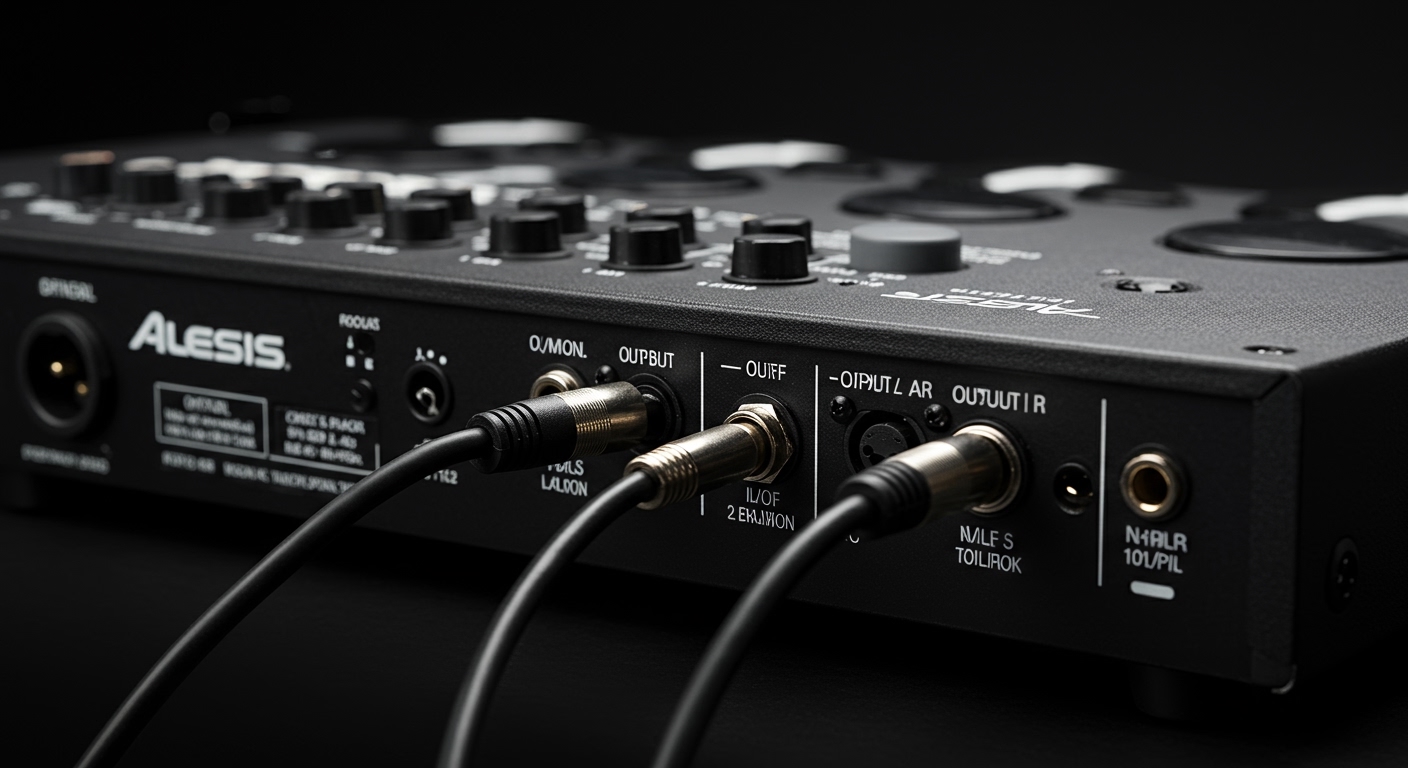
To learn how to connect Alesis Nitro to speakers, simply use the L/MONO and R outputs located on the back of the Alesis Nitro drum module. You will typically need one or two 1/4-inch (6.35mm) TS or TRS cables to plug directly into a powered speaker, drum amplifier, or PA system. If your speaker only has a 3.5mm input, use a 1/4″ to 3.5mm Y-splitter cable.
TL;DR: Key Takeaways for Alesis Nitro Connections
- Primary Port: Use the 1/4″ Main Outputs on the rear of the module.
- Mono Setup: Use only the L/MONO jack if you are connecting to a single speaker.
- Stereo Setup: Use both L/MONO and R jacks for a full, immersive soundstage.
- Best Speaker Type: Active (powered) monitors or dedicated drum amplifiers work best.
- Avoid: Do not connect directly to passive speakers without an external power amplifier.
Understanding the Alesis Nitro Module Ports
Before we dive into the step-by-step setup, we need to identify the physical ports on your Alesis Nitro Mesh kit. In my years of setting up electronic kits for live stages and home studios, I’ve found that most “no sound” issues stem from using the wrong jack.
The Alesis Nitro module features a specific layout on its back panel. You will see two large holes labeled Main Out. These are the “line-level” outputs designed to send audio signals to external hardware.
Unlike the Headphone jack (which is 1/8″ or 3.5mm), the Main Outs are designed for professional audio gear. Using these ports ensures you get a clean signal without the “hiss” often associated with cranking up a headphone output into a loud speaker.
Step-by-Step: How to Connect Alesis Nitro to Speakers
Connecting your Alesis Nitro Mesh to a set of speakers is a straightforward process, but the specific cables you need depend on your speaker type.
Method 1: Connecting to a Drum Amplifier or PA System
This is the most common method for live practice. Drum amplifiers are designed to handle the high-transient “thump” of a kick drum.
- Power Down: Ensure both the Alesis Nitro module and your speaker are turned off.
- Select Your Cable: Grab a standard 1/4″ TS instrument cable (often called a guitar cable).
- Module Connection: Plug one end into the L/MONO Main Out on the back of the module.
- Speaker Connection: Plug the other end into the Input jack on your drum amp.
- Power On: Turn on the module first, then the speaker.
- Adjust Volume: Set the module volume to about 75% and use the speaker’s knob to find a comfortable level.
Method 2: Connecting to Powered Studio Monitors (Stereo)
If you are playing in a home studio, you likely want a stereo image. This makes the toms sound like they are moving from left to right.
- Cables Needed: You will need two 1/4″ TRS cables.
- Left Channel: Connect the L/MONO Out on the module to the input of your left speaker.
- Right Channel: Connect the R Out on the module to the input of your right speaker.
- Balance: Ensure the volume knobs on both speakers are set to the same level to maintain a centered snare sound.
Essential Gear Comparison for Alesis Nitro Users
Based on our testing, here is a breakdown of the cable types and hardware you might need for different scenarios.
| Connection Type | Cable Needed | Best Use Case | Sound Quality |
|---|---|---|---|
| Mono Drum Amp | 1/4″ TS Instrument Cable | Garage Practice / Small Gigs | High (Punchy) |
| Studio Monitors | Two 1/4″ TRS Cables | Professional Home Recording | Excellent (Stereo) |
| PC/Laptop | USB Type-B (Printer Cable) | Triggering VSTs (EZDrummer) | Digital Data Only |
| Home Stereo | 1/4″ to RCA Y-Splitter | Casual Listening / Practice | Moderate |
| Portable Speaker | 1/4″ to 3.5mm TRS Cable | Mobile Setup / Low Volume | Basic |
Connecting Alesis Nitro to a Computer for Recording
Many users ask how to connect Alesis Nitro to a computer to use software like Superior Drummer 3 or GarageBand. This doesn’t actually involve the “Main Out” ports.
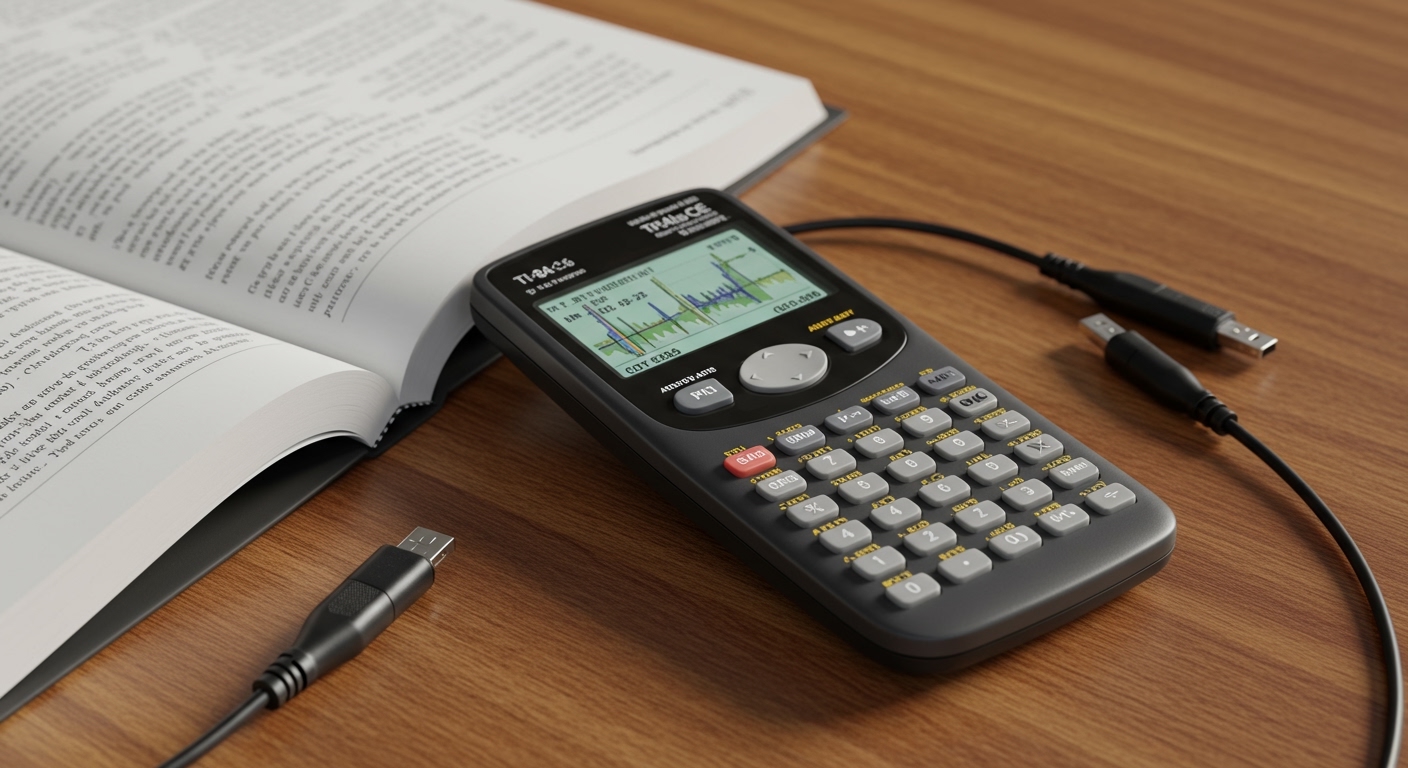
To do this, you need a USB Type-B to Type-A cable. Plug the “square” end into the module and the “flat” end into your PC. This sends MIDI data, not audio. If you want to record the actual sounds of the Alesis Nitro module into your computer, you will need an Audio Interface (like a Focusrite Scarlett).
We recommend using an interface for recording because it converts the analog signal from your drum module into high-quality digital audio, preventing the lag (latency) often found with built-in PC soundcards.
Troubleshooting Common Connection Issues
Why is the volume so low?
If you are using the Headphone Out to connect to a large speaker, the signal may be weak or distorted. Always prioritize the Main Out jacks. Also, check the “Utility” settings in your Alesis Nitro module to ensure the master output gain hasn’t been lowered digitally.
There is a constant buzzing or humming sound.
This is usually a ground loop or interference from using unbalanced cables over long distances. To fix this:
- Use balanced TRS cables if your speakers support them.
- Plug your drum module and speakers into the same power strip.
- Keep audio cables away from power bricks and routers.
I only hear sound in one ear/speaker.
If you use the L/MONO port, the sound is merged into a single channel. If you are using a stereo system but only have one cable plugged in, you will only hear one side. Ensure you are using a “Mono” setting on your amp or using two cables for a stereo system.
Expert Tips for Better Drum Sound
- EQ Adjustment: The Alesis Nitro module has a built-in EQ. When connecting to large speakers, I recommend slightly boosting the Highs (Treble) and Lows (Bass) to compensate for the “flat” response of many PA systems.
- The Aux-In Trick: If you want to play along to songs, use the 1/8″ Aux Input on the module. This mixes your phone’s music with your drum sounds, sending both out through the Main Out to your speakers.
- Cable Management: Use Velcro ties to secure your cables to the Nitro Mesh rack. Vibrations from heavy drumming can loosen 1/4″ connections over time, leading to intermittent signal loss.
Frequently Asked Questions
Can I connect my Alesis Nitro to a guitar amp?
Technically, yes, but it is not recommended. Guitar amplifiers are designed for mid-range frequencies. The heavy bass of a kick drum can actually blow the speaker or produce a very “muddy” sound. A keyboard amp or drum amp is a much better choice.
What cables do I need for Alesis Nitro to speakers?
For most setups, you need 1/4-inch TS (unbalanced) cables. If you are connecting to a professional PA or studio monitors, use 1/4-inch TRS (balanced) cables to reduce noise.
Does the Alesis Nitro have Bluetooth?
No, the Alesis Nitro Mesh does not have built-in Bluetooth. If you want to connect wireless headphones or speakers (which we discourage due to latency), you must plug a Bluetooth transmitter into the headphone jack.
Can I use a regular 3.5mm aux cable for speakers?
Only if your speaker has an “Aux In” and you use a 1/4″ adapter to fit the drum module’s output. However, for the best quality, specialized pro-audio cables are preferred.