How to Connect Your Android Phone to External Speakers: The Complete Guide
To connect an Android phone to external speakers, the most effective methods are Bluetooth pairing, using a USB-C to 3.5mm adapter (AUX), or streaming via Wi-Fi (Chromecast/Spotify Connect). For immediate results, swipe down to your Quick Settings, long-press Bluetooth, and select your speaker from the “Available Devices” list.
Nothing kills the mood faster than trying to share a new track through a smartphone’s tiny, tinny internal speakers. Whether you are hosting a backyard BBQ, setting up a home office, or reviving an old analog stereo system, getting high-quality audio out of your Android device is simpler than it looks. I have spent years testing audio configurations—from high-end DACs (Digital-to-Analog Converters) to budget Bluetooth dongles—and this guide covers every reliable method available today.
⚡ Quick Takeaways: Choosing Your Connection
- Best for Convenience: Bluetooth 5.0+ offers a wireless range of up to 800 feet (theoretically) and quick “Fast Pair” features.
- Best for Sound Quality: A Wired USB-C DAC or 3.5mm AUX connection prevents signal compression.
- Best for Whole-Home Audio: Wi-Fi streaming (Chromecast or Sonos) allows for lossless audio and multi-room synchronization.
- Essential Tool: If your phone lacks a headphone jack, you must use an active USB-C to 3.5mm adapter with a built-in DAC chip.
Method 1: Connecting via Bluetooth (Wireless)
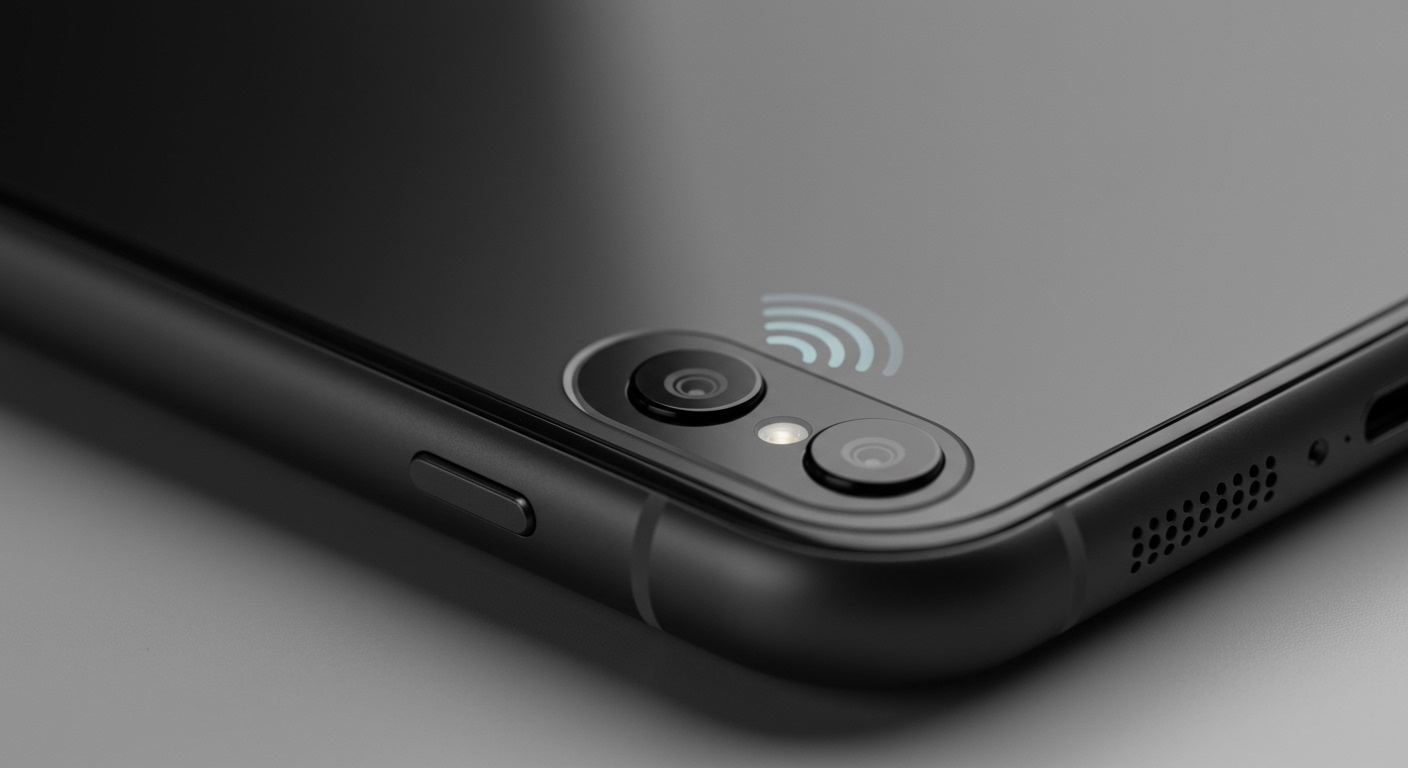
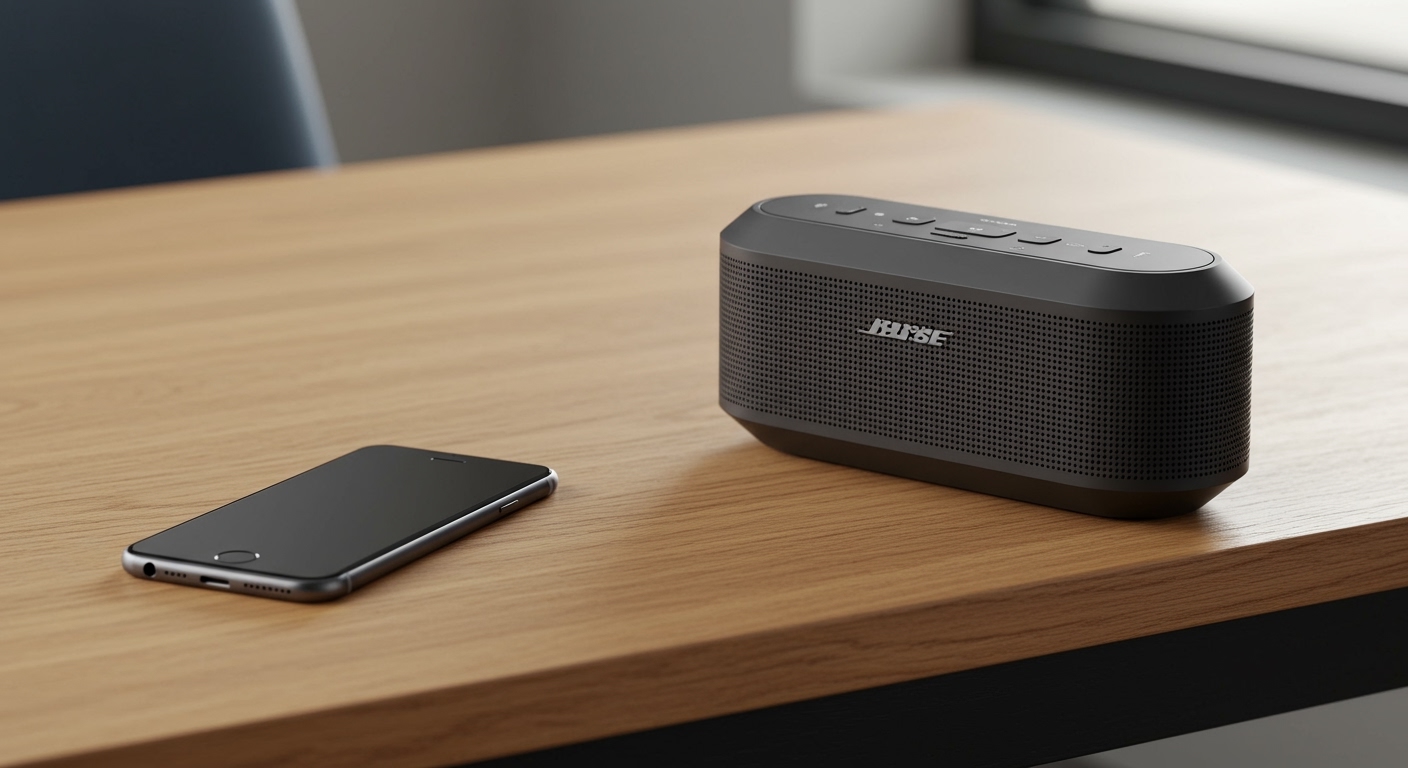
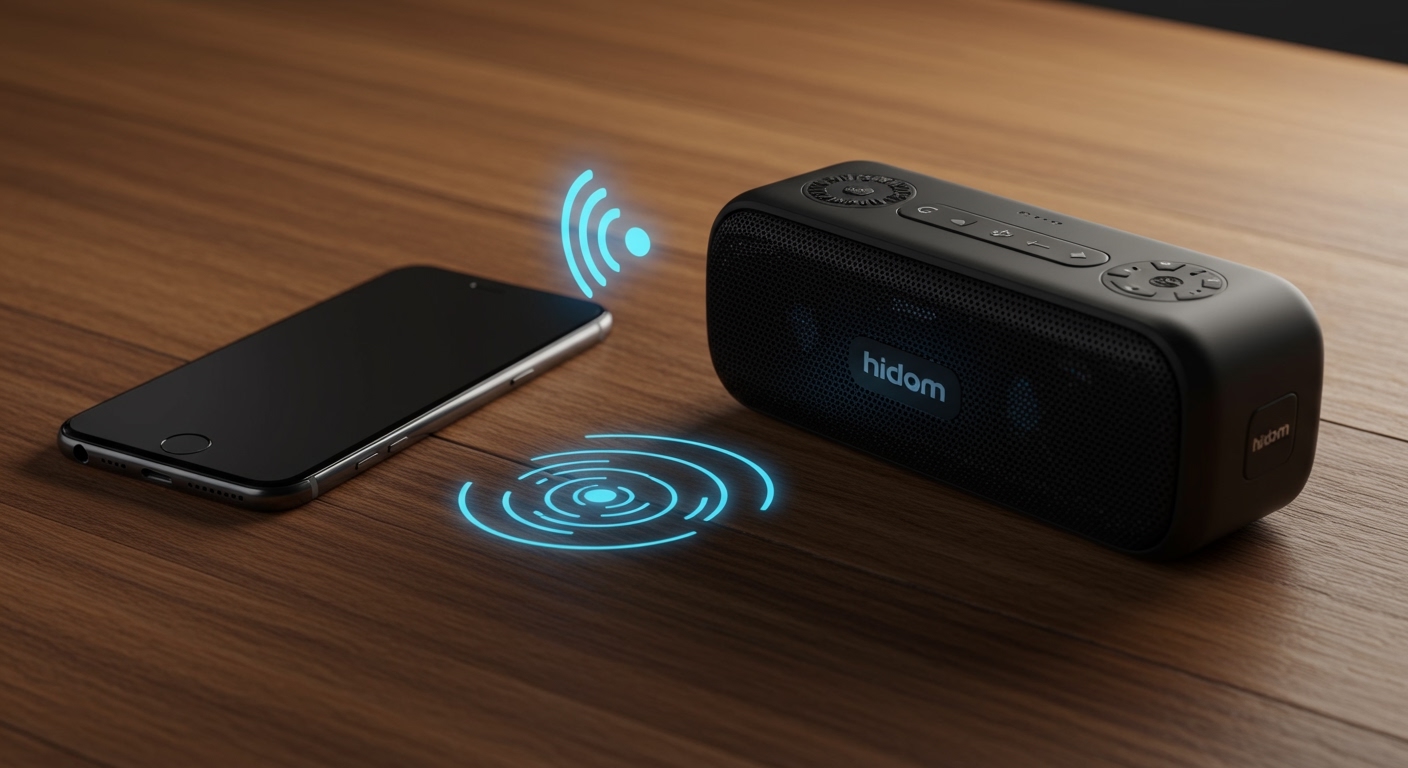
Bluetooth is the universal standard for how to connect android phone to external speakers without messy cables. Modern Android versions (Android 10 and above) utilize Google Fast Pair, which makes connecting to compatible devices almost instantaneous.
Step-by-Step Bluetooth Setup
- Enter Pairing Mode: On your external speaker, press and hold the Bluetooth button until the LED light flashes.
- Open Android Settings: Swipe down twice from the top of your screen and long-press the Bluetooth icon.
- Pair New Device: Tap “Pair new device.” If you see your speaker’s name (e.g., JBL Flip 6 or Sony SRS-XB33), tap it immediately.
- Confirm Pairing: Accept any pairing requests or “Allow access to contacts” prompts if they appear.
Pro Tip: Understanding Audio Codecs
In my testing, I found that not all Bluetooth connections are equal. If you want better sound, go to Developer Options on your Android phone and check the Bluetooth Audio Codec.
- SBC: Standard, okay for podcasts.
- aptX/aptX HD: High quality, great for music.
- LDAC: Sony’s proprietary codec, offers near-lossless quality (990 kbps).
Method 2: Wired Connections (AUX and USB-C)
If you are an audiophile, you likely prefer a physical link. Wired connections eliminate the “latency” (audio lag) often found in Bluetooth, which is critical if you are watching videos or gaming.
Using the 3.5mm Headphone Jack
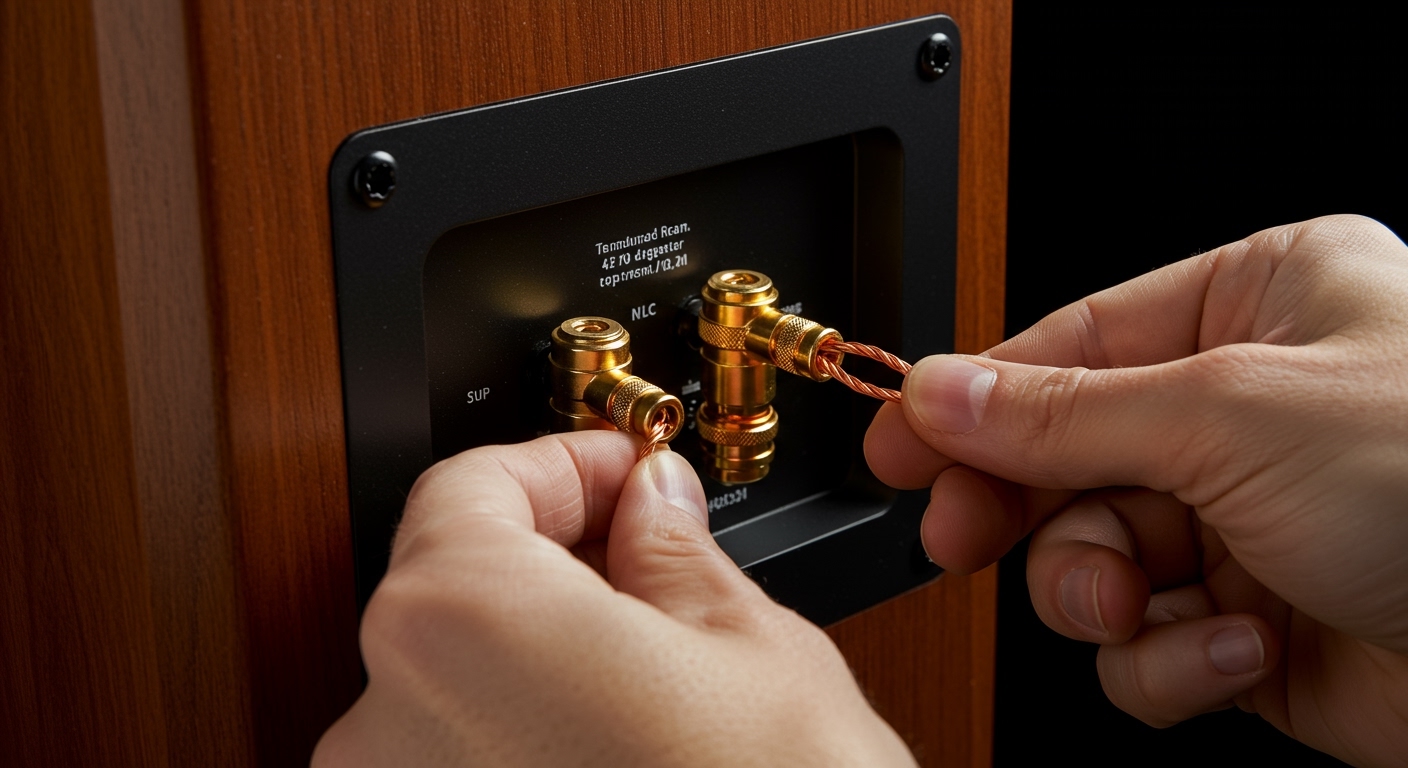
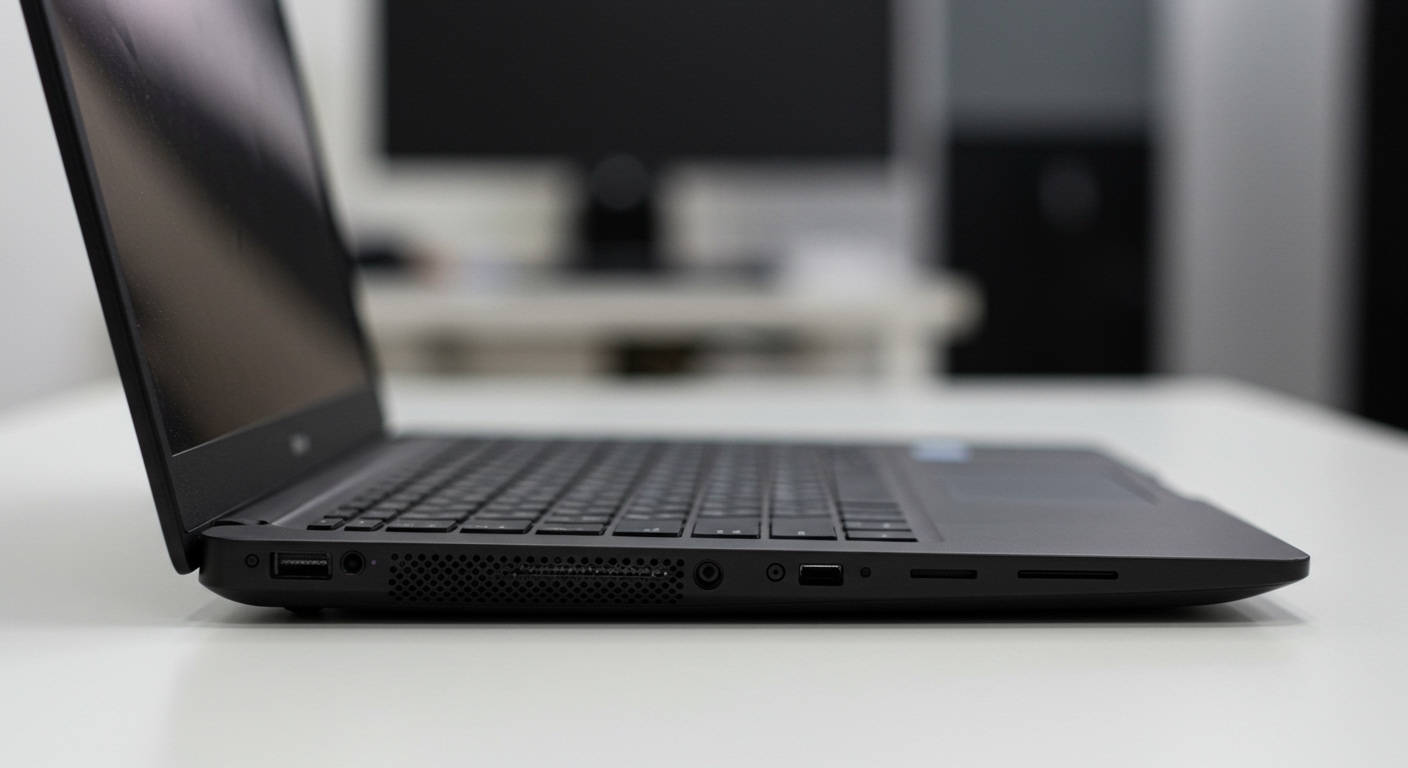
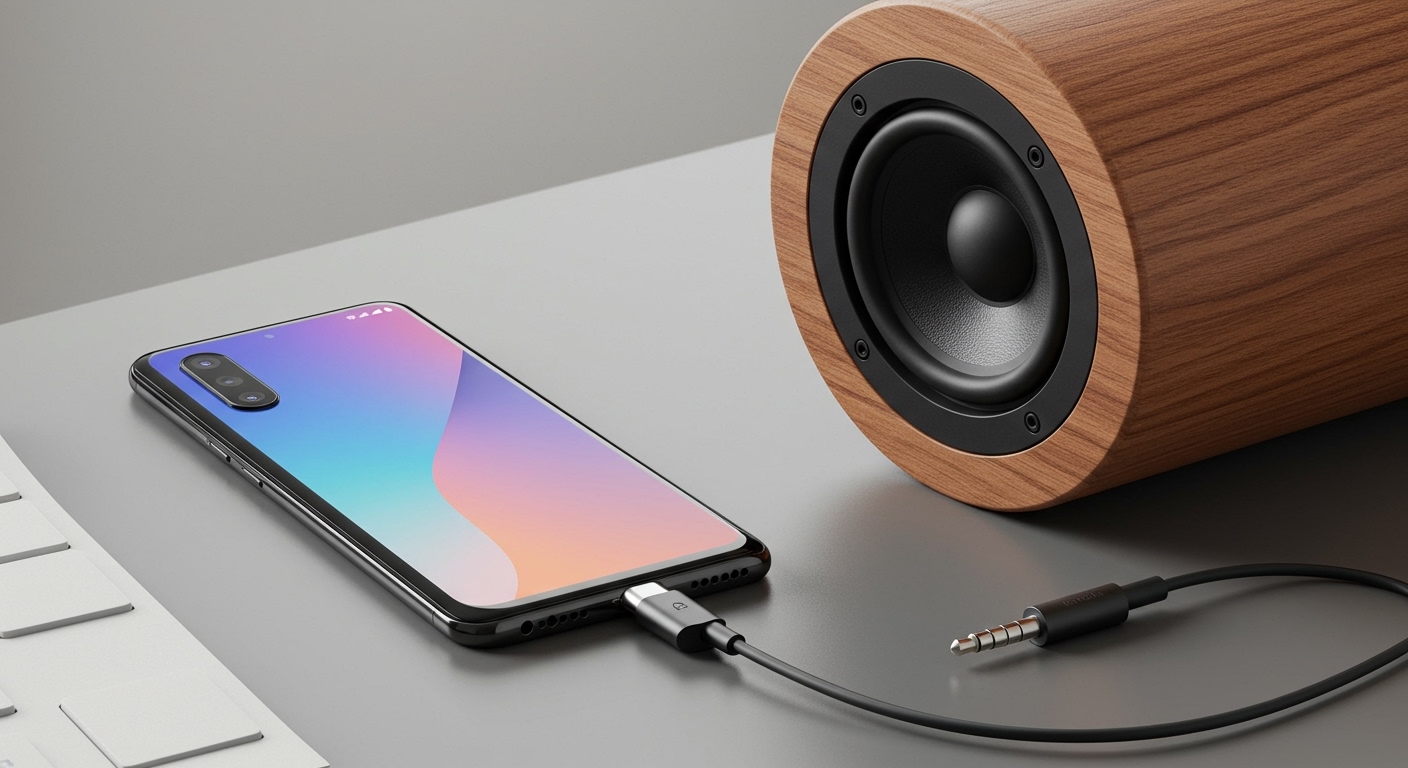
If you are lucky enough to have a phone with a dedicated jack (like the Asus Zenfone 10 or older Samsung Galaxy models), simply plug a 3.5mm Male-to-Male AUX cable into the phone and the “Line In” port on your speaker.
The USB-C to 3.5mm Adapter Solution
Most flagship phones (Pixel, Samsung S-series) have removed the jack. To bridge this gap:
- Purchase an “Active” USB-C to 3.5mm adapter.
- Note: Some cheap “Passive” adapters don’t work because they rely on the phone having an internal DAC. I recommend the Google USB-C Headphone Adapter or the Apple USB-C Dongle (which surprisingly works great on Android).
- Connect the adapter to your phone’s charging port and the AUX cable to your speaker.
Method 3: Wi-Fi and Smart Streaming
Wi-Fi is the gold standard for home setups. Unlike Bluetooth, Wi-Fi streaming doesn’t “hitch” if you walk into another room with your phone.
Using Google Chromecast Built-in
Many modern speakers (like those from Bose, Sonos, and Vizio) have Chromecast built-in.
- Ensure your phone and speaker are on the same Wi-Fi network.
- Open an app like Spotify, YouTube Music, or Tidal.
- Tap the “Cast” icon (a rectangle with Wi-Fi waves) and select your speaker.
Spotify Connect
If you use Spotify, the “Connect” feature is often more stable than standard Bluetooth. It allows the speaker to pull the stream directly from the cloud, saving your phone’s battery life significantly.
Comparison of Android Audio Connection Methods
| Method | Audio Quality | Difficulty | Best Use Case |
|---|---|---|---|
| Bluetooth | Medium | Easy | Outdoor parties, cars, portable use |
| 3.5mm AUX | High | Very Easy | Vintage stereos, gaming (no lag) |
| USB-C DAC | Ultra-High | Medium | Audiophile listening, studio monitors |
| Wi-Fi / Cast | High | Medium | Home theater, multi-room setups |
| DLNA/UPnP | High | Hard | Local media servers (Plex, etc.) |
Advanced Expert Tips for Android Audio
Enable “Separate App Sound” (Samsung Galaxy Users)
One of my favorite hidden features on Samsung devices is Separate App Sound. This allows you to play music through your external Bluetooth speaker while keeping your Instagram video or phone call audio on the phone’s internal speaker.
- Go to Settings > Sounds and vibration > Separate app sound.
Bypass the Android System Mixer
Android naturally “resamples” audio to 48kHz, which can slightly degrade high-resolution files. If you are using a wired DAC, I suggest using the USB Audio Player Pro (UAPP) app. It bypasses the Android limitations to deliver “Bit-Perfect” audio directly to your speakers.
Use an Old Android Phone as a Receiver
Don’t throw away your old phone! You can connect an old Android device to your speakers via AUX and install an app like AirMusic or BubbleUPnP. This effectively turns your old phone into a permanent Wi-Fi receiver that you can control from your new phone.
Troubleshooting Common Connection Issues
“My phone is connected, but no sound is playing.”
Check the Media Volume on your phone separately from the physical volume knob on the speaker. Often, Android silences Bluetooth devices by default upon the first connection to protect your ears.
“The audio is stuttering or cutting out.”
This is usually 2.4GHz interference. If you are using Bluetooth, try moving away from your microwave or Wi-Fi router. If you are on Wi-Fi, ensure your speaker is connected to the 5GHz band for more bandwidth.
“There is a delay between the video and the audio.”
This is latency. Bluetooth “SBC” codec has high latency (up to 200ms). To fix this, switch to a wired connection or check if your speaker has a “Game Mode” or “Low Latency Mode.”
Frequently Asked Questions (FAQ)
Can I connect my Android phone to multiple Bluetooth speakers at once?
Yes, if you have a Samsung phone, you can use Dual Audio (Settings > Bluetooth > Advanced). For other brands, you typically need speakers that support a “Party Mode” or “Stereo Link” within their own proprietary app (like the JBL Portable app).
Why doesn’t my USB-C to 3.5mm adapter work?
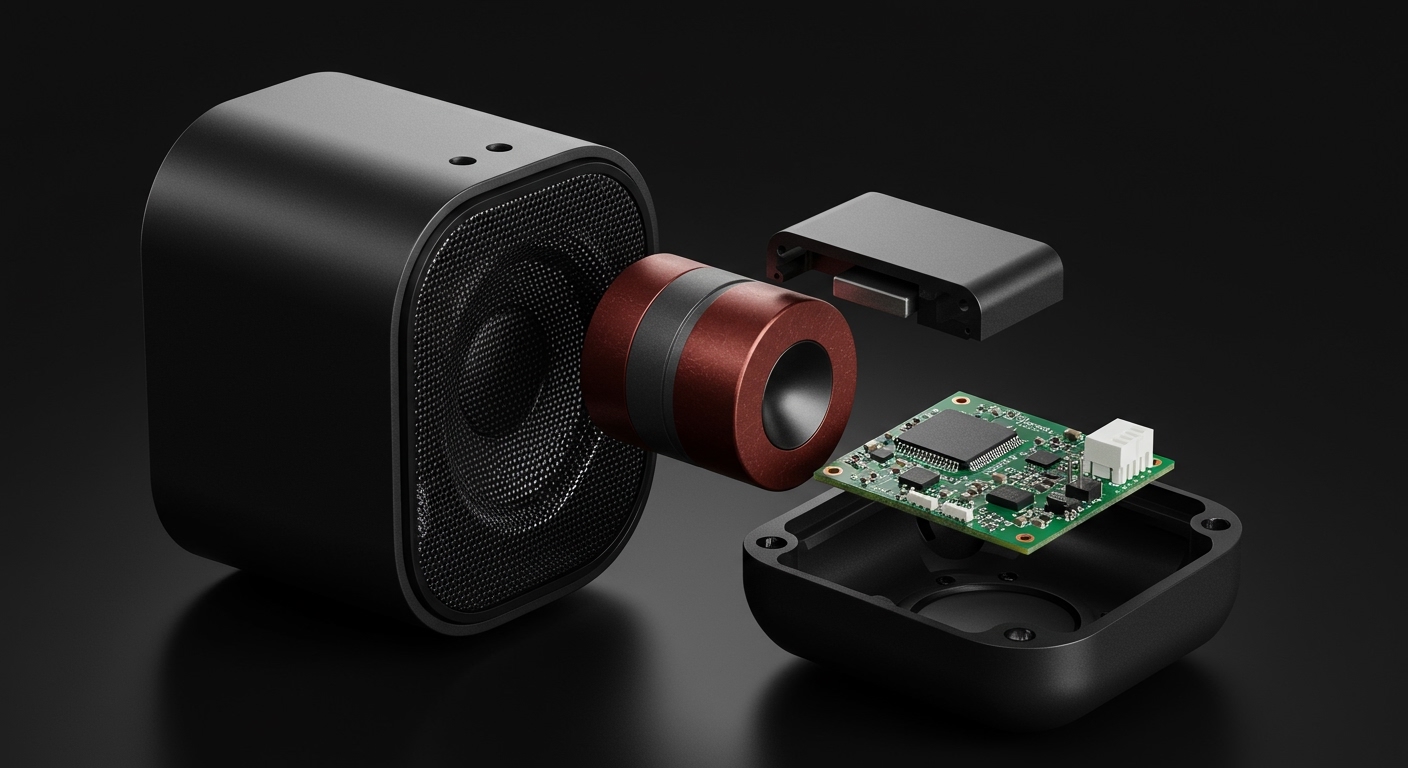
You likely have a “Passive” adapter. Most modern Android phones require an “Active” adapter that contains a Digital-to-Analog Converter (DAC) chip. Look for “Built-in DAC” in the product description when shopping.
How do I connect to an old stereo that doesn’t have Bluetooth or Wi-Fi?
The best way is to buy a Bluetooth Receiver or a WiiM Mini. These devices plug into the RCA or AUX ports of your old stereo and allow your Android phone to stream to it wirelessly.
Is wired audio better than Bluetooth?
Technically, yes. Even the best Bluetooth codecs (LDAC) compress the audio signal to some degree. A wired USB-C DAC connection provides the highest possible “bitrate,” which is essential for lossless audio formats like FLAC or MQA.
**
**
**
**