Why Audio Quality Matters for Your Apple TV Experience
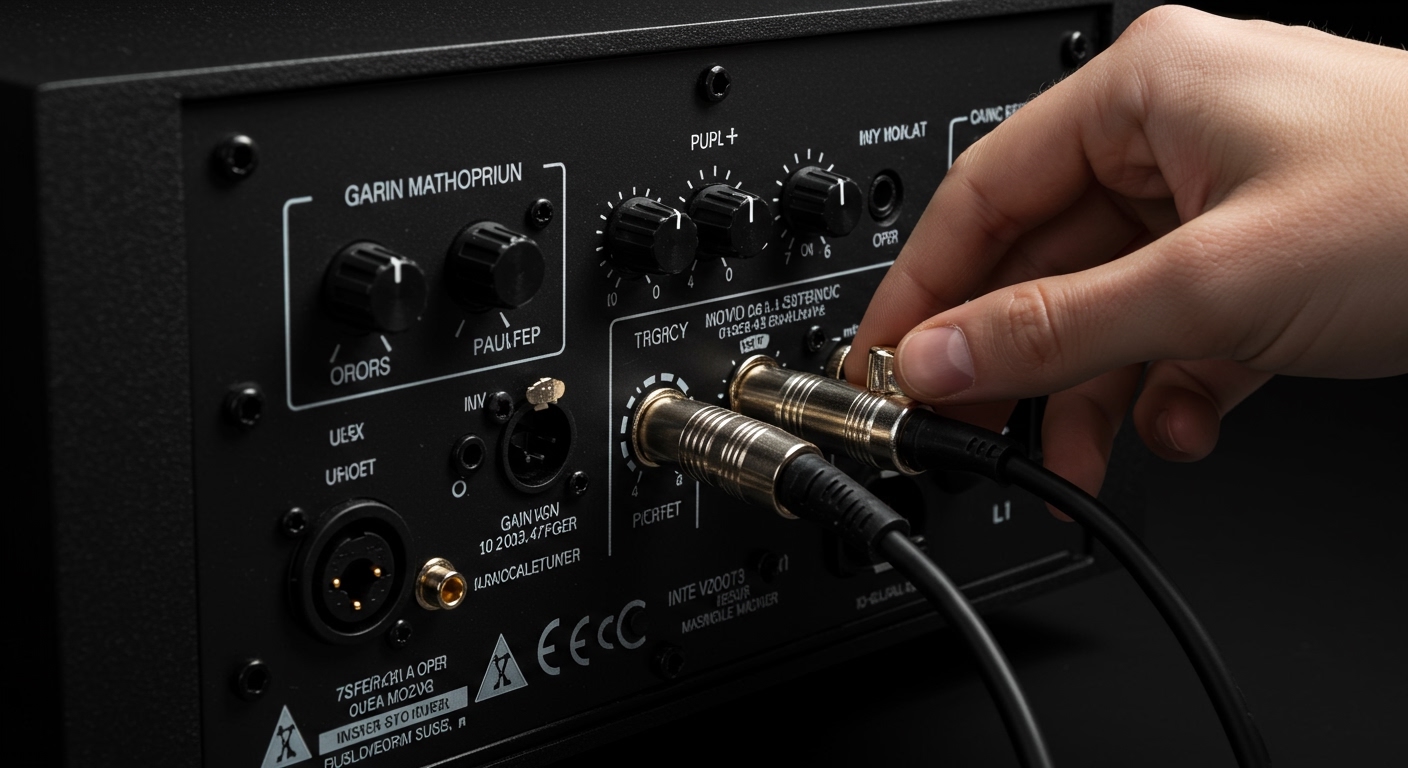
Learning how to connect apple tv to external speakers is the single most effective upgrade you can make for your home theater. While the Apple TV 4K delivers stunning 4K HDR visuals, standard television speakers often sound thin and muffled, failing to capture the nuance of a cinematic score or the clarity of dialogue. By routing your audio to high-quality external hardware, you unlock features like Dolby Atmos, spatial awareness, and room-filling sound.
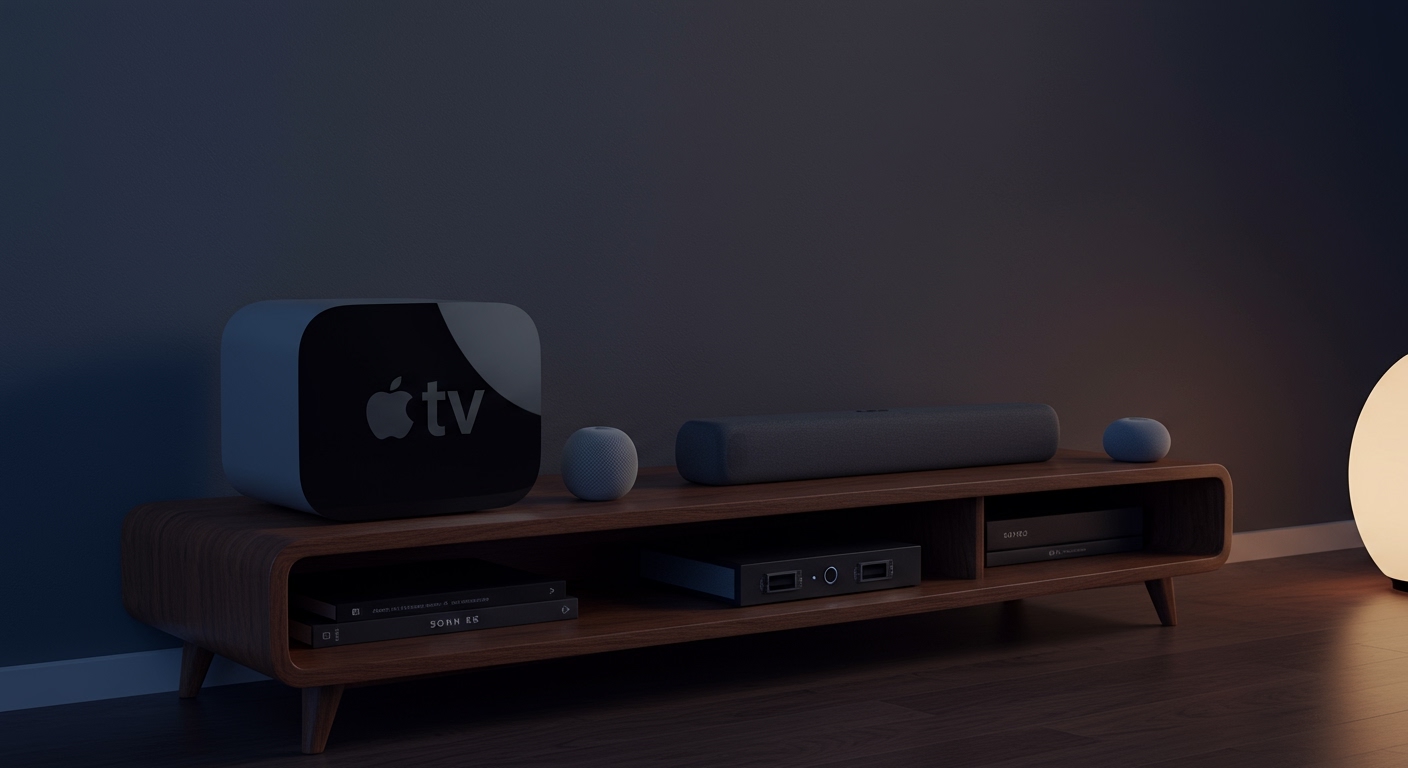
To how to connect apple tv to external speakers, you generally have three primary paths: Bluetooth for convenience, AirPlay 2 for high-fidelity wireless syncing (perfect for Sonos or HomePod), and HDMI ARC/eARC for the ultimate lossless wired connection. This guide covers every method to ensure your audio matches the premium quality of your video.
Expert Summary: Key Takeaways for Quick Setup
Best for Quality: Use HDMI ARC/eARC to connect to a high-end Receiver or Soundbar for uncompressed Dolby Atmos audio.
Best for Apple Ecosystem: Use AirPlay 2 to pair HomePod or HomePod Mini as permanent default speakers.
Best for Versatility: Sonos speakers and Bose speakers can be connected via AirPlay or Bluetooth respectively.
Pro Tip: Always run the Wireless Audio Sync tool in tvOS settings to eliminate any lag between the picture and the sound.
Tools and Materials Needed for Connection
Before you begin, ensure you have the necessary hardware based on your preferred connection method.
| Connection Type | Required Hardware | Best For |
|---|---|---|
| Bluetooth | Bluetooth-enabled speakers or headphones (Bose, Sony, etc.) | Casual listening, private viewing |
| AirPlay 2 | HomePod, Sonos, or AirPlay-compatible receivers | Multi-room audio, smart home integration |
| HDMI ARC/eARC | HDMI 2.1 cable, ARC-compatible TV, and Soundbar/Receiver | Professional home cinema, Dolby Atmos |
| Optical (Legacy) | Digital Optical Cable, DAC (Digital-to-Analog Converter) | Older vintage stereo systems |
How to Connect Apple TV to External Speakers via Bluetooth
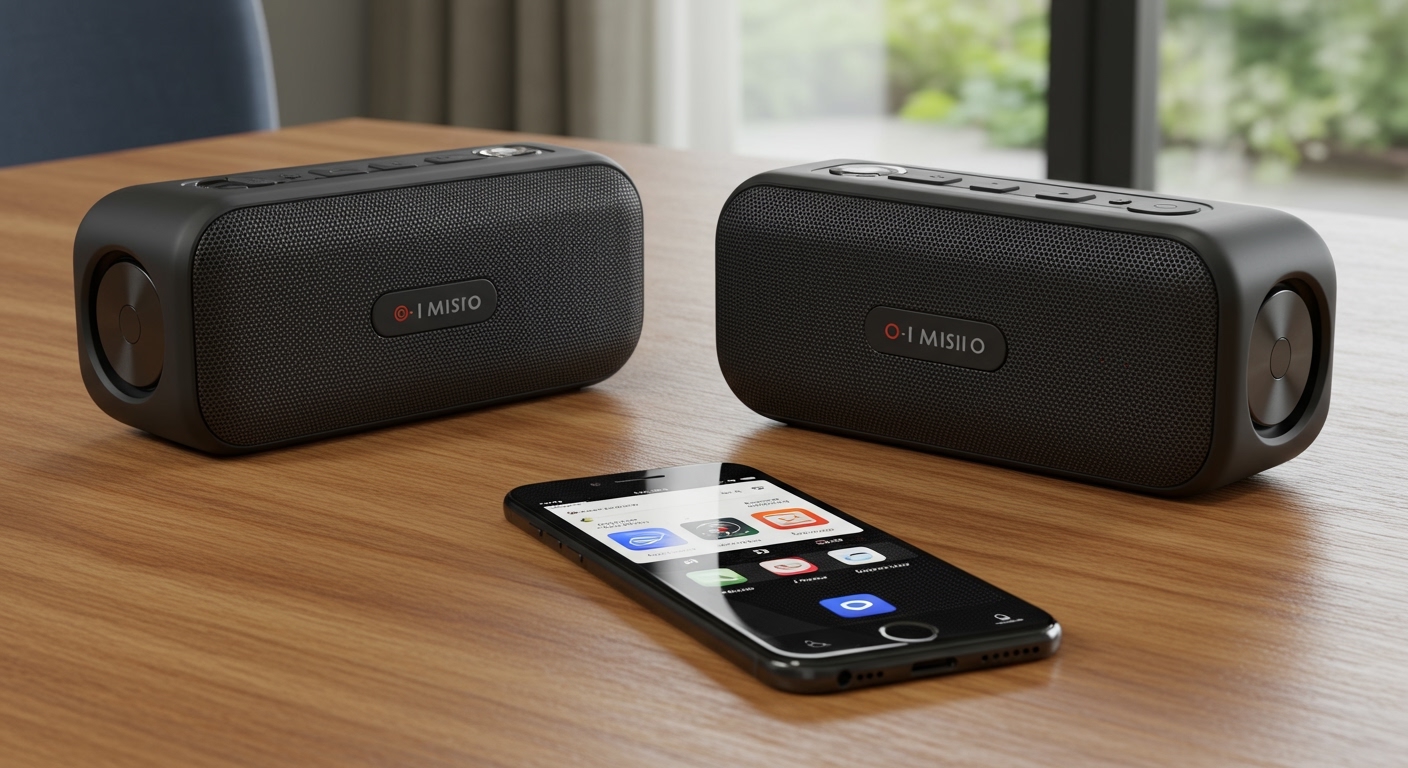
Using Bluetooth is the most universal way to how to connect speakers to apple tv. It is ideal for portable speakers like those from Bose or JBL, as well as wireless headphones for late-night watching.
Step 1: Put your speaker in Pairing Mode
Activate the pairing function on your external speaker. Usually, this involves holding down a Bluetooth button until a light flashes.
Step 2: Access Apple TV Settings
Navigate to the Settings app (the gear icon) on your Apple TV home screen using the Siri Remote.
Step 3: Open Remotes and Devices
Select the menu labeled Remotes and Devices, then scroll down to find Bluetooth.
Step 4: Select your Speaker
Locate your speaker’s name in the “Other Devices” list. Click on it to establish the connection. Once connected, the status will change to “Connected” and audio will immediately begin routing to the device.
How to Connect Bose Speakers to Apple TV
If you own a Bose SoundLink, Bose QuietComfort, or Bose Soundbar, the process is straightforward but benefits from using the Bose Music App for initial calibration.
- Prepare the Bose Device: Ensure your Bose speakers are updated to the latest firmware via the app.
- Initiate Pairing: Hold the Bluetooth button on the Bose device until the voice prompt says “Ready to pair.”
- Connect on Apple TV: Go to Settings > Remotes and Devices > Bluetooth and select your Bose device.
- Expert Tip: For Bose Soundbars, it is highly recommended to use the HDMI eARC connection instead of Bluetooth to avoid the compression that occurs over wireless signals.
How to Connect Sonos Speakers to Apple TV
Many users ask: can i connect sonos speakers to apple tv? The answer is a resounding yes. Sonos is one of the best partners for Apple TV because most modern Sonos products support AirPlay 2.
Using AirPlay 2 for Sonos Integration
- Ensure Same Network: Verify that both your Apple TV and your Sonos speakers (like the Sonos Era 100 or Sonos Beam) are on the same Wi-Fi network.
- Open Control Center: On your Apple TV remote, press and hold the TV/Control Center button (the one that looks like a monitor).
- Select Audio Output: Click on the AirPlay icon (concentric circles with a triangle).
- Find Sonos: Scroll through the list and check the box next to your Sonos speakers.
Permanent Connection for Sonos Soundbars
If you have a Sonos Arc or Sonos Beam, do not use AirPlay for your primary connection. Instead, how to hook up speakers to apple tv involves plugging the Apple TV into your TV’s HDMI port and connecting the Sonos Soundbar to the HDMI ARC/eARC port. This allows the TV to pass the audio signal directly to the Sonos system without any wireless interference.
How to Connect to Apple Speakers (HomePod & HomePod Mini)
The deepest integration exists when you how to connect to apple speakers. The Apple TV 4K can use HomePods as a permanent “Default Audio Output,” effectively replacing your TV speakers entirely.
Step 1: Set Up the HomePod
Configure your HomePod or HomePod Mini using your iPhone or iPad in the Home App. Ensure it is assigned to the same “Room” as your Apple TV.
Step 2: Assign Default Output
Go to Settings > Video and Audio > Audio Output on your Apple TV.
Step 3: Select HomePod
Choose your HomePod (or HomePod Stereo Pair) from the list. The system will ask if you want to use the HomePod as your Default Audio Output. Select “Use as Default Power”.
Step 4: Enable eARC (Optional but Recommended)
If your Apple TV 4K (2nd Gen or later) is connected to an HDMI eARC port on your TV, you can toggle Audio Return Channel to “On.” This allows your HomePods to play audio from any device connected to your TV (like a PlayStation 5 or cable box), not just the Apple TV.
Why Audio Quality Matters for Your Apple TV Experience
Learning how to connect apple tv to external speakers is the single most effective upgrade you can make for your home theater. While the Apple TV 4K delivers stunning 4K HDR visuals, standard television speakers often sound thin and muffled, failing to capture the nuance of a cinematic score or the clarity of dialogue. By routing your audio to high-quality external hardware, you unlock features like Dolby Atmos, spatial awareness, and room-filling sound.
To how to connect apple tv to external speakers, you generally have three primary paths: Bluetooth for convenience, AirPlay 2 for high-fidelity wireless syncing (perfect for Sonos or HomePod), and HDMI ARC/eARC for the ultimate lossless wired connection. This guide covers every method to ensure your audio matches the premium quality of your video.
Expert Summary: Key Takeaways for Quick Setup
Best for Quality: Use HDMI ARC/eARC to connect to a high-end Receiver or Soundbar for uncompressed Dolby Atmos audio.
Best for Apple Ecosystem: Use AirPlay 2 to pair HomePod or HomePod Mini as permanent default speakers.
Best for Versatility: Sonos speakers and Bose speakers can be connected via AirPlay or Bluetooth respectively.
Pro Tip: Always run the Wireless Audio Sync tool in tvOS settings to eliminate any lag between the picture and the sound.
Tools and Materials Needed for Connection
Before you begin, ensure you have the necessary hardware based on your preferred connection method.
| Connection Type | Required Hardware | Best For |
|---|---|---|
| Bluetooth | Bluetooth-enabled speakers or headphones (Bose, Sony, etc.) | Casual listening, private viewing |
| AirPlay 2 | HomePod, Sonos, or AirPlay-compatible receivers | Multi-room audio, smart home integration |
| HDMI ARC/eARC | HDMI 2.1 cable, ARC-compatible TV, and Soundbar/Receiver | Professional home cinema, Dolby Atmos |
| Optical (Legacy) | Digital Optical Cable, DAC (Digital-to-Analog Converter) | Older vintage stereo systems |
How to Connect Apple TV to External Speakers via Bluetooth
Using Bluetooth is the most universal way to how to connect speakers to apple tv. It is ideal for portable speakers like those from Bose or JBL, as well as wireless headphones for late-night watching.
Step 1: Put your speaker in Pairing Mode
Activate the pairing function on your external speaker. Usually, this involves holding down a Bluetooth button until a light flashes.
Step 2: Access Apple TV Settings
Navigate to the Settings app (the gear icon) on your Apple TV home screen using the Siri Remote.
Step 3: Open Remotes and Devices
Select the menu labeled Remotes and Devices, then scroll down to find Bluetooth.
Step 4: Select your Speaker
Locate your speaker’s name in the “Other Devices” list. Click on it to establish the connection. Once connected, the status will change to “Connected” and audio will immediately begin routing to the device.
How to Connect Bose Speakers to Apple TV
If you own a Bose SoundLink, Bose QuietComfort, or Bose Soundbar, the process is straightforward but benefits from using the Bose Music App for initial calibration.
- Prepare the Bose Device: Ensure your Bose speakers are updated to the latest firmware via the app.
- Initiate Pairing: Hold the Bluetooth button on the Bose device until the voice prompt says “Ready to pair.”
- Connect on Apple TV: Go to Settings > Remotes and Devices > Bluetooth and select your Bose device.
- Expert Tip: For Bose Soundbars, it is highly recommended to use the HDMI eARC connection instead of Bluetooth to avoid the compression that occurs over wireless signals.
How to Connect Sonos Speakers to Apple TV
Many users ask: can i connect sonos speakers to apple tv? The answer is a resounding yes. Sonos is one of the best partners for Apple TV because most modern Sonos products support AirPlay 2.
Using AirPlay 2 for Sonos Integration
- Ensure Same Network: Verify that both your Apple TV and your Sonos speakers (like the Sonos Era 100 or Sonos Beam) are on the same Wi-Fi network.
- Open Control Center: On your Apple TV remote, press and hold the TV/Control Center button (the one that looks like a monitor).
- Select Audio Output: Click on the AirPlay icon (concentric circles with a triangle).
- Find Sonos: Scroll through the list and check the box next to your Sonos speakers.
Permanent Connection for Sonos Soundbars
If you have a Sonos Arc or Sonos Beam, do not use AirPlay for your primary connection. Instead, how to hook up speakers to apple tv involves plugging the Apple TV into your TV’s HDMI port and connecting the Sonos Soundbar to the HDMI ARC/eARC port. This allows the TV to pass the audio signal directly to the Sonos system without any wireless interference.
How to Connect to Apple Speakers (HomePod & HomePod Mini)
The deepest integration exists when you how to connect to apple speakers. The Apple TV 4K can use HomePods as a permanent “Default Audio Output,” effectively replacing your TV speakers entirely.
Step 1: Set Up the HomePod
Configure your HomePod or HomePod Mini using your iPhone or iPad in the Home App. Ensure it is assigned to the same “Room” as your Apple TV.
Step 2: Assign Default Output
Go to Settings > Video and Audio > Audio Output on your Apple TV.
Step 3: Select HomePod
Choose your HomePod (or HomePod Stereo Pair) from the list. The system will ask if you want to use the HomePod as your Default Audio Output. Select “Use as Default Power”.
Step 4: Enable eARC (Optional but Recommended)
If your Apple TV 4K (2nd Gen or later) is connected to an HDMI eARC port on your TV, you can toggle Audio Return Channel to “On.” This allows your HomePods to play audio from any device connected to your TV (like a PlayStation 5 or cable box), not just the Apple TV.
Expert Advice: Fixing Audio Lag and Latency
One common frustration when learning how to connect apple tv to speakers wirelessly is “lip-sync” issues. This happens because wireless signals take a few milliseconds to travel from the box to the speakers.
Using the Wireless Audio Sync Tool
- Grab your iPhone: Ensure it is near your Apple TV and connected to the same Wi-Fi.
- Navigate to Settings: Go to Settings > Video and Audio.
- Select Wireless Audio Sync: Scroll down to the bottom of the menu.
- Follow Prompts: Your Apple TV will play a series of tones. Your iPhone’s microphone listens to these tones to measure the delay and automatically calibrates the audio to match the video perfectly.
Common Mistakes to Avoid
Using Bluetooth for Home Theater: Bluetooth does not support Dolby Atmos or 5.1 surround sound. Use it for music or headphones, but stick to HDMI or AirPlay 2 for movies.
Mixing Speaker Brands: While you can send audio to multiple AirPlay speakers, mixing a Sonos speaker with a Bose speaker in the same room can lead to slight phase issues.
- Ignoring HDMI Cable Quality: For HDMI ARC/eARC, use a High-Speed HDMI 2.1 cable. Cheap, older cables often cause audio dropouts or “handshake” errors.
Frequently Asked Questions
(FAQs)
Can I connect multiple Bluetooth speakers to Apple TV at once?
No, Apple TV currently only supports one Bluetooth audio connection at a time. However, you can connect multiple AirPlay 2 speakers (like Sonos or HomePods) simultaneously for a multi-room or expanded soundstage experience.
How do I fix sound not working on external speakers?
First, ensure the volume is turned up on both the Apple TV and the external device. Then, navigate to Settings > Video and Audio > Audio Output and verify the correct device is selected. If using HDMI ARC, restart both the TV and the Apple TV to reset the connection “handshake.”
Does Apple TV support 7.1 surround sound via Bluetooth?
No. Bluetooth is limited to 2.0 stereo sound. To achieve 7.1 surround sound or Dolby Atmos, you must connect your Apple TV via HDMI to a compatible A/V receiver or use a HomePod stereo pair via AirPlay.
Can I use my old wired speakers with Apple TV?
Yes, but you will need an intermediary device. You can connect the Apple TV to an HDMI Audio Extractor, which splits the signal into an optical or RCA output that can plug into your vintage amplifier. Alternatively, connect the Apple TV to your TV and run an optical cable from the TV’s “Optical Out” to your speakers.
Conclusion: Elevate Your Home Cinema
Mastering how to connect apple tv to external speakers transforms your viewing experience from ordinary to extraordinary. Whether you choose the seamless integration of Apple HomePods, the high-fidelity ecosystem of Sonos speakers, or the reliable performance of Bose speakers, the key is selecting the right connection method for your needs.
For the best results, we recommend using HDMI eARC for fixed home theater setups and AirPlay 2 for flexible, wireless audio throughout your home. Don’t forget to run the Wireless Audio Sync tool to ensure every explosion and whisper is perfectly timed.
Ready to upgrade your sound? Explore our other guides on the best Dolby Atmos soundbars or learn how to calibrate your Apple TV picture settings for a true cinematic experience.