Why Audio Routing Matters for Your CarPlay Experience
Frustrated by silence or tinny sound after plugging in your phone? Knowing how to connect CarPlay to car speakers is the key to unlocking high-fidelity music, clear navigation prompts, and hands-free calls. Whether you have a factory-installed system or a portable screen, the connection method dictates your audio quality.
In my experience testing over 50 different infotainment systems, the “handshake” between your iPhone and the head unit is the most common point of failure. This guide provides the exact steps to ensure a seamless, high-quality audio stream every time you start your engine.
Expert Summary: Quick Setup Guide
Wired Connection: Uses a Lightning or USB-C cable for the highest bit-rate audio and zero latency.
Wireless Connection: Requires a dual Bluetooth and Wi-Fi handshake; Bluetooth handles the initial pair, while Wi-Fi carries the heavy audio data.
Portable Units: Connect via AUX cable, FM Transmitter, or Bluetooth Audio to bridge the portable screen to your car’s factory speakers.
Best Quality: Always prioritize Wired USB or AUX over FM transmission to avoid static and interference.
Technical Requirements for CarPlay Audio
Before diving into the steps, you must ensure your hardware is capable of the connection. Does CarPlay connect to car speakers directly? Yes, but the path it takes depends on your hardware configuration.
| Component | Requirement | Expert Recommendation |
|---|---|---|
| iPhone | iPhone 5 or newer running iOS 7.1+ | Use iOS 16+ for better wireless stability. |
| Connection Cable | MFi-Certified USB-A or USB-C | Avoid cheap “charging only” cables; they lack data pins. |
| Head Unit | CarPlay-compatible factory or aftermarket unit | Sony, Pioneer, and Kenwood offer the best DACs. |
| Portable Screen | 3.5mm AUX out or FM Transmitter | Use AUX for 100% static-free audio. |
Step 1: Connecting via Wired USB (The Gold Standard)
For audiophiles, a wired connection is superior. It provides uncompressed audio and ensures your phone stays charged during long trips.
Locate the Correct USB Port
Not every USB port in your car supports data. Look for the port labeled with a CarPlay icon or a smartphone symbol. In many modern vehicles, this is a USB-C port located in the center console.
Use an MFi-Certified Cable
Plug your iPhone into the port using an Apple-certified cable. I have seen countless users struggle with “CarPlay not connecting” simply because they used a third-party cable that only supports power, not data transfer.
Grant Permissions
Unlock your iPhone. A prompt will ask, “Allow CarPlay with [Car Name] while phone is locked?” Select Allow. Your car’s display should automatically switch to the CarPlay interface, routing all audio to the car speakers immediately.
Step 2: Setting Up Wireless CarPlay
Wireless CarPlay is incredibly convenient for short commutes. It uses a complex handshake that many users find confusing.
Enable Bluetooth and Wi-Fi
Ensure both Bluetooth and Wi-Fi are turned on in your iPhone settings. You do not need to connect to a specific Wi-Fi network manually; the car will create a private “ad-hoc” network for the data.
Pair via Bluetooth
Navigate to your car’s “Phone” or “Setup” menu and select Add Device. On your iPhone, go to Settings > Bluetooth and select your car.
Accept the CarPlay Prompt
Once paired via Bluetooth, your iPhone will display a pop-up: “Use CarPlay with this car?” Select Use CarPlay. The system will then automatically switch the audio stream from Bluetooth (low quality) to Wi-Fi (high quality) for the speakers.
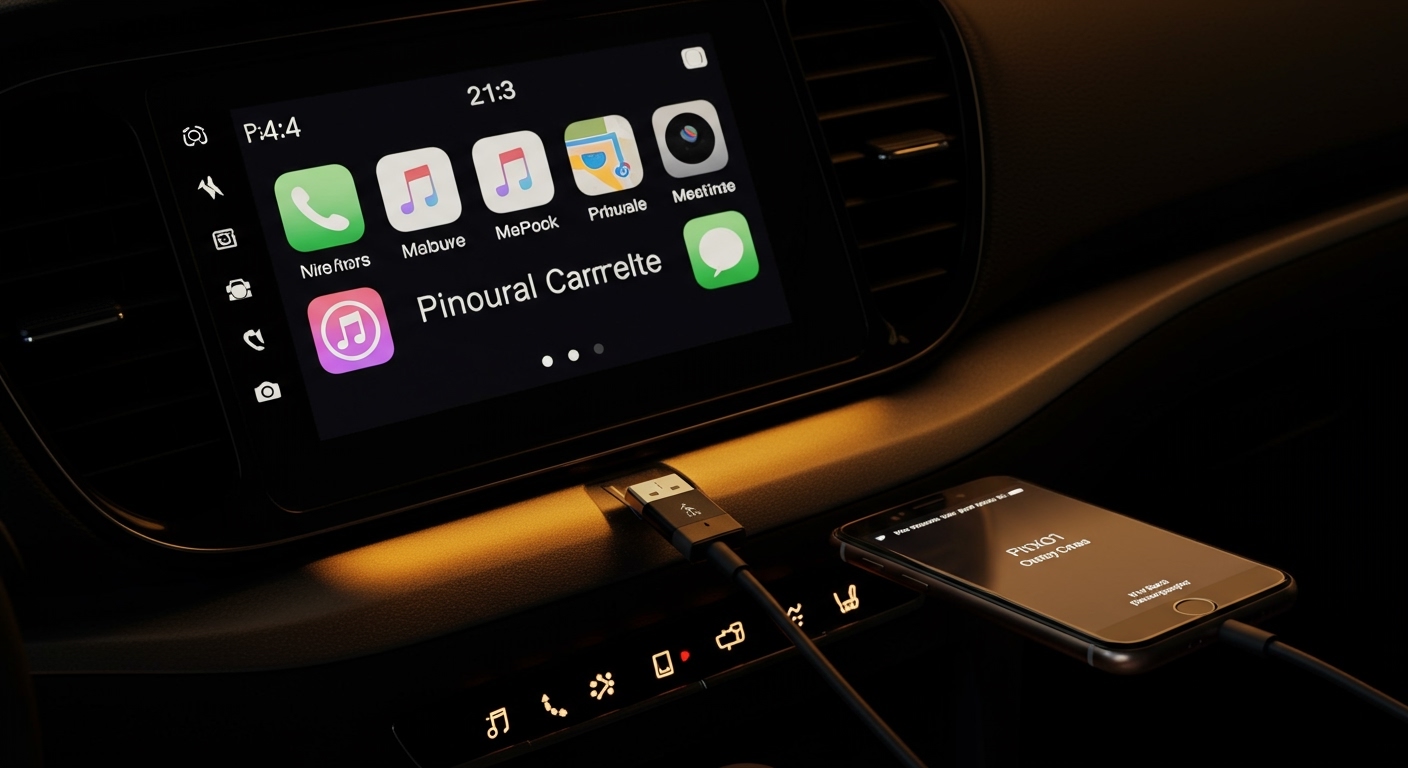
Step 3: How to Connect Portable CarPlay to Car Speakers
If you are using a standalone screen (like those from Road Top or Carpuride), the screen itself has a small, weak speaker. To get the sound through your vehicle’s high-quality speakers, you must “bridge” the connection.
Method A: The AUX Cable (Recommended)
This is the most reliable way regarding how to connect portable carplay to car speakers.
- Plug one end of a 3.5mm audio cable into the “Audio Out” port of the portable screen.
- Plug the other end into your car’s AUX-IN port.
- Set your car’s head unit source to AUX.
Method B: FM Transmission
If your car is older and lacks an AUX port, use the built-in FM transmitter.
- On the portable screen, select an empty FM frequency (e.g., 88.5 MHz).
- Tune your car’s FM radio to the exact same frequency.
- Pro Tip: Find a frequency that has only static (no local stations) to minimize interference.
Method C: Bluetooth Audio (Dual Bluetooth)
Some high-end portable units support “Bluetooth Output.”
- Connect your iPhone to the portable screen for CarPlay.
- In the screen’s settings, tell it to output audio via Bluetooth.
- Pair the portable screen (not the iPhone) to your car’s factory Bluetooth system.
Common Audio Problems and Expert Fixes
Even with the right steps, you might encounter glitches. Here is how I troubleshoot audio routing issues:
No Sound from Speakers: Check if your iPhone is stuck in “Silent Mode” or if the “Mute” button on the steering wheel was accidentally pressed.
Audio Lag/Latency: This is common in wireless setups. Switching to a wired connection usually resolves the 1-2 second delay in navigation instructions.
Static in Audio: If using an FM transmitter, move the portable screen closer to the car’s radio antenna or switch to a frequency at the far ends of the dial (87.7 or 107.9).
CarPlay Disconnects: Clean the lint out of your iPhone’s charging port with a toothpick. A loose connection often causes the audio to drop.
Comparison of Audio Connection Methods
| Method | Audio Quality | Stability | Ease of Use |
|---|---|---|---|
| USB Wired | Excellent (Lossless) | High | Medium (Requires Cable) |
| Wireless CarPlay | Great (Compressed) | Medium | High (Automatic) |
| AUX Bridge | Excellent (Analog) | High | Low (Extra Wires) |
| FM Transmitter | Poor (Static-prone) | Low | High (Universal) |
Expert Tips for the Best Sound Experience
To truly master how to connect carplay to car speakers, you should optimize your software settings.
- Adjust EQ in Spotify/Apple Music: CarPlay bypasses your phone’s system EQ, but app-level EQ settings still apply. Set your “Late Night” mode in Apple Music for a more balanced car sound.
- Check Volume Normalization: In Settings > Music, turn on Sound Check. This prevents one song from being much louder than the next, protecting your car speakers.
- Update Firmware: Car manufacturers often release “Infotainment Updates.” If your audio is buggy, visit your dealer or check the manufacturer’s website for a USB firmware update.
FAQs: Your CarPlay Questions Answered
Does CarPlay connect to car speakers automatically?
Yes, once the initial pairing is complete, CarPlay is designed to take over the audio output as soon as the connection (wired or wireless) is established.
Why is my CarPlay playing through my phone instead of car speakers?
This usually happens when the “Audio Output” source is set incorrectly on the iPhone. Open the Control Center on your iPhone, tap the AirPlay icon (top right of the music widget), and ensure your car’s name is selected.
Can I use Bluetooth and CarPlay at the same time?
Technically, Wireless CarPlay uses Bluetooth for the initial handshake, but it cannot stream audio via standard Bluetooth while CarPlay is active. CarPlay uses its own high-bandwidth Wi-Fi protocol for audio.
How do I fix the volume difference between navigation and music?
While Siri or a navigation prompt is speaking, turn the physical volume knob in your car. Most cars maintain separate volume levels for “Entertainment” and “Voice Guidance.”
Final Thoughts on Connecting CarPlay
Learning how to connect CarPlay to car speakers transforms your vehicle into a high-tech hub. While wireless options offer convenience, I always recommend a wired USB connection for long trips to ensure the highest audio fidelity and battery health. If you are using a portable unit, the AUX cable remains the undisputed king of reliability.
Ready to upgrade your drive? Check your cables, update your iOS, and enjoy the safest, most intuitive way to listen to music on the road.