Quick Guide: How to Connect External Speakers to Acer and Asus Monitors
To how to connect external speakers to acer monitor, the most direct method is plugging a 3.5mm auxiliary cable from your speakers into the Audio Out or Headphone port located on the back or side of the monitor. Ensure your monitor is receiving audio via HDMI or DisplayPort, then set the monitor as your Default Playback Device in your computer’s sound settings. This allows the monitor to act as a bridge, passing high-quality audio from your PC to your external sound system.
Key Takeaways (TL;DR)
Primary Connection: Use the 3.5mm Audio Out jack (usually colored green or marked with a headphone icon).
Digital Interface: Sound travels through HDMI or DisplayPort cables from your PC to the monitor first.
Software Setup: You must select the monitor (e.g., Acer VG271 or Asus VG248) in your Windows Sound Settings.
Power Source: Most external speakers require a separate USB or Wall Outlet power connection.
Troubleshooting: If silent, check the monitor’s internal OSD (On-Screen Display) menu to ensure volume isn’t muted.
Essential Tools and Materials Needed
Before you begin the process of how to connect external speakers to monitor, ensure you have the correct hardware. Most modern Acer and Asus monitors do not include built-in amplifiers for passive speakers, so active (powered) speakers are required.
| Tool/Material | Purpose | Recommended Type |
|---|---|---|
| 3.5mm Audio Cable | Connects speaker to monitor jack | TRS (Tip-Ring-Sleeve) Stereo |
| HDMI 2.0/2.1 Cable | Carries video and audio from PC | High-Speed HDMI |
| DisplayPort 1.4 Cable | Alternative for high-refresh-rate audio | VESA Certified |
| External Speakers | Provides superior sound quality | Logitech, Creative, or Edifier |
| Power Adapter | Powers the external speaker unit | AC Wall Plug or USB-A |
Step 1: Identify the Correct Audio Ports
The first step in how to connect external speakers to acer monitor is identifying the physical layout of your hardware. Not all ports that look like headphone jacks function the same way.
Locating the Audio Out Port
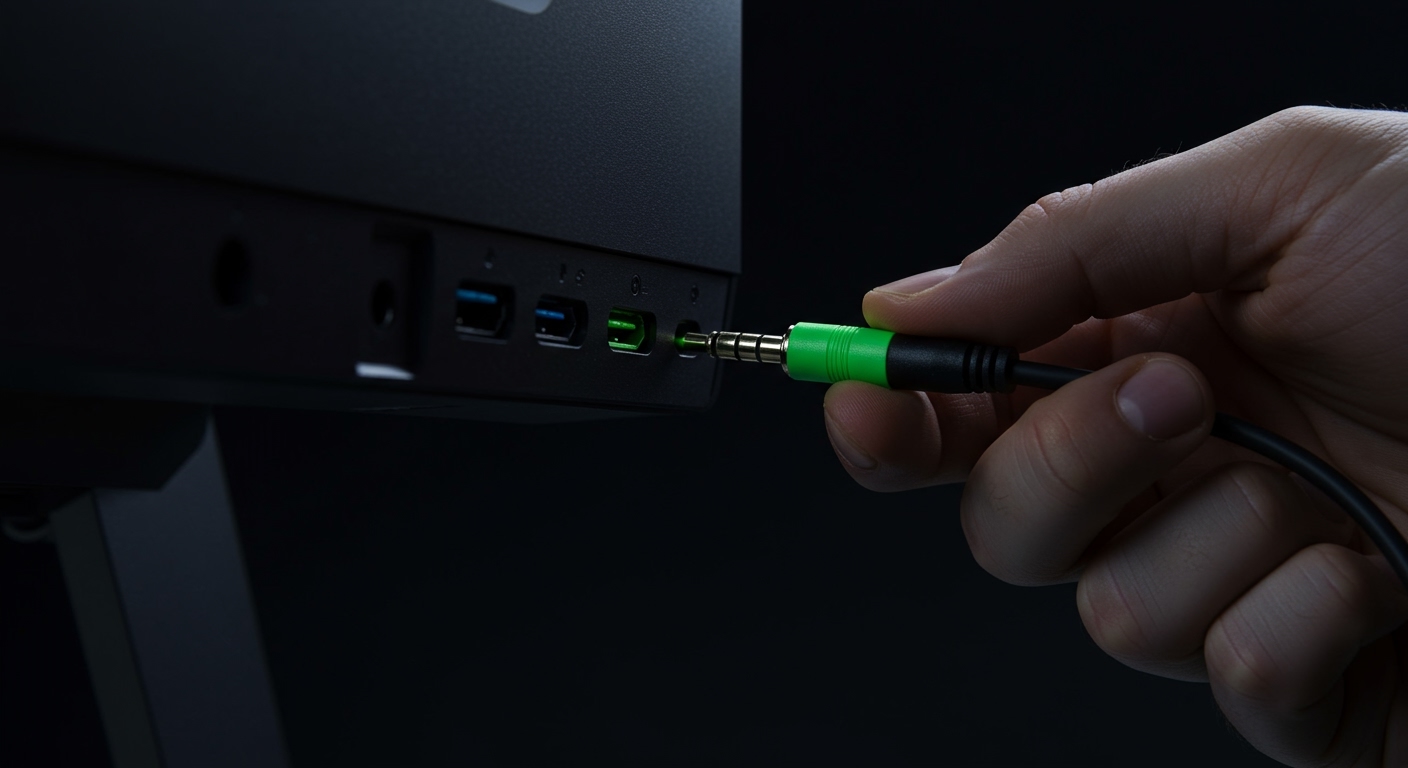
Look at the I/O panel on the back of your Acer monitor. You are looking for a port labeled Audio Out, Line Out, or a Headphone icon.
Note: Avoid the “Audio In” port (if present), which is used for older VGA connections to bring sound into the monitor.
Identifying Asus Monitor Ports
When learning how to connect speakers to asus monitor, notice that Asus often hides ports behind a removable plastic cover for cable management. Ensure you are plugging into the jack specifically designed for output to external devices.
Step 2: Physical Connection Procedures
1. Power down your devices. While not strictly required, it prevents loud “pops” that can damage speaker drivers during connection.
2. Insert the 3.5mm jack. Take the cable from your external speakers and plug it firmly into the monitor’s Audio Out port.
3. Connect to the PC. Ensure your computer is connected to the monitor via HDMI or DisplayPort. These cables are essential because they carry the digital audio signal that the monitor will eventually “hand off” to your speakers.
4. Power the speakers. Plug your speakers into a wall outlet or a USB port on your PC/Monitor for power.
Step 3: Configure Windows Sound Settings
Even with the wires correctly placed, you won’t hear sound until you tell your operating system how to use asus monitor speakers as the primary gateway.
Setting the Default Playback Device
- Right-click the Speaker Icon in the Windows Taskbar (bottom right).
- Select Sound Settings.
- Under the Output section, click on the dropdown menu.
- Select your monitor’s name (e.g., Acer XV272U or Asus TUF Gaming).
- Test the sound by adjusting the volume slider.
Expert Tip for Asus Users
If you are trying to figure out how to hook up speakers to asus monitor and the name doesn’t appear in the list, ensure your GPU drivers (NVIDIA/AMD) are updated, as they provide the “High Definition Audio” driver needed for HDMI sound.
Step 4: Adjusting the Monitor’s Internal Volume
A common mistake when learning how to connect external speakers to asus monitor is forgetting the monitor’s own internal volume control.
- Press the Menu button (Joystick or physical button) on your monitor.
- Navigate to the Audio or Sound tab.
- Ensure the Volume is set to at least 50-80%.
- Check that the Mute toggle is turned OFF.
Pro Insight: I always recommend setting the monitor’s internal volume to 80% and then using the physical knob on your external speakers to control the actual loudness. This prevents “signal clipping” and reduces background hiss.
Comparison: 3.5mm Jack vs. USB vs. Optical
When deciding how to connect external speakers to monitor, you might have multiple cable options. Here is how they compare in a real-world desk setup:
| Connection Type | Audio Quality | Ease of Use | Best For |
|---|---|---|---|
| 3.5mm Aux | Good (Analog) | Easiest | Standard Desktop Speakers |
| USB Connection | Excellent (Digital) | Moderate | High-end Gaming Headsets |
| Optical (Toslink) | Superior | Complex | Home Theater / Soundbars |
| Bluetooth | Variable | Wireless | Minimalist, Cable-free setups |
Advanced Strategy: Using a DAC/Amp with your Monitor
If you are an audiophile looking at how to use asus monitor speakers and find the quality lacking, the monitor’s internal digital-to-analog converter (DAC) might be the bottleneck.
To improve this, you can bypass the monitor’s audio port entirely. Connect a USB DAC directly to your PC, then connect your speakers to the DAC. This provides a cleaner signal than the monitor’s standard 3.5mm output, which can sometimes pick up electrical interference from the screen’s backlight.
Common Troubleshooting Steps
If you followed the steps on how to connect external speakers to acer monitor but still have silence, check these common failure points:
Check the Cable Seating: 3.5mm jacks can be stiff. Ensure the plug is pushed all the way in until it “clicks.”
Verify HDMI/DP Source: If you are using a VGA or DVI cable, these do not carry audio. You must use an additional 3.5mm “Audio In” cable from your PC to the monitor in this specific case.
Windows Privacy Settings: Sometimes, Windows updates can disable audio output to “unrecognized” displays. Check Settings > System > Sound > More sound settings to ensure the device is “Enabled.”
Monitor Sleep Mode: Some Asus monitors cut power to the audio jack when the screen enters power-saving mode. Adjust the Eco Mode in the OSD settings to prevent this.
Expert Advice: Cable Management for a Clean Setup
Connecting speakers to a monitor often leads to “cable spaghetti.” To keep your desk professional:
Use Velcro ties to bundle the speaker’s power and audio cables together.
Route the cables through the cable management hole in the Acer or Asus monitor stand.
USB Hub on the back of the monitor (if available) to save a port on your PC.
Frequently Asked Questions (FAQs)
Why is there no sound after connecting my speakers to my Acer monitor?
Most likely, the Playback Device in Windows is still set to “Realtek Audio” (your PC’s internal speakers) instead of the Acer Monitor HDMI. Change this in your sound settings. Also, ensure the monitor’s internal volume is not muted via the physical buttons.
Can I connect Bluetooth speakers to an Asus monitor?
Most Asus monitors do not have built-in Bluetooth transmitters. To use Bluetooth speakers, you should pair them directly with your PC or Laptop rather than the monitor. If you must connect to the monitor, you will need a 3.5mm Bluetooth Transmitter plugged into the monitor’s audio jack.
Does the 3.5mm jack on the monitor support microphones?
Generally, no. The jack on Acer and Asus monitors is a TRS Output only. It is designed to send sound out to speakers or headphones. If you have a headset with a microphone, you should plug it directly into the PC’s “Combo Jack” or use a USB adapter for microphone functionality.
Is the sound quality better if I plug speakers into the PC instead of the monitor?
Yes, usually. Plugging directly into the Motherboard or a dedicated Sound Card on your PC often provides a cleaner signal with less electrical noise than the pass-through port on a monitor. However, connecting to the monitor is much more convenient if you switch between multiple inputs (like a PC and a Console).
Conclusion
Learning how to connect external speakers to acer monitor or Asus displays significantly upgrades your media and gaming experience. By utilizing the 3.5mm Audio Out port and ensuring your Windows Playback Settings are correctly routed through HDMI or DisplayPort, you can achieve a seamless audio-visual setup.
Remember to prioritize active speakers for the best volume levels and always check your OSD settings if you encounter silence. For the best possible sound, consider a direct PC connection or a dedicated DAC, but for daily productivity and gaming, the monitor pass-through is a reliable and tidy solution.
Ready to upgrade your desk?** Check your monitor’s rear panel today and experience the difference that dedicated external audio can make!