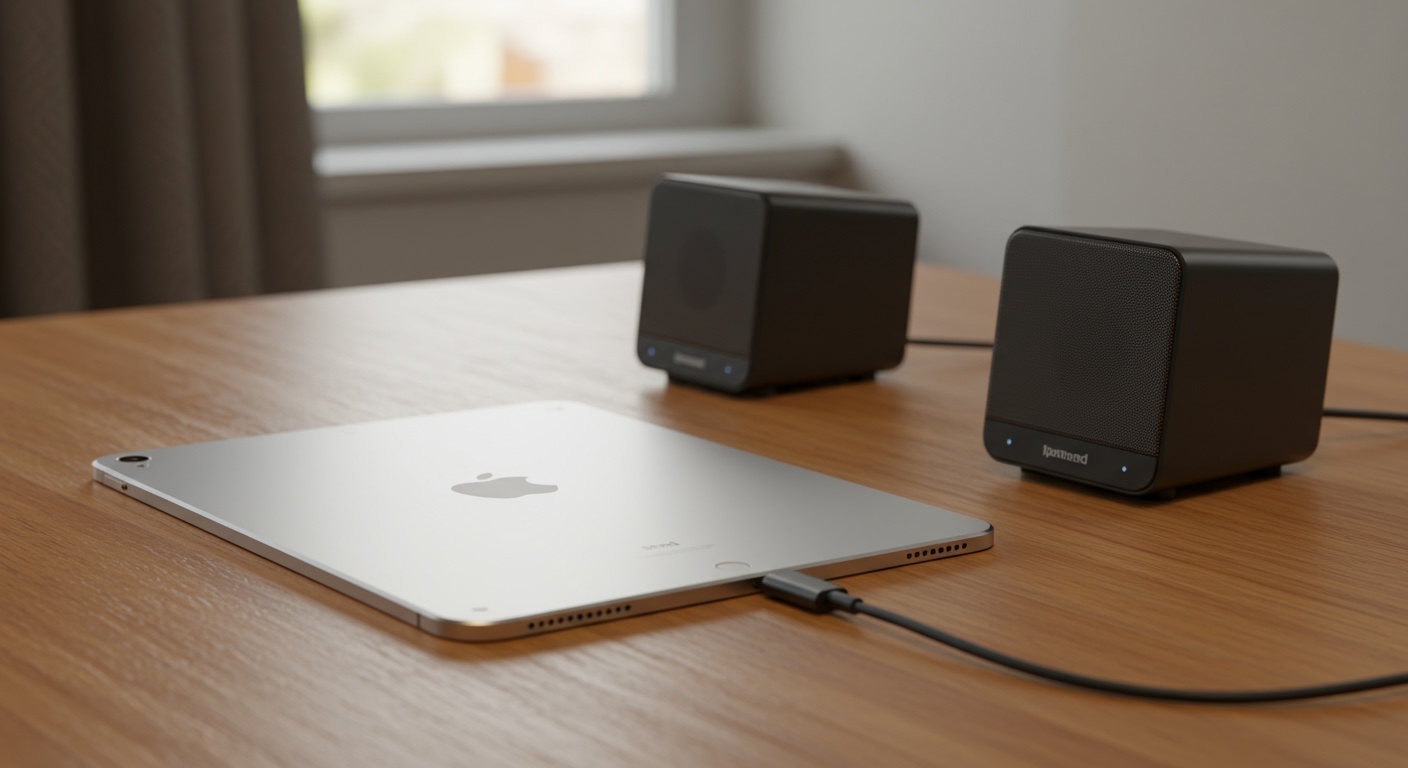
To how to connect external speakers to ipad, you can use three primary methods: Bluetooth for wireless convenience, a USB-C or Lightning to 3.5mm adapter for wired high-fidelity sound, or AirPlay 2 for Wi-Fi-based multi-room audio. Modern iPads lack a dedicated headphone jack, so most wired connections require a dongle or a USB-C hub to bridge the gap to your stereo speakers or headphones.
Key Takeaways for iPad Audio Connections
Best for Portability: Use Bluetooth settings to pair wireless speakers like JBL, Bose, or iHome.
Best for Sound Quality: Use a USB-C to 3.5mm Jack Adapter or an external DAC to eliminate wireless compression.
Best for Home Setup: Utilize AirPlay 2 to stream audio to Sonos or HomePod devices over Wi-Fi.
For Car Audio: Connect via Apple CarPlay, Bluetooth, or an FM transmitter if your vehicle is an older model.
Essential Tools for Connecting iPad to Speakers
Before you begin, identify which iPad model you own. The connection hardware varies significantly between the older Lightning port models and the modern USB-C versions (iPad Pro 2018+, iPad Air 4+, iPad Mini 6, and iPad 10th Gen).
| Connection Method | Required Accessories | Ideal Use Case |
|---|---|---|
| Wireless Bluetooth | None (Built-in) | Casual listening, travel speakers. |
| Wired USB-C | USB-C to 3.5mm Adapter | Studio monitors, wired headphones. |
| Wired Lightning | Lightning to 3.5mm Adapter | Older iPads, legacy car AUX ports. |
| Wi-Fi / AirPlay | AirPlay-compatible speaker | High-res home audio, multi-room. |
| Professional Audio | USB-C Hub or Audio Interface | Musicians, DJing, GarageBand. |
How to Connect iPad to Speakers Wireless via Bluetooth
Bluetooth is the most common way to connect ipad to wireless speakers. It offers a range of about 30 feet and is compatible with almost every modern portable speaker, including iHome speakers and Sony soundbars.
Step 1: Put Your Speaker in Pairing Mode
Enable pairing on your external device. Most speakers have a dedicated Bluetooth button that flashes a blue light when ready to connect. If you are trying to connect ipad to iHome speakers, hold the “Pair” button until the device beeps.
Step 2: Open iPad Bluetooth Settings
Navigate to Settings > Bluetooth on your iPad. Ensure the toggle is switched to On (Green). Your iPad will immediately start scanning for nearby “discoverable” devices.
Step 3: Select Your Device
Look for the name of your speaker under the “Other Devices” list. Tap the device name to initiate the handshake. Once the status changes to “Connected”, all audio from your iPad speakers will reroute to the external unit.
How to Connect iPad to Stereo Speakers (Wired)
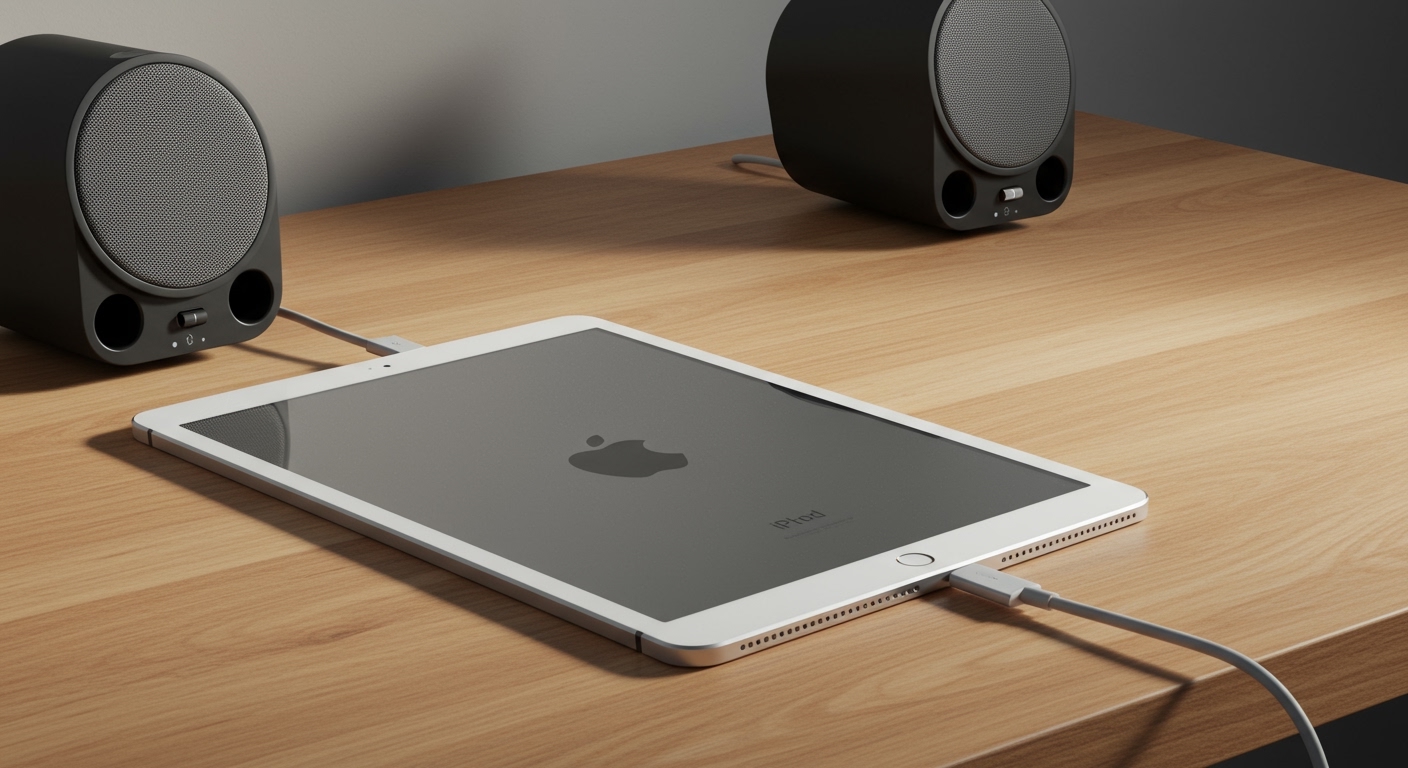
For audiophiles or music producers, a wired connection is superior because it avoids the “latency” (lag) and data compression found in Bluetooth. This is the definitive way to hook up external speakers to an ipad for a permanent home desk setup.
Step 1: Identify Your iPad Port
USB-C Port: Use an Apple USB-C to 3.5mm Headphone Jack Adapter.
Lightning Port: Use an Apple Lightning to 3.5mm Headphone Jack Adapter.
Headphone Jack (Old Models): Use a standard 3.5mm male-to-male AUX cable.
Step 2: Connect to the Stereo Receiver
If you are connecting to large stereo speakers, you likely need a 3.5mm to RCA cable (the red and white plugs). Plug the 3.5mm end into your iPad adapter and the RCA ends into the “Line In” or “AUX” ports on the back of your amplifier or receiver.
Step 3: Verify Audio Routing
Once plugged in, the iPad should automatically detect the “Headphones” output. Swipe down from the top-right corner to open the Control Center, tap the AirPlay icon (the triangle with circles), and ensure “Headphones” is selected as the active output.
How to Use iPad Speakers When Connected to Monitor
A common frustration occurs when you connect an iPad to an external monitor via HDMI. The iPad often defaults audio to the monitor’s (usually poor) speakers. Here is how to use ipad speakers when connected to monitor instead.
- Open Control Center: Swipe down from the top-right corner of your iPad screen.
- Access Media Controls: Tap the AirPlay icon in the top-right corner of the music playback tile.
- Manual Override: You will see the monitor listed as the primary output. Simply tap “iPad” to force the audio back to the internal iPad speakers while keeping the video on the big screen.
- Alternative: If you want the audio to go to a third device (like a Bluetooth speaker) while the video is on the monitor, select that speaker name from this same list.
Can I Connect iPad to Car Speakers?
Yes, you can connect ipad to car speakers using several different methods depending on your vehicle’s age and technology.
Apple CarPlay: If your car supports it, plug your iPad into the designated USB port. The iPad interface will appear on your dashboard, and audio will play through the car’s premium sound system.
Bluetooth Audio: Go to your car’s head unit settings, select “Add Phone/Device,” and pair it via the iPad’s Bluetooth menu.
AUX Input: Use a 3.5mm audio cable paired with the appropriate adapter (USB-C or Lightning) for your iPad. This is the most reliable method for older vehicles to avoid signal interference.
Expert Tips for Better iPad Audio
As an expert who has managed iPad-based DJ setups and home theaters, I recommend these professional adjustments to maximize your experience:
Disable “Reduce Loud Sounds”: Go to Settings > Sounds > Headphone Safety. Turn off “Reduce Loud Sounds” to ensure your external stereo speakers get a full-strength line-level signal.
Use Lossless Audio: If you use Apple Music, go to Settings > Music > Audio Quality and turn on Lossless Audio. This provides CD-quality sound when using wired connections.
Check Mono Audio: If one of your external speakers isn’t working, go to Settings > Accessibility > Audio/Visual and ensure Mono Audio is turned off so you get a full stereo field.
Power Management: When using a wired connection for long periods, use a USB-C Digital AV Multiport Adapter. This allows you to charge the iPad while outputting audio/video simultaneously.
Troubleshooting: iPad Speakers Not Connecting?
If you cannot turn on ipad speakers or get sound to your external device, try these fixes:
- Check the Silent Switch: While modern iPads use the Control Center, older iPads have a physical side switch that might be muting the system.
- Forget the Device: If Bluetooth is glitchy, go to Settings > Bluetooth, tap the “i” next to the speaker, and select “Forget This Device.” Then, re-pair from scratch.
- Clean the Port: Pocket lint in the USB-C or Lightning port is the #1 cause of wired connection failure. Use a non-metallic toothpick to gently clear debris.
- Update iPadOS: Apple frequently releases patches for audio driver compatibility. Ensure you are on the latest version of iPadOS.
Frequently Asked Questions (FAQs)
Can you connect iPad to wireless speakers without Bluetooth?
Yes, you can use AirPlay 2. This requires both the iPad and the speaker (like a HomePod or Sonos) to be on the same Wi-Fi network. AirPlay generally offers better range and higher audio quality than Bluetooth.
How do I turn on iPad speakers after disconnecting?
Normally, the iPad automatically reverts to internal iPad speakers once a cable is unplugged or Bluetooth is turned off. If it doesn’t, open the Control Center, tap the AirPlay icon, and manually select “iPad”.
Can you hook up external speakers to an iPad for GarageBand?
Yes, but for music production, avoid Bluetooth due to latency. Use a USB-C to 3.5mm adapter or, better yet, a USB Audio Interface (like a Focusrite Scarlett) connected via a USB-C Hub. This allows you to connect professional studio monitors.
Why is my iPad sound so quiet through external speakers?
Ensure the volume on both the iPad and the speaker itself is turned up. Additionally, check Settings > Sounds > Headphone Safety to ensure the “Loudness Limit” isn’t restricting the output voltage.
Will any USB-C speaker work with iPad?
Most USB-C speakers that are “Plug-and-Play” will work. However, some high-end speakers require specific drivers that iPadOS may not support. Stick to major brands like Logitech, Creative, or Apple-certified accessories for the best results.
Conclusion
Learning how to connect external speakers to ipad unlocks the full potential of your device as a media powerhouse. Whether you choose the wireless freedom of Bluetooth, the high-fidelity stability of a wired USB-C connection, or the sophisticated multi-room capabilities of AirPlay, the process is straightforward once you have the right adapters.
Ready to upgrade your sound? Check your iPad’s port type today and invest in a high-quality 3.5mm adapter or AirPlay 2 speaker to transform your listening experience from “tablet-thin” to “studio-rich.”
**