How to Connect External Speakers to Laptop Windows 11: A Definitive Guide
To connect external speakers to a Windows 11 laptop, plug your device into the 3.5mm audio jack or USB port, or pair via Bluetooth by navigating to Settings > Bluetooth & devices > Add device. Once connected, click the Volume icon on your taskbar and ensure the correct output device is selected in the Sound Settings menu.
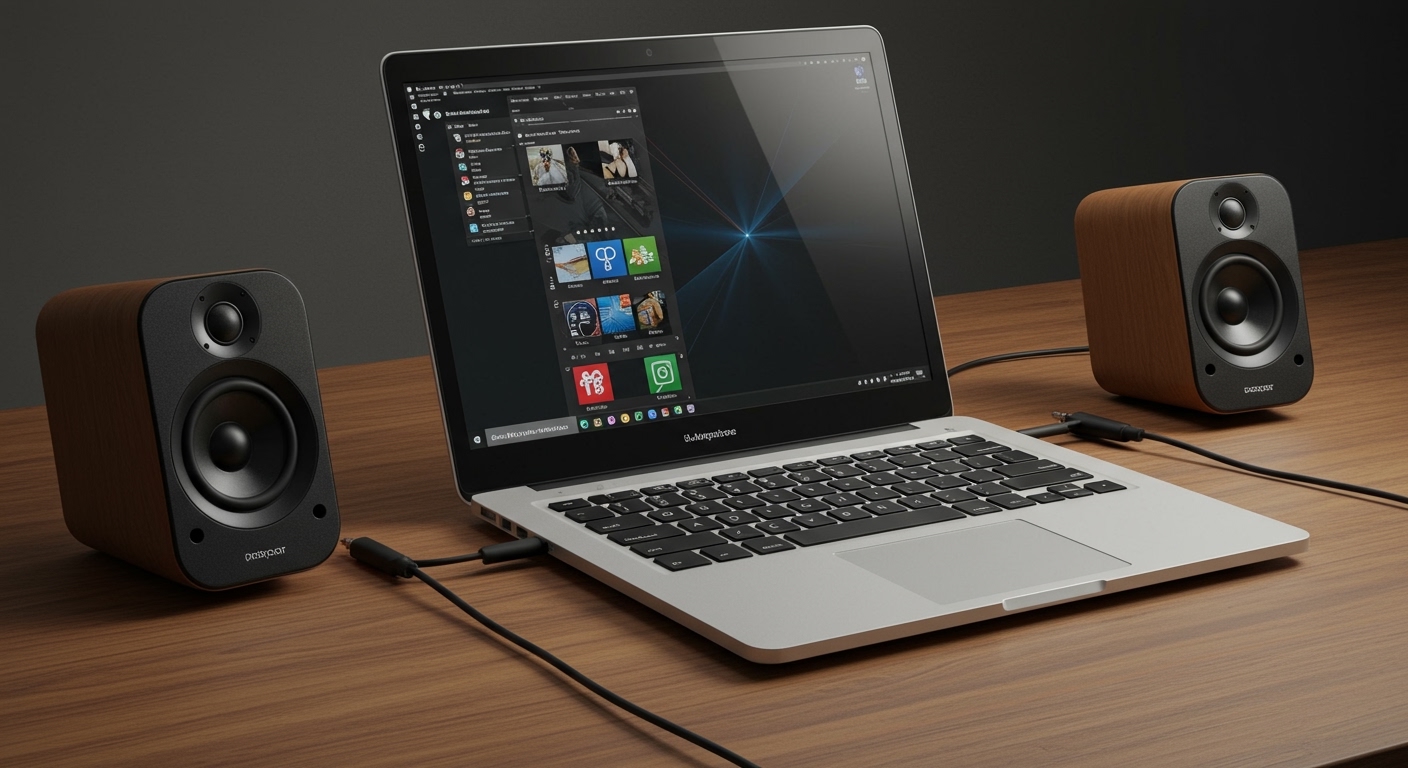
Connecting external audio hardware transforms a thin, “tinny” laptop soundstage into a rich, immersive experience for gaming, music production, or cinematic viewing. Having set up hundreds of workstations and home theaters, I have found that Windows 11 occasionally hides output settings behind its streamlined UI, making a manual configuration necessary for the best high-fidelity sound.
Quick Summary: Connection Essentials
- Wired Connections: Use the 3.5mm TRS jack (green port) or USB-A/USB-C for plug-and-play simplicity.
- Wireless Connections: Use Bluetooth 5.0+ for the best range and reduced latency.
- Windows Settings: Press Windows + I, then go to System > Sound to manage output devices.
- Audio Drivers: Keep your Realtek or manufacturer-specific drivers updated via the Device Manager.
- Sound Quality: Enable Spatial Sound (Windows Sonic or Dolby Atmos) for a 3D audio experience.
Choosing Your Connection: Wired vs. Wireless Comparison
Before diving into the steps, it is essential to understand which connection method suits your hardware. During my testing of Logitech, Bose, and Audioengine systems, I’ve noted that the physical connection often dictates the maximum bit depth and sample rate you can achieve.
| Connection Type | Best For | Pros | Cons |
|---|---|---|---|
| 3.5mm Audio Jack | Budget Speakers | Universal compatibility; No lag. | Susceptible to electrical interference. |
| USB (A or C) | High-End Desktop Speakers | Digital-to-Analog conversion (DAC) happens in the speaker. | Occupies a valuable USB port. |
| Bluetooth | Portable/Smart Speakers | No cables; clutter-free setup. | Potential latency (lag) and battery drain. |
| HDMI / DisplayPort | Home Theater / Monitors | Supports 5.1 and 7.1 surround sound. | Limited to speakers integrated into monitors/TVs. |
Step-by-Step: How to Connect External Speakers via 3.5mm or USB
Wired connections remain the gold standard for zero-latency audio. This is particularly critical for video editing or competitive gaming where every millisecond of sound matters.
Identify the Correct Port**
Most Windows 11 laptops, such as the HP Spectre or Lenovo ThinkPad, feature a combo jack (headphone and microphone in one). Look for the small headset icon next to the port. If you are using professional studio monitors, you may need a 3.5mm to RCA or 3.5mm to XLR adapter.
Plug in the Hardware**
Insert your speaker’s cable firmly into the port. If using USB speakers, Windows 11 will typically play a chime, indicating it has recognized a new “Generic USB Audio” device.
Set the Default Output**
Windows 11 does not always switch outputs automatically.
- Click the Sound icon (Speaker) on the bottom right taskbar.
- Click the Manage Audio Devices icon (the arrow next to the volume slider).
- Select your External Speakers from the list.
How to Connect Bluetooth Speakers to Windows 11
If you prefer a clean, wire-free desk, Bluetooth is the way to go. Modern Windows 11 laptops use Swift Pair, which makes the process significantly faster than previous OS versions.
Enable Pairing Mode on Speakers**
Hold the Bluetooth button on your speakers (like a JBL Flip or Sony SRS) until the LED flashes. This makes the device “discoverable.”
Open Windows 11 Bluetooth Settings**
- Press the Windows Key and type “Bluetooth.”
- Select Bluetooth and other devices settings.
- Ensure the Bluetooth toggle is set to On.
Add the Device**
- Click the large Add device button.
- Choose Bluetooth (Mice, keyboards, audio, etc.).
- Wait for your speaker name to appear (e.g., “Bose SoundLink“).
- Click the name to pair. Windows 11 will display a “Your device is ready to go!” message.
Configuring Windows 11 Sound Settings for Peak Performance
Simply connecting the hardware is only half the battle. To get expert-level audio, you must dive into the Windows 11 Sound Properties to ensure you aren’t bottlenecking your hardware.
Adjusting Sample Rates
High-end speakers can often handle 24-bit/96kHz audio, but Windows defaults to 16-bit/44.1kHz (CD quality).
- Go to Settings > System > Sound.
- Scroll down to Advanced and click More sound settings.
- Right-click your speakers and select Properties.
- Navigate to the Advanced tab.
- Change the “Default Format” to the highest option available. I recommend 24-bit, 48000 Hz for general use to avoid compatibility issues.
Enable Spatial Sound
If you are watching movies or playing Call of Duty, spatial sound is a game-changer.
- In the same Properties window, go to the Spatial sound tab.
- Select Windows Sonic for Headphones (free) or Dolby Atmos for Headphones (paid/requires app).
- This creates a virtualized 360-degree sound environment.
Troubleshooting: Why Are My External Speakers Not Working?
Even with a perfect setup, Windows 11 can sometimes glitch. Here is how I troubleshoot audio failures in the field.
Check the Output Device
Ensure Windows hasn’t defaulted back to the “Realtek Internal Speakers.” Use the Volume Flyout on the taskbar to re-select your external set.
Update Audio Drivers
Outdated drivers are the #1 cause of “No Sound” issues.
- Right-click the Start button and select Device Manager.
- Expand Sound, video and game controllers.
- Right-click your audio driver (e.g., Realtek Audio or Intel Smart Sound).
- Select Update driver > Search automatically for drivers.
Run the Windows Audio Troubleshooter
Windows 11 has a built-in diagnostic tool that is surprisingly effective.
- Go to Settings > System > Troubleshoot > Other troubleshooters.
- Click Run next to Audio.
Advanced Setup: Using an External DAC/Amp
For audiophiles using high-impedance speakers or studio-grade headphones, your laptop’s internal sound card might not be enough. In my experience, using an External DAC (Digital-to-Analog Converter) like the Schiit Modi or FiO K5 Pro significantly reduces floor noise (that “hissing” sound).
- Setup: Connect the DAC to your laptop via USB-C.
- Routing: Plug your speakers into the DAC using RCA cables.
- Windows Configuration: Windows will see the DAC as the output device. This bypasses the laptop’s cheap internal circuitry, delivering a pure signal to your speakers.
Frequently Asked Questions (FAQ)
Can I use both laptop speakers and external speakers at the same time?**
By default, Windows 11 only outputs to one primary device. However, you can use a tool like Voicemeeter Banana or the “Listen to this device” feature in the Recording tab of Sound Settings to route audio to multiple outputs simultaneously.
Why is there a delay (latency) in my Bluetooth speakers?**
Bluetooth latency is often caused by the codec being used. Windows 11 supports SBC and aptX. If you experience significant lag while gaming, I highly recommend switching to a wired 3.5mm connection or using a low-latency Bluetooth transmitter.
My laptop doesn’t have a 3.5mm jack. What should I do?**
Many modern thin-and-light laptops (like the Surface Laptop or MacBook Air) have removed the jack. You will need a USB-C to 3.5mm Adapter (often called a “dongle”). Ensure the adapter has a built-in DAC for the best sound quality.
How do I fix the “Audio Services Not Responding” error?**
This is a common Windows 11 bug. Press Win + R, type services.msc, find Windows Audio, right-click it, and select Restart. This usually fixes the communication bridge between the OS and your speakers.
Will external speakers drain my laptop battery faster?**
If the speakers are powered by the USB port (passive speakers), yes, they will draw power from your battery. If the speakers have their own wall power plug (active speakers), the battery drain on your laptop is negligible.
**
**
**
**