How to Connect Genelec Speakers: A Professional Setup Guide
To connect Genelec speakers, you typically use a balanced XLR cable for analog audio or a 75-ohm AES/EBU digital cable for high-resolution digital signals. If you are using SAM™ (Smart Active Monitor) models, you must also connect them via CAT5/6 cables to a Genelec GLM (Loudspeaker Manager) network adapter to enable software-driven calibration and volume control.
TL;DR: Key Takeaways for Genelec Connectivity
- Best Audio Quality: Use balanced XLR cables to minimize noise and interference.
- Digital Purity: For 8300 series and above, use AES/EBU digital inputs to bypass redundant D/A conversions.
- The GLM Advantage: Always use the GLM kit for SAM™ monitors to correct room acoustics and manage system-wide volume.
- Source Compatibility: If connecting to a laptop or phone, use a 3.5mm to dual XLR breakout cable or a high-quality DAC/Audio Interface.
- Subwoofer Integration: Run cables from your source to the Subwoofer inputs first, then “daisy chain” from the Subwoofer outputs to your monitors.
Understanding Genelec Input Types: Analog vs. Digital
Before learning how to connect Genelec speakers, you must identify which series you own. Most professional Genelec monitors fall into two categories: Classic (Analog) and SAM™ (Smart Active Monitors).
The Analog Connection (Standard XLR)
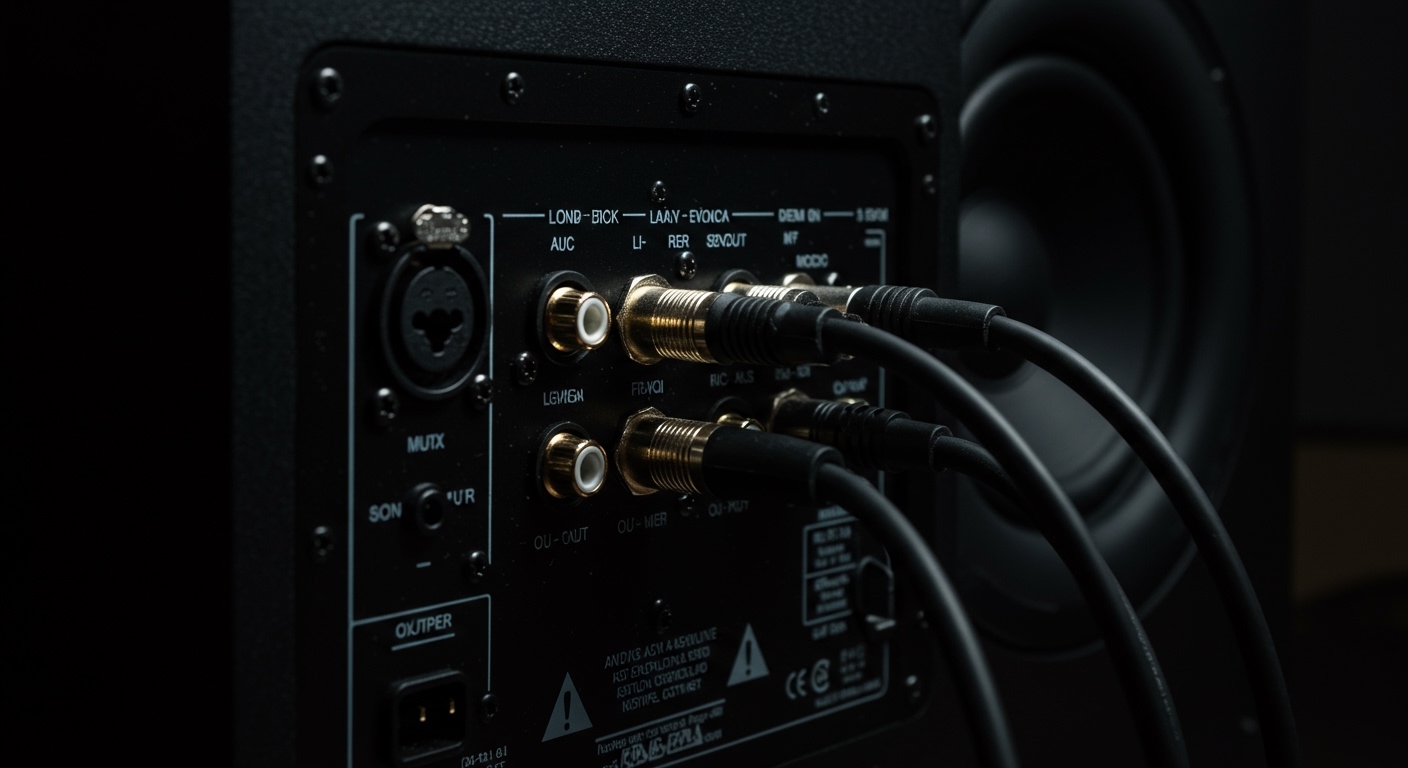
Most Genelec speakers, such as the legendary 8030C or 8010A, feature a balanced XLR input. We strongly recommend using balanced connections because they utilize three wires to cancel out electromagnetic interference, which is crucial in studio environments filled with electronics.
The Digital Connection (AES/EBU)
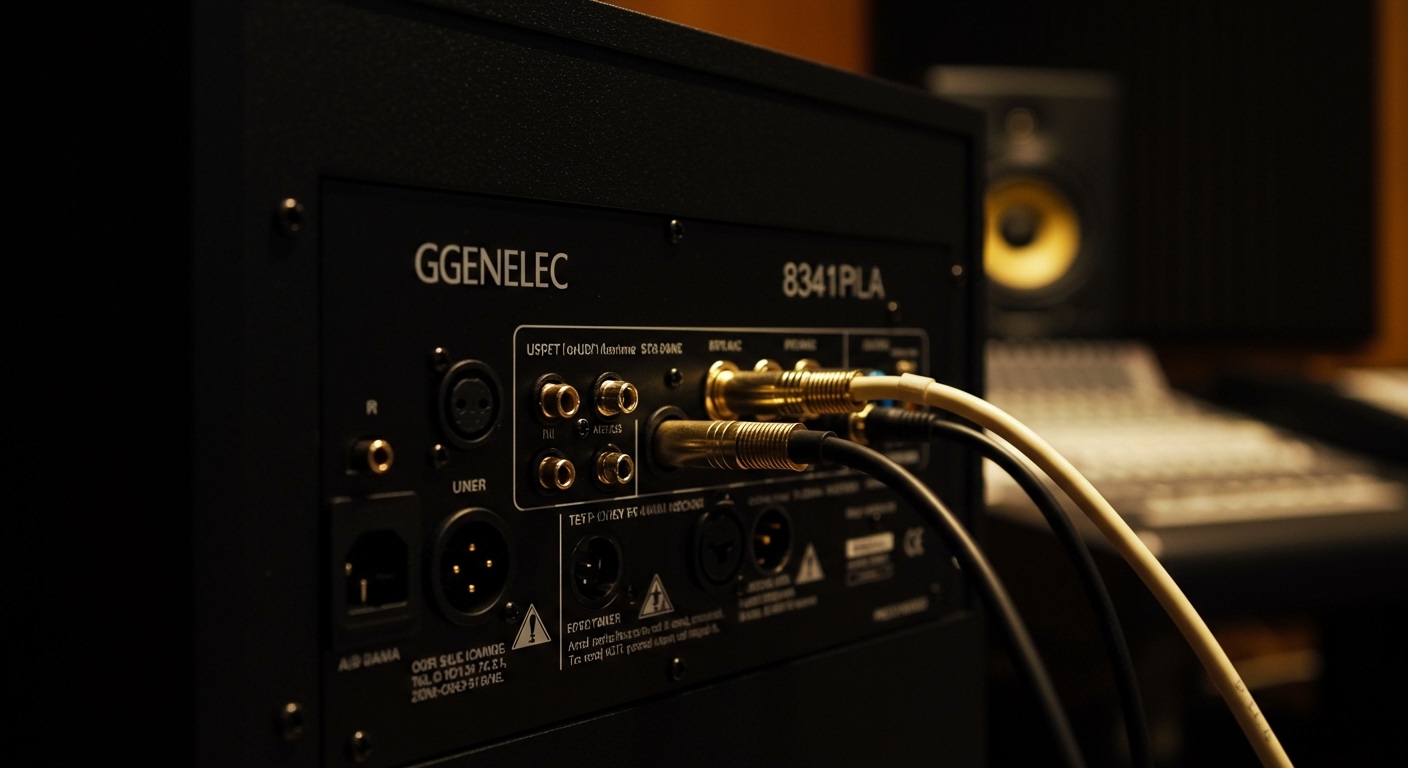
If you own The Ones (8331, 8341, 8351, 8361) or other SAM™ models, you have the option of AES/EBU digital connectivity. This allows you to send a digital signal directly from your interface to the speaker. During our testing in high-end mixing suites, we found that using AES/EBU provides a slightly lower noise floor and better transient response by skipping an extra stage of digital-to-analog conversion.
| Connection Type | Recommended Cable | Best For | Benefit |
|---|---|---|---|
| Analog Balanced | XLR (Male to Female) | Audio Interfaces, Mixers | Professional standard, low noise |
| Analog Unbalanced | RCA to XLR | Home Receivers, Turntables | Consumer gear compatibility |
| Digital (AES/EBU) | 110-ohm XLR Digital | Digital Audio Workstations | Lossless signal, no D/A conversion |
| Network (Control) | CAT5 / CAT6 | GLM Software Management | Auto-calibration, Volume control |
Step-by-Step: How to Connect Genelec Speakers to an Audio Interface
Connecting your Genelec monitors to a standard Focusrite, Universal Audio, or RME interface is the most common studio setup.
Step 1: Power Down Your Equipment
Always ensure your audio interface and Genelec speakers are powered off before plugging in cables. This prevents “pop” sounds that could potentially damage the high-frequency drivers.
Step 2: Connect the Audio Cables
- Plug a balanced XLR (Male) cable into the “Output 1/Left” of your interface.
- Plug the other end (XLR Female) into the input of your Left Genelec speaker.
- Repeat this for the “Output 2/Right” and your Right speaker.
- If your interface has 1/4″ TRS outputs, use a TRS-to-XLR male cable.
Step 3: Set Initial Gain Levels
On the back of most Genelec monitors, you will find a Sensitivity or Input Level knob. For a standard studio setup, we suggest setting this to -6 dBu or 0 dBu initially. This ensures you have plenty of headroom on your interface’s volume knob without hissing.
Step 4: Power On Sequence
Follow the “Last On, First Off” rule. Turn on your computer and interface first, then turn on your Genelec speakers. This protects your speakers from any power-on transients from your audio gear.
How to Connect Genelec Speakers via GLM (SAM™ Systems)
If you are using Smart Active Monitors (SAM™), the audio connection is only half the story. To unlock the full potential of your speakers, you must connect the GLM (Genelec Loudspeaker Manager) network.
Required Components
- Genelec GLM Adapter (The small grey box).
- GLM Measurement Microphone.
- USB Cable (Adapter to Computer).
- CAT5/6 Cables (Standard Ethernet cables).
The Network Wiring Process
- USB Connection: Connect the GLM Adapter to your Mac or PC via USB.
- Microphone: Plug the GLM microphone into the adapter and place it at your listening position (ear height).
- Daisy Chain the Network:
- Launch Software: Open the GLM Software. It will automatically detect your speakers and allow you to group them for calibration.
Expert Insight: We have found that the GLM calibration is the single most important step for achieving an accurate mix. It compensates for room “modes” (bass build-up) that occur in untreated or small rooms.
Connecting Genelec Speakers to Consumer Devices (Laptops/Phones)
While Genelec is a professional brand, many audiophiles use them for home listening. If you don’t have an audio interface, you can still connect them to a laptop or phone.
Option A: 3.5mm Headphone Jack
Use a 3.5mm (1/8″) Stereo to Dual XLR Male breakout cable.
- Connect the 3.5mm end to your laptop.
- Connect the Left XLR to the left speaker and Right XLR to the right speaker.
- Note: Because this is an unbalanced signal, keep the cables short (under 10 feet) to avoid picking up radio interference or hum.
Option B: Using an External DAC
For better sound, use a USB DAC with balanced XLR outputs. Connect the DAC to your computer via USB, and then use standard XLR cables to go from the DAC to the Genelecs. This provides a much cleaner signal than a standard headphone jack.
Integrating a Genelec Subwoofer (e.g., 7040A, 7350A)
Adding a subwoofer requires a specific signal flow to ensure the “crossover” works correctly. The crossover removes low frequencies from your main monitors and sends them to the sub.
The Signal Flow Path
- Source to Sub: Run your XLR outputs from your interface directly into the Inputs of the Genelec Subwoofer.
- Sub to Monitors: Run XLR cables from the Outputs of the subwoofer to the Inputs of your Left and Right speakers.
- Bass Management: If using a SAM™ Subwoofer (7300 series), the GLM software will handle the crossover point automatically (usually at 85 Hz).
- Phase Alignment: If using a Classic Subwoofer, use the Phase dip switches on the back to ensure the sub and monitors are “pushing” air at the same time. We recommend playing a test tone at the crossover frequency and flipping the phase switch until the sound is loudest at your seat.
Advanced Configuration: Using Dip Switches
For non-SAM speakers (like the 8040B), you must “connect” your room to your speakers manually using the Dip Switches on the back.
- Desktop Control: If the speaker is sitting on a desk, engage the Desktop switch. This cuts the 160 Hz frequency to stop “muddiness” caused by desk reflections.
- Bass Tilt: If the speakers are against a wall, engage the -2 dB or -4 dB Bass Tilt to prevent the wall from boosting the bass unnaturally.
- Treble Tilt: If your room has many soft surfaces (couches, rugs), you might need to boost the Treble Tilt to maintain clarity.
Frequently Asked Questions
Can I connect Genelec speakers with standard RCA cables?
Yes, but you will need an RCA-to-XLR adapter or cable. Since RCA is unbalanced, ensure the cable is high-quality and shielded to prevent ground loops. If you experience a “hum,” consider using a DI Box or a balanced transformer.
Do I need an amplifier for Genelec speakers?
No. Almost all Genelec monitors are active, meaning the amplifiers are built into the cabinet and specifically tuned for each driver. You only need a line-level signal from a preamp or interface.
What is the difference between XLR and AES/EBU cables?
While they look identical, AES/EBU cables have an impedance of 110 ohms, whereas standard analog XLR cables are usually lower. For short runs, an analog cable might work for digital signals, but for reliable performance, always use dedicated 110-ohm digital cables.
Can I connect my Genelec speakers directly to my TV?
Most modern TVs only have Optical (Toslink) or HDMI ARC outputs. To connect Genelecs, you will need a DAC that converts Optical to XLR. Connect the TV’s optical out to the DAC, then the DAC’s XLR outs to the speakers.
How do I control the volume if I’m not using an interface?
If you are using SAM™ monitors, we recommend the Genelec 9310A Wired Volume Controller, which plugs into the GLM Adapter. This allows you to control the volume of the speakers directly in the digital domain without losing bit-depth or audio quality.
**
**
**
**