How to Connect HDMI Speakers to TV: The Definitive Expert Guide
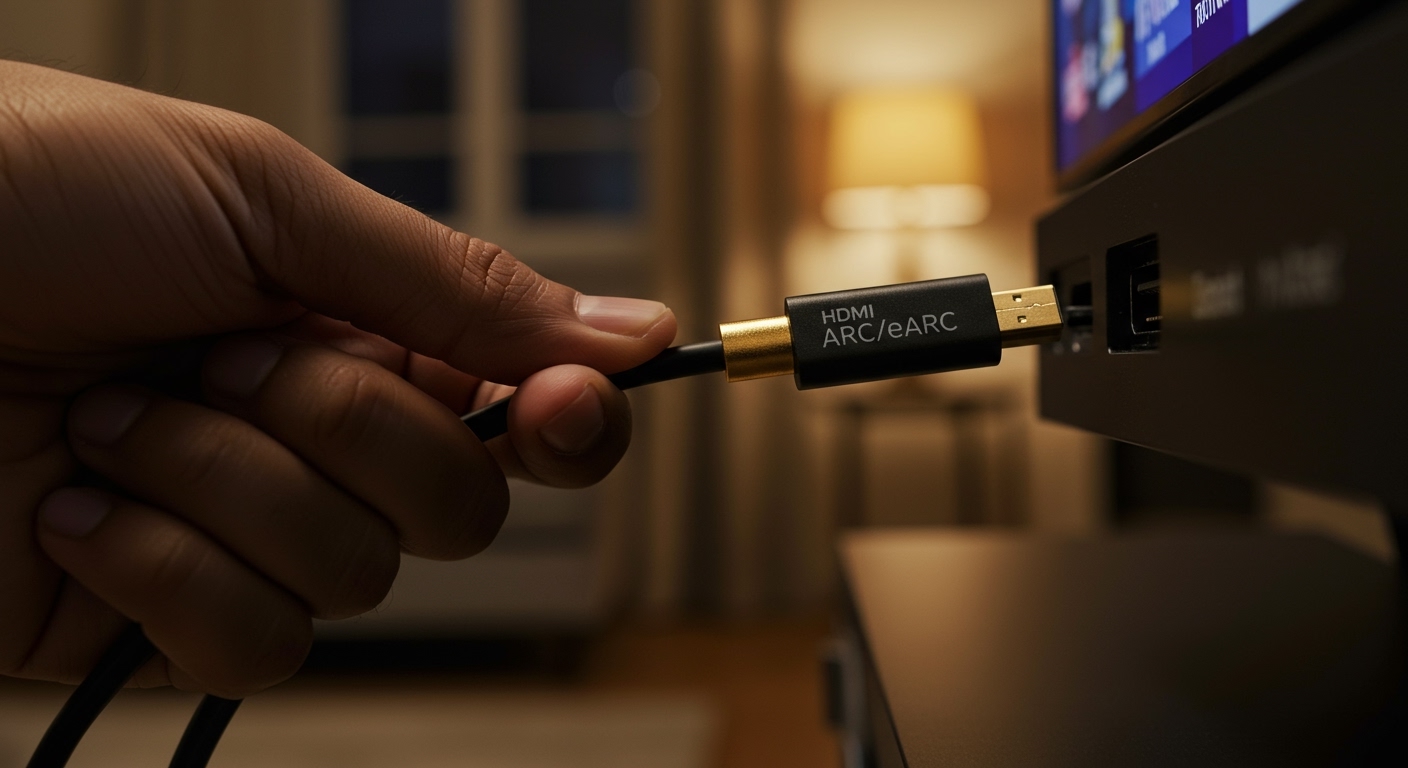
To connect hdmi speakers to tv, you must locate the HDMI ARC (Audio Return Channel) or eARC port on both your TV and your speaker system (soundbar or receiver). Simply plug a high-speed HDMI cable into these specific ports, enable HDMI-CEC in your TV settings, and switch the audio output to “External Speakers” to enjoy high-fidelity sound.
Key Takeaways for Quick Setup
Check for ARC/eARC: Always use the port labeled ARC or eARC for a single-cable audio solution.
Cable Quality Matters: Use an HDMI 2.0 or 2.1 cable to support high-bitrate formats like Dolby Atmos.
Enable CEC: Turn on HDMI-CEC (Anynet+, Bravia Sync, etc.) so your TV remote can control speaker volume.
Audio Format: Set your TV’s digital output to Pass-through or Bitstream for the best surround sound experience.
Essential Tools and Materials Needed
Before you begin the process of how to connect speakers to tv hdmi, ensure you have the correct hardware. Using the wrong cable version is the #1 reason for “no sound” issues in modern home theaters.
| Tool/Material | Requirement | Why It’s Necessary |
|---|---|---|
| HDMI Cable | Version 2.0 or 2.1 | Supports 4K HDR and uncompressed audio (eARC). |
| TV with ARC/eARC | Check the back panel | Allows the TV to send audio back to the speakers. |
| HDMI Speakers | Soundbar or AV Receiver | Must have an HDMI Input or ARC Output. |
| HDMI Extractor | Optional (for older monitors) | Splits audio from HDMI if the monitor lacks an audio out. |
Step 1: Identify the Correct HDMI Ports
Not all HDMI ports are created equal. If you are looking at how to connect tv to speakers using hdmi, the first thing I recommend is inspecting the labels on the back of your devices.
Locate the HDMI ARC/eARC Port
Most modern TVs have 3 to 4 HDMI ports, but usually, only one supports audio return. Look for the text “ARC” or “eARC” printed next to the port.
Expert Insight: If you have the choice, always prefer eARC (Enhanced Audio Return Channel). In my experience, eARC provides significantly higher bandwidth, allowing for 24-bit/192kHz audio and Dolby Atmos without compression, which standard ARC cannot handle.
Check the Speaker Input
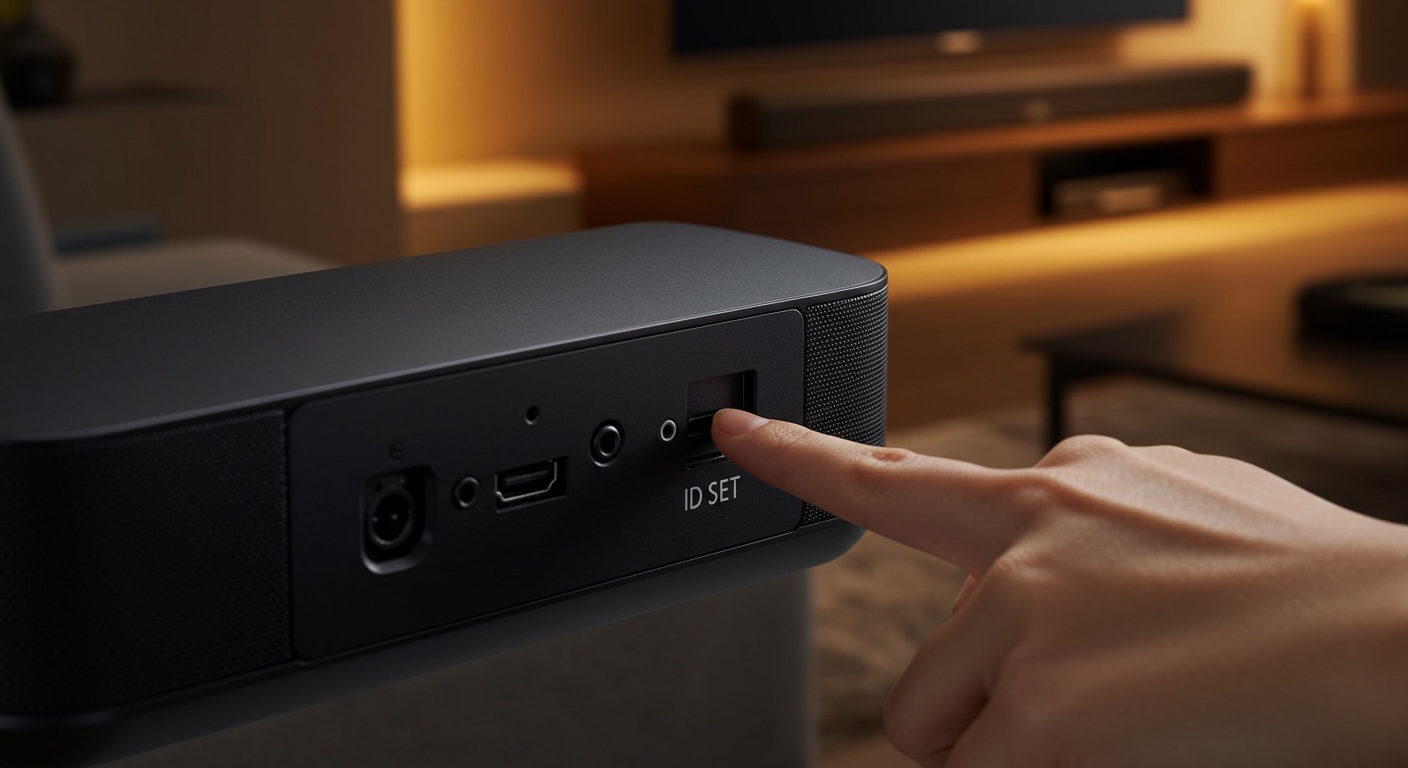
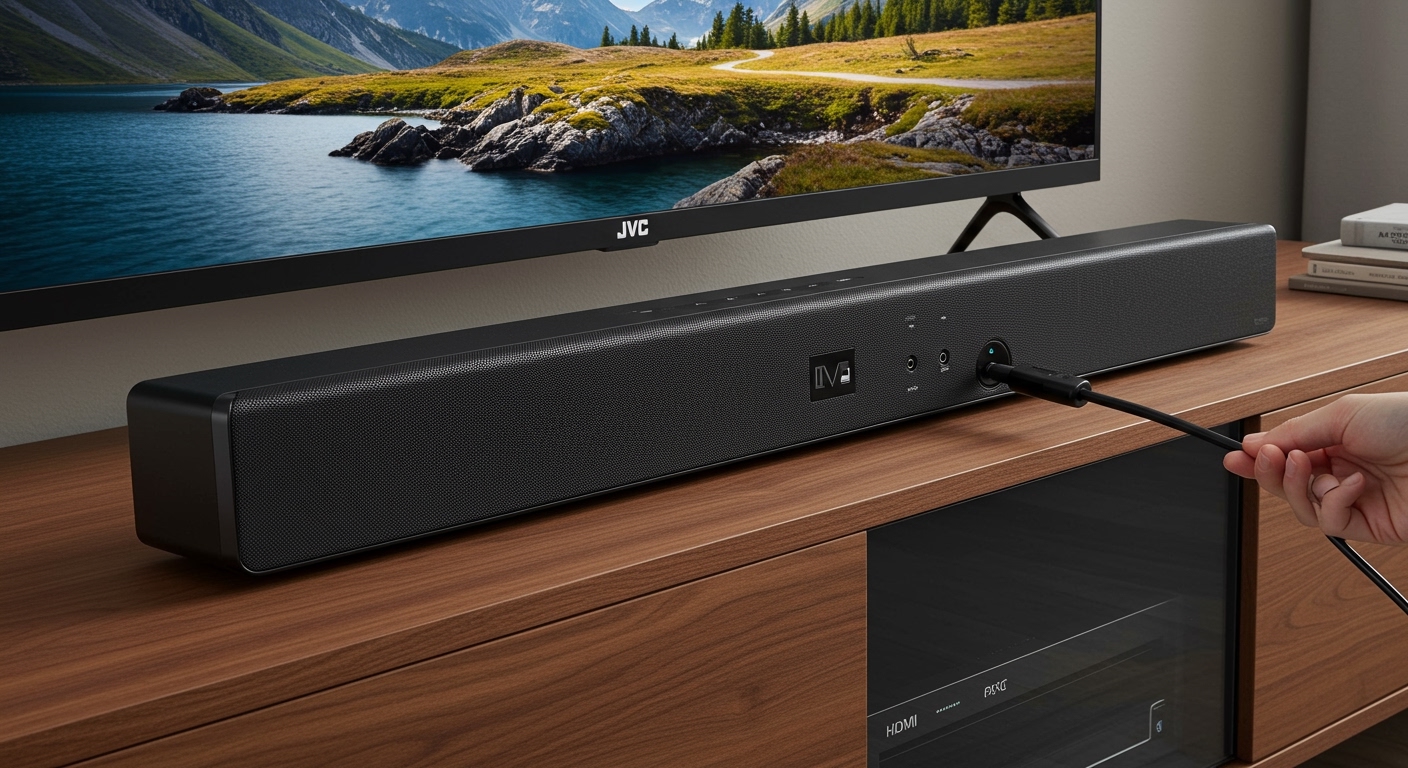
On your soundbar or AV receiver, you will see “HDMI IN” and “HDMI OUT (ARC)”. To connect speakers to tv via hdmi, you will actually connect the cable to the HDMI OUT (ARC) port on the speaker system, which then goes to the HDMI ARC port on the TV.
Step 2: Physical Connection and Cable Management
Once you have identified the ports, it is time to physically hook up computer speakers to tv with hdmi or connect your dedicated home theater system.
- Power off both devices: This prevents “HDMI handshake” errors during the initial connection.
- Plug in the cable: Insert one end into the TV’s HDMI ARC/eARC port.
- Connect to speakers: Insert the other end into the HDMI ARC/eARC Output on your soundbar or receiver.
- Secure the cable: Ensure the cable is not bent at sharp angles, as this can degrade the digital signal.
Pro Tip: If you are wondering can speakers connect with hdmi directly without a receiver, the answer is yes—but only if they are active/powered speakers with a built-in HDMI board. Most passive bookshelf speakers still require an intermediate amplifier.
Step 3: Configure TV Audio Settings
The physical connection is only half the battle. You must tell the TV to stop using its internal drivers and start using tv speakers with hdmi cable (meaning the external system).
Change the Audio Output Path
Navigate to your TV’s Settings > Sound > Sound Output. Select Receiver (HDMI) or HDMI ARC.
Enable HDMI-CEC
This is the “magic” setting that allows your devices to talk to each other. Every brand calls it something different:
Samsung: Anynet+
LG: SimpLink
Sony: Bravia Sync
Vizio: CEC
By enabling this, your speakers will turn on and off automatically with your TV. This is the most common step skipped by beginners, leading to frustration when the remote doesn’t work.
Step 4: Troubleshooting Common HDMI Audio Issues
Even if you know how to use speakers with hdmi, digital signals can be finicky. Here is how I solve the most common “silent speaker” problems.
The “No Sound” Checklist
Update Firmware: Check for updates on both your Smart TV and your Soundbar. I’ve seen firmware patches fix 90% of eARC connection drops.
PCM vs. Bitstream: If you get no sound or “static,” go to Expert Sound Settings and change the format to PCM for stereo or Digital/Bitstream for surround.
Cycle the Power: Unplug both devices from the wall for 60 seconds. This forces a fresh HDMI handshake.
How to Use TV Speakers When Connecting Laptop HDMI
Sometimes you want the opposite—to use tv speakers with hdmi while your laptop is the source.
Speaker Icon in the taskbar.
How to Connect Speakers to Monitor with HDMI
Connecting audio to a computer monitor is slightly different because many monitors lack an ARC port. If you want to know how to use monitor speakers hdmi or connect external ones:
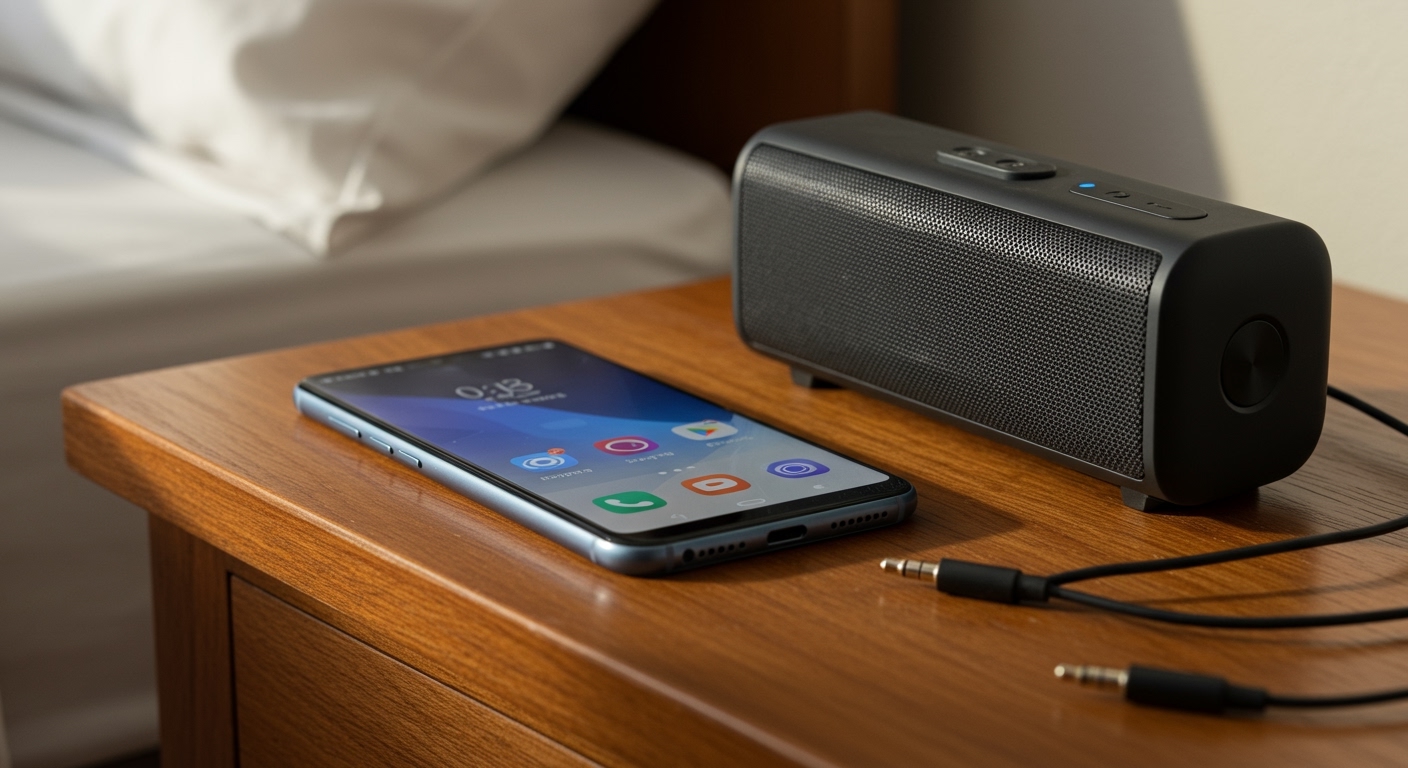
- Use the 3.5mm Out: Most monitors have a “Headphone Out” jack. You can run the HDMI from your PC to the monitor, then a 3.5mm cable from the monitor to your speakers.
- HDMI Audio Extractor: If your monitor has no audio out, buy an HDMI Audio Extractor. This device sits between your PC and monitor, “peeling off” the audio signal to Optical or RCA for your speakers.
- Direct Connection: If your speakers are USB or Bluetooth, it is often better to connect them directly to the PC rather than trying to connect hdmi to speakers via the monitor.
Advanced Expert Advice: Maximizing Audio Quality
As someone who has calibrated dozens of home theaters, I cannot stress enough the importance of the HDMI 2.1 standard.
Why eARC is a Game Changer
Standard HDMI ARC is limited to compressed 5.1 audio. If you are using high-end speakers, you are losing detail. eARC supports:
Object-based audio: Dolby Atmos and DTS:X.
Lip-sync correction: Automatically aligns the audio with the video on screen.
Uncompressed 7.1: Pure, lossless sound.
Avoiding Interference
Keep your HDMI cables away from power strips and high-voltage power cables. Digital signals can suffer from EMI (Electromagnetic Interference), causing “audio dropouts” where the sound cuts out for a second every few minutes.
FAQs: Everything You Need to Know About HDMI Audio
Can you connect speakers using hdmi out?
Yes, but the terminology is often confusing. You connect the HDMI ARC/eARC Output of a soundbar to the HDMI ARC Input of a TV. This creates a two-way street where the speaker can receive audio from the TV while also sending a video signal (like from a built-in Blu-ray player) to the TV.
How to use tv speakers with hdmi if there is no ARC port?
If your TV lacks an ARC port, you cannot use a single HDMI cable for audio return. You will instead need to use an Optical (Toslink) cable or an RCA (Red/White) cable to send the sound from the TV to the speakers.
Does the length of the HDMI cable affect speaker quality?
For standard home setups (under 15 feet), no. However, if you are running a cable over 25 feet to a projector or distant speakers, I recommend using an Active HDMI cable or a Fiber Optic HDMI cable to prevent signal degradation and “sparkles” in the audio/video.
Why are my speakers not showing up as an option in the TV menu?
This is usually caused by a disabled CEC (Consumer Electronics Control) setting. Ensure the TV’s CEC is “On” and that the speakers are set to the “HDMI” or “TV” source mode.
Can I use a regular HDMI cable for ARC?
You need at least a High-Speed HDMI cable (Version 1.4) for basic ARC. For eARC and high-resolution audio, you must use an Ultra High-Speed HDMI cable (Version 2.1).
Conclusion: Elevate Your Home Audio Today
Learning how to connect hdmi speakers to tv is the single best upgrade you can make for your home entertainment experience. By utilizing the HDMI ARC/eARC protocol, you simplify your cable management and unlock the potential of high-definition audio formats like Dolby Atmos.
Final Checklist:
- Use a Version 2.0+ cable.
- Plug into the ARC/eARC labeled ports.
- Enable CEC in your TV settings.
- Set audio output to Bitstream/Pass-through.
Ready to upgrade your sound? Check your TV’s manual to see if it supports eARC and start experiencing cinema-quality audio in your living room today!