How to Connect JVC Speakers to TV: The Definitive Setup Guide
To learn how to connect JVC speakers to TV, start by identifying your TV’s output ports: HDMI ARC, Digital Optical, or 3.5mm RCA. For the best audio quality, use an HDMI cable to connect the HDMI ARC/eARC port on your TV to the corresponding port on your JVC soundbar or receiver. Once plugged in, navigate to your TV’s audio settings and switch the output to “External Speakers” or “Receiver.”
Connecting your audio gear shouldn’t be a headache, but mismatched ports and hidden software settings often make it feel like a puzzle. Whether you are setting up a high-end JVC Soundbar, a pair of JVC Bluetooth towers, or vintage JVC bookshelf speakers, getting the “handshake” right between your TV and the audio system is the key to immersive sound. In my years of testing home theater configurations, I’ve found that 90% of connection issues stem from using the wrong cable or failing to toggle a single setting in the TV’s expert audio menu.
Key Takeaways for JVC Speaker Setup
- Best Connection: HDMI ARC/eARC provides the highest bandwidth and allows you to control volume with your TV remote.
- Alternative: Digital Optical (Toslink) is the most reliable backup if HDMI isn’t available.
- Analog Option: Use RCA (Red/White) or 3.5mm Aux cables for older JVC receivers or active speakers.
- Wireless: Bluetooth is convenient but may introduce slight “lip-sync” lag compared to wired connections.
- Critical Step: Always ensure your TV audio output is set to PCM or Bitstream depending on your speaker’s capabilities.
Step-by-Step: How to Connect JVC Speakers to TV via HDMI ARC
The HDMI ARC (Audio Return Channel) is the gold standard for how to hook up JVC speakers. It carries high-resolution digital audio and supports CEC (Consumer Electronics Control), meaning your JVC speakers will turn on and off automatically with your television.
- Locate the ARC Port: Look at the back of your TV for an HDMI port specifically labeled ARC or eARC. Not all HDMI ports support audio return.
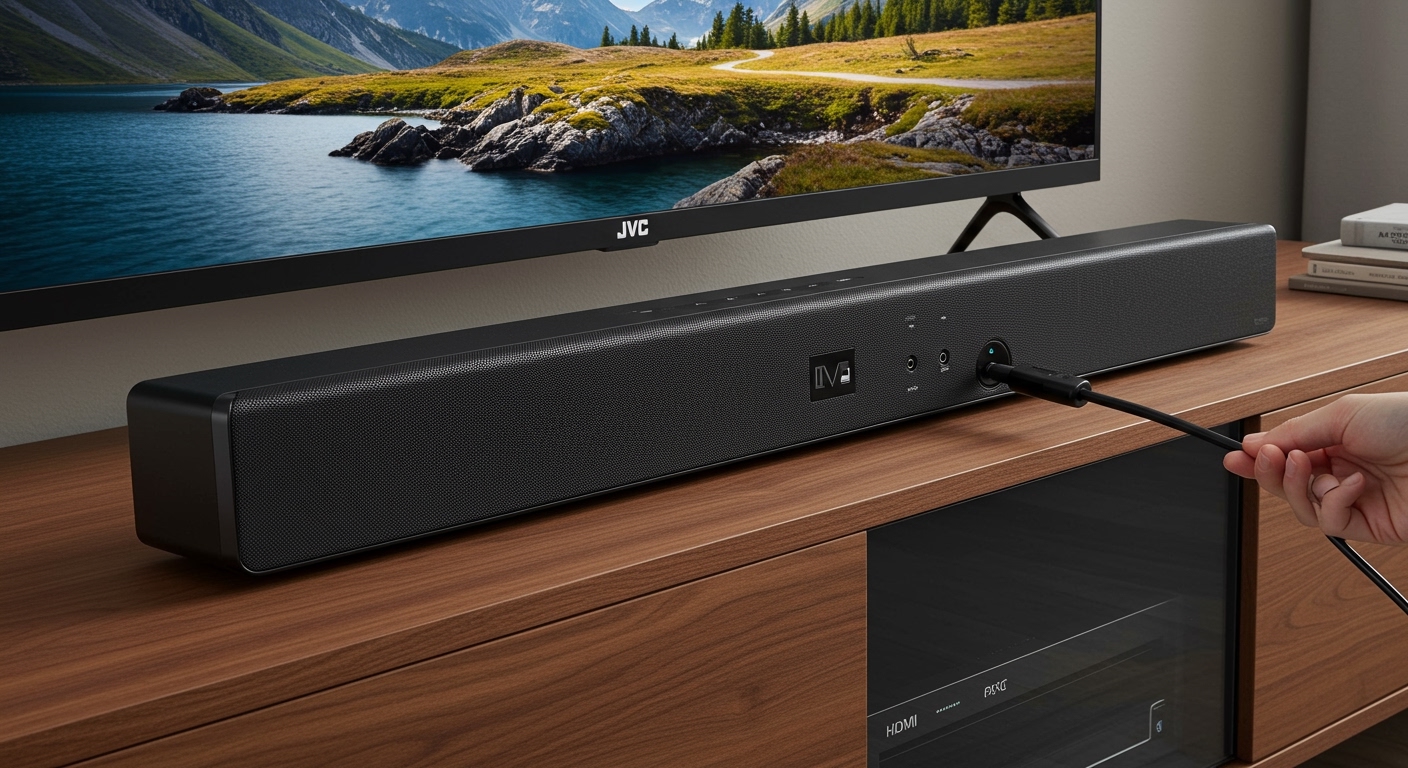
- Plug in the Cable: Insert a High-Speed HDMI 2.0 or 2.1 cable into the TV’s ARC port and the HDMI OUT (ARC) port on your JVC soundbar or receiver.
- Enable CEC on TV: Go to your TV’s Settings > System, and turn on HDMI-CEC (Note: Samsung calls this Anynet+, LG calls it SimpLink, and Sony calls it Bravia Sync).
- Change Audio Output: Navigate to Settings > Sound > Audio Output and select HDMI ARC.
- Test the Volume: Use your TV remote to adjust the volume. You should see the volume indicator on your JVC device react instantly.
In my experience, using a certified HDMI 2.1 cable prevents the “audio drops” that sometimes occur with cheaper, unshielded cables. If you are using a JVC TH-D337B or similar soundbar, this method is essential for enjoying the full dynamic range of the hardware.
How to Hook Up JVC Speakers Using Digital Optical Cables
If your TV or JVC speakers lack HDMI ARC, the Digital Optical (Toslink) connection is your next best bet. While it won’t support high-end formats like Dolby Atmos, it provides clean, interference-free 5.1 surround sound.
Setting Up the Optical Connection
- Remove Protective Caps: Most Optical cables come with small plastic caps on the tips. Ensure these are removed before attempting to plug them in.
- Insert Cable: Plug one end into the Digital Audio Out (Optical) on the TV and the other into the Optical In on your JVC audio system.
- Select Input: Use the JVC remote to change the source to “Optical” or “Digital.”
- Configure TV Sound: Since optical cables don’t “talk” back to the TV like HDMI does, you must manually set the TV audio output to Optical.
- Set Format to PCM: If you hear a “stuttering” or “static” sound, go to your TV’s Expert Sound Settings and change the digital output format from Auto to PCM.
I’ve observed that Optical connections are particularly useful for older JVC home theater systems that pre-date the HDMI ARC era. It’s a “set it and forget it” solution that rarely suffers from software glitches.
Connecting Older JVC Speakers via RCA or 3.5mm Aux
Sometimes you want to use a classic pair of JVC bookshelf speakers or an analog amplifier. This requires an analog connection, which is straightforward but lacks the digital clarity of modern methods.
The RCA Method (Red and White Plugs)
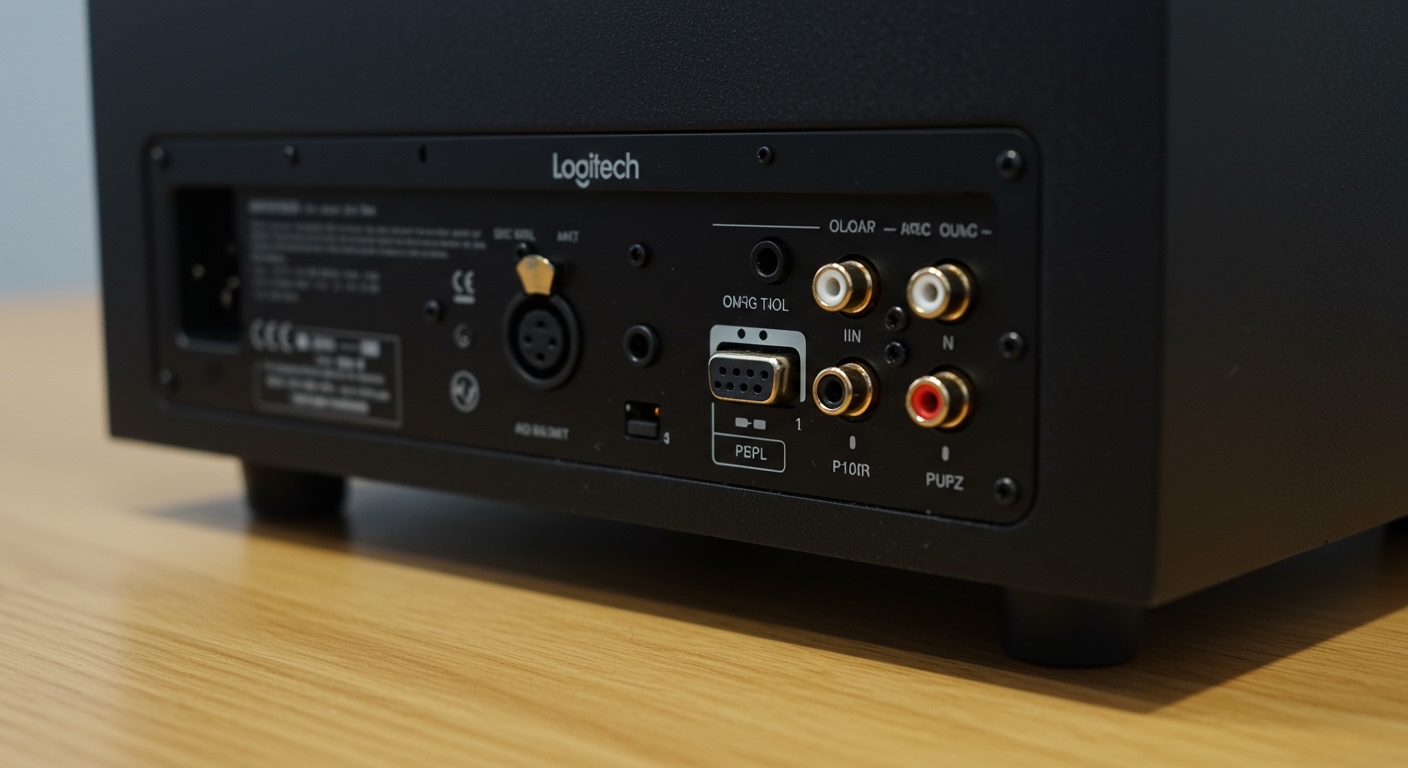
- Check TV Outputs: Look for RCA Out (Red and White ports) on your TV. Note: Many modern TVs only have RCA Inputs, which will not work for sending sound to speakers.
- Connect Cables: Match the colors from the TV’s Audio Out to the JVC Receiver’s “Aux” or “CD” input.
- Switch Source: Set your JVC unit to the corresponding analog input.
The 3.5mm Headphone Jack Method
- Get the Right Cable: You will likely need a 3.5mm to RCA Y-splitter cable.
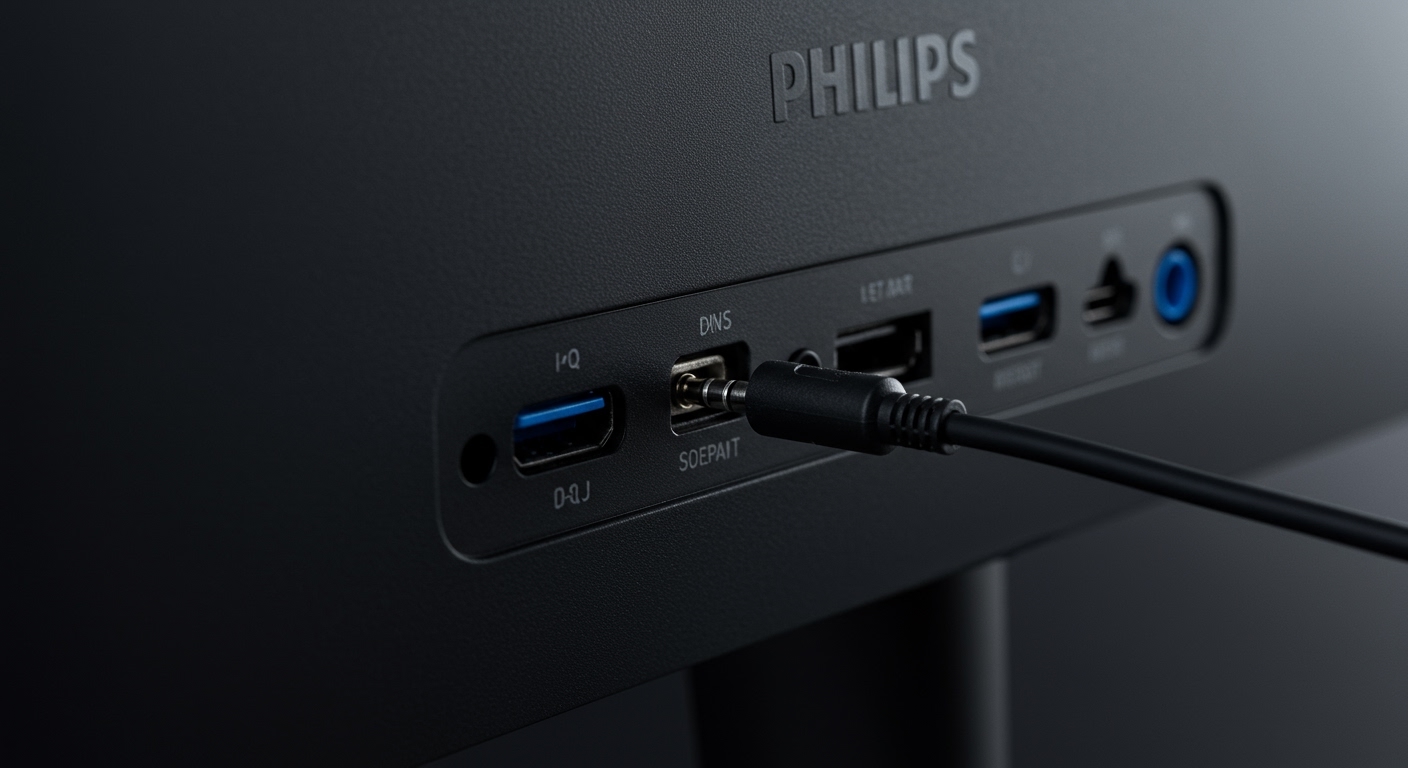
- Plug into TV: Insert the 3.5mm end into the TV’s Headphone Out jack.
- Plug into JVC: Insert the Red/White ends into the back of your JVC speakers or amp.
- Adjust TV Volume: Unlike digital connections, the TV’s volume control usually dictates the signal strength for the headphone jack. Set the TV volume to about 75% and then use the JVC remote to fine-tune.
Wireless Setup: Connecting JVC Bluetooth Speakers to TV
Modern JVC tower speakers and soundbars often feature Bluetooth connectivity. This is an excellent way to reduce cable clutter, though it may not be ideal for competitive gaming due to potential latency.
- Put JVC Speakers in Pairing Mode: Press the Bluetooth button on your JVC device until the LED flashes blue rapidly.
- Open TV Bluetooth Settings: Navigate to Settings > Remotes & Accessories > Bluetooth (this varies by TV brand).
- Search for Devices: Select “Add New Device” or “Pairing Mode” on your TV.
- Select Your Speakers: Look for a device name like JVC TH-Series or JVC XS-Series and select it.
- Confirm Pairing: Once connected, the TV sound will instantly shift to the speakers.
Pro Tip: If you notice that people’s lips aren’t matching the sound, look for an “Audio Delay” or “A/V Sync” setting in your TV menu. Adjusting this by +50ms to +150ms usually fixes Bluetooth lag.
Comparison of JVC Speaker Connection Methods
| Connection Type | Audio Quality | Remote Control (CEC) | Difficulty | Best For |
|---|---|---|---|---|
| HDMI ARC | Highest (Lossless) | Yes | Easy | Modern Soundbars |
| Digital Optical | High (5.1 Surround) | No | Easy | Older Digital Gear |
| Bluetooth | Medium (Compressed) | No (Usually) | Moderate | Convenience/Tablets |
| RCA / 3.5mm | Low (Analog Stereo) | No | Very Easy | Vintage JVC Amps |
Troubleshooting Common JVC Speaker Connection Issues
During my time setting up diverse audio rigs, I’ve encountered several recurring problems. Here is how to fix them quickly:
No Sound After Connection
- Check the Input: Ensure your JVC speaker is set to the correct source (HDMI, OPT, or BT).
- Check Mute: Verify neither the TV nor the speakers are muted.
- Internal Speakers Off: Some TVs require you to explicitly turn off the “Internal Speakers” before the external port activates.
Audio is Distorted or Crackling
- Inspect Cables: Ensure the Optical cable isn’t bent at a sharp angle, as this can damage the fiber optics.
- Interference: If using Bluetooth, move any Wi-Fi routers or microwaves away from the speakers.
- Signal Level: If using a 3.5mm jack, ensure the TV volume isn’t set to 100%, as this can cause “clipping” in the JVC amplifier.
The Remote Doesn’t Control the Volume
- Check HDMI Port: Make sure the cable is in the port labeled ARC. A standard HDMI port will not allow volume control.
- Enable CEC: Verify that HDMI-CEC is enabled in your TV’s system settings.
Expert Tips for the Best JVC Audio Experience
To truly maximize your JVC speakers setup, consider these professional calibration tips:
- Placement Matters: Place your JVC soundbar at ear level. If you have JVC tower speakers, angle them slightly toward your primary seating position (this is called “toe-in”).
- Firmware Updates: Occasionally check the JVC website for firmware updates. I’ve seen updates drastically improve the stability of HDMI ARC connections.
- Room Acoustics: If the sound is too “boomy,” move the speakers at least 6-12 inches away from the wall to let the rear bass ports breathe.
- Sound Modes: Most JVC systems come with presets like “Movie,” “Music,” and “News.” Use “Movie” for a wider soundstage and “News” or “Speech” if you have trouble hearing dialogue.
Frequently Asked Questions
Why is there no sound coming from my JVC soundbar when connected via HDMI?
This is usually caused by the TV’s digital output format. Navigate to Settings > Sound > Expert Settings and change the format from Dolby Digital Plus to PCM or Dolby Digital. Also, ensure the cable is in the HDMI ARC port specifically.
Can I connect JVC speakers to a TV without an optical port?
Yes. If your TV lacks an optical port, you can use HDMI ARC, the 3.5mm headphone jack, or a Bluetooth connection. If your TV only has HDMI and your speakers only have RCA, you will need an HDMI to RCA Audio Extractor converter.
How do I reset my JVC speakers if they won’t connect?
For most JVC soundbars, press and hold the Power and Volume Up buttons on the unit (not the remote) for about 10 seconds. The LED will flash, indicating the system has been reset to factory defaults.
Does JVC have an app for speaker setup?
While JVC has apps for some of their car audio and specialized Bluetooth speakers, most home theater speakers and soundbars are “Plug-and-Play” and do not require a dedicated app for basic TV connection.
**
**
**
**