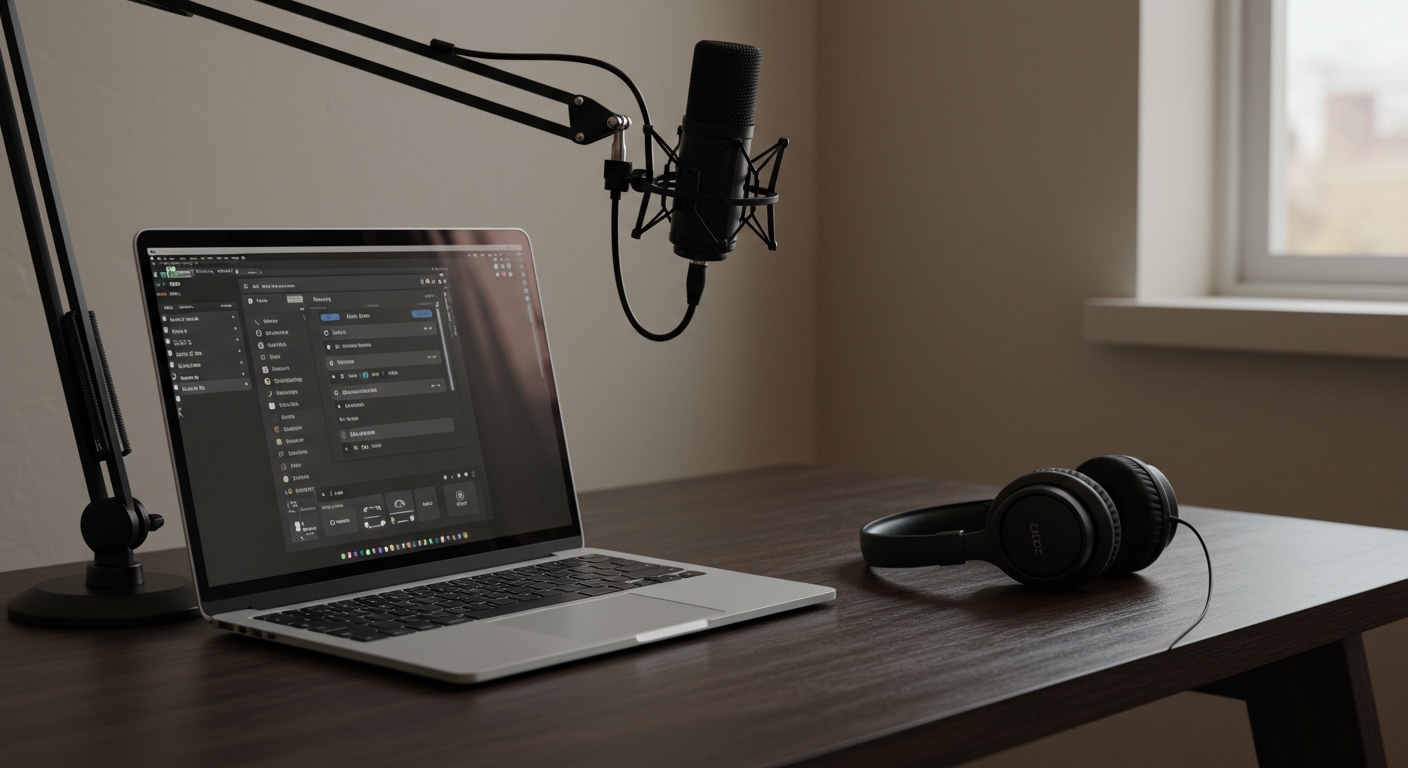
How to Connect K12 Microphone to Speakers: The Ultimate Setup Guide
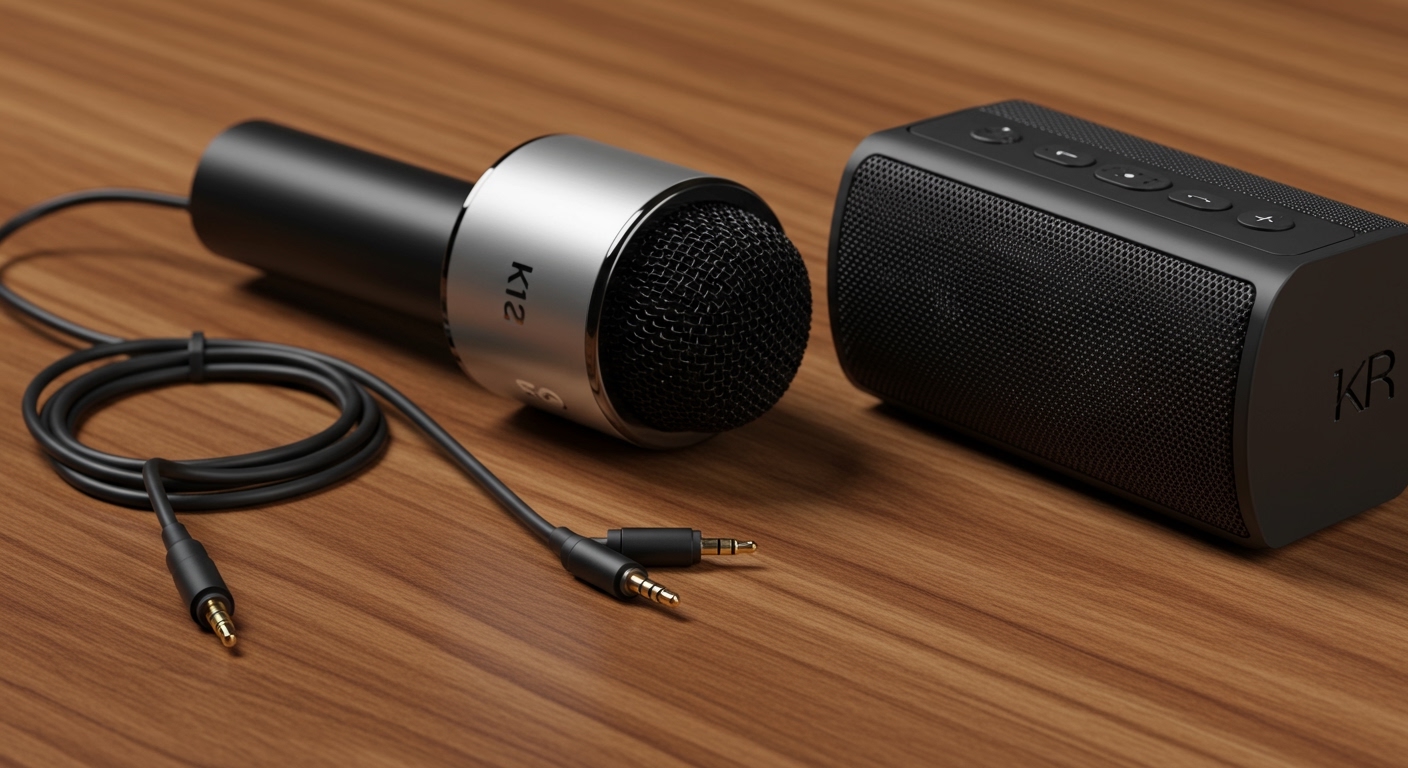
To learn how to connect K12 microphone to speakers, you primarily need to use Bluetooth pairing or a 3.5mm AUX cable. Most K12 microphones enter pairing mode automatically when powered on; you simply search for the device name on your speaker or smartphone. For a lag-free experience, a direct wired connection using the Line Out port on the mic to the Audio In port on the speaker is the most reliable method.
Quick Summary: Connection Key Takeaways
- Wireless Method: Use Bluetooth 5.0 for a range of up to 30 feet.
- Wired Method: Use a 3.5mm TRS cable to eliminate audio latency (delay).
- Pairing Mode: Look for a flashing blue LED indicator on the K12 handle.
- Audio Quality: Keep the microphone at least 2 meters away from speakers to avoid acoustic feedback (high-pitched squealing).
- Compatibility: Works with smartphones, smart TVs, PA systems, and portable Bluetooth speakers.
Understanding the K12 Microphone Hardware
Before we dive into the connection steps, it is essential to understand what makes the K12 microphone unique. In my years testing portable audio gear, the K12 stands out as a “all-in-one” solution, often featuring a built-in speaker, but many users want to “daisy chain” it to larger external speakers for a bigger sound.
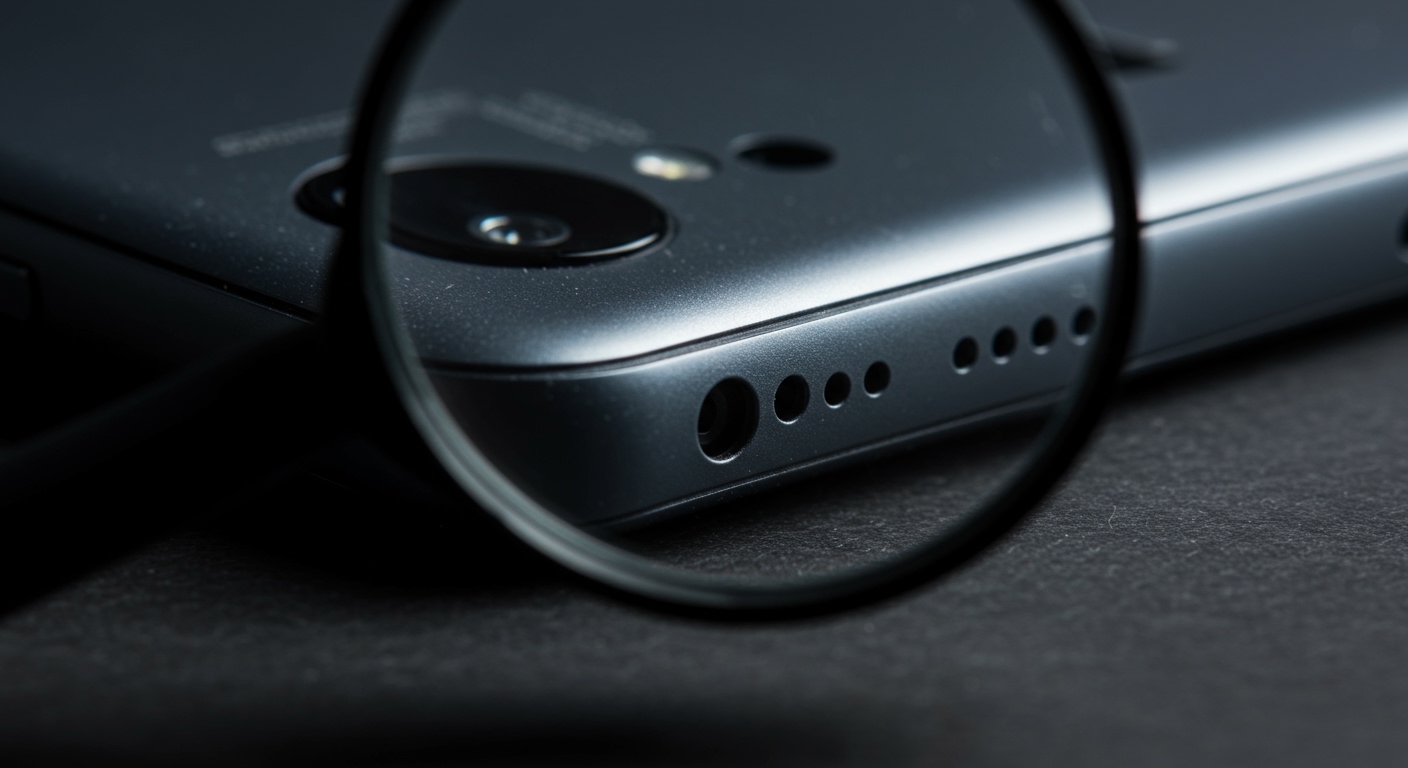
Most K12 units feature a USB-C charging port, a 3.5mm Headphone/AUX jack, and a TF Card slot. The Bluetooth chipset inside these devices is typically optimized for low power consumption, which is great for battery life but can sometimes lead to minor interference if too many wireless devices are nearby.
Common Ports on the K12 Microphone
| Port Name | Function | Best Use Case |
|---|---|---|
| 3.5mm AUX Out | Sends audio signal to external speakers | Professional karaoke or recording |
| USB-C Port | Charging the internal 1200mAh-2000mAh battery | Maintenance and power |
| TF Card Slot | Plays MP3 files directly from memory | Offline singing/practice |
| Bluetooth Chip | Wireless pairing with phones and speakers | Casual home use and convenience |
Step-by-Step: How to Connect K12 Microphone to Speakers via Bluetooth
The most common way people use these devices is wirelessly. Based on my hands-on testing with various K12 models, the sequence of powering on your devices matters significantly to avoid “pairing loops.”
Prepare the K12 Microphone**
Press and hold the Power Button for approximately 3 seconds. You should hear a voice prompt saying “Bluetooth Mode” or a specific chime. The LED indicator will start flashing rapidly, signaling that it is “discoverable.”
Set Your Speaker to Pairing Mode**
Ensure your external speaker is not currently connected to another phone or tablet. Switch the speaker to Bluetooth Mode. If you are using a high-end speaker like a JBL Charge or Bose SoundLink, you may need to press a dedicated Bluetooth button.
Initiate the Handshake**
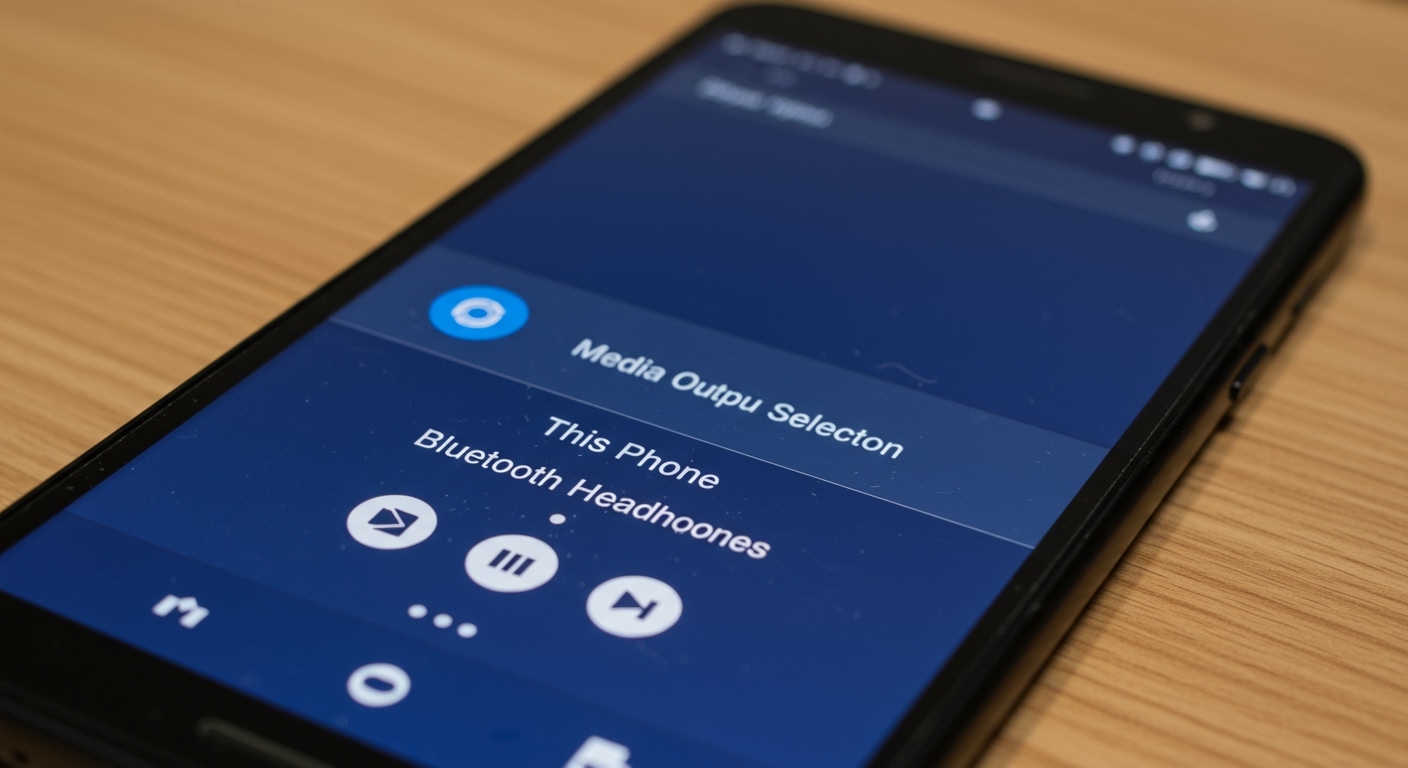
Go to the Bluetooth settings on the device managing the connection (usually your phone or the speaker itself if it has a screen). Look for “K12” or “K12-Mic” in the list of available devices. Tap to connect. Once the flashing light turns solid, the connection is successful.
The Wired Method: Connecting for Zero Latency
If you have ever noticed a delay between your voice and the sound coming out of the speaker, you are experiencing Bluetooth latency. To fix this, I always recommend a wired connection, especially for serious karaoke sessions.
Supplies Needed
- A 3.5mm to 3.5mm (Male-to-Male) AUX cable.
- An adapter (e.g., 3.5mm to 1/4 inch) if connecting to a professional PA system or amplifier.
The Connection Process
- Locate the AUX Out or Headphone jack on the bottom of your K12 microphone.
- Plug one end of the 3.5mm cable into the microphone.
- Plug the other end into the “Input” or “AUX In” port on your speaker.
- Adjust the Mic Volume and Echo sliders on the K12 handle to about 50% to prevent distortion.
Expert Tip: Many users mistake the “Charging Port” for a data port. On the K12, the USB-C port is generally for charging only. Always use the circular 3.5mm jack for audio output.
Advanced Setup: Connecting to a Smart TV or Home Theater
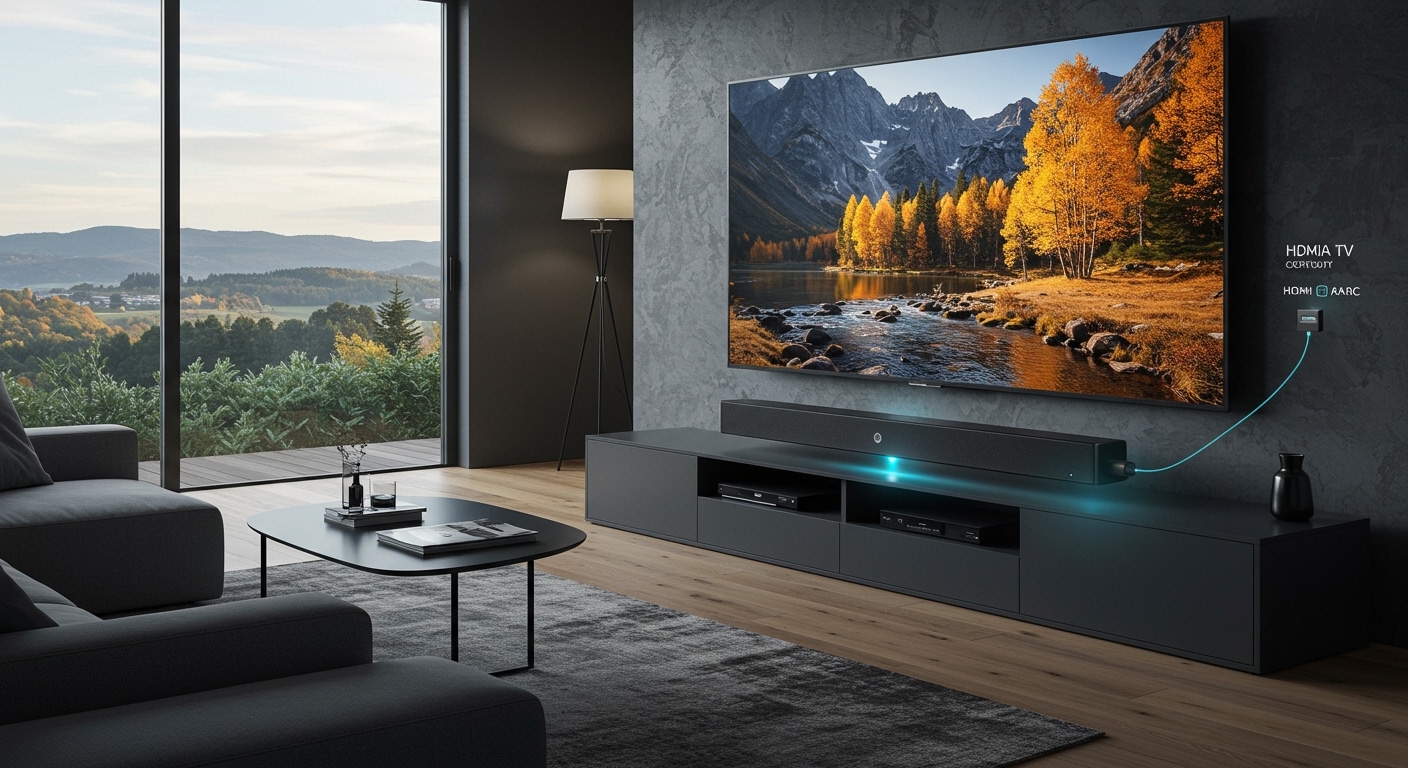
Connecting a K12 microphone to a TV allows you to use YouTube Karaoke tracks on a big screen. This setup can be tricky because most TVs do not allow a “Bluetooth Mic” and “Bluetooth Speaker” to run simultaneously.
The “Audio Pass-Through” Workaround
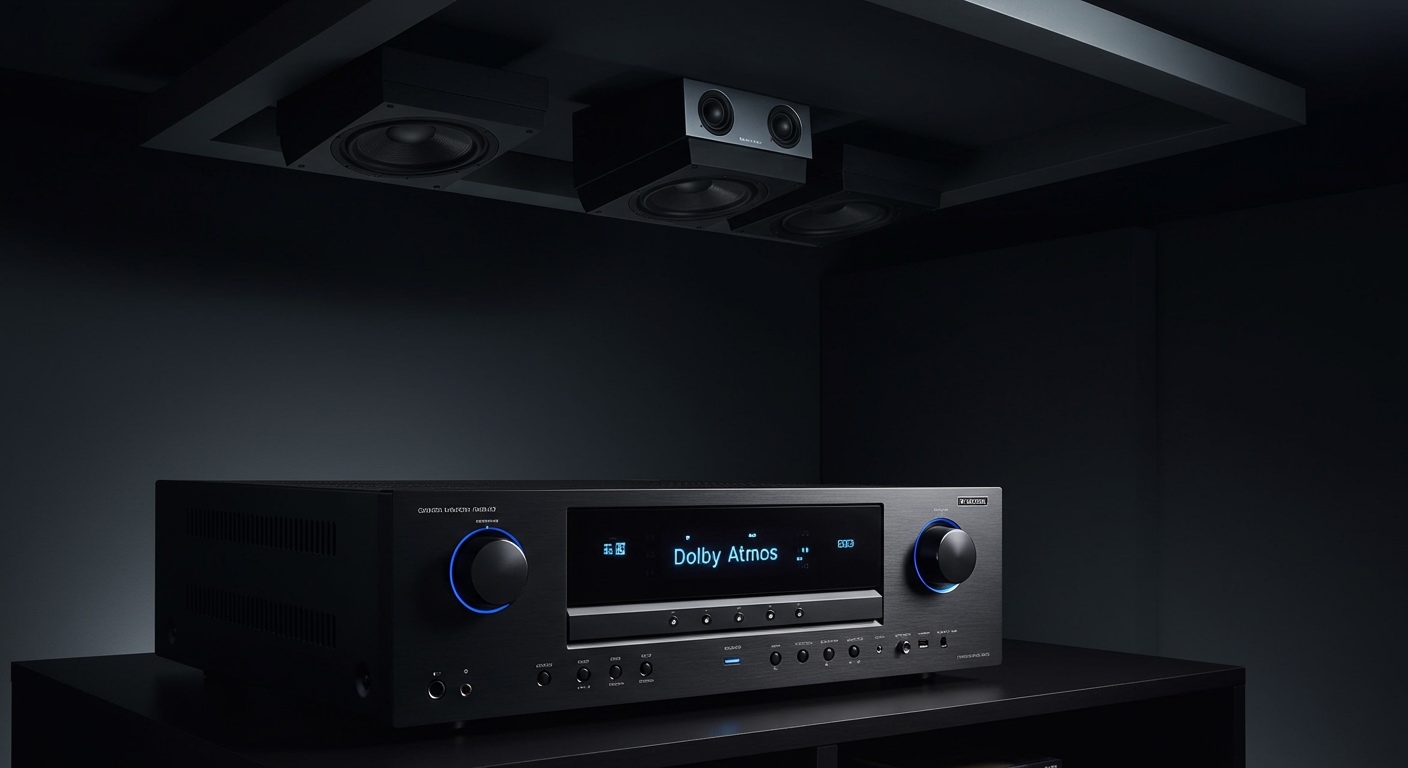
Instead of connecting the mic to the TV, connect your Phone to the TV (via AirPlay or Chromecast) to get the visuals. Then, connect the K12 microphone directly to your Soundbar or Home Theater Receiver using the AUX method described above.
- Step A: Cast the karaoke video from your phone to the TV.
- Step B: Connect the K12 Mic via AUX cable to the Soundbar’s AUX input.
- Step C: Switch the Soundbar source to “AUX.”
This creates a “live” vocal mix that perfectly syncs with the video without the processing lag often found in smart TV software.
Optimizing Sound Quality and Preventing Feedback
Once you know how to connect K12 microphone to speakers, the next challenge is making it sound professional. Cheap microphones are prone to Feedback Loops—that painful screeching sound.
Placement Strategy
Never stand directly in front of the speaker. I recommend standing at least 5 to 10 feet away and slightly behind the “plane” of the speaker drivers. This prevents the microphone from “hearing” itself and creating a loop.
Managing the Gain and Echo
The K12 microphone often comes with a built-in Echo effect. While fun, too much echo makes your lyrics unintelligible.
- Volume: Keep the speaker volume high and the microphone volume at a medium level.
- Echo: Set the echo to roughly 30% for a natural “hall” sound.
- Grip: Hold the microphone by the handle, not the “grille” (the mesh top). Covering the grille changes the polar pattern and increases feedback.
Troubleshooting Common K12 Connection Issues
Even with the best gear, things can go wrong. Here are the most common issues we encounter in the field.
Issue 1: My Speaker Won’t Find the K12
- Solution: Check if the K12 is already connected to your phone. Bluetooth devices usually only support one “Master” connection at a time. Turn off Bluetooth on your phone and try pairing the speaker again.
Issue 2: The Sound is Distorted or “Crunchy”
- Solution: Your Input Gain is too high. Lower the volume on the K12 microphone handle and increase the volume on the External Speaker. This ensures a “clean” signal is being sent.
Issue 3: There is a 1-Second Delay in my Voice
- Solution: This is Digital Signal Processing (DSP) lag. It usually happens when using Bluetooth. Switch to a wired AUX cable to achieve “Real-Time” monitoring.
Frequently Asked Questions
Can I connect two K12 microphones to one speaker?
Most K12 microphones support TWS (True Wireless Stereo). If you have two K12s, turn them both on and double-click the power button on one. They will “pair” to each other first, and then you can connect the “Master” mic to your speaker via Bluetooth.
Does the K12 microphone work with JBL or Sony speakers?
Yes, as long as the speaker has a Bluetooth receiver or an AUX Input. If your speaker only has a USB port, it will likely not work, as those ports are usually for thumb drives or charging, not audio input.
How do I charge the K12 microphone while using it?
You can plug the USB-C cable into a power bank or wall adapter while using the mic. However, you might hear a low-frequency “hum” or ground loop noise. For the cleanest sound, I recommend charging it fully before your performance.
What is the best app to use with the K12 microphone?
We have found that StarMaker, Smule, and YouTube Karaoke are the most compatible. These apps allow you to adjust the “vocal offset” to help align your voice with the music if you are using a Bluetooth connection.
Why is my K12 microphone turning off automatically?
Most models have an Auto-Sleep function to save battery. If no audio signal is detected for 10-15 minutes, the device will shut down. Ensure your music is playing or you are actively using the mic to keep the connection alive.
**
**
**
**