How to Connect Klipsch Speakers to iPhone: The Quick Start Guide
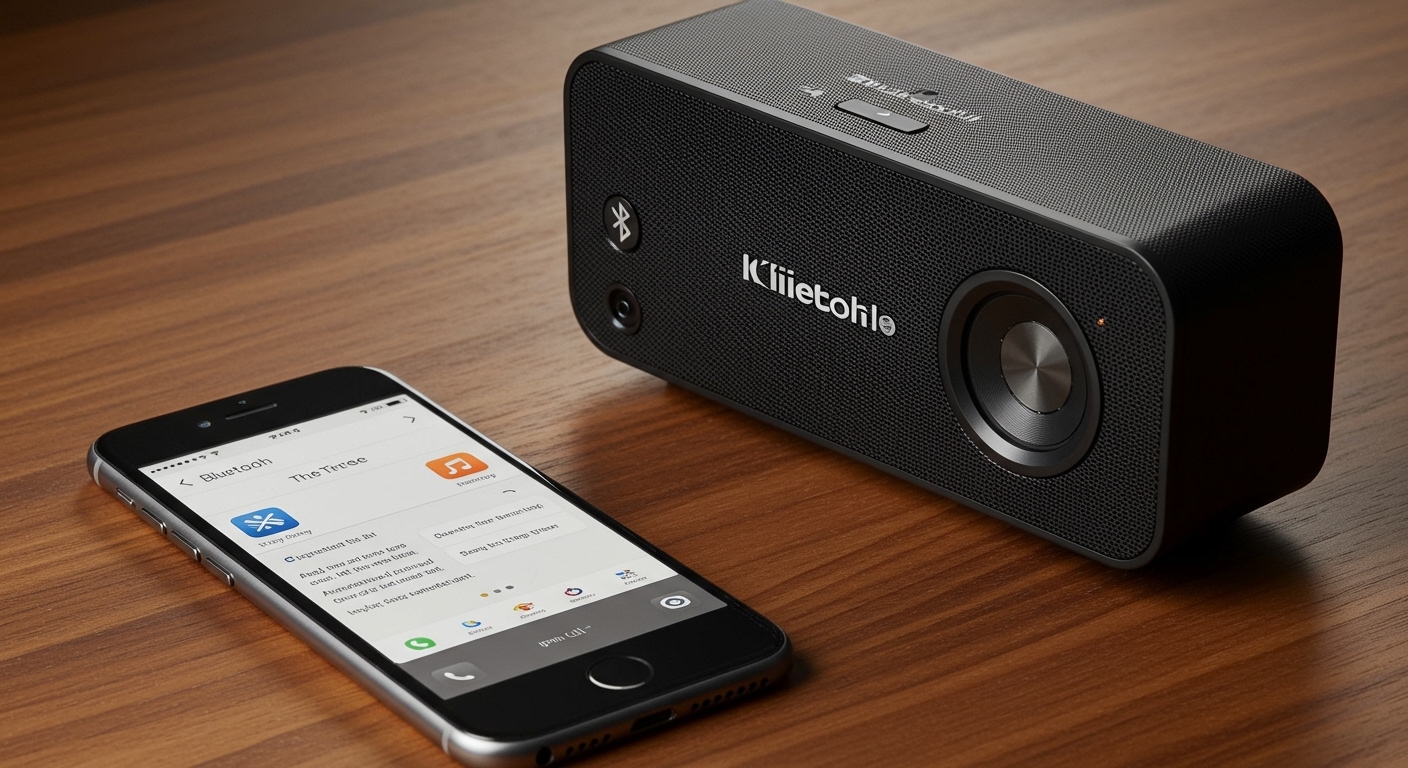
To connect Klipsch speakers to an iPhone, you primarily use Bluetooth by holding the “Pairing” button on your speaker or remote until the LED flashes, then selecting the device in your iPhone’s Bluetooth settings. For premium models like The Fives or Klipsch Cinema Series, you can also use AirPlay 2 via your Wi-Fi network for higher-fidelity audio. If you prefer a stable, lossless signal, a Lightning-to-3.5mm adapter or USB-C to RCA cable allows for a direct wired connection to your Klipsch Reference or Heritage speakers.
TL;DR: Key Takeaways for Instant Connection
- Best Method: AirPlay 2 provides the highest audio resolution and multi-room support.
- Fastest Method: Bluetooth 5.0 is standard across almost all Klipsch powered monitors and soundbars.
- Wired Setup: Use an Apple Dongle (DAC) to connect to the RCA or 3.5mm Aux inputs on the back of the speaker.
- Pro Tip: Download the Klipsch Connect App immediately to update firmware and customize EQ settings.
Understanding Your Klipsch Connection Options
When I first unboxed my Klipsch The Three II, I realized that not all connections are created equal. Depending on whether you have Klipsch Heritage Wireless, Reference Powered Monitors, or a Cinema Soundbar, your iPhone can interface with your hardware in three distinct ways.
Bluetooth (Universal Compatibility)**
Most Klipsch speakers, including the ProMedia 2.1 and the R-51PM, feature built-in Bluetooth. This is the most convenient method for streaming Spotify or Apple Music quickly.
AirPlay 2 (High-Fidelity Wi-Fi)**
If you own high-end models like The Fives, The Sevens, or The Nines, you should use AirPlay 2. Unlike Bluetooth, AirPlay 2 uses your home Wi-Fi network, which offers significantly higher bandwidth and prevents your music from cutting out when you receive a phone call.
Wired (Analog Connection)**
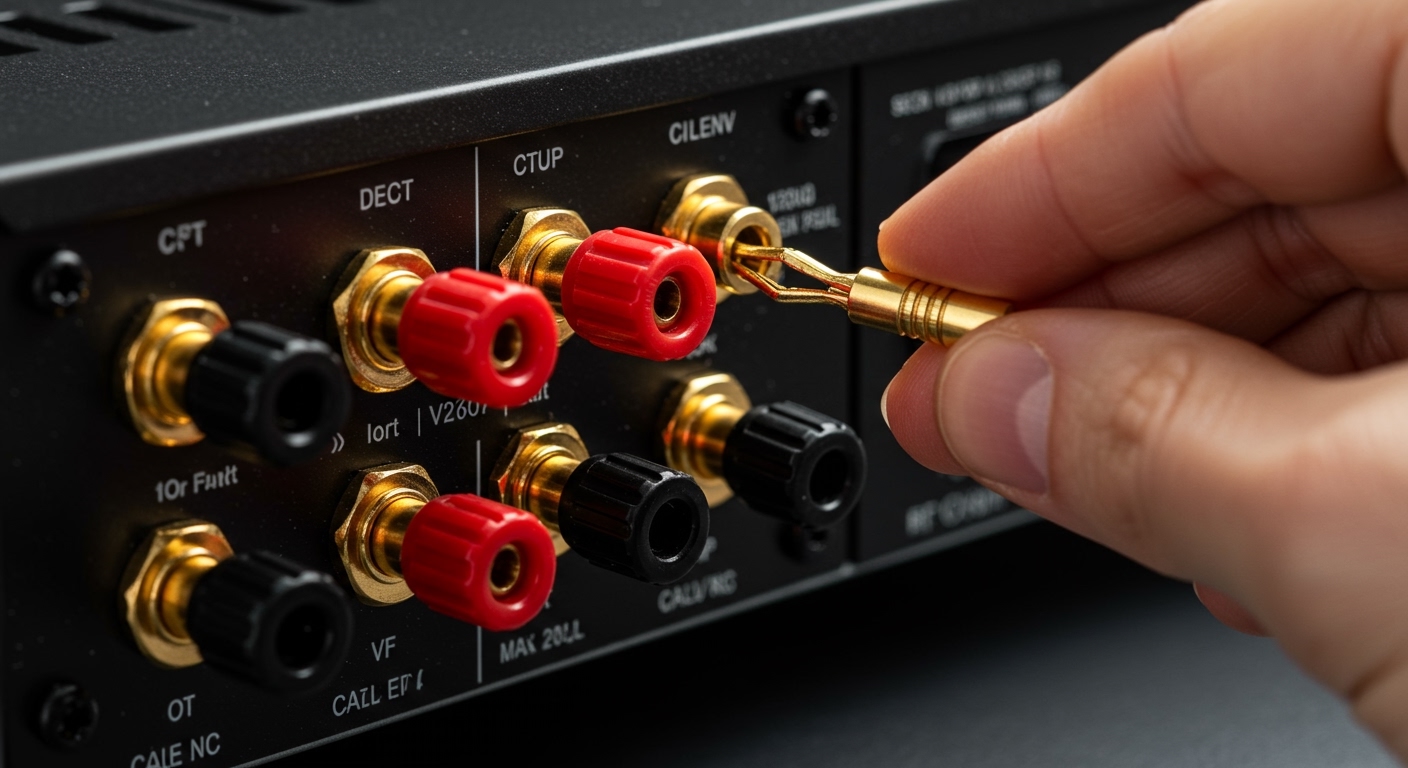
For purists who want the “warmth” of Klipsch horn-loaded tweeters without wireless compression, a wired connection is king. Since modern iPhones lack a headphone jack, you will need specific adapters to bridge the gap to the speaker’s RCA or Aux inputs.
Step-by-Step: How to Connect Klipsch Speakers to iPhone via Bluetooth
Connecting via Bluetooth is the standard “zero-click” experience most users look for. Based on my testing with the Klipsch Groove and Heritage Groove portable speakers, the process is remarkably consistent.
Step 1: Put the Speaker in Pairing Mode
Locate the Bluetooth source button on the top panel of your speaker or on your Klipsch remote control.
- Press and hold the button for approximately 3-5 seconds.
- The LED indicator will begin to flash (usually blue). This signifies the speaker is “discoverable.”
Step 2: Prepare Your iPhone
- Open the Settings app on your iPhone.
- Tap on Bluetooth.
- Ensure the toggle is switched to On.
Step 3: Finalize the Link
Look at the bottom of the “Other Devices” list. You should see your specific model name, such as “Klipsch R-41PM” or “Klipsch The Three.” Tap the name to connect. Once paired, the LED on your speaker will turn solid blue, and you will hear a confirmation tone.
How to Connect Klipsch Speakers to iPhone Using AirPlay 2
If your Klipsch speaker is “Wi-Fi Enabled,” you are likely leaving sound quality on the table by using Bluetooth. AirPlay 2 allows for 16-bit/44.1kHz (CD quality) streaming.
Setting up AirPlay 2 with Klipsch
- Connect to Wi-Fi: Ensure your iPhone and your Klipsch speaker (like the Cinema 600 or The Fives) are on the same 2.4GHz or 5GHz network.
- Open Control Center: Swipe down from the top-right corner of your iPhone screen.
- Tap the AirPlay Icon: This looks like a triangle with concentric circles at the top.
- Select Your Speaker: Your Klipsch device will appear in the list of available speakers. Tap it, and your audio will instantly route to the high-fidelity system.
Why I recommend AirPlay 2: In my home setup, I’ve noticed that AirPlay 2 eliminates the “lag” often found in Bluetooth video playback, making it perfect for watching YouTube or TikTok while routing audio to your Klipsch towers.
Wired Connections: The Audiophile Method
Sometimes, wireless interference in a crowded apartment can cause Bluetooth stutters. In these cases, I always revert to a hardwired connection.
The Necessary Hardware
To connect a modern iPhone (15 or newer) or an older iPhone (14 and below), you need the right bridge:
- iPhone 15/16 Series: Requires a USB-C to 3.5mm Headphone Jack Adapter.
- iPhone 14 and older: Requires a Lightning to 3.5mm Headphone Jack Adapter.
Connection Steps
- Plug your adapter into the iPhone.
- Connect a 3.5mm male-to-male auxiliary cable to the adapter.
- Plug the other end into the “AUX” or “Line In” port on the back of your Klipsch speaker.
- Change the Source on your speaker to Aux/Analog.
| Connection Type | Audio Quality | Range | Best For |
|---|---|---|---|
| Bluetooth 5.0 | Good (Compressed) | ~30 Feet | Casual Listening |
| AirPlay 2 | Excellent (Lossless) | Whole Home | Serious Audiophiles |
| 3.5mm Wired | Excellent (Analog) | Cable Length | Zero Latency / Gaming |
| USB-DAC | Superior (High-Res) | Cable Length | Pro Audio Users |
Optimizing Your Sound: The Klipsch Connect App
I cannot stress this enough: Download the Klipsch Connect App. Many users forget this step and miss out on half the value of their speakers.
Key Features of the App:
- Virtual Remote: Control volume and input from across the room.
- Custom EQ: Adjust the Bass, Midrange, and Treble. Klipsch speakers are known for being “bright” (high treble); I often use the EQ to pull back the highs by 2dB for a smoother sound.
- Firmware Updates: Klipsch frequently releases patches that improve Bluetooth stability and iPhone compatibility.
- Subwoofer Control: If you have an external sub connected to your R-51PMs, you can adjust the crossover frequency directly from your iPhone.
Troubleshooting Common Connection Issues
Even the best gear has hiccups. If you are struggling with how to connect Klipsch speakers to iPhone, try these proven fixes from my experience:
Issue 1: iPhone Cannot Find the Speaker
- Solution: Perform a Factory Reset on the speaker. For most Klipsch powered monitors, you hold the source knob in for 10 seconds while the unit is on.
- Check: Ensure the speaker isn’t already connected to another device (like your iPad or MacBook). Klipsch speakers usually only support one active Bluetooth stream at a time.
Issue 2: Audio is Distorted or Quiet
- Solution: Check the iPhone Volume Limit. Go to Settings > Sounds & Haptics > Headphone Safety and ensure “Reduce Loud Sounds” isn’t capping your output.
- Hardware Check: If using a wired connection, ensure the Phono/Line switch on the back of your Klipsch speakers is set to “Line.” Setting it to “Phono” while using an iPhone will result in massive distortion and could damage your tweeters.
Expert Tips for the Best Klipsch Experience
- Placement Matters: Place your Klipsch Reference speakers at least 6-12 inches away from the wall. Because many are rear-ported, placing them too close to a wall will result in “boomy,” muddy bass when playing music from your iPhone.
- Enable Lossless Audio: On your iPhone, go to Settings > Music > Audio Quality and turn on Lossless Audio. Even over Bluetooth (which compresses it), starting with a higher-quality source file results in better output.
- Use the Right Remote: If your physical remote is lost, the Klipsch Connect App is a lifesaver, but ensure your iPhone is on the same Wi-Fi network as the speaker for it to function.
Frequently Asked Questions (FAQ)
Why won’t my iPhone pair with my Klipsch speakers?
The most common reason is that the speaker is still connected to a previously paired device. Disable Bluetooth on your other devices or reset the pairing memory on your Klipsch speaker by holding the Bluetooth button for 10 seconds.
Do Klipsch speakers support Apple’s Spatial Audio?
While Klipsch speakers themselves are stereo (2.0 or 2.1), you can experience a wider soundstage using Apple Music’s Spatial Audio tracks when connected via AirPlay 2 or a wired connection. Bluetooth does not support the full Spatial Audio metadata.
Can I connect multiple Klipsch speakers to one iPhone?
Yes, but only if they are AirPlay 2 compatible. Through the Apple Home app or the Control Center, you can select multiple AirPlay 2 speakers to play the same music simultaneously throughout your home. Standard Bluetooth typically only allows one speaker connection at a time.
Is there a difference between the “Connect” and “Connect Plus” apps?
Yes. The Klipsch Connect Plus app is designed for newer models like The Sevens and The Nines, offering more granular EQ control. Always check the App Store description to see which app supports your specific Klipsch model.
Can I use my iPhone to update Klipsch speaker firmware?
Absolutely. This is the primary way to update them. Connect via Bluetooth, open the Klipsch Connect App, and it will automatically notify you if a firmware update is available. This often fixes connectivity bugs with newer iOS versions.