How to Connect MIDI Keyboard to Speakers: The Quick Answer
To learn how to connect midi keyboard to speakers, you must understand that MIDI keyboards do not produce sound on their own. You must connect your MIDI controller to a computer, tablet, or sound module via USB or 5-pin MIDI cable, load a Virtual Instrument (VST), and then route the audio output from that device to your speakers using an Audio Interface or a 3.5mm-to-RCA cable.
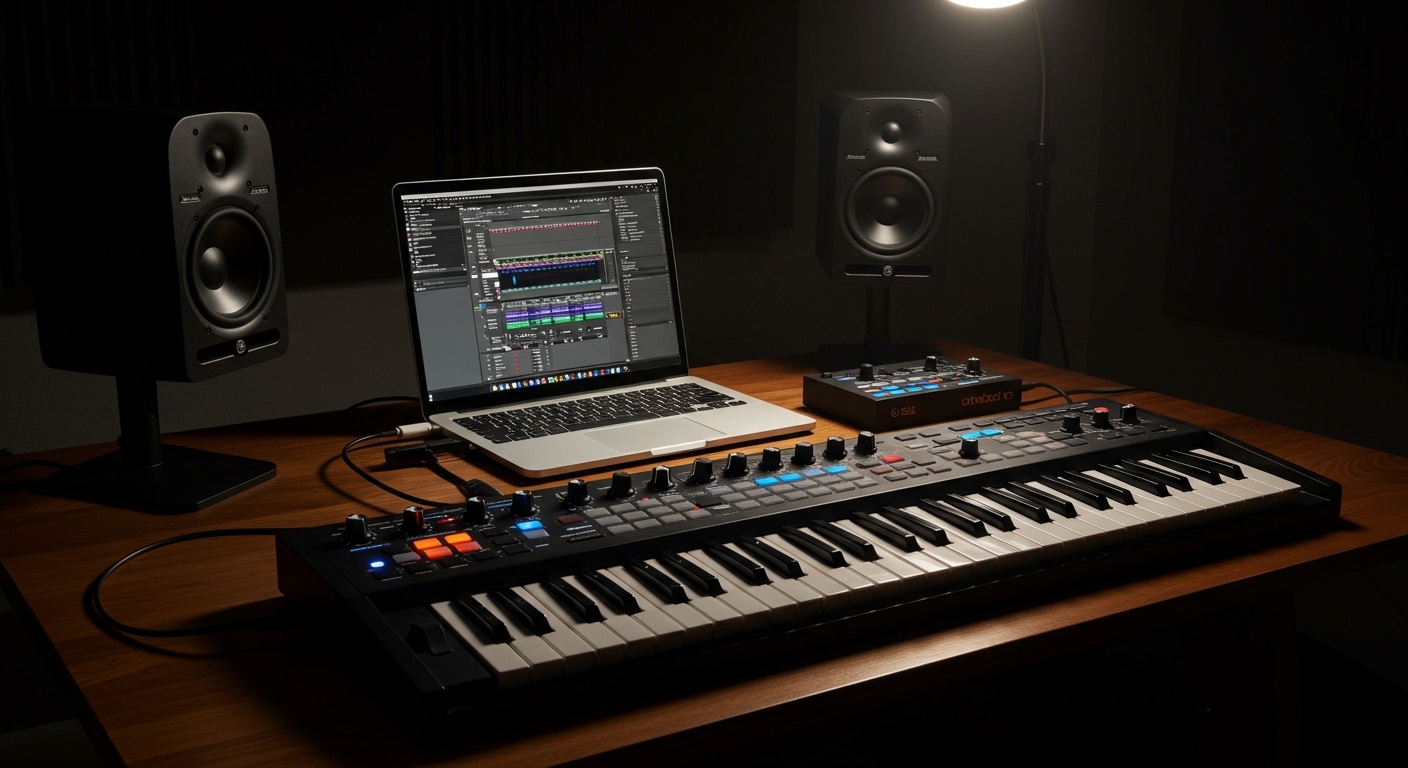
In my years of building home studios, I have found that the most reliable method for a midi keyboard plugged into speakers involves using a dedicated Audio Interface to ensure low latency and high-quality sound reproduction.
TL;DR: Key Takeaways for Connecting MIDI to Speakers
- MIDI Is Data, Not Audio: MIDI cables carry note information (pitch, velocity), not actual sound waves.
- The “Brain” Requirement: You need a “host” (Laptop, iPad, or Hardware Synth) to convert MIDI data into sound.
- Essential Gear: You typically need a USB cable, a Digital Audio Workstation (DAW), and powered studio monitors.
- Latency Matters: Direct connections to a PC’s headphone jack often cause “lag”; an Audio Interface (like a Focusrite Scarlett) solves this.
- Cables: Use Balanced TRS cables for professional monitors to avoid unwanted hum and buzz.
Understanding Why a MIDI Keyboard Plugged into Speakers Needs a “Brain”
Before diving into the wires, it is crucial to clarify a common misconception. When you have a midi keyboard plugged into speakers, the keyboard itself is silent. Unlike a traditional digital piano with built-in speakers, a MIDI controller is simply a peripheral, much like a computer keyboard.
I often tell my students to think of the MIDI keyboard as a remote control. If you press a key, it sends a digital message saying “Note C4 was pressed with medium force.” This message travels to a Sound Generator (your computer or a hardware synth), which then creates the actual audio. Only then can that audio be sent to your Studio Monitors or Desktop Speakers.
The Three Components of the Signal Chain
- The Controller: Your MIDI keyboard (e.g., Arturia KeyStep, Akai MPK Mini).
- The Sound Source: A software plugin (VST) inside a DAW or a standalone hardware sound module.
- The Output: Your Powered Speakers, Studio Monitors, or PA System.
Method 1: The Computer Setup (The Most Popular Way)
This is the standard workflow for 95% of home producers. You will use your computer as the “middleman” that translates your key presses into beautiful music.
Step 1: Connect the Keyboard to the Computer
Most modern MIDI keyboards use a USB-B to USB-A cable (often called a “printer cable”).
- Plug the square end into the keyboard.
- Plug the flat end into your computer.
- If you are using a newer MacBook, you will likely need a USB-C Dongle.
Step 2: Install and Open a DAW or Standalone VST
Your computer needs software to “hear” the MIDI data. You can use a Digital Audio Workstation (DAW) like Ableton Live, FL Studio, or Logic Pro. If you want something simpler, many keyboards come with “Standalone” versions of instruments like Analog Lab or Kontakt.
Step 3: Connect the Computer to the Speakers
While you can use your computer’s headphone jack, I highly recommend using an External Audio Interface.
- The Interface Connection: Connect the interface to your computer via USB.
- The Speaker Connection: Run TRS (Balanced) cables from the “Monitor Out” ports on the back of the interface to your speakers.
| Connection Type | Best For | Pros | Cons |
|---|---|---|---|
| Direct USB | Beginners | Cheap, simple setup | Possible latency (lag) |
| Audio Interface | Semi-Pro / Pro | Zero lag, high audio quality | Requires extra hardware |
| 5-Pin MIDI | Vintage Gear | Connects to old synths | Requires interface with MIDI ports |
| Bluetooth MIDI | Mobile / iPad | No cables, very portable | Highest latency risk |
Method 2: How to Connect MIDI Keyboard to Speakers Without a Computer
Many performers want to avoid bringing a laptop to a gig. To achieve a midi keyboard plugged into speakers without a PC, you need a Hardware Sound Module.
Using a Standalone Sound Module
A sound module is a small box that contains “sounds” but has no keys.
- Connect the 5-pin MIDI Out of your keyboard to the MIDI In of the module.
- Connect the Audio Out of the module directly to your Active Speakers or a Mixer.
- Ensure both devices are set to the same MIDI Channel (usually Channel 1).
Using an iPad or Mobile Device
The iPad has become a powerhouse for mobile musicians.
- Use a Camera Connection Kit (CCK) or a USB-C Hub.
- Plug your MIDI keyboard into the hub.
- Open an app like GarageBand or Moog Model D.
- Connect the iPad’s audio output to your speakers using a 3.5mm to Dual 1/4″ cable.
Method 3: Professional Setup Using an Audio Interface
If you are serious about sound quality, this is the only way to go. In my studio, I use a Universal Audio Volt 2 because it provides “Zero-Latency Monitoring.”
Why You Need an Audio Interface
Standard computer sound cards are designed for system sounds and YouTube, not real-time music performance. When you press a key on a midi keyboard plugged into speakers via a standard jack, you might experience a 50ms delay. This makes playing in time nearly impossible. An Audio Interface uses specialized ASIO drivers (on Windows) or Core Audio (on Mac) to reduce this delay to imperceptible levels (under 10ms).
Step-by-Step Interface Connection
- Driver Installation: Download the latest drivers for your interface (e.g., Focusrite Control).
- Audio Routing: In your software settings, select the interface as your Output Device.
- Physical Link: Use XLR or 1/4-inch TRS cables to link the interface to your Powered Studio Monitors (like the Yamaha HS5 or KRK Rokit).
- Power On Sequence: Always turn your speakers on last to avoid a “pop” that could damage the drivers.
Essential Gear Checklist for MIDI Connectivity
To ensure your midi keyboard plugged into speakers setup works perfectly, check that you have these essential items:
- MIDI Keyboard: The controller (e.g., Novation Launchkey, Native Instruments Komplete Kontrol).
- USB Cable: Usually USB-A to USB-B.
- Audio Interface: Converts digital audio back to analog for your speakers.
- Balanced Cables: TRS (Tip-Ring-Sleeve) cables are essential for preventing electromagnetic interference (EMF) noise.
- Powered Speakers: Also known as Active Monitors. These have built-in amplifiers. If you use Passive Speakers, you will need an external power amp.
Troubleshooting: What to Do When There’s No Sound
It is incredibly frustrating to have everything plugged in and hear nothing. Based on my experience, 90% of issues stem from software settings rather than broken hardware.
Check Your MIDI Input Settings**
In your DAW (like Ableton), go to Preferences > MIDI. Ensure your keyboard is “Track” and “Remote” enabled. If the software doesn’t see the device, try a different USB port or cable.
Monitor the “MIDI Activity” Light**
Most DAWs have a small light in the top right corner that blinks whenever a MIDI signal is received. If it blinks but you hear nothing, the problem is with your Virtual Instrument or Audio Output settings.
Check the “Local Control” Setting**
If you are using a keyboard that also has its own sounds (a workstation), ensure Local Control is set to “On” if you want to hear the internal sounds, or “Off” if you are strictly using it as a controller for computer sounds.
Volume and Gain Stages**
Ensure the Master Volume on your computer, the Gain/Monitor knob on your interface, and the Power switch on the back of your speakers are all active. It sounds simple, but I’ve wasted hours only to realize my speakers were simply turned off!
Advanced Tips for Professional Audio Quality
Once you have learned how to connect midi keyboard to speakers, you can optimize the signal path for better performance.
Balanced vs. Unbalanced Connections
If you hear a high-pitched whine or a low hum, you are likely using Unbalanced (TS) cables. Switch to Balanced (TRS) cables. These use three wires instead of two to cancel out noise over long distances.
Optimizing Buffer Size
To reduce lag:
- Open your Audio Interface settings.
- Lower the Buffer Size to 128 or 256 samples.
Note:* Setting it too low (e.g., 32 or 64) may cause “crackling” if your CPU cannot keep up.
The Importance of Speaker Placement
For the best experience with a midi keyboard plugged into speakers, place your monitors at ear level. They should form an equilateral triangle with your head. This ensures you are hearing the most accurate representation of your virtual instruments.
Frequently Asked Questions (FAQ)
Can I plug my MIDI keyboard directly into speakers?
No, you cannot plug a standard MIDI keyboard directly into speakers because MIDI carries data, not audio signals. You need a device (computer, tablet, or sound module) to convert that data into sound first. The only exception is if your keyboard is a “Digital Piano” with built-in speakers and a MIDI port.
Do I need an expensive audio interface for a MIDI keyboard?
Not necessarily. For beginners, a budget interface like the PreSonus AudioBox or Behringer U-Phoria is sufficient. However, as you progress, higher-end interfaces provide better Digital-to-Analog Converters (DAC) which result in clearer sound.
Why is there a delay when I press a key?
This delay is called Latency. It happens because it takes time for your computer to process the MIDI data and turn it into audio. Using an Audio Interface with ASIO drivers is the most effective way to eliminate this lag.
Can I use Bluetooth speakers with a MIDI keyboard?
I do not recommend using Bluetooth speakers for MIDI performance. Bluetooth technology introduces significant latency (often over 100ms), which makes it very difficult to play musically. Always prefer a wired connection (TRS, XLR, or RCA) for real-time instrument playing.
What cables do I need for studio monitors?
Most professional studio monitors use XLR or 1/4″ TRS Balanced inputs. Ensure you buy “Balanced” cables to minimize background noise and interference in your home studio environment.
**
**
**
**