Struggling to get your Onforu speakers to talk to each other? You’re not alone. Getting that perfect stereo sound should be simple, but sometimes the pairing process can be a bit confusing. As someone who has tested dozens of Bluetooth speakers, I’ve learned the exact sequence needed for a flawless connection. This guide cuts through the confusion and gives you the clear, step-by-step instructions I use to get my own Onforu speakers synced up in under a minute.
Key Takeaways: Connecting Onforu Speakers
- For a Single Speaker: Power on the speaker, press the Bluetooth button until the light flashes, then find and select “ONFORU” in your device’s Bluetooth menu.
- To Pair Two Speakers (TWS): First, disconnect both speakers from any device. Power them both on. Double-press the power button on one speaker to make it the “master.” Wait for a confirmation chime, then connect your phone only to the master speaker.
- Troubleshooting: The most common issue is a previous Bluetooth connection interfering with the TWS pairing. Always “Forget Device” in your Bluetooth settings before trying to sync two speakers together.
How to Connect a Single Onforu Speaker (The Basics)
Connecting a single Onforu speaker to your phone, tablet, or laptop is straightforward. This is the standard Bluetooth pairing process you’re likely familiar with.
Here’s the step-by-step method I follow:
- Power On the Speaker: Press and hold the power button on your Onforu speaker until you hear an audible power-on sound and see the LED indicator light start to flash.
- Activate Pairing Mode: The speaker should automatically enter pairing mode when first turned on, indicated by a rapidly flashing blue LED light. If it doesn’t, press the dedicated Bluetooth button or double-press the power button (this varies slightly by model).
- Open Your Device’s Bluetooth Settings: On your smartphone, tablet, or computer, navigate to the Bluetooth settings menu.
- Scan for Devices: Your device will automatically start scanning for nearby Bluetooth devices.
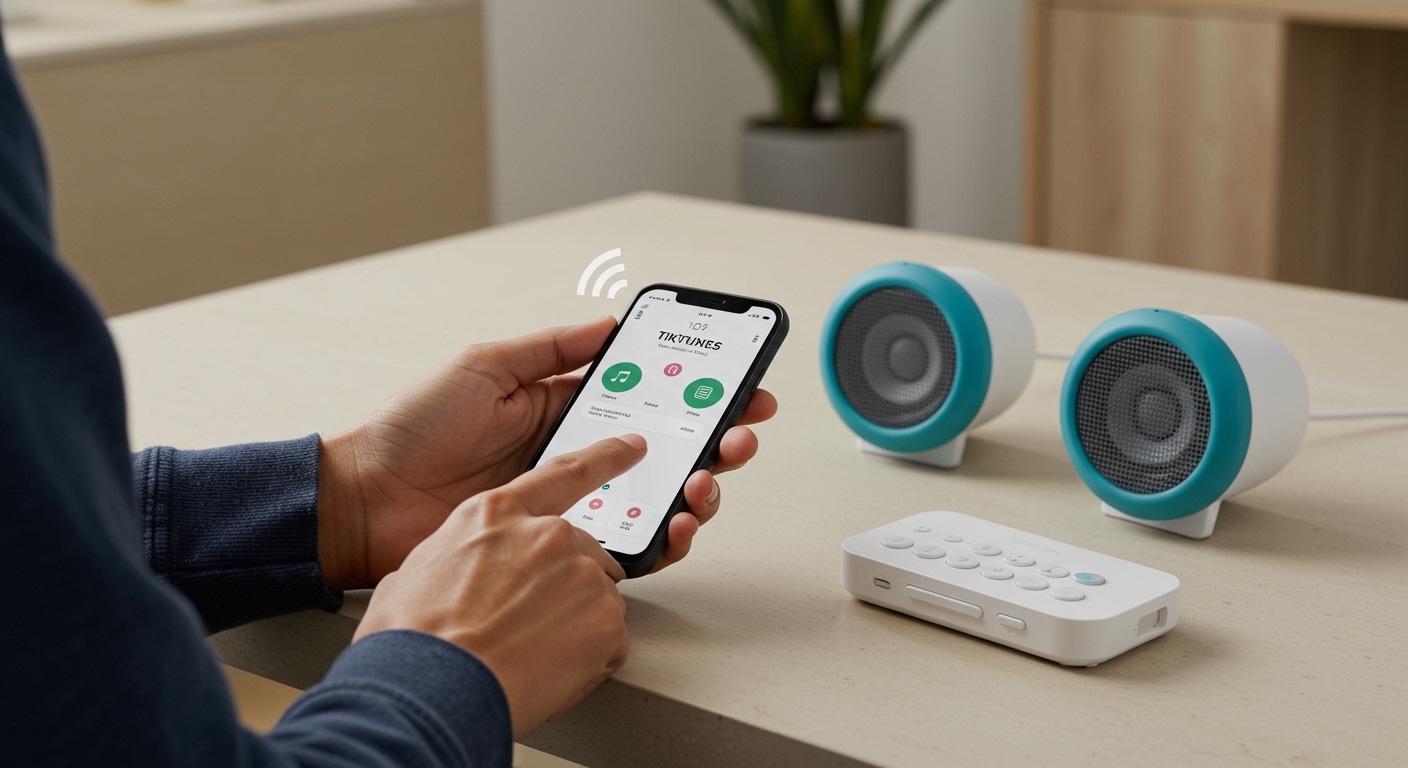
- Select the Onforu Speaker: In the list of available devices, you should see your speaker listed, typically as “ONFORU” or a model number like “Onforu SK01”. Tap on it to connect.
- Confirm Connection: Once connected, you will hear a confirmation chime from the speaker, and the flashing blue LED will turn solid. You are now ready to play audio.
How to Connect Onforu Speakers Together (True Wireless Stereo)
This is where the magic happens. Learning how to sync Onforu speakers allows you to create a True Wireless Stereo (TWS) system, with one speaker acting as the left channel and the other as the right. This provides a much more immersive and room-filling sound experience.
From my experience, the key to success is performing these steps in the correct order.
Step-by-Step Guide to TWS Pairing
- Start with a Clean Slate (Crucial Step!): Before you begin, go into your phone or computer’s Bluetooth settings. If either of the Onforu speakers is listed as a previously connected device, tap “Forget Device” or “Unpair” for both of them. This prevents your phone from automatically connecting to just one speaker and disrupting the TWS pairing.
- Power On Both Speakers: Turn on both of your Onforu speakers at the same time. You will hear the power-on chime from each one. Make sure they are within a few feet of each other for this initial setup.
- Designate the “Master” Speaker: Choose one of the speakers to be your primary or “master” speaker. This is the one your phone will actually connect to. Quickly double-press the power button on this speaker only.
- Wait for the TWS Confirmation: You will hear a distinct chime or beep. This sound confirms that the two speakers have successfully paired with each other. The LED on the master speaker will continue to flash, while the LED on the “slave” speaker will turn solid blue.
- Connect Your Phone to the Master Speaker: Now, open the Bluetooth settings on your phone. You should see only one instance of the Onforu speaker available to connect to. Select it.
- Enjoy Stereo Sound: Once your phone connects to the master speaker, you’ll hear another confirmation sound. Any audio you play will now be split into left and right channels and play in perfect sync across both speakers.
Expert Tip: I use a small piece of colored tape or a sticker on the bottom of my designated “master” speaker. This makes it easy to remember which one to double-press and connect to in the future, saving time.
Common Onforu Speaker Pairing Problems & Solutions
Even with the right steps, you can sometimes run into issues. After unboxing and testing numerous pairs, I’ve encountered and solved the most common problems. Here’s a quick troubleshooting table.
| Problem | Likely Cause | Step-by-Step Solution |
|---|---|---|
| Speakers Won’t Pair Together | One speaker is still connected to a phone. | 1. Turn off both speakers. 2. Go to your phone’s Bluetooth settings and “Forget” both speakers. 3. Turn off your phone’s Bluetooth. 4. Restart the TWS pairing process from Step 1. |
| Only One Speaker Plays Audio | You connected your phone before the speakers paired to each other. | 1. Disconnect your phone. 2. Turn both speakers off and on again. 3. Double-press the power button on the master to re-initiate TWS. 4. Wait for the TWS confirmation chime before connecting your phone. |
| Connection is Choppy or Drops | Speakers are too far apart or there’s interference. | 1. Ensure the two speakers are within the recommended range (usually 30 feet / 10 meters). 2. Make sure your phone is also within range of the master speaker. 3. Move them away from other wireless devices like Wi-Fi routers or microwaves. |
| Phone Can’t Find Any Speaker | The speaker is not in pairing mode or is already connected elsewhere. | 1. Make sure the speaker’s LED is flashing rapidly. If not, press the Bluetooth button. 2. Ensure no other phone or tablet in the house is already connected to it. 3. Try turning the speaker off and on again to re-initiate pairing mode. |
Understanding Your Onforu Speaker Controls & Indicators
Knowing what the lights and buttons mean can help you diagnose issues quickly. While specific models may vary slightly, these are the general functions.
Common Button Functions
- Power Button: Long press to turn on/off. Short press to play/pause. Double press to initiate TWS pairing.
- Volume Up (+): Short press to increase volume. Long press to skip to the next track.
- Volume Down (-): Short press to decrease volume. Long press to go to the previous track.
- Bluetooth/Pairing Button: Press to enter pairing mode or disconnect a current device.
LED Indicator Status
| LED Status | Meaning |
|---|---|
| Flashing Blue Rapidly | Ready to pair with a device. |
| Solid Blue | Connected to a device. In TWS mode, this is the “slave” speaker. |
| Flashing Blue Slowly | Connected and playing audio. In TWS mode, this is the “master” speaker. |
| Solid Red | Charging. |
| Red Light Off (while plugged in) | Fully charged. |
FAQ: Connecting and Syncing Onforu Speakers
Here are answers to some of the most common questions users have when learning how to pair Onforu speakers.
How do I reset my Onforu speakers?
To perform a factory reset, first ensure the speaker is powered on. Then, press and hold both the Volume Up (+) and Volume Down (-) buttons simultaneously for about 5-7 seconds. You should hear a sound or see the LED light flash to confirm the reset. This will clear all previous pairing information.
Can I connect more than two Onforu speakers together?
No, the standard True Wireless Stereo (TWS) technology used in most Onforu speakers is designed to link only two speakers at a time for a left/right stereo pair. You cannot create a larger multi-speaker group with this feature.
How far apart can I place my synced Onforu speakers?
For optimal performance, the two synced speakers should be no more than 30 feet (10 meters) apart with a clear line of sight. Your phone or audio source should also remain within 30 feet of the “master” speaker. Walls and other physical obstructions can reduce this range.
Why is my phone not finding the Onforu speaker in the Bluetooth list?
This usually happens for one of two reasons. First, the speaker may not be in pairing mode (the blue light isn’t flashing rapidly). Try pressing the Bluetooth button. Second, the speaker might already be connected to another device nearby. Find that device and disconnect it, and the speaker should reappear in your Bluetooth list.