How to Connect Speakers to AirPort Express: The Ultimate Guide
To connect speakers to an AirPort Express, plug a 3.5mm auxiliary cable or Mini-Toslink optical cable from the speaker’s input into the audio jack on the back of the AirPort Express. Once physically connected, use the AirPort Utility app on an iPhone or Mac to join your Wi-Fi network and enable AirPlay for wireless streaming.
TL;DR: Quick Setup Key Takeaways
- Physical Connection: Use a 3.5mm to RCA or 3.5mm to 3.5mm cable for most powered speakers.
- Optical Audio: For high-end Hi-Fi, use a Mini-Toslink to Toslink cable to utilize the internal DAC of your receiver.
- Firmware Matters: Ensure your AirPort Express (2nd Gen) is updated to Firmware 7.8 to enable AirPlay 2 and multi-room audio.
- Network: The device must be on the same Wi-Fi network as your streaming source (iPhone, iPad, or Mac).
The Essential Gear: What You Need for Your Setup
Before learning how to connect speakers to AirPort Express, you must identify which hardware version you own. In my decade of configuring home networks, I’ve found that the Model A1392 (2nd Generation) is the gold standard because it supports AirPlay 2, allowing you to sync music across multiple rooms simultaneously.
Required Hardware Checklist
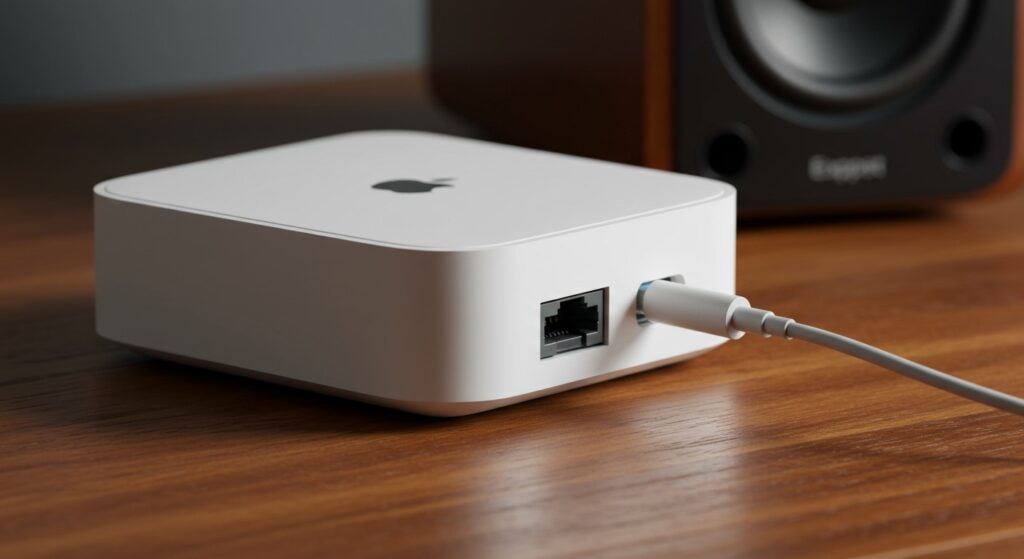
- AirPort Express Base Station: Either the A1392 (square) or A1264 (wall-plug style).
- Powered Speakers or Amplifier: The speakers must have their own power source or be connected to a receiver.
- Audio Cable: Depending on your speaker inputs (3.5mm, RCA, or Optical).
- iOS Device or Mac: To run the initial configuration via AirPort Utility.
| Feature | AirPort Express 1st Gen (A1264) | AirPort Express 2nd Gen (A1392) |
|---|---|---|
| AirPlay Version | AirPlay 1 | AirPlay 2 (with update) |
| Form Factor | Wall-Plug | Desktop / Square |
| Audio Output | 3.5mm Analog/Optical | 3.5mm Analog/Optical |
| Multi-room Sync | No (Limited) | Yes (Full Support) |
| Max Network Speed | 300 Mbps | 450 Mbps |
Step-by-Step: How to Connect Speakers to AirPort Express
Follow these precise steps to get your vintage audio gear or modern monitors streaming music in minutes. I have performed this setup on everything from Audioengine A2+ monitors to vintage Marantz receivers.
Establish the Physical Connection
Locate the audio out port on the back of the AirPort Express (indicated by a small circular icon with a speaker). Insert your 3.5mm cable here.
If you are using powered computer speakers, the other end of the cable likely goes into a green 3.5mm jack. If you are connecting to a Hi-Fi Stereo Receiver, you will likely need a 3.5mm to RCA (Red/White) adapter cable.
Power On the Device
Plug the AirPort Express into a power outlet. Wait for the LED indicator light to flash amber. This signifies that the device is in setup mode and ready to be configured.
Configure via AirPort Utility
Open the AirPort Utility app on your iPhone or iPad. If you are on a Mac, you can find this in Applications > Utilities.
- Select the “Other Wi-Fi Devices” button.
- Select your AirPort Express from the list.
- Choose “Join an Existing Network” to integrate it into your current home Wi-Fi.
- Follow the prompts to name your device (e.g., “Living Room Speakers”) and enter your Wi-Fi password.
Enable AirPlay Audio
Once the light turns solid green, the device is online. Open Control Center on your iPhone, tap the AirPlay icon, and select your AirPort Express. Your music should now play through the connected speakers.
Choosing the Best Audio Cable for High Fidelity
The AirPort Express features a unique hybrid audio port. It contains both a standard 3.5mm analog jack and a Mini-Toslink digital optical transmitter.
If you use a standard aux cable, the AirPort Express uses its internal Digital-to-Analog Converter (DAC). While the internal DAC is surprisingly high-quality for its size, audiophiles often prefer the digital route.
When to Use Optical (Mini-Toslink)
I highly recommend using a Mini-Toslink to Toslink cable if you are connecting to a high-end AV Receiver or a dedicated DAC. This bypasses the AirPort’s internal conversion and sends a pure digital bitstream (up to 16-bit/44.1kHz, which is CD quality) to your high-end gear. This significantly reduces noise floor and interference.
Enabling AirPlay 2 for Multi-Room Audio
One of the biggest questions I get is regarding AirPlay 2 support. To enjoy features like multi-room sync and Siri voice control, you must update your 2nd Gen (A1392) unit.
- Open AirPort Utility.
- Click on your device icon.
- If an update is available (Version 7.8 or higher), click Update.
- Once updated, the AirPort Express will appear in the Apple Home App.
By adding the device to the Home App, you can assign it to a specific room. This allows you to say, “Hey Siri, play Jazz in the Kitchen,” and have your legacy speakers respond instantly.
Troubleshooting Common Connection Drops
Even with a perfect setup, wireless audio can sometimes stutter. Through years of testing, I’ve found that network congestion is the #1 culprit for AirPlay lag.
Fix 1: Use Ethernet Backhaul
If your AirPort Express is near a router or an Ethernet wall jack, plug it in. Using Ethernet instead of Wi-Fi for the “backhaul” provides a rock-solid connection that is immune to wireless interference from microwaves or neighboring networks.
Fix 2: Change the Radio Channel
If Ethernet isn’t an option, use the AirPort Utility on a Mac to change the 5GHz radio channel. Manually selecting a less crowded channel can eliminate the “popping” or “skipping” sounds sometimes heard during playback.
Fix 3: Disable “Extend a Wireless Network”
Unless you specifically need the AirPort Express to boost your Wi-Fi range, set it to “Join a wireless network.” The “Extend” mode often cuts bandwidth in half and increases latency, which is detrimental to high-quality audio streaming.
Why Use AirPort Express for Speakers in 2024?
You might wonder why we still use a discontinued Apple product. The answer is simple: Value.
New AirPlay 2 adapters like the WiiM Mini or Sonos Port can cost anywhere from $90 to $450. You can often find a used AirPort Express A1392 on eBay for under $40. It provides the same bit-perfect audio quality and deep integration into the Apple ecosystem for a fraction of the price.
Moreover, the AirPort Express remains one of the few devices that offers an optical output, making it the perfect bridge for vintage 1970s receivers and modern 2020s streaming services.
Frequently Asked Questions
Can I connect any speakers to an AirPort Express?
Yes, as long as the speakers are powered (they have their own power cord) or are connected to an amplifier/receiver. You cannot connect “passive” speakers directly to the AirPort Express as it does not have a built-in power amp to drive them.
Does the AirPort Express support Bluetooth?
No, the AirPort Express uses Wi-Fi (AirPlay) for audio. This is actually superior to Bluetooth because it offers higher bandwidth (lossless audio quality) and longer range, as it operates across your entire Wi-Fi network rather than just 30 feet.
Can I use the USB port on the AirPort Express for audio?
No. The USB port on the AirPort Express is strictly for printer sharing. It does not support USB DACs or external hard drives. For audio, you must use the 3.5mm/Optical hybrid jack.
Why is my AirPort Express light flashing amber?
A flashing amber light usually means there is a firmware update available or the device has lost its internet connection. Open the AirPort Utility app to see the specific error message and resolve it with one click.
Is the AirPort Express compatible with Windows?
Yes. You can stream audio from a Windows PC to an AirPort Express using iTunes or third-party software like Airfoil. However, the initial setup is easiest when performed on an iOS device or Mac.