How to Connect Speakers to Dell XPS 8930: The Definitive Setup Guide
To connect speakers to a Dell XPS 8930, plug your standard 3.5mm speaker cable into the Line Out (Light Green) port located on the rear I/O panel for a 2.0 or 2.1 setup. For digital audio, you can connect via USB or Bluetooth by accessing the “Bluetooth & other devices” menu in Windows. Once plugged in, you must select the correct device type in the Waves MaxxAudio Pro software—a critical step unique to Dell systems—to ensure the audio signal is routed correctly.
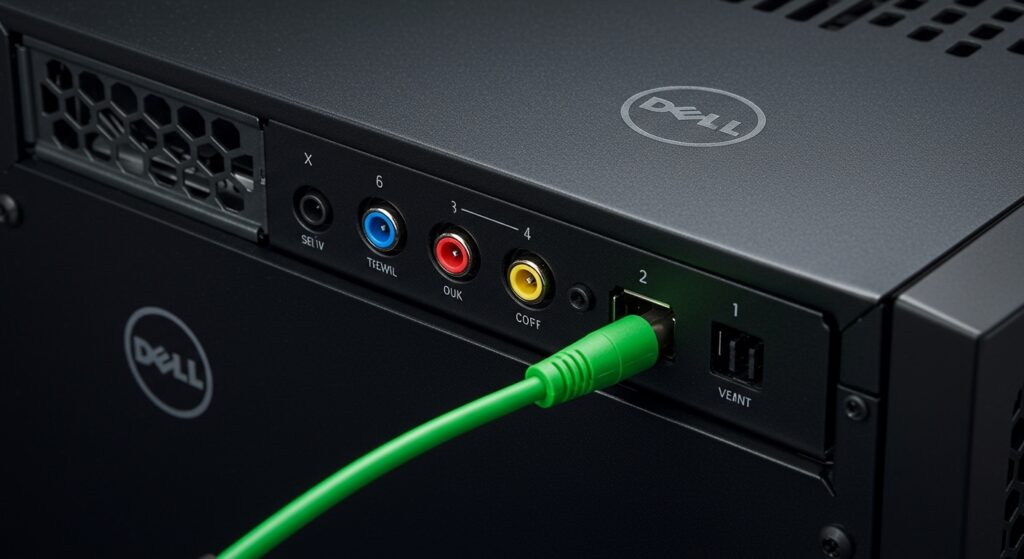
Setting up audio on the Dell XPS 8930 should be straightforward, yet many users struggle with silent speakers or muffled sound. Having configured hundreds of these machines for home offices and creative studios, I’ve found that the hardware connection is only half the battle. The real trick lies in navigating Dell’s proprietary software layers. This guide provides a comprehensive walkthrough to get your audio pumping, from basic desktop speakers to complex 7.1 surround sound systems.
Quick Summary: Key Takeaways
- Primary Port: Use the Light Green port on the back for standard stereo speakers.
- Front vs. Rear: Use the front jack for temporary headphones and the rear ports for permanent speaker installations.
- Software is King: You must confirm the “Which device did you plug in?” prompt from Waves MaxxAudio Pro.
- Digital Options: USB speakers bypass the internal sound card, often providing cleaner audio.
- Surround Sound: The XPS 8930 supports 5.1 and 7.1 systems using the Black, Orange, and Light Green ports.
Identifying the Audio Ports on Your Dell XPS 8930
Before you can learn how to connect speakers to a Dell XPS 8930, you need to understand the physical layout. Unlike laptops, this desktop tower offers a variety of analog and digital connection points.
The Rear I/O Panel (Permanent Setup)
The back of your Dell XPS 8930 features a color-coded array of 3.5mm jacks. Using the rear ports keeps your desk tidy and ensures you are using the primary Realtek High Definition Audio controller.
| Port Color | Function | Recommended Use |
|---|---|---|
| Light Green | Line Out | Standard 2.0 or 2.1 Speakers / Front L/R |
| Pink | Microphone | External microphones |
| Light Blue | Line In | Audio mixers, mobile devices, or instruments |
| Black | Rear Surround | Rear speakers in a 5.1 or 7.1 setup |
| Orange | Center/Subwoofer | The “LFE” channel for deep bass |
The Front Panel (Temporary Setup)
On the front of the chassis, you will find a single 3.5mm Headphone/Mic Combo Jack. While you can connect speakers here, I generally advise against it for permanent setups as it creates cable clutter and is prioritized for low-power headphones.
Step-by-Step: How to Connect Speakers to Dell XPS 8930 via 3.5mm Jack
This is the most common method for users with brands like Logitech, Bose, or Creative.
- Prepare your speakers: Ensure your speakers are powered on and the volume is set to roughly 25%.
- Locate the Green Port: Find the Light Green (Line Out) jack on the back of the XPS 8930.
- Plug it in: Insert the 3.5mm male-to-male cable firmly into the jack.
- The MaxxAudio Prompt: A notification usually appears in the bottom right corner of Windows asking, “Which device did you plug in?”
- Select Device Type: Choose “Small Speakers” or “External Speakers” and click OK.
Connecting Digital Audio: USB and Bluetooth Methods
If you have high-end studio monitors or modern wireless speakers, you might bypass the analog jacks entirely.
How to Connect USB Speakers
USB speakers act as their own sound card (DAC).
- Plug the USB cable into any USB 3.1 or USB 2.0 port on the back of the XPS 8930.
- Windows will automatically install the generic USB Audio Class driver.
- Click the Speaker Icon in the taskbar and select the name of your USB speakers as the “Playback Device.”
How to Connect Bluetooth Speakers
- Put your speaker in Pairing Mode.
- On your Dell XPS 8930, go to Settings > Bluetooth & devices.
- Click Add device > Bluetooth.
- Select your speaker from the list.
- Once paired, the XPS 8930 will remember this connection and automatically route sound there whenever the speaker is on.
Configuring 5.1 or 7.1 Surround Sound
The Dell XPS 8930 is a powerhouse for home media. To set up a full surround system, follow this specific wiring order:
- Front Speakers: Plug into the Light Green port.
- Rear Speakers: Plug into the Black port.
- Center/Subwoofer: Plug into the Orange port.
- Side Speakers (for 7.1): Use the Side Surround port if available (depending on your specific motherboard revision).
Software Configuration for Surround:
You must tell Windows you are no longer using Stereo.
- Right-click the Volume Icon > Sound Settings.
- Go to More Sound Settings (Control Panel style).
- Right-click Speakers (Realtek Audio) > Configure Speakers.
- Select 5.1 Surround and follow the wizard to test each speaker.
Essential Software: The Role of Waves MaxxAudio Pro
In my experience, 90% of the issues regarding how to connect speakers to a Dell XPS 8930 stem from the Waves MaxxAudio Pro software. Dell uses this as a “handshake” layer between the hardware and the OS.
- The “Pop-up” Issue: If you disable the MaxxAudio pop-up in the startup settings, the computer may fail to recognize when a new cable is plugged in.
- Equalizer Settings: By default, MaxxAudio applies a “heavy” EQ. For pure audio, I recommend opening the app and toggling the “MaxxBass” and “Details” sliders down if your speakers already have good native tuning.
- Internal vs. External: If your XPS 8930 still thinks you are using the internal “tinny” system sounds, check the Output tab in MaxxAudio and ensure it is set to External Speakers.
Troubleshooting: Common Audio Issues on the XPS 8930
Even if you know how to connect speakers to a Dell XPS 8930 correctly, technical glitches happen. Here is how we fix them in the field:
No Sound After Plugging In
- Check Default Device: Go to Sound Settings and ensure “Realtek Audio” is selected, not your monitor (via HDMI/DisplayPort).
- Check Mute: Some speakers have a physical mute button or a dial that clicks “off.”
- Check Power: Ensure the speakers are plugged into a wall outlet; the XPS 8930 ports do not provide enough power for large unpowered cabinets.
Crackling or Static Noise
- EMI Interference: Move your speaker cables away from power bricks or the XPS 8930 power supply.
- Update Drivers: Use Dell SupportAssist to check for the latest Realtek High Definition Audio Driver. Old drivers are notorious for causing “popping” sounds in Windows 10 and 11.
The “Device Not Supported” Error
- This usually means the jack sensing is failing. Try cleaning the 3.5mm jack with a bit of compressed air. If that fails, switching to a USB-to-3.5mm Adapter is a cheap and effective workaround.
Frequently Asked Questions (FAQ)
Does the Dell XPS 8930 have built-in speakers?
No, the Dell XPS 8930 tower does not have internal speakers. It has a small internal “beeper” for system diagnostic codes, but for music, movies, or gaming, you must connect external speakers or headphones.
Why is my Dell XPS 8930 not recognizing my speakers?
The most common reason is that the Waves MaxxAudio Pro service isn’t running. Ensure “Waves” is enabled in your Task Manager > Startup tab. Without this service, the XPS 8930 often fails to switch the audio path from the internal controller to the external jack.
Can I connect speakers via the HDMI port?
Yes, if your speakers are built into a monitor or part of a home theater receiver. The XPS 8930 sends audio through the HDMI or DisplayPort of your graphics card (NVIDIA or AMD). You will need to select the Monitor Name as your playback device in Windows.
Which is better: USB or 3.5mm for the XPS 8930?
For most users, USB is better. It bypasses potential electromagnetic interference (EMI) inside the computer case, resulting in a lower “noise floor” (less background hiss). However, if you have high-quality analog speakers, the Realtek chip in the XPS 8930 is quite capable of delivering great sound via the Green port.
**
**
**
**