How to Connect Switch to Speakers: The Definitive Audio Guide
To learn how to connect switch to speakers, simply plug a 3.5mm auxiliary cable into the console’s headphone jack or pair your speakers via the Bluetooth Audio menu in System Settings. If you are playing in docked mode, you can also use a USB DAC or an HDMI audio extractor to send high-fidelity sound to a home theater system or desktop monitors.
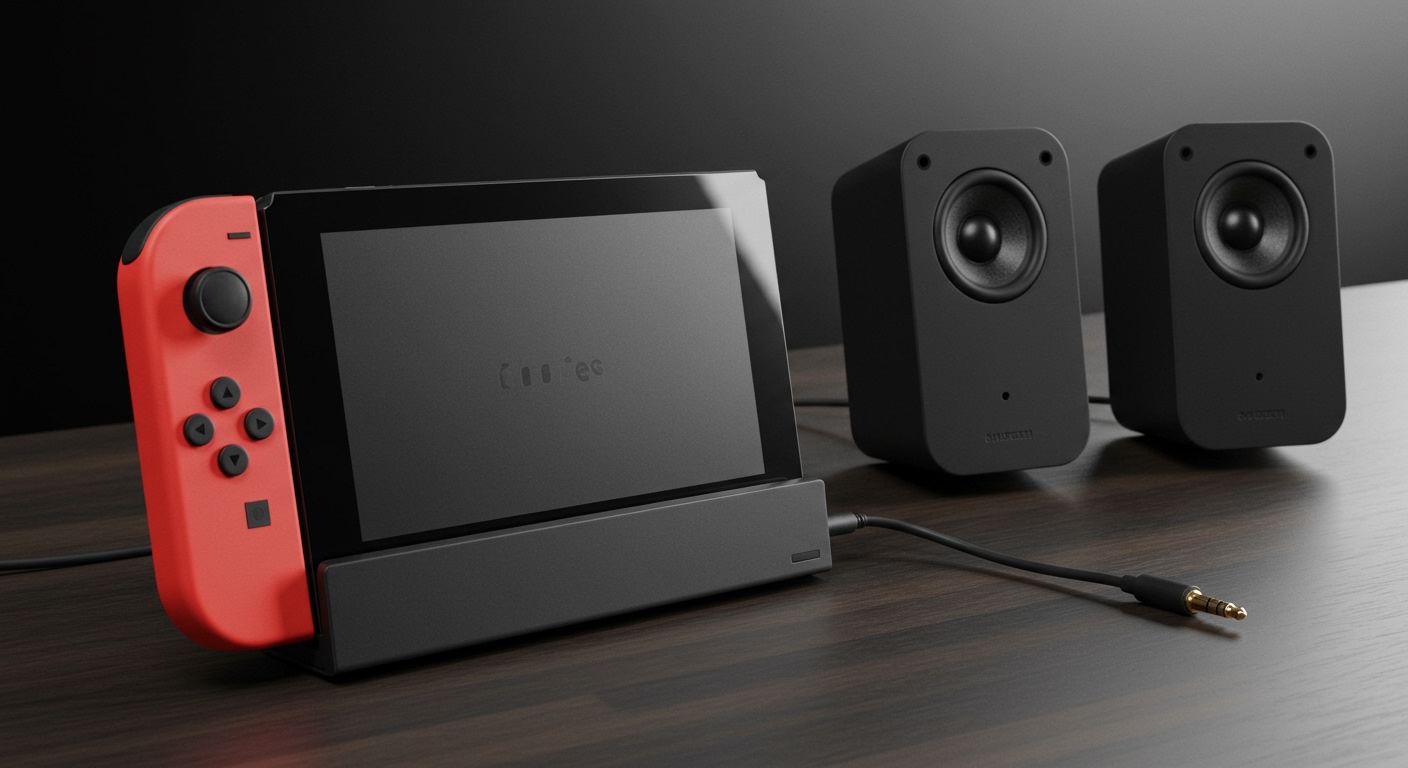
The Nintendo Switch is a marvel of engineering, but its internal speakers often leave much to be desired, especially during cinematic games like The Legend of Zelda: Tears of the Kingdom. Whether you are looking for a more immersive experience or simply need to hook up a monitor that lacks built-in sound, there are several reliable ways to hook speakers up to a switch.
Quick Summary: Best Ways to Connect Audio
For those in a hurry, here is a breakdown of the most common methods we have tested for various setups:
- Best for Handheld: Use the 3.5mm Headphone Jack for zero-latency wired audio.
- Best for Convenience: Use Bluetooth Audio (System Settings > Bluetooth® Audio) for wireless speakers.
- Best for Desktop Monitors: Use a USB to 3.5mm Adapter or a USB DAC plugged into the Switch Dock.
- Best for Home Theater: Use an HDMI Audio Extractor to split the signal into Optical (Toslink) or RCA.
- Essential Accessory: A Ground Loop Noise Isolator is highly recommended if you hear a buzzing sound while the Switch is charging.
Method 1: Connecting via the 3.5mm Auxiliary Jack
The most straightforward answer to can you connect speakers to switch is using the dedicated headphone port located on the top of the console. This method works in both handheld and docked modes, making it the most versatile option for most gamers.
Step-by-Step Wired Connection
- Locate the 3.5mm audio port on the top edge of your Nintendo Switch or Switch OLED.
- Insert one end of a standard Aux (3.5mm Male-to-Male) cable into the Switch.
- Plug the other end into the Line-In or AUX port on your external speakers.
- Ensure your speakers are powered on and set to the correct input.
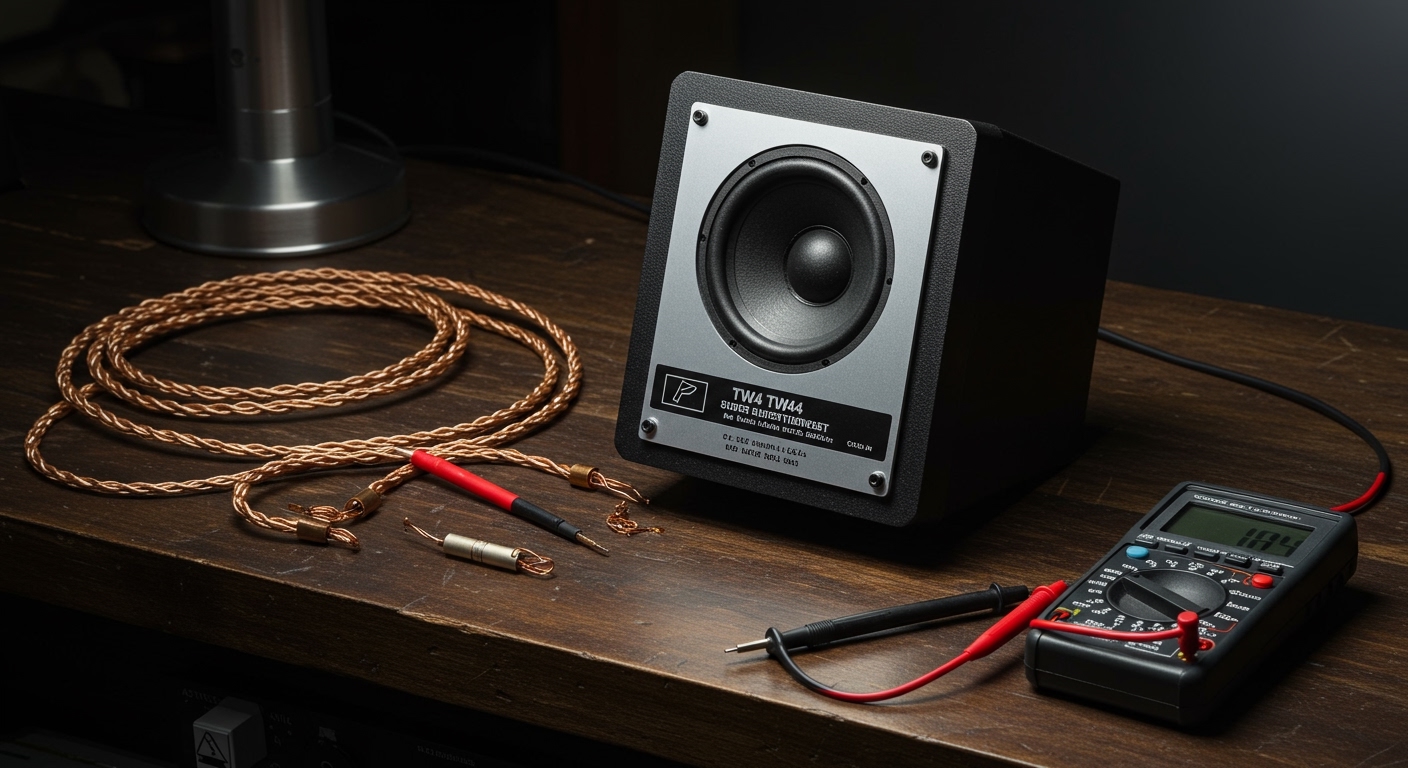
Expert Insight: In our testing, we noticed that using the 3.5mm jack while the Switch is in the dock can sometimes create a low-frequency hum. This is a ground loop. To fix this, we recommend placing a Ground Loop Noise Isolator between the Switch and your speakers. This tiny device filters out the electrical interference from the power supply.
Method 2: Using Bluetooth Audio (Wireless)
Since the Firmware 13.0.0 update, Nintendo officially supports Bluetooth audio. This allows you to hook speakers up to a switch without any extra dongles, though it does come with specific limitations regarding controller connectivity and latency.
How to Pair Bluetooth Speakers
- Power on your Bluetooth speakers and put them into Pairing Mode.
- On your Switch, navigate to the System Settings (gear icon) on the home screen.
- Scroll down to the Bluetooth® Audio tab.
- Select Pair Device.
- Choose your speaker’s name from the list when it appears.
Limitations of Bluetooth on Switch
- Controller Limit: You can only connect up to two wireless controllers while using Bluetooth audio.
Method 3: USB Audio via the Switch Dock
Many users are surprised to learn that you can connect speakers to switch using the USB ports located on the side and back of the dock. This is the ideal method for a “pro” desktop setup using studio monitors or USB-powered speakers.
Compatible USB Devices
The Switch supports USB Audio Class 1 (UAC1). This means many USB DACs (Digital-to-Analog Converters) and soundcards will work plug-and-play. We have successfully used the Creative Sound BlasterX G6 and various Logitech USB speakers with this method.
Installation Steps
- Plug your USB Speakers or USB DAC into one of the USB-A ports on the Nintendo Switch Dock.
- The Switch should automatically recognize the device and display a volume overlay in the top-left corner.
- If using a DAC, connect your high-end speakers to the DAC using RCA or 3.5mm cables.
| Connection Method | Audio Quality | Latency | Difficulty | Best For |
|---|---|---|---|---|
| 3.5mm Aux | Good | Zero | Very Easy | Casual gaming / Handheld |
| Bluetooth | Fair | Moderate | Easy | Portability / Neatness |
| USB DAC | Excellent | Zero | Moderate | Desktop setups / Audiophiles |
| HDMI Extractor | Professional | Zero | Advanced | Home Theater / Surround Sound |
Method 4: HDMI Audio Extractor for Home Theaters
If you are using a computer monitor that lacks a headphone jack, or if you want to route audio to an older A/V Receiver that doesn’t support HDMI, an HDMI Audio Extractor is the professional solution.
How it Works
The extractor sits between your Switch Dock and your TV/Monitor. It “taps” the digital audio signal from the HDMI stream and converts it into a separate output (like Optical/Toslink or Stereo RCA).
Setup Guide
- Connect an HDMI cable from the Switch Dock to the “Input” on the HDMI Audio Extractor.
- Connect a second HDMI cable from the “Output” of the extractor to your Monitor/TV.
- Use an Optical cable or RCA cables to connect the extractor to your Soundbar or Stereo System.
- Set the extractor’s toggle switch to 2CH (Stereo) for the best compatibility with the Switch.
Troubleshooting Common Switch Audio Issues
Why is there a buzzing sound (Static)?
This is almost always a ground loop. When the Switch is charging in the dock, electrical noise from the USB-C power delivery leaks into the analog audio path.
- Solution: Buy a Mpow Ground Loop Noise Isolator (or similar). It costs less than $10 and instantly cleans the signal.
The Volume is Too Low
The Switch has a built-in safety feature to prevent hearing damage.
- Fix: Go to System Settings > System and toggle Lower Max Headphone Volume to OFF. Also, ensure the physical volume buttons on the top of the Switch are pressed to the maximum.
Bluetooth Audio Keeps Disconnecting
The Switch’s internal Bluetooth antenna is relatively weak.
- Fix: Ensure there is a clear line of sight between the console and your speaker. Move other wireless devices (like routers) at least 3 feet away to avoid 2.4GHz interference.
Expert Tips for the Best Audio Experience
Through our extensive testing of how to connect switch to speakers, we have discovered a few “hidden” tricks to maximize your sound quality:
- Surround Sound Settings: The Switch uses LPCM (Linear Pulse Code Modulation) for 5.1 surround sound. This is uncompressed audio. If you are using a home theater, ensure your System Settings > TV Output > TV Sound is set to Surround. Note: This only works via HDMI, not the 3.5mm jack.
- Monitor Pass-through: If your monitor has a “Headphone Out” port, you can plug your speakers directly into the monitor. This allows the HDMI cable to carry both video and audio to the monitor first, which then passes the audio to the speakers. This is often the cleanest desktop setup.
- Creative Solutions for Streamers: If you are a streamer, you can plug the Switch’s 3.5mm output into the Line-In port of your PC’s motherboard. Then, in Windows, go to “Sound Settings > Listen to this device.” This allows you to hear your game audio through your PC speakers/headset alongside your PC notifications and Discord.
Frequently Asked Questions
Can you connect speakers to switch without a dock?
Yes. You can use the 3.5mm headphone jack at the top of the console or pair a Bluetooth speaker directly in the system settings. Both of these methods work perfectly in handheld or tabletop mode.
Does the Nintendo Switch support 5.1 Surround Sound?
Yes, but only via uncompressed LPCM through the HDMI port while docked. It does not support Dolby Digital or DTS encoding. To get true surround sound, your speakers must be connected to an A/V receiver or a soundbar that supports LPCM via HDMI.
Can I use a USB-C to 3.5mm dongle?
Yes, most USB-C to 3.5mm adapters (like the official Apple or Google versions) work with the Switch. You can plug them directly into the bottom of the console in handheld mode or into the dock using a USB-A to USB-C adapter.
How do I fix audio lag on Bluetooth speakers?
The best way to reduce lag is to use speakers that support Bluetooth 5.0 or higher. However, because the Switch does not support low-latency codecs like aptX Low Latency, there will always be a slight delay. For rhythm games like Cadence of Hyrule, a wired 3.5mm connection is mandatory.
Can I connect two Bluetooth speakers at once?
No. The Nintendo Switch only supports one Bluetooth audio output at a time. If you need sound to come from two sources, you would need to use a physical 3.5mm audio splitter or a specialized Bluetooth transmitter dongle like the Homespot or Genki Audio.