Mastering the Traktor Kontrol S2 Hardware Setup
To learn how to connect traktor s2 to speakers, you simply need to plug an RCA cable or a 3.5mm-to-RCA cable from the Main Out ports on the back of the controller into the inputs of your active monitors or amplifier. Once the physical connection is secure, open Traktor Pro 3, navigate to Audio Setup, and select the Traktor Kontrol S2 as your primary Audio Device.
This guide covers everything from basic wiring for bedroom DJs to professional signal routing for club environments. Whether you are using the original S2 MK1, the MK2, or the latest MK3, the principles of gain staging and cable selection remain vital for high-quality sound.
🚀 Quick Start: The TL;DR Setup Checklist
For those in a hurry to get the music started, here is the essential workflow for a successful setup:
- Unbox & Connect: Plug the USB-B cable from the Traktor S2 to your laptop.
- Audio Link: Connect RCA cables from the Main Out to your speakers.
- Power Up: Turn on your speakers last to avoid a loud “pop” that can damage tweeters.
- Software Config: Open Traktor Pro 3 and run the Setup Wizard.
- Audio Routing: Ensure Output Routing is set to “Internal” with Output Main L/R assigned correctly.
- Test Signal: Load a track, move the crossfader to the center, and slowly raise the Main knob.
Understanding the Traktor Kontrol S2 Rear Panel
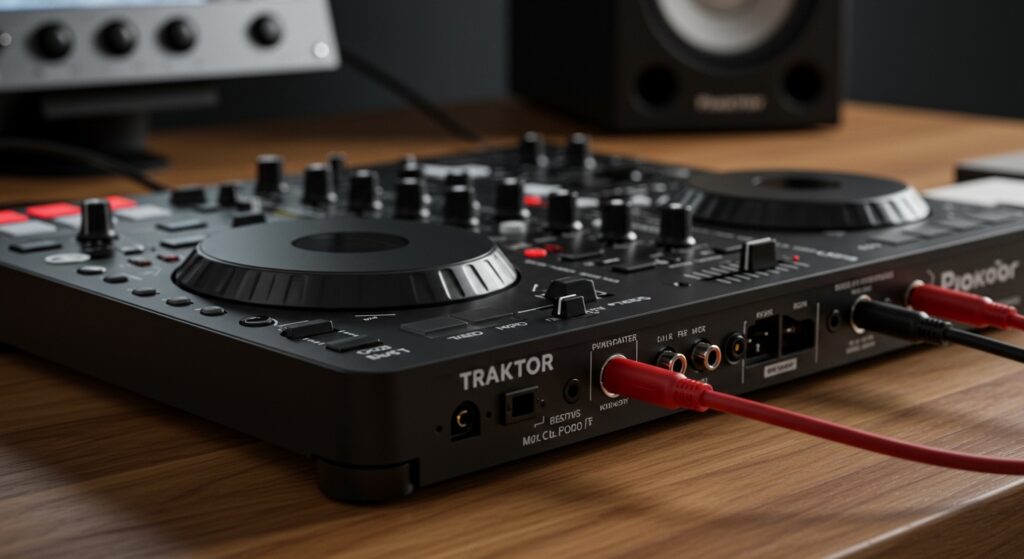
Before diving into how to connect traktor s2 to speakers, you must understand the input and output (I/O) layout. The Traktor S2 is a “bus-powered” device, meaning it draws power directly from your computer’s USB port.
The rear panel is the hub for all your audio signals. On the MK3 model, you will find two primary RCA outputs, a 3.5mm TRS main out, and a USB-B port.
Earlier models like the S2 MK2 also featured 1/4-inch TRS balanced outputs. These are superior for long cable runs (over 15 feet) as they reduce electrical interference and “hum.”
Traktor S2 Output Comparison Table
| Feature | S2 MK1 / MK2 | S2 MK3 | Best Use Case |
|---|---|---|---|
| Main Output 1 | 1/4″ Balanced TRS | RCA (Unbalanced) | Studio Monitors / PA System |
| Main Output 2 | RCA (Unbalanced) | 3.5mm Mini-Jack | PC Speakers / Home Stereo |
| Headphone Out | 1/4″ Jack (Front) | 3.5mm Jack (Front) | Direct Monitoring |
| Power Source | USB or DC Adapter | USB 2.0 or iPad Power | Mobile or Desktop DJing |
How to Connect Traktor S2 to Speakers: Step-by-Step
Connecting your hardware correctly ensures you don’t blow a fuse or distort your audio signal. I have set up the Traktor S2 in various environments, from cramped bedroom desks to loud bar booths, and the following steps are the industry standard.
Step 1: Choosing the Right Cables
The cable you need depends entirely on your speakers. Most active studio monitors (like the Yamaha HS5 or KRK Rokits) use either XLR, 1/4″ TRS, or RCA.
If your speakers have RCA inputs, use a standard RCA-to-RCA male cable. If you are connecting to a professional PA mixer, you may need an RCA-to-XLR male cable or RCA-to-1/4″ TS adapters.
Step 2: Physical Connection
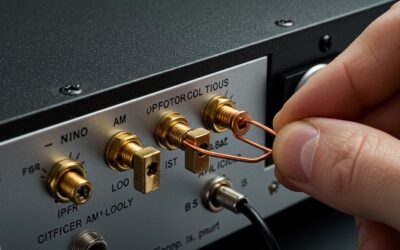
Ensure both the Traktor Kontrol S2 and your speakers are turned OFF. Plug the Red (Right) and White (Left) RCA connectors into the Main Out section on the back of the S2.
Connect the other ends to the corresponding inputs on your speakers. If you are using a single portable speaker with an Aux In, use a 3.5mm to 3.5mm TRS cable from the S2’s secondary main out (on MK3).
Step 3: Powering the System
Connect the USB cable to your computer. On the Traktor S2 MK3, the controller will light up in a “Vegas Mode” sequence to indicate it is receiving power.
Once the controller is recognized by your OS (Windows or macOS), turn on your speakers. Always follow the rule: Audio Source ON first, Speakers ON last.
Configuring Traktor Pro 3 Software
Once the wires are in place, the software needs to know where to send the sound. Without the correct Audio Device settings, you might hear music through your laptop speakers instead of your DJ monitors.
Accessing Audio Setup
- Launch Traktor Pro 3.
- Click the Gear Icon in the top right corner to open Preferences.
- Select the Audio Setup tab.
- In the Audio Device dropdown, select Traktor Kontrol S2 MK3 (WASAPI) on Windows or Traktor Kontrol S2 MK3 (CoreAudio) on Mac.
Setting Output Routing
Go to the Output Routing tab in Preferences. Set the Mixing Mode to Internal.
For Output Main, assign:
- L: Out 1
- R: Out 2
For Output Monitor (your headphones), assign:
- L: Out 3
- R: Out 4
By doing this, you ensure the Cue button on your Traktor S2 allows you to hear the next track in your headphones without the audience hearing it.
Professional Tips for Better Sound Quality
Having a connection is one thing; having a clean, loud signal is another. During my years of performing, I’ve seen many beginners red-line their mixers, leading to distorted sound that ruins the party.
Watch the Gain Staging
Your Traktor S2 has individual Gain knobs for each channel and a Main knob. Keep your channel levels in the blue/green range on the software meters.
If the meters hit Red, the digital signal is clipping. This creates a harsh, “crunchy” sound that can damage high-end speaker drivers.
Balanced vs. Unbalanced Connections
If you are learning how to connect traktor s2 to speakers for a gig in a large hall, be wary of RCA cables. RCA is “unbalanced” and prone to picking up radio interference over long distances.
If your speakers are more than 10 feet away, I recommend using a DI Box (Direct Injection). This converts the S2’s unbalanced RCA signal into a balanced XLR signal, ensuring a hum-free performance.
Use High-Quality Cables
Avoid the cheap, thin cables that come bundled with home electronics. Brands like Mogami, Roland Black Series, or Hosa Pro offer better shielding.
Better shielding prevents the “buzzing” sound caused by being near power strips or WiFi routers.
Troubleshooting Common Traktor S2 Setup Issues
Even the pros run into technical glitches. If you follow the guide on how to connect traktor s2 to speakers and still hear nothing, check these common failure points.
No Sound from Speakers
First, check the Master Knob on the Traktor S2 hardware; it is a physical control that must be turned up. Second, ensure the Crossfader isn’t pushed all the way to the side of an empty deck.
On Windows, ensure that no other application (like Chrome or Spotify) has “Exclusive Control” over the Traktor S2 soundcard. You can toggle this in the Windows Sound Control Panel.
Distorted Audio or Crackling
This is usually a Buffer Size issue. Go to Preferences > Audio Setup and increase the Latency or Buffer Size to 256 or 512 samples.
A lower buffer size is great for scratching, but it puts a heavy load on your CPU. If your laptop is older, a higher buffer size will stop the “crackling” sounds.
Ground Loop Hum
If you hear a low-frequency hum, it’s likely a ground loop. This happens when your laptop and speakers are plugged into different power outlets.
Pro Tip: Use a single power strip for your entire DJ setup to ensure everything shares a common ground. Alternatively, use a Ground Loop Isolator on your RCA lines.
Advanced: Connecting Traktor S2 to an iPad
The Traktor S2 MK3 is designed to work seamlessly with Traktor DJ 2 on iPad. This is a fantastic setup for mobile DJs or house parties where a laptop is too bulky.
- Connect the iPad to the USB-A (iOS) port on the back of the S2 using a Lightning to USB Camera Adapter.
- Plug the S2 into a wall outlet using the NI Power Supply (not included with all bundles). The iPad alone cannot power the controller.
- Connect your speakers to the 3.5mm Main Out or RCA outs.
- Open the Traktor DJ 2 app; the hardware should map automatically.
Frequently Asked Questions (FAQ)
Can I connect my Traktor S2 to a home cinema system?
Yes, you can connect the Traktor S2 to a home cinema receiver using an RCA-to-RCA cable. However, be aware that many home receivers have “Digital Signal Processing” (DSP) that can introduce audio latency, making it difficult to beatmatch. Use the “Direct” or “Game” mode on your receiver to minimize delay.
Do I need an external soundcard for the Traktor S2?
No, the Traktor Kontrol S2 features a built-in 24-bit/48kHz professional audio interface. It is designed to handle all audio processing, so you do not need to use your computer’s headphone jack or an extra soundcard.
Why is my Traktor S2 volume so low?
Ensure the Gain knobs on the top of the mixer channels are turned up to at least the 12 o’clock position. Also, check the Main volume on the controller and the physical volume knobs on the back of your active speakers.
What is the difference between Main Out 1 and Main Out 2?
On the S2 MK3, the RCA outputs (Main 1) and the 3.5mm output (Main 2) carry the exact same signal. They are provided for convenience so you can connect to either professional monitors or consumer-grade speakers without needing special adapters.
Can I use the Traktor S2 with Rekordbox or Serato?
The Traktor S2 is natively designed for Traktor Pro 3. While it is possible to use it with other software via MIDI mapping, the integration is not as “plug-and-play” as it is with Native Instruments’ own software. Most users find the best experience remains within the Traktor ecosystem.
**
**
**
**