Understanding How to Equalize Speakers for Professional-Grade Sound
To how to equalize speakers effectively, you must measure your room’s acoustic response using a calibrated microphone and then apply Parametric EQ (PEQ) filters to flatten frequency peaks. This process compensates for room resonances and speaker inaccuracies, resulting in a balanced, “transparent” audio profile.
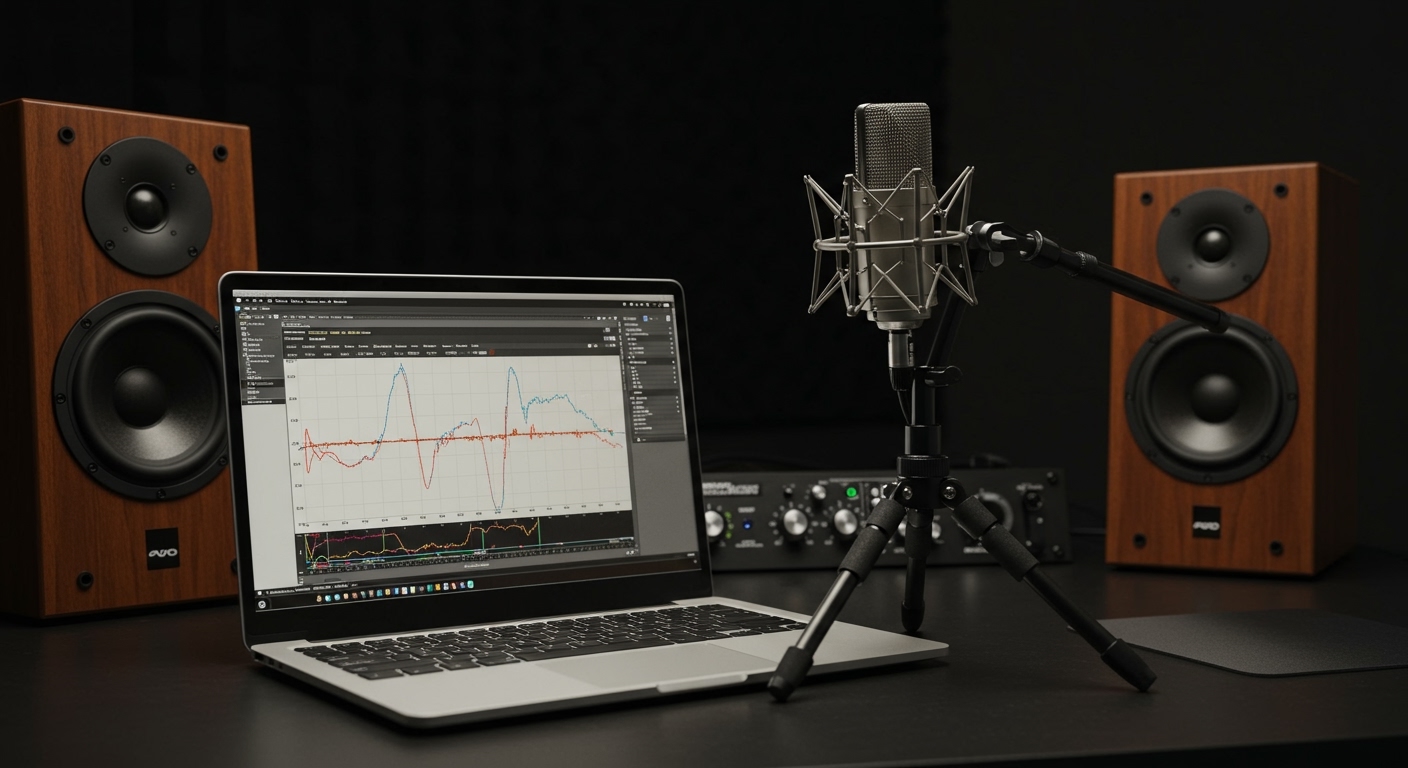
You don’t need to be an audio engineer to master this. Whether you are using a home theater, studio monitors, or a simple desktop setup, equalization is the most cost-effective way to “upgrade” your hardware without buying new gear. In my years of testing high-end audio rigs, I’ve found that even a $5,000 speaker system can sound “muddy” or “thin” if the room isn’t accounted for through proper EQ.
TL;DR: Quick Steps to Better Audio
- Identify the Goal: Aim for a “flat” or slightly downward-sloping frequency response.
- Gather Tools: Use a UMIK-1 microphone and Room EQ Wizard (REW) software.
- Measure: Run a frequency sweep from 20Hz to 20kHz.
- Analyze: Identify peaks (resonances) in the low-end and midrange.
- Apply Filters: Use Equalizer APO (Windows) or a MiniDSP (Hardware) to cut those peaks.
- Verify: Re-measure to ensure the “mud” is gone and the clarity is restored.
Why You Must Learn How to Equalize Speakers
The room you sit in is the most significant “component” of your sound system. Every wall, window, and piece of furniture reflects sound waves, causing constructive and destructive interference. This leads to Room Modes, where certain bass frequencies become boomy while others disappear entirely.
When I first calibrated my home office, I discovered a massive 12dB spike at 125Hz caused by my desk’s surface. Without EQ, my music sounded bloated and “chesty.” By learning how to equalize speakers, I was able to surgically remove that resonance, revealing details in the music I had never heard before.
The Benefits of Accurate Equalization
- Increased Clarity: Removing “masking” frequencies allows vocals and instruments to breathe.
- Tightened Bass: EQ eliminates the “one-note bass” effect caused by room standing waves.
- Better Imaging: Balanced speakers create a more precise “phantom center,” making it feel like the singer is in the room.
- Listener Fatigue Reduction: Harsh high-frequency peaks that cause ear pain can be smoothed out.
The Essential Toolkit for Speaker Calibration
Before you start turning digital knobs, you need the right tools. Standard “Graphic EQs” (the sliders you see in some apps) are often too imprecise for high-quality calibration. You need Parametric EQ, which allows you to control the Center Frequency, Gain, and Q-Factor (Bandwidth).
Recommended Hardware and Software
| Tool Type | Recommendation | Why It Matters |
|---|---|---|
| Microphone | MiniDSP UMK-1 | A calibrated USB mic ensures the measurement is accurate across all frequencies. |
| Measurement Software | Room EQ Wizard (REW) | The industry standard for free, high-precision acoustic analysis. |
| Windows EQ Engine | Equalizer APO | A system-wide EQ that works in the background with zero latency. |
| GUI for APO | Peace Interface | Makes Equalizer APO much easier to use with a visual layout. |
| Hardware DSP | MiniDSP 2×4 HD | Best for home theaters or systems where you can’t run software EQ. |
Step 1: Setting Up Your Measurement Environment
Accuracy starts with the setup. If your microphone is in the wrong spot, your EQ settings will be useless.
- Place the Microphone: Mount your UMIK-1 on a tripod at exactly “ear height” in your primary listening position.
- Orient the Mic: Point the microphone directly at the ceiling (using the 90-degree calibration file) or directly between the speakers (using the 0-degree file). I recommend pointing it up for room-wide measurements.
- Minimize Background Noise: Turn off air conditioners, fans, and computers with loud fans. Even a 30dB noise floor can skew your low-end readings.
- Check Connections: Ensure your speakers are positioned in an equilateral triangle relative to your head.
Step 2: Running Your First Frequency Sweep in REW
Room EQ Wizard (REW) is powerful but can be intimidating. Follow this workflow to get your baseline data:
Opening the SPL Meter
Before measuring, use the SPL Meter in REW to calibrate your volume. Aim for a “Pink Noise” reading of about 75dB at the listening position. This is loud enough to overcome background noise but quiet enough to avoid damaging your drivers.
Performing the Sweep
- Click the Measure button in the top left.
- Set the range from 20Hz to 20,000Hz.
- Ensure the “Level” is set to roughly -20dBFS.
- Hit Start. You will hear a loud “whoop” sound. This is the frequency sweep.
Pro Tip: I always take at least three measurements and average them. This accounts for small movements in your head position and provides a more realistic “window” of what you’re hearing.
Step 3: Analyzing the Data (What to Look For)
Once the sweep is done, you’ll see a jagged line on a graph. This is your Frequency Response.
Identifying Room Modes (The Bass Problems)
The region below 200Hz-300Hz is dominated by your room. You will likely see tall “peaks” and deep “valleys.”
- Peaks: These are caused by Room Modes. They make the bass sound boomy. These are easy to fix with EQ.
- Dips (Nulls): These are caused by phase cancellation. Do not try to “EQ up” a deep null. You will only stress your amplifier and speaker without actually fixing the sound. The only way to fix a null is to move the speakers or the seat.
Identifying Treble Harshness
Above 1kHz, you are mostly hearing the speaker’s natural character and early reflections. If the line is rising sharply toward 10kHz, your speakers might sound “bright” or “tinny.”
Step 4: Generating EQ Filters Automatically
One of REW’s best features is the EQ Auto-Target tool. It calculates the exact filters you need to reach a specific “Target Curve.”
- Click the EQ button at the top of the REW window.
- Select your Speaker Type (e.g., Generic or MiniDSP).
- Set the Target Settings. Most experts prefer the Harman Target Curve, which has a slight bass boost and a gentle treble roll-off. This sounds much more “natural” than a perfectly flat line.
- Adjust the Filter Tasks: Set the range (e.g., 20Hz to 500Hz) and click Match Response to Target.
- REW will generate a list of PK (Peaking) filters with specific Frequency, Gain, and Q values.
Step 5: Applying EQ with Equalizer APO (Windows Guide)
Now that you have your filter values, you need to apply them to your system.
Installing the Software
Download and install Equalizer APO. During installation, it will ask which “Output Device” you want to manage. Select your DAC or Soundcard. Restart your computer.
Using the Peace GUI
- Open the Peace Interface.
- Select the “Plus” icon to add a new filter bank.
- Manually enter the values provided by REW.
- CRITICAL: Set a Pre-amplification (Pre-amp) value that is equal to your highest positive boost. If you boosted any frequency by 3dB, set your Pre-amp to -3dB to prevent digital clipping.
Step 6: The Subjective Listening Test
Data is important, but your ears are the final judge. I always use a “Reference Playlist” of songs I know intimately to test my EQ.
What to Listen For:
- Male Vocals: If they sound like they have a cold, you may have too much boost around 200Hz.
- Kick Drums: They should sound like a “thump,” not a “booom.” If they linger too long, you missed a resonance peak in the 50Hz-80Hz range.
- Sibilance: Listen to the “S” and “T” sounds in vocals. If they pierce your ears, reduce the gain around 5kHz to 8kHz.
Expert Insight: Don’t chase a “perfect” graph. Sometimes, over-correcting a speaker can make it sound “dead” or “clinical.” If it sounds better to you with a little extra bass, keep it!
Advanced Concepts: Q-Factor and Bandwidth
When learning how to equalize speakers, the Q-Factor is the most misunderstood variable.
- Low Q (0.5 to 1.0): Affects a wide range of frequencies. Great for general “tonal balancing” (e.g., making a speaker warmer).
- High Q (4.0 to 10.0): Affects a very narrow “notch.” Used to kill specific room resonances without affecting the surrounding music.
In my experience, you should use High Q filters for bass peaks and Low Q filters for general treble adjustments. Narrow filters in the high frequencies often sound unnatural because our ears don’t process treble resonances in the same way they process bass modes.
Common Mistakes to Avoid
- Boosting Nulls: As mentioned, trying to fill a hole in the frequency response is a recipe for distortion. Focus on cutting the peaks.
- Over-EQing High Frequencies: The higher the frequency, the more the measurement changes if you move your head just one inch. Stick to broad strokes above 1kHz.
- Ignoring the Pre-Amp: If your EQ goes above the “0dB” line and you don’t lower the master pre-amp, your audio will “clip,” creating harsh digital distortion.
- Measuring Both Speakers at Once: For the best results, measure and EQ the Left and Right speakers separately. Rooms are rarely symmetrical; your left speaker might need a 60Hz cut that your right speaker doesn’t.
Frequently Asked Questions
Can I equalize speakers on a Mac?
Yes! While Equalizer APO is Windows-only, Mac users can use SoundSource or Audio Hijack by Rogue Amoeba. Both allow you to host AU/VST plugins (like FabFilter Pro-Q 3) to apply system-wide EQ.
Will EQ damage my speakers?
Standard “cuts” (reducing volume at certain frequencies) will never damage your speakers. In fact, it often makes them safer by reducing the load on the woofer. However, massive “boosts” (e.g., +10dB at 20Hz) can force a speaker beyond its mechanical limits and cause damage.
Do I need to re-EQ if I move my furniture?
Yes. Large objects like sofas, bookshelves, or acoustic panels change how sound reflects. If you make significant changes to your room layout, you should run a new REW sweep.
What is the difference between Graphic and Parametric EQ?
Graphic EQ has fixed frequencies and fixed widths (like an old-school stereo). Parametric EQ allows you to choose any frequency and precisely control how wide or narrow the adjustment is, making it far superior for room correction.