

How to Get Phone to Play Through Car Speakers: The Definitive Guide
Learning how to get phone to play through car speakers is the fastest way to upgrade your driving experience, whether you want to stream Spotify, listen to podcasts, or take hands-free calls. You can connect your device using Bluetooth, USB cables, Auxiliary (AUX) ports, or advanced interfaces like Apple CarPlay and Android Auto. For older vehicles, specialized tools like FM transmitters or cassette adapters bridge the gap between vintage hardware and modern smartphones.
🚀 Key Takeaways: Expert Summary
Best Quality: Use USB or Apple CarPlay/Android Auto for lossless audio and integrated navigation.
Most Convenient: Bluetooth offers a wireless connection that auto-connects every time you enter the car.
Universal Compatibility: The 3.5mm AUX cable works with almost any car built after 2005 that has a headphone jack.
Legacy Solutions: Use an FM Transmitter if your car lacks any digital or analog inputs.
Safety First: Always prioritize hands-free methods to talk on phone through car speakers to avoid distractions and legal issues.
Comparison of Phone-to-Car Connection Methods
| Method | Audio Quality | Ease of Use | Charging Capability | Best For |
|---|---|---|---|---|
| Apple CarPlay / Android Auto | ⭐⭐⭐⭐⭐ | High | Yes (Wired) | Modern cars, Navigation |
| USB Connection | ⭐⭐⭐⭐⭐ | Medium | Yes | Audiophiles, Long trips |
| Bluetooth | ⭐⭐⭐⭐ | High | No | Daily commuting, Wireless |
| AUX Cable (3.5mm) | ⭐⭐⭐ | Medium | No | Older cars with jacks |
| FM Transmitter | ⭐⭐ | Low | Sometimes | Vintage cars (No AUX/BT) |
Method 1: How to Play Music from Phone to Car Speakers via Bluetooth
Bluetooth is the most popular method for modern drivers. It eliminates messy wires while allowing you to play music from phone to speakers with full steering wheel control.
Step 1: Enable Pairing Mode on Your Car
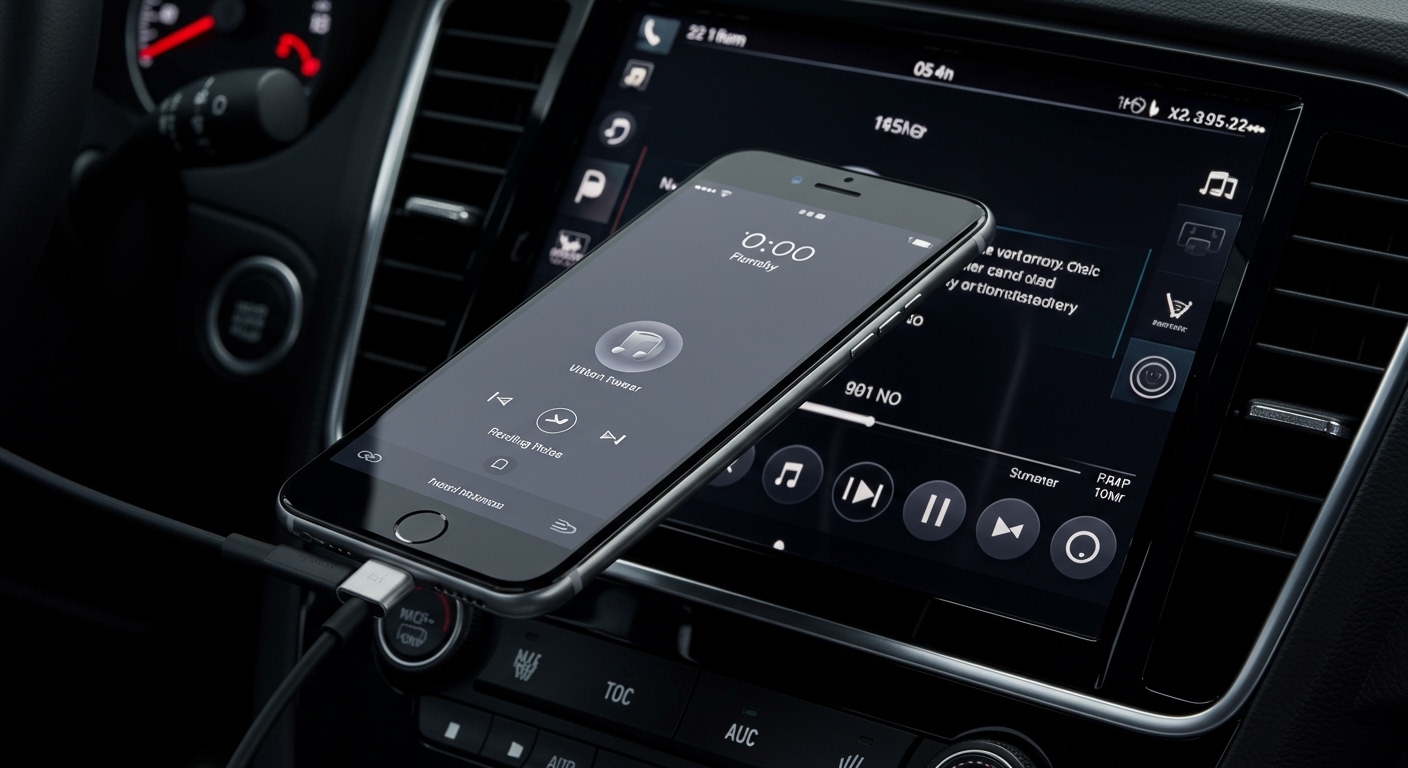
Navigate to your car’s infotainment settings. Look for “Phone,” “Bluetooth,” or “Setup.” Select “Add New Device” or “Pair Device.” I’ve found that some older Toyota or Honda models require you to use voice commands like “Pair Phone” to trigger the discovery mode.
Step 2: Search on Your Smartphone
Open Settings > Bluetooth on your iPhone or Android. Ensure the toggle is ON. Your car’s name (e.g., “My Chevy” or “HandsFreeLink”) should appear under “Available Devices.”
Step 3: Confirm the Passkey
Tap the car’s name on your phone. A 4 or 6-digit PIN will likely appear on both screens. If they match, hit “Pair” or “Confirm.” Once paired, your phone will automatically play phone audio through car speakers whenever you start the engine.
Method 2: How to Play Phone Through Car Speakers Using USB
If you care about high-fidelity sound, a USB connection is superior to Bluetooth. It bypasses the phone’s internal DAC (Digital-to-Analog Converter) and uses the car’s superior audio processing.
Step 1: Use a High-Quality Data Cable
Not all cables are created equal. Use an MFi-certified Lightning cable for iPhones or a high-speed USB-C cable for Androids. Cheap “charging-only” cables often fail to transmit data, preventing you from learning how to play music through car speakers.
Step 2: Plug Into the Data Port
Locate the USB port labeled with a Smartphone icon or the word “Data.” Some cars have multiple ports, but often only one connects to the stereo system.
Step 3: Select USB Source
On your car’s head unit, press the “Source” or “Media” button until “USB” or “iPod” is highlighted. Your phone may prompt you to “Trust this computer”—select yes to allow the audio stream.
Method 3: Using Apple CarPlay and Android Auto
These platforms are the “Gold Standard” for how to listen to phone through car speakers. They project a driver-friendly interface onto your car’s screen.
Step 1: Check Compatibility
Ensure your vehicle supports these features. Most cars manufactured after 2016 include them. You must also have Siri or Google Assistant enabled on your device.
Step 2: Connect via Cable or Wireless
For wired versions, simply plug your phone into the designated USB port. For wireless versions (found in newer BMW, Ford, or Hyundai models), you must pair via Bluetooth first, and the car will then prompt you to switch to Wireless CarPlay/Android Auto.
Step 3: Launch Apps
The interface will automatically launch. You can now use Google Maps, Waze, and Apple Music directly. This is also the most reliable way to talk on phone through car speakers because it uses the car’s built-in microphone for noise cancellation.
Method 4: How to Play Music from Phone to Speakers via AUX Cable
If you have a car from the mid-2000s to early 2010s, the AUX input is your best friend. It is a simple, “plug-and-play” analog connection.
Step 1: Identify Your Phone’s Output
Modern phones (iPhone 12+, Samsung S20+) lack a headphone jack. You will likely need a USB-C to 3.5mm adapter or a Lightning to 3.5mm dongle.
Step 2: Connect the 3.5mm Male-to-Male Cable
Plug one end into your phone (or adapter) and the other into the AUX-IN port on your car’s dashboard or center console.
Step 3: Set Stereo to AUX Mode
Press the AUX button on your radio. Turn your phone’s volume up to about 80%, then use the car’s volume knob to adjust. This prevents the “hissing” sound common with low-input signals.
Method 5: Solutions for Older Cars (No Bluetooth or AUX)
Can you play your cell phone through your car speakers if the car is from the 90s? Yes. You have two primary options: FM Transmitters and Cassette Adapters.
Option A: Bluetooth FM Transmitter
- Plug the transmitter into the 12V cigarette lighter socket.
- Pair your phone to the transmitter via Bluetooth.
- Tune your car’s FM radio to a “dead” frequency (e.g., 88.1).
- Match the transmitter’s frequency to the radio’s frequency.
Option B: Cassette Tape Adapter
- Insert the adapter (which looks like a tape with a wire) into the cassette deck.
- Plug the 3.5mm jack into your phone.
- Press “Play” on the tape deck. This is a classic hack for how to play music from phone to car speakers in vintage vehicles.
Expert Tips for the Best Audio Experience
Disable “Normalize Volume”: In apps like Spotify, turn off “Enable Audio Normalization” to get the full dynamic range of your car’s speakers.
Check Bluetooth Codecs: If you are on Android, go to Developer Options and ensure you are using LDAC or aptX if your car supports it for higher bitrates.
Keep it Clean: Dust in a USB port or AUX jack is the #1 cause of “cutting out.” Use compressed air to keep ports clear.
Ground Loop Isolators: If you hear a whining noise that changes with the engine’s RPM while using AUX, buy a Ground Loop Isolator. It costs $10 and fixes the electrical interference immediately.
Common Mistakes to Avoid
Forgetting “Media Audio” Toggles: On Android, sometimes a phone pairs for “Calls” but not “Media.” Go to Bluetooth settings, tap the gear icon next to your car, and ensure “Media Audio” is checked.
Using Low-Quality FM Transmitters: Cheap transmitters often have static. Look for brands like Anker (Roav) or Nulaxy for better shielding.
Distracted Driving: Never attempt to pair a phone while the vehicle is in motion. Many systems (like Ford Sync) will actually block the pairing process for safety.
Frequently Asked Questions
(FAQs)
How can I play music from my phone to my car speakers if I don’t have Bluetooth?
If your car lacks Bluetooth, the easiest way to play music from phone through car speakers is using a 3.5mm AUX cable. If you don’t have an AUX port, purchase a Bluetooth FM Transmitter that plugs into your cigarette lighter and broadcasts audio over an empty radio station.
Why won’t my phone play music through my car’s USB port?
This usually happens because the USB port is for charging only, or your phone is in “Charge Only” mode. Check your phone’s notification shade when plugged in and select “File Transfer” or “MIDI.” Also, ensure you are using a high-quality data-sync cable.
Can I talk on my phone through car speakers without a built-in microphone?
Yes. If you are connected via AUX, the audio will come through the speakers, but you will need to speak into the phone’s microphone. For a true hands-free experience in an older car, use a Bluetooth Car Kit (like those from Kinivo) which includes a dedicated clip-on microphone.
Is it better to use Bluetooth or AUX for sound quality?
Generally, AUX provides better sound quality than standard Bluetooth because it avoids wireless compression. However, USB and CarPlay/Android Auto are the best options as they provide a direct digital signal to the car’s audio system.
Conclusion
Understanding how to get phone to play through car speakers is a simple process once you identify your vehicle’s available ports. For the best experience, always aim for a digital connection like USB or CarPlay. If you’re driving an older model, don’t lose hope—an FM transmitter or AUX cable can bring your favorite playlists to life.
Ready to upgrade your drive? Check your car’s manual to see if a firmware update is available for your infotainment system, which can often improve Bluetooth stability and add new features!









